For finance teams
Where finance teams work in Bulk: raise, approve, and issue invoices and credit notes for production, and set up the pricing and currencies behind them.
Last updated
If your job is to bill customers for the work your plant produces, this page is your starting point. It explains where finance and billing sit inside Bulk, what you can do day to day, and which detailed guides to follow for each task. Bulk is a Manufacturing Execution System (MES), the shared software your organization uses to run production, quality, scheduling, and the offices around them, so finance in Bulk is tightly connected to the production work being billed rather than a separate ledger.
This is an orientation page. Each task below links to a focused, step-by-step article, so you can skim here and jump straight to what you need.
What finance teams do in Bulk
Bulk gives billing teams one place, the Finance module, to turn completed production into invoices and to handle the corrections that follow. From there you can:
- Raise invoices for the jobs on an order, or build a one-off invoice by hand.
- Send invoices for approval and, once approved, issue them as numbered documents with a downloadable PDF.
- Track every invoice's status through its lifecycle, from draft to issued.
- Raise credit notes to correct or refund an issued invoice, and allocate them against invoices.
- Set up the numbers behind billing, pricing, currencies, and your plant's invoicing details, so the lines on each invoice are right before you send it.
Everything here is about billing your customers for production (what accountants call the accounts-receivable, or "AR", side). Bulk does not replace your accounting system; it produces the invoices and credit notes that flow into it.
Before you begin
To work in Finance you need three things in place:
- A signed-in Bulk session in the right plant. A plant (Bulk also calls these sites or entities) is a single site you operate. Sign in and choose your plant first, see Navigate Bulk.
- A role that grants invoicing. Bulk ships a dedicated Invoicing role for billing staff, which grants the full set of invoice and credit-note permissions. Manager and administrator roles include these permissions too. If you can open Finance but a button such as New invoice is missing, your role has view access but not the create or approve permission, ask an administrator to adjust it.
- The Production module enabled for your plant. Finance bills production work, so the module appears once Production is switched on for the site.
Not sure which role you have?
Your role decides what you can see and do. If Finance is missing from your navigation, or you can view invoices but not create or approve them, it is almost always a role or access matter rather than a fault. Ask your organization's Bulk administrator to grant the Invoicing role or the specific permission you need.
Find the Finance module
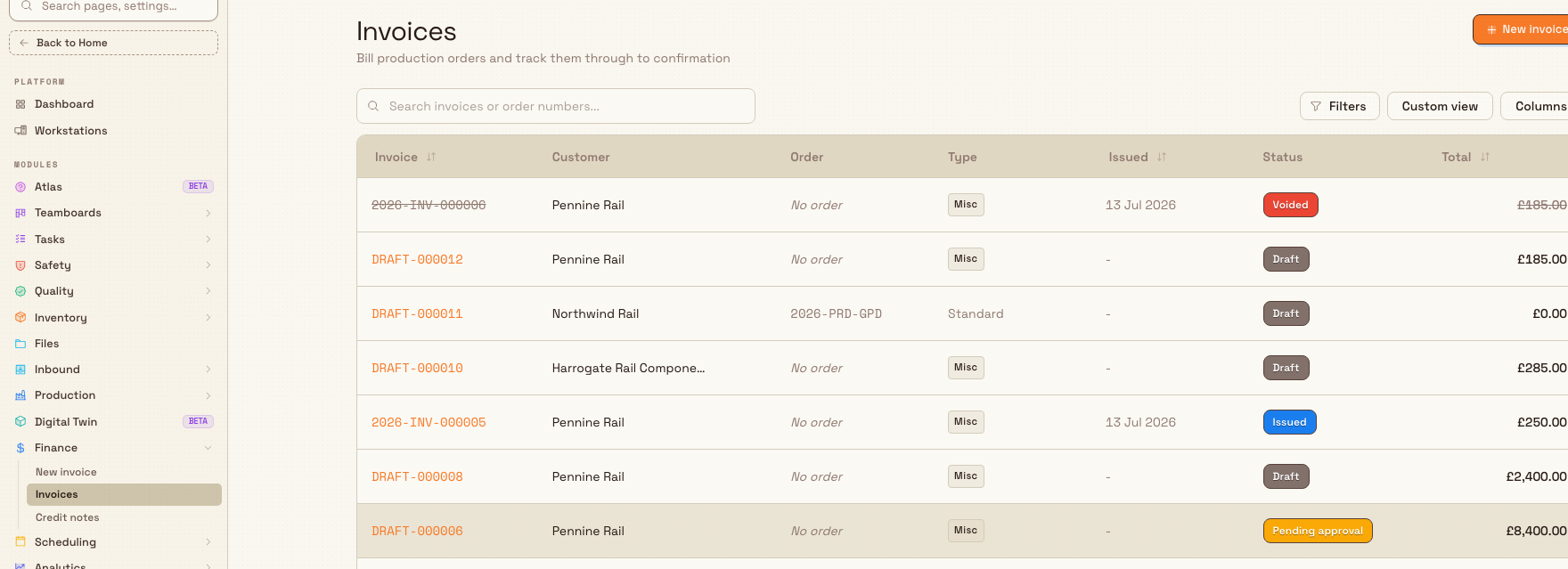
Once you are in a plant, open Finance from the Modules group in the left navigation sidebar (its icon is a currency symbol). It expands to three destinations:
- New invoice, start a new invoice.
- Invoices, the searchable list of every invoice, each with its current status.
- Credit notes, the list of credit notes raised against issued invoices.

Raise and issue invoices
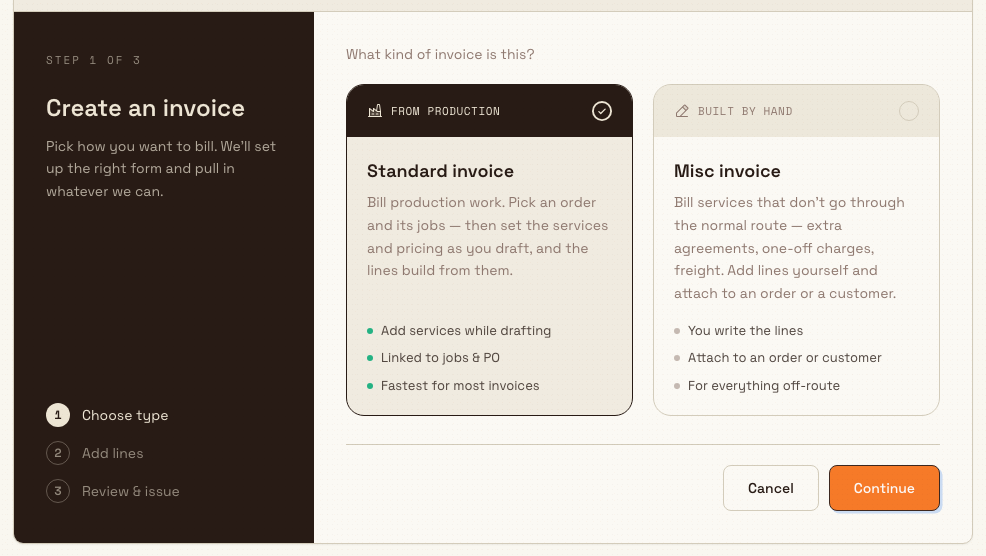
When you start a New invoice, Bulk first asks what kind you are creating. There are two:
- Standard invoice, bill production work. You pick an order and its jobs, then set the services and pricing as you draft, and the lines build from them. This is the fastest route for most invoices.
- Misc invoice, bill work that does not go through the normal production route, such as extra agreements, one-off charges, or freight. You write the lines yourself and attach the invoice to an order or a customer.
The chooser shows Step 1 of 3: choose type below the cards. Select Continue to add lines, then review the invoice before issuing it.
Every invoice moves through a clear set of statuses, shown as a coloured pill on the list and detail views: Draft, Pending approval, Approved, Issued, Sent, Confirmed, Issued Confirmed, and Voided. A draft is yours to edit freely. When your plant requires approval, you Submit for approval; an approver then Approves (or requests changes, or rejects) on the review screen. Once approved, or straight away where no approval is required, you Issue the invoice, which produces a permanent, numbered document and generates a PDF you can download.
Issuing and voiding are commitments
Issuing an invoice creates a numbered, legally meaningful document, and a PDF is generated for it. You do not delete an issued invoice, you Void it, which leaves a record rather than removing it, and then raise a fresh one or a credit note. Check the customer, lines, and totals before you issue.
Follow these guides for the details of each step:
- Select an invoice type
- Create a standard invoice
- Create a miscellaneous invoice
- Review an invoice
- Submit and approve an invoice
- Issue or confirm an invoice
- Void an invoice
Correct an issued invoice with a credit note
When an issued invoice needs a correction or refund, you raise a credit note rather than editing the original. Open Credit notes from the Finance menu and choose New credit note. A credit note follows its own short lifecycle, you issue it, can void it, and can allocate it against one or more invoices to record how the credit is applied.
Set up the numbers behind invoices
The prices, currencies, and plant details that appear on an invoice come from setup areas that administrators (or a finance lead with the right access) maintain. Getting these right once means each invoice's lines and totals are correct before you send it:
- Manage pricing, the rates, catalogues, and agreements that supply the price of each service. Found under Settings › Master Data › Pricing.
- Manage currencies, the currencies your organization bills in. Found under Settings › Organization › Currencies.
- Configure an invoicing profile, your plant's invoicing details and defaults. Found under Settings › Entity › Invoicing.
- Configure invoice fields, the custom fields that appear on invoices for your plant.
Example: billing a week's work at Wayne Corp
Lucius runs accounts receivable for Wayne Corp, a UK precision-fabrication company, and works mostly at Gotham Applied Sciences. He holds the Invoicing role.
On Friday he opens Finance › Invoices to bill the week's completed orders. For a batch of laser-cut brackets he chooses New invoice, keeps the default Standard invoice, and picks the customer's order; the jobs and their agreed service prices fill the lines automatically. In this example, Gotham requires sign-off on invoices above a threshold, he Submits for approval, and the plant manager Approves it on the review screen. Lucius then Issues the invoice, downloads the generated PDF, and sends it to the customer.
Later, a customer reports they were charged for one bracket too many. Rather than editing the issued invoice, Lucius opens Credit notes, raises a New credit note for the overcharge, issues it, and allocates it against the original invoice so the adjustment is recorded against the right document. A separate one-off haulage charge that never ran through production he bills with a Misc invoice, writing the single line by hand and attaching it to the customer.
By the end of the afternoon every completed order is invoiced, the correction is recorded cleanly, and each document has a status he can see at a glance in the Invoices list.
Expected result
Once you are working confidently in Finance you can:
- open the Finance module and read the status of every invoice at a glance;
- raise a Standard or Misc invoice, send it for approval where required, and Issue it with a downloadable PDF;
- raise, issue, and allocate credit notes to correct issued invoices; and
- rely on pricing, currencies, and your invoicing profile to fill each invoice correctly.
Feature state and what to expect
The Finance module, invoices and credit notes, is generally available and is the supported way to bill production work in Bulk. A few things are worth knowing:
- Access is permission-gated. What you can do depends on your role. Viewing, creating, submitting, approving, issuing, and voiding are separate permissions, so two people in Finance may see different buttons. The Invoicing role grants the full set.
- Approval may be required. Whether an invoice needs approval before it can be issued depends on how your plant is set up. If you do not see a Submit for approval step, your plant issues directly.
- The PDF is prepared after you issue. An invoice's PDF is generated once the invoice is issued, so a freshly issued invoice may briefly show a "Preparing PDF…" state before the download is ready.
- Finance depends on Production. The module appears for plants with Production enabled, because it bills production work.
If something isn't working
- Finance is missing from my menu. You may not have an invoicing role, or Production may not be enabled for your plant. See Understand access and visible navigation, then ask an administrator to grant the Invoicing role.
- I can see invoices but there is no New invoice button. Your role has view access but not the create permission. Ask an administrator to add it.
- I can't submit or issue an invoice. Submitting, approving, and issuing are separate permissions; you may hold some but not others. An administrator can confirm which your role grants.
- The invoice PDF won't download yet. The PDF is generated just after issue. Give it a moment and refresh; the download link appears once it is ready.
Related guidance
For people and training teams
Your starting point for People and Training: who can open them, and where to manage employees, attendance, the time clock, absences, shifts, and training.
Review the Assets Sheet
Review the Assets Sheet, the station table in Analytics that lists every station on a board with live status, downtime, the loaded job, and rates.