Manage materials through production
Follow consumable materials end to end in Bulk: define them, receive stock, consume them at the workstation, and replenish, with the screens each uses.
Last updated
Managing materials through production is how you keep the parts you use up while making a product, welding wire, shielding gas, grinding discs, film, adhesives, set up, in stock, and accurately drawn down as work happens on the floor. In Bulk these consumed items are called consumables. Getting this right means operators can always log what they used, the cost lands on the right job, and someone reorders before a line runs dry.
This is a workflow guide. It walks the full material lifecycle, from first setup to reorder, and points you to the detailed reference article for each stage rather than repeating every field here. Read it to understand how the pieces connect; follow the links when you need step-by-step detail for one stage.
A few terms used throughout:
- A consumable is a material you consume during production (for example, MIG welding wire). Each consumable has one or more variants, the specific size, grade, or format you actually stock and cost (for example, 1.2 mm wire). The variant is what carries a unit cost and a stock level, not the parent consumable.
- On-hand is the quantity of a variant currently in stock.
- A workstation is a place on the shop floor where an operator runs jobs on a machine (an asset). A job is the work loaded onto that workstation; several jobs loaded together are a batch.
The material lifecycle in Bulk
Materials move through four stages. Each stage lives on a specific screen and is gated by its own permission:
- Define your consumables and their variants, and set the reorder thresholds that make Bulk watch a variant's stock.
- Receive stock so Bulk knows how much of each variant you hold.
- Consume materials at the workstation as operators run jobs, this draws stock down and attaches the cost to the job.
- Monitor and replenish, watch stock health, react to alerts, and receive more before you run out.
The rest of this guide takes each stage in turn.
Before you start
Different stages need different permissions, so a material workflow usually spans a couple of roles:
- Define consumables requires the
consumablespermissions (consumables.view,consumables.create,consumables.update). These typically sit with administrators and master-data managers, not floor operators. - View, receive, and adjust stock is controlled by the inventory permissions:
inventory.stock.view(operators have this),inventory.stock.manage(receive and adjust, administrators, managers, and master-data roles), andinventory.stock.alerts(configure alerts). - Log materials during production requires
production_operate.consumables_add, granted to production and operator roles so the people running jobs can record what they used.
An Owner or entity administrator (for example, Bruce Wayne at Wayne Enterprises) holds all of these and can walk the whole lifecycle. If you can open a stage's screen but a button is missing, you are likely missing that stage's permission, ask your administrator.
You also need at least one workstation set up and a job to load before materials can be consumed on the floor. See Prepare and run a workstation safely.
Stage 1: Define your materials
Before Bulk can track a material, it has to exist as a consumable with at least one variant. You define these on the Consumables screen, reachable from the Inventory module (/inventory/consumables) or from Settings → Master Data → Consumables. The page is titled Consumables and described as "Manage consumables and their variants." Select Add Consumable to create one, then add the variants you stock beneath it.
Two variant settings decide how a material behaves for the rest of the lifecycle:
- Stock tracking. Turn this on for a variant to make Bulk keep an on-hand balance and a status for it. Leave it off and the material is treated as untracked, you can still record that it was used, but Bulk does not maintain a stock count for it.
- Minimum and maximum stock levels. These are the reorder thresholds. Bulk compares on-hand against them to decide whether a tracked variant is OK, Low, Critical, or Over (explained under Stage 4).
For the full field-by-field walkthrough, codes, units, costing, and variants, see Consumables and variants and Replenishment thresholds.
Stage 2: Receive stock into inventory
Once a variant is defined and tracked, tell Bulk how much you hold by receiving stock. Open the Inventory module; its home screen is titled Inventory and carries two buttons, Receive Stock (one variant at a time) and Bulk Receive (several at once). The Stock Management screen (/inventory/stock, described as "Monitor consumable stock levels, receive inventory, and adjust counts") lists every variant with its Consumable, Variant, Current on-hand, Min, Max, Status, Level, Value, and Last Movement, plus per-row Receive stock and Adjust stock actions.
Every change to a balance is written as a stock movement, so you always have a history. The movement types you will see are Receiving, Initial Stock, Adjustment +, Adjustment -, Reconciliation, Production Usage, Production Reversal, and Cut Remainder. Receiving and adjustments happen here; the three production movements come from the floor (Stage 3).
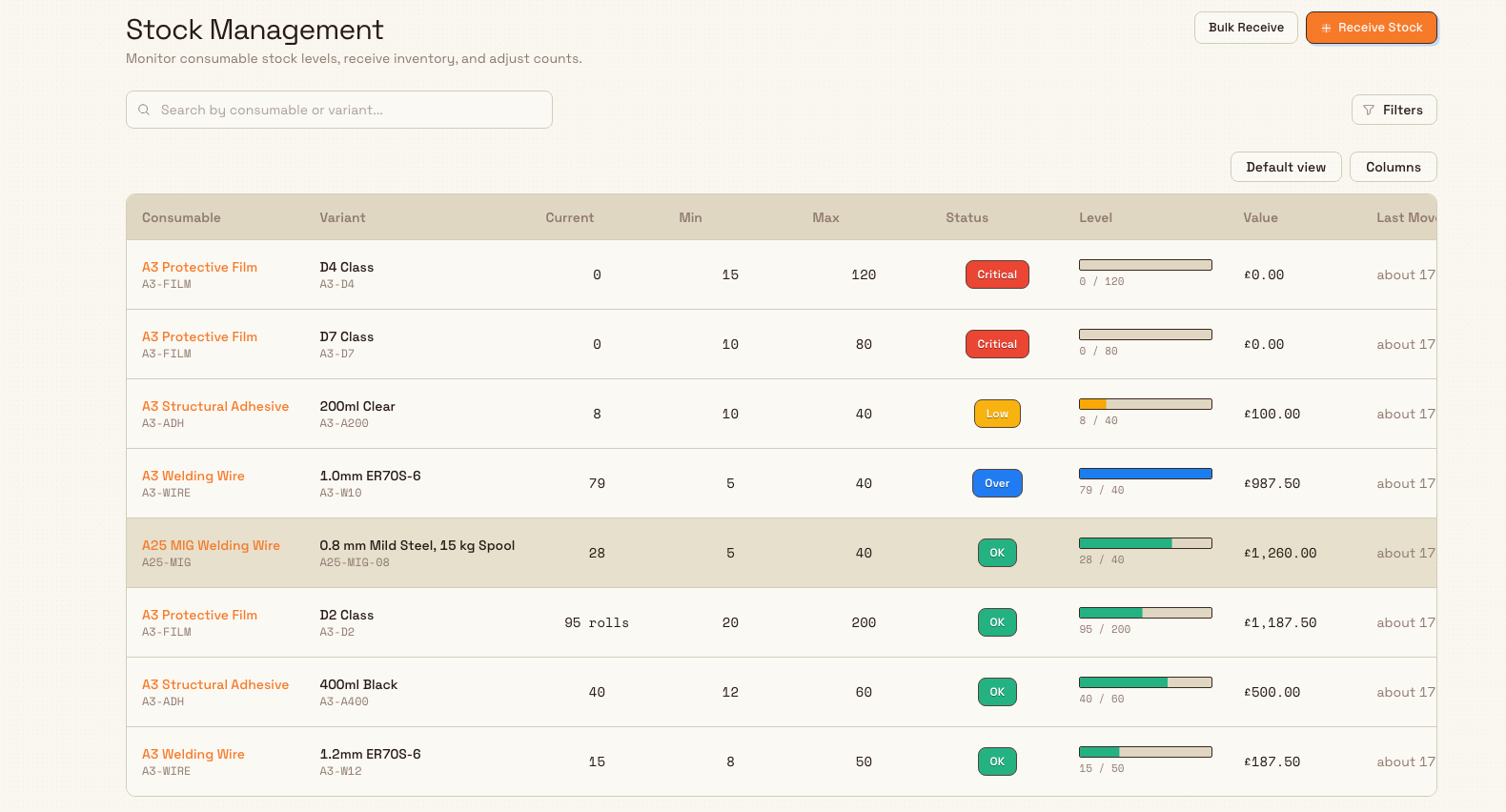
For how balances are computed and how to read the movement history, see Stock levels and Stock movements.
Stage 3: Consume materials during production
This is where "through production" happens. When an operator runs a job at a workstation, they record the materials they used with Log Material, found in the Operator Tools panel on the operate screen (its button is labelled Log Material with the sublabel Input Data). A job must be loaded first, if none is, Bulk shows "No jobs loaded. Load a job first to log materials." See Load a job.
Selecting Log Material opens a picker. It offers a Recent row of the materials last used at that workstation and an All Products grid of every consumable. Searching narrows the picker to Matches; choosing a consumable then lets you "Select a variant to add to cart." Operators build a cart of variants and quantities and select Confirm. A cart row takes whole or part amounts: operators tap an amount button such as 0.5 or 0.33 where the consumable has Log amounts set, step with plus and minus, or type an amount. Bulk then:
- Records the usage against every job in the batch, so the material's cost and quantity are attached to the work, this happens whether or not the variant is stock-tracked.
- For each stock-tracked variant, also writes a Production Usage movement that reduces on-hand stock, which can move the variant into Low or Critical.
- When part amounts leave a stock-tracked balance 0.01 or less above a whole unit, writes that leftover off as a Cut Remainder movement, so three thirds logged as 0.33 each use up exactly one unit.
Untracked materials are still logged, just not counted
If a variant has stock tracking turned off, logging it during production still records the usage against the job (so cost and traceability are preserved), but Bulk does not decrement any stock, the variant simply stays Untracked. Turn on stock tracking for a variant in Stage 1 if you want shop-floor consumption to draw its balance down.
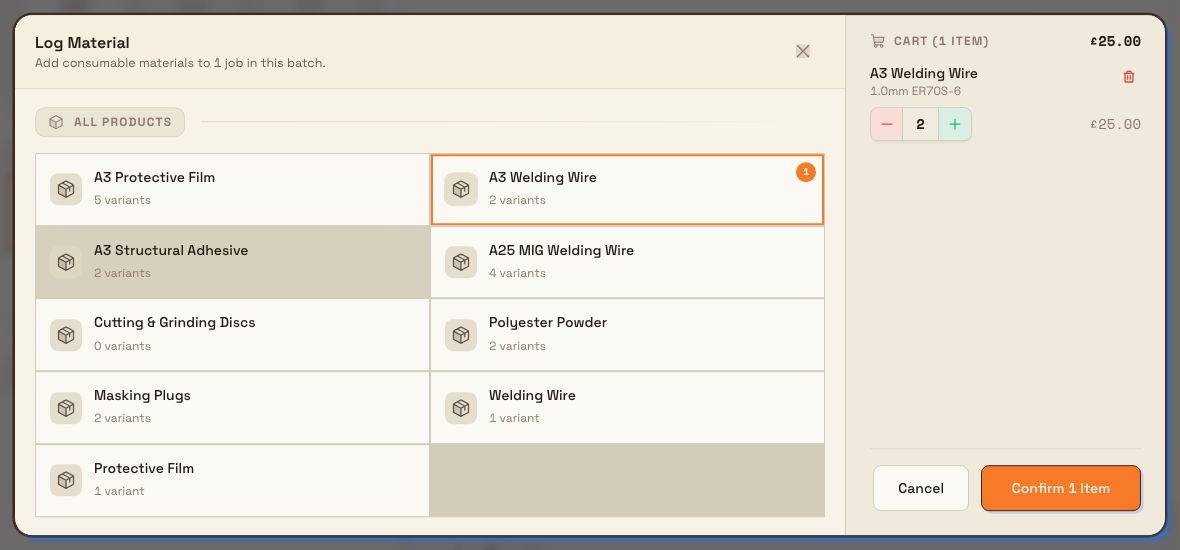
For the operator-side detail, the cart, quantities, editing a logged entry, and reversals, see Record consumables and Production consumption.
Stage 4: Monitor stock health and replenish
With materials flowing out on the floor, the last stage is keeping stock healthy. The Inventory home screen surfaces two widgets, Stock with its Not OK summary and Stock Alerts, so you can see health at a glance, and the Stock Management table shows each variant's status badge. Bulk derives that status from on-hand against the thresholds you set in Stage 1:
- OK, on-hand is at or above the minimum.
- Low, on-hand is below the minimum stock level (time to reorder).
- Critical, on-hand is zero or below.
- Over, on-hand is above the maximum stock level.
- Untracked, the variant does not have stock tracking turned on, so no count is kept.
To be told when a variant runs low instead of checking manually, configure alerts on the Stock Alert Configuration screen (/inventory/stock-alerts, described as "Configure default recipients and stock alert behavior for this entity"). There you can enable alerts, set the default frequency, tune the Thresholds, and choose who is notified. When stock is low, receive more (Stage 2) to bring the variant back to OK.
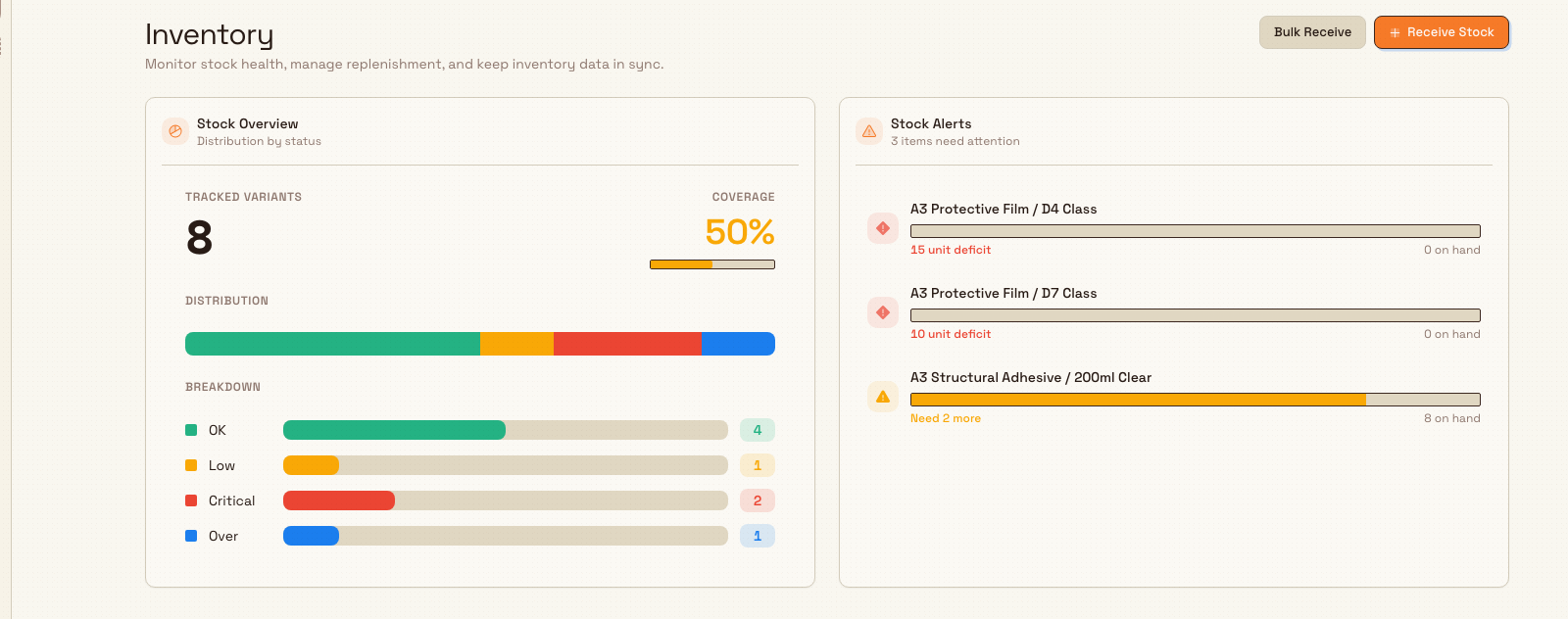
For alert setup and recipients, see Stock alerts.
Example: welding wire at Gotham
For a worked example, Bruce Wayne could set up MIG Welding Wire at Gotham Applied Sciences for Wayne Enterprises. This example explains the lifecycle; the receipt and weekly usage below were not performed for the pictures.
- Define. Add a wire variant, such as 1.2 mm, priced per reel. Enable stock tracking and set a minimum of 20 reels and a maximum of 200.
- Receive. Receive 150 reels through Stock Management. That balance would show OK, with a Receiving movement in its history.
- Consume. Operators load their jobs and use Log Material to select the wire and record the amount used. Each confirmation links the usage to the job and writes a Production Usage movement for the tracked variant.
- Monitor and replenish. When on-hand drops below 20, its status becomes Low and Stock Alerts lists it. Purchasing can replenish it through Receive Stock. Configure recipients on Stock Alert Configuration if notifications are needed.
The same recorded usage connects the job's materials with the plant's stock history.
Expected result
When the lifecycle is set up and running:
- Every consumable you care about exists as a variant with a unit cost and, where you want it counted, stock tracking and reorder thresholds.
- Operators can record materials against their jobs with Log Material, so cost and traceability follow the work.
- On-hand balances draw down automatically for tracked variants as production consumes them, and each change is a movement in the history.
- Variants that dip below their minimum show as Low (or Critical at zero) and, if alerts are configured, notify the people who replenish, so you receive more before a line stops.
Availability and limits
Managing materials through production is generally available. A few behaviours are worth knowing:
- Stock tracking is per variant, and opt-in. A variant with stock tracking off is Untracked: consumption is still logged against jobs, but no on-hand balance is kept and it never raises a low-stock status. Turn tracking on to get counts and alerts.
- Consumption can drive stock to zero and below. Logging usage does not stop at the minimum; a tracked variant that is fully consumed shows Critical. Bulk flags this rather than blocking the operator, so the record of what was actually used stays truthful.
- Logging usage and updating stock are separate steps. Recording a material against a job always succeeds; the matching stock deduction is applied as a follow-on action. In the rare case the deduction cannot be applied, the job's usage record is still kept, so a variant's on-hand count can, exceptionally, lag what was logged until it is reconciled. Use Adjust stock or reconciliation on Stock Management to true up a balance.
- A job must be loaded before you can log materials. Log Material needs a job loaded on the workstation; with none loaded, Bulk tells you to load a job first.
If something goes wrong
- "No jobs loaded. Load a job first to log materials.", You opened Log Material before loading a job. Load a job onto the workstation, then reopen the dialog. See Load a job.
- "No consumables configured" / "Add consumables in Settings to log materials.", No consumables exist yet, so there is nothing to log. Define at least one consumable and variant in Stage 1, then return to the workstation.
- A material you expect isn't in the picker. The All Products grid lists active consumables with active variants. If one is missing, check it (and the variant) is active on the Consumables screen.
- On-hand looks wrong after production. Because usage is recorded independently of the stock deduction, a balance can occasionally drift. Open the variant on Stock Management, review its movement history, and use Adjust stock (or run reconciliation) to correct the count.
- A variant never shows a low-stock status. It is probably Untracked or has no minimum set. Turn on stock tracking and set a minimum in Stage 1.
Related guidance
Prepare and run a workstation safely
The operator's path: open a workstation, clear its required pre-use checks, run the loaded work, and unload, with the safety checks that gate production.
Quality and compliance
Find, fix, and prevent quality and safety problems and run scheduled compliance audits with the Quality, Safety, and Audits modules, with task guides.