Record consumable use
Record the consumables an operator uses against the jobs loaded at a workstation, using the Log Material tool on the production operate screen.
Last updated
Recording consumable use captures the materials an operator spends while running a job: things like adhesives, coatings, welding wire, tape, or packaging. Consumables are the supporting materials you draw on during production but do not track as finished parts. Logging them keeps an accurate cost and quantity trail against each job, and: when you track stock for a consumable: draws the amount you used down from its stock level.
You record consumable use from the production operate screen: the touch-friendly workstation view an operator uses while working a station. The main tool is the Log Material dialog, reached from the Operator Tools panel.
When to record consumable use
Record consumable use whenever an operator consumes material against the jobs currently loaded at a workstation. Typical moments are:
- Part-way through a run, when a fresh box, roll, or cartridge is opened.
- At the end of a phase, to book everything the batch consumed in one go.
- Automatically as part of recording output, when the workstation's workflow includes a consumable step (see below).
Before you start
You need all of the following:
- A workstation with a job loaded. Consumables are always booked against the jobs in the workstation's current batch. If nothing is loaded, load a job first. See Load a job.
- Consumables and their variants set up. An administrator must have created the consumables and at least one variant (a specific version of a consumable, such as a colour or pack size, that carries the unit cost) in Settings under Master data → Consumables. See Consumables and variants.
- Permission to add consumable usage. Recording is gated by the
production_operate.consumables_addpermission. In a standard setup this permission is granted to the Super user, Entity admin, Tablet user, and Master data roles. The general Operator and Manager roles do not carry it by default.
Log material against the loaded batch
From the workstation's operate screen, find the Operator Tools panel. It always shows a Log Material button (marked Input Data).
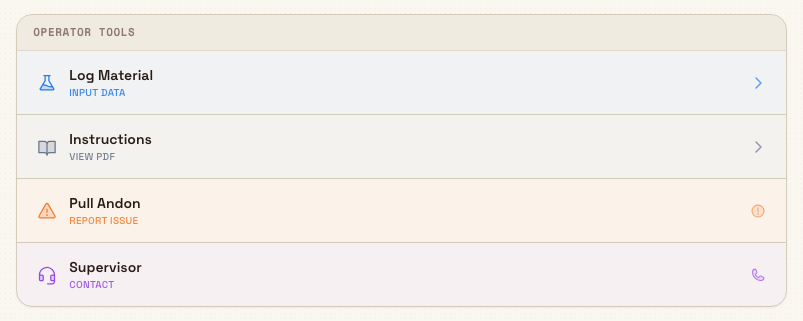
- Select Log Material. If no job is loaded, you see the message "No jobs loaded. Load a job first to log materials.": load a job and try again.
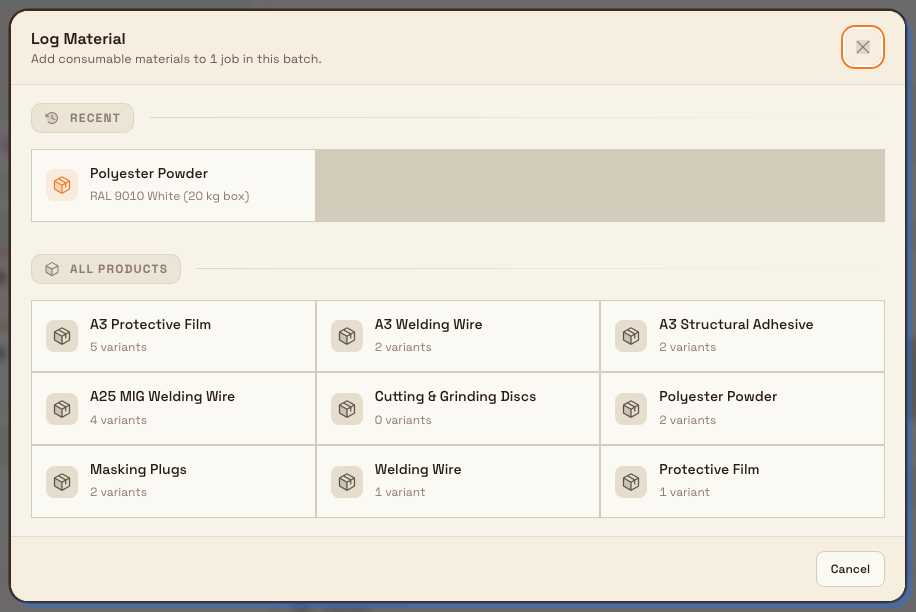
- The Log Material dialog opens. The search box at the top uses the placeholder "Search materials...". Below it, a Recent row lists materials used recently at this workstation, and an All Products grid lists every active consumable.
- Pick what you used:
- Tap a Recent tile to add that product and variant straight to your cart. The tile title is the product name, and the line under it is the variant name. Recent shows up to five materials from this workstation. What was used most recently decides which tiles appear, not where they sit. The tiles stay in a fixed order: consumable display order, then the consumable name, then variant display order, then the variant name. Last used time does not move a tile, so the same material stays under the same tap. A search can hide a tile, but it does not reshuffle the ones still showing. Recent matches the product name, product code, variant name, and variant code. A part number on its own does not keep a Recent tile on screen.
- Or type in that search box. Type any part of a variant name, variant code, or part number. Capital letters do not matter, and you do not open the product first. Hits are listed under Matches, ahead of Recent and All Products. The tile title is the variant name, and the line under it is the product name. Tap a match to add it to your cart. Matches shows at most 40 variants. If more match, you also see "Keep typing to narrow this list." If Recent, All Products, and Matches are all empty, you see "No materials match this search."
- Or tap a product in All Products. That grid keeps products whose name or code contains what you typed. A product name does not list every variant under Matches. Open the product, then choose a variant. The description is "Select a variant to add to cart", and the search placeholder changes to "Search variants...". The text you typed stays in the box. Each variant tile shows its per-unit cost. If the search matches the product name or code, you see every variant of that product. If it does not, you see only variants whose name, code, or part number matches. If none match, you see "No variants match this search". Use Back to products to return to the full list. Your search text stays.
- Every item you pick appears in the Cart panel. Set how much you used on each cart row with the amount buttons, plus and minus, or by typing (see Set the amount on a cart row). Remove a row with the delete (bin) button.
- When the cart reflects everything the batch consumed, select the Confirm button (its label shows how many items are in the cart).
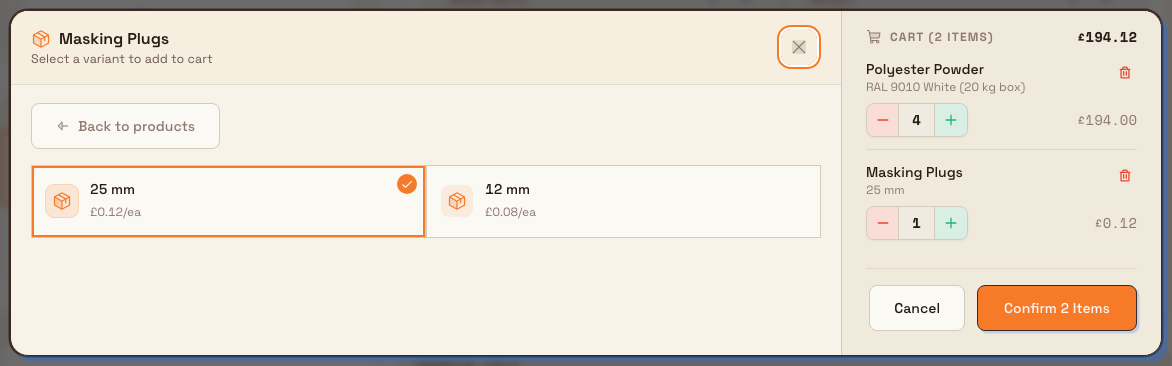
On success you see a "Logged" confirmation naming what was booked, and the dialog closes.
Quantity is shared across every job in the batch
The amount you enter for a consumable is split evenly across all the jobs currently loaded at the workstation. If you log two boxes of powder against a batch of three jobs, each job records two‑thirds of a box. Book against a single loaded job when you need the whole amount tied to one job.
Your cart is held for the current workstation and batch in this browser session, so if you close the dialog before confirming, the items you had queued are still there when you reopen it. Confirming clears the cart.
Set the amount on a cart row
Each cart row has large minus and plus buttons and an amount you can type into. When an administrator has set Log amounts on the consumable or its variant, the row also shows a button for each amount, such as 1, 0.5, and 0.33. See Manage consumables and variants.
- Tap a tile. The first tap adds the item at the consumable's Log start amount, which is 1 unless an administrator changed it. Each further tap on the same tile adds one more step: the amount button you last tapped, or the Log increment.
- Tap an amount button. The row changes to that amount, and the button shows as selected. Plus and minus then count pieces of that size. After tapping 0.33, plus makes it 0.66, then 0.99, and minus takes 0.33 off again.
- Plus and minus with no amount button selected. They move by the consumable's Log increment, which is 1 unless an administrator changed it. When minus takes a row to 0, the row leaves the cart.
- Type an amount. Tap the amount and type a new value with up to 2 decimals.
- If the consumable has Allow any amount switched on, any amount greater than 0 is accepted, such as 0.2 or 1.75.
- If it is off, the amount must be one of the log amounts, or a whole number of steps up or down from the amount already on the row. The step is the amount button you last tapped, or the Log increment. For example, after tapping 0.5 you can type 1.5 or 2, but not 0.2.
- If an amount is not accepted, the row shows a short hint that says why, and the amount you typed stays in the box so you can fix it. The row still holds its previous amount, so Confirm (or Next or Record in a workflow step) is unavailable until you type an accepted amount, tap an amount button, plus or minus, or press Escape to go back to the previous amount.
Bulk keeps amounts to 2 decimals, so a third of a unit is recorded as 0.33.
Record consumables while recording output
If a workstation's workflow includes a consumable step, recording output opens Log Material in the saved workflow order. Add materials and set a separate amount for each cart line, with the same amount buttons, plus and minus, and typing as in Operator Tools. Each material quantity is the total used across the loaded jobs, independent of the production output quantity. For the output flow itself, see Record production output.
Example: powder coating at Leeds Fabrication Plant
Priya, a line operator at Granite Peak Manufacturing's Leeds Fabrication Plant, is running the Powder Coat Booth workstation. Three bracket jobs are loaded in the current batch. After spraying, she records what the batch used:
- On the operate screen she selects Operator Tools → Log Material.
- Under Recent she taps Polyester Powder: RAL 9010 White (20 kg box) from yesterday's run; it lands in her cart at quantity 1. She taps plus once to make it 2 boxes.
- In All Products she opens Masking Plugs, chooses the 25 mm variant, and sets the quantity to 6.
- She checks the amounts in the cart and selects Confirm.
Bulk records the usage against all three jobs, splitting each quantity three ways, and snapshots the current cost of each variant so the batch's material cost is accurate even if prices change later.
Example: logging cut film
Later in the shift Priya moves to the Laminating Bench, where panels are covered with Protective Film. The large sheets have run out, so she cuts a whole sheet into thirds. An administrator has set the film's Log amounts to 1, 0.5, and 0.33.
- In Log Material she opens Protective Film and taps its variant. It lands in her cart at 1.
- On the cart row she taps 0.33, and the row changes to 0.33.
- The panel needed two pieces, so she taps plus once. The row now reads 0.66.
- She selects Confirm.
When she logs the last third on the next panel, the film has used exactly one sheet: 0.66 and 0.33, plus 0.01 lost to rounding. Bulk records each amount as she entered it. Because the film is stock tracked, Bulk also writes off that 0.01, so the stock balance lands on a whole sheet. See Review production consumption.
What gets saved
When you confirm, Bulk creates a consumable-usage record for each job in the batch. Each record captures:
- The consumable and the exact variant used.
- The quantity for that job (the total you entered, divided by the number of jobs in the batch).
- A cost snapshot: the variant's unit cost at the moment you recorded, and the resulting value. Later price changes in Settings do not alter past records.
- The workstation, the operator, and a timestamp.
If the consumable has stock tracking, the amount you booked is drawn down from its stock level, producing a stock movement. See Stock levels.
When a recording with a part amount leaves the stock balance 0.01 or less above a whole unit, Bulk writes that leftover off as a separate Cut Remainder stock movement linked to the recording. Your usage record keeps the amount you entered. See Review production consumption.
Review or correct a recording
Recorded consumables appear in the Materials Used list on the job card at the workstation, grouped by variant with a total quantity.
To fix a mistake, tap a material to open Material Usage Details, then use Edit Batch to change the recorded quantity or Delete Batch to remove a recording. Deleting or reducing a recording reverses the matching stock movement. For the full picture of viewing and adjusting production records, see Transactions.
Corrections accept any amount greater than 0 with up to 2 decimals, whatever the consumable's Allow any amount setting, and offer the same amount buttons as the cart. The same applies when a supervisor adds or corrects material on a job's routing with Adjust values, on its Consumables tab. If the recording had a cut remainder written off, editing or deleting it reverses the write-off, and after an edit Bulk checks the corrected amount again.
Deleting a recording is permanent
Delete Batch removes the usage records for that recording and reverses the associated stock draw-down. There is no undo: re-log the material if you delete it by mistake.
Limitations and behaviour to know
- Even split only. From the Log Material dialog you cannot set a different amount per job; the total is always divided evenly across the loaded jobs. To tie a whole amount to one job, load only that job.
- Amount rules apply to station recording. The Log Material cart follows the consumable's Log start, Log increment, Log amounts, and Allow any amount settings, with variant overrides for all but Allow any amount. With empty settings a row starts at 1, plus and minus move by 1, there are no amount buttons, and a typed amount must be a whole number of steps from the current one. Bulk checks the same rules when it saves a station recording, including the workflow material step and batches recorded through the MCP, so an amount the cart would refuse is refused there too. Edit Batch and Adjust values accept any amount greater than 0.
- Two decimals. Amounts are kept to 2 decimals. A third is recorded as 0.33, and on a stock-tracked variant the small leftover this leaves is written off as a Cut Remainder movement.
- Stock deduction is best-effort when recording. Recording consumable use always saves the usage record. If a consumable has no stock tracking, or the stock draw-down cannot complete, the usage is still recorded, so a saved usage does not guarantee a matching stock movement.
- Corrections change stock together. Editing or deleting a batch or record updates stock and any cut remainder in one step. If the stock change cannot be saved, the correction is not saved either and shows an error.
- Cost is a snapshot. The cost stored with each record is the variant's unit cost at record time, not a live value.
Troubleshooting
- "No jobs loaded. Load a job first to log materials.": The workstation has no active batch. Load a job or select a workstation that has work loaded, then reopen Log Material.
- "No consumables configured" / "Add consumables in Settings to log materials.": No consumables exist yet for this facility. An administrator needs to add them under Master data → Consumables. See Consumables and variants.
- "No materials match this search." Recent, All Products, and Matches have nothing for what you typed. Try another part of the variant name, code, or part number, or clear the search box. A part number is listed under Matches. All Products only matches the product name and code.
- A typed amount is not accepted and the row shows a hint. The consumable does not allow any amount, and the value is neither a log amount nor a whole number of steps from the current amount. Tap the matching amount button, use plus and minus, or ask an administrator to add the amount to Log amounts or switch on Allow any amount.
- The Log Material button does nothing useful, or you cannot confirm.: Confirm your account has the
production_operate.consumables_addpermission (Super user, Entity admin, Tablet user, or Master data roles by default). Ask an administrator if you are unsure.
Log materials as a production-item step
An administrator can add a Consumable step under Settings > Master Data > Production Items > Workflow Steps. When you use that production item, Bulk opens Log Material at the configured point in the workflow.
Add variants and amounts to the cart, as described in Set the amount on a cart row. Recent, Matches, and the product list respect any materials the step allows. Use search to find a material or variant, then select Next. Use Back to review earlier answers; each consumable step keeps its own cart.
On the final step, select Record to submit the workflow. Material quantities are totals for the selected batch, separate from the production output quantity. For example, recording nine parts with five film sheets and two units of cleaner logs those material totals across the jobs. A workflow supports up to 20 material lines.
A required consumable step needs at least one material. Optional steps offer Skip. Cancel before submission records nothing and does not change the separate cart in Operator Tools.
If the recording cannot be confirmed, choose Retry recording. You can also close the dialog and reopen a counter at the same workstation to recover the previous attempt. Bulk keeps its original jobs, materials, quantities, and submission key for the same operator in this browser tab, including after a page reload. Closing the tab ends that recovery session.
Related guidance
Record production output
Record how many units a job produces at a workstation using the on-screen production counters and the Record Output dialog.
Complete production quality steps
On the station counter, log a quality reason, flag a recorded cycle run for rework, and record rework that can close the linked quality issue.