Plan and produce
How Bulk carries work from a production order through planning, workstation execution, and material tracking, with a workflow guide for each stage.
Last updated
Plan and produce is the heart of Bulk: the path a piece of work takes from the moment it becomes a production order to the moment it is finished on the shop floor. Bulk is a Manufacturing Execution System (MES): the shared workspace where your team runs day-to-day manufacturing: and this section joins the individual tasks of that path into complete, start-to-finish workflows. Read it when you want the whole picture of how work moves through your plant, then follow a linked workflow for the stage you care about.
This is an overview. It explains what each stage does and where it lives in Bulk, and links to a focused guide for each end-to-end workflow rather than repeating every step here.
What "plan and produce" covers
Most work in a plant follows the same arc, and Bulk mirrors it:
- Work arrives and becomes an order. A customer request: or an internal one: becomes a production order: the record that says what needs making, for whom, and in what quantity. An order can be raised directly, or reserved from an inbound document (the paperwork a customer sends in) and promoted into production.
- The order is broken into jobs and planned. Each order is delivered through one or more jobs, the unit of work that actually runs on the floor. A job carries a routing: the ordered list of steps, and the machines or stations each step runs on. You can place steps on the Scheduling planning board so you can see capacity and when each step runs. To rank which step a machine runs next, without a start time on a timeline, use Prioritisation. Prioritisation is a separate module. It is not a renamed planning board.
- Operators produce the work at a workstation. A workstation is the focused, shop-floor view an operator uses at a specific machine or bay (Bulk also calls these assets). The operator picks their workstation, Bulk shows the queued jobs for it, and the operator chooses what to load. They then work through each routing step: running safety pre-use checks, recording output, and completing phases as they go.
- Materials are consumed and tracked. As jobs run, the consumables they use are recorded against them, so stock stays accurate and you can see what a job actually cost in materials.
The three workflows in this section each walk one slice of that arc from beginning to end.
Where this work happens in Bulk
Five areas of the navigation carry the plan-and-produce arc. What you see depends on your access, so some of these may not appear for every user.
- Production (in the Modules group) holds the office-side records:
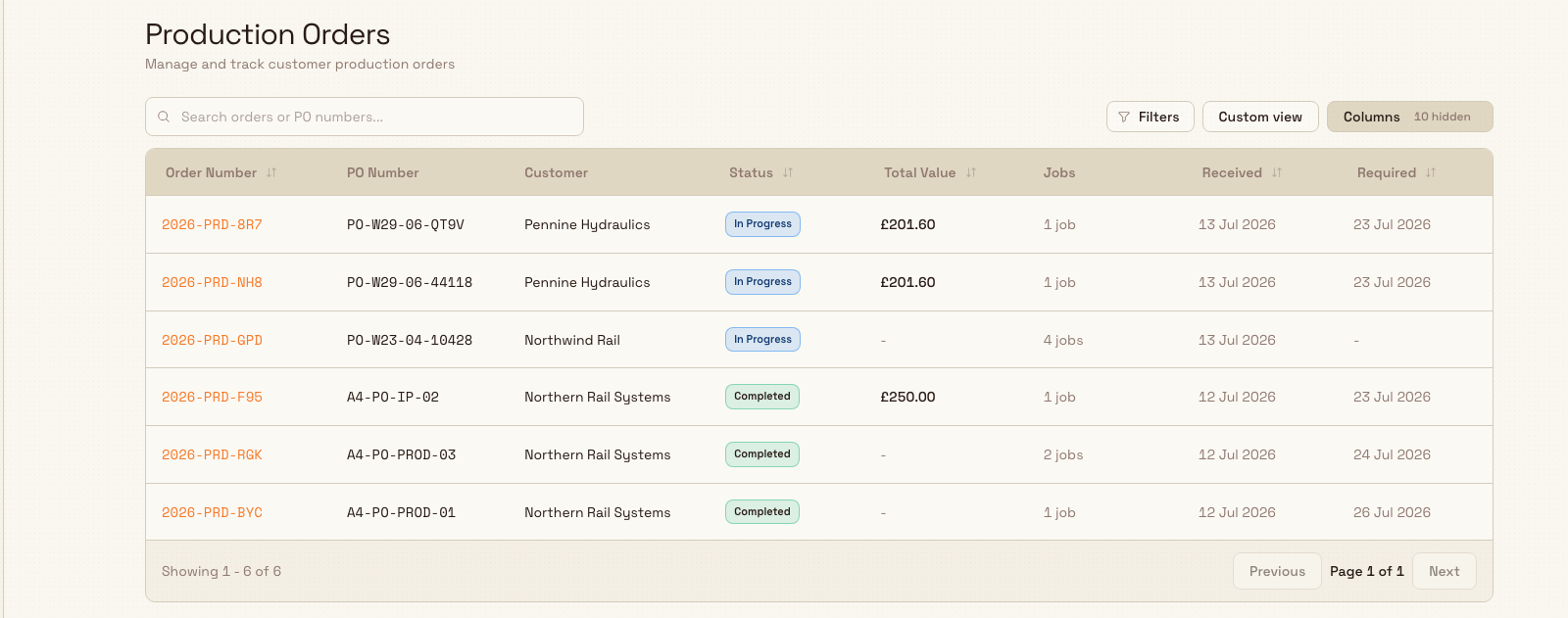
- Orders: the Production Orders list, where you manage and track customer production orders across their lifecycle (Reserved, New, Open, In Progress, Completed).
- Jobs: the Production Jobs list, where jobs move from Draft through Open and In Progress to Completed.
- Transactions is the view of the individual items and steps within jobs. The Production menu does not mark it Beta.
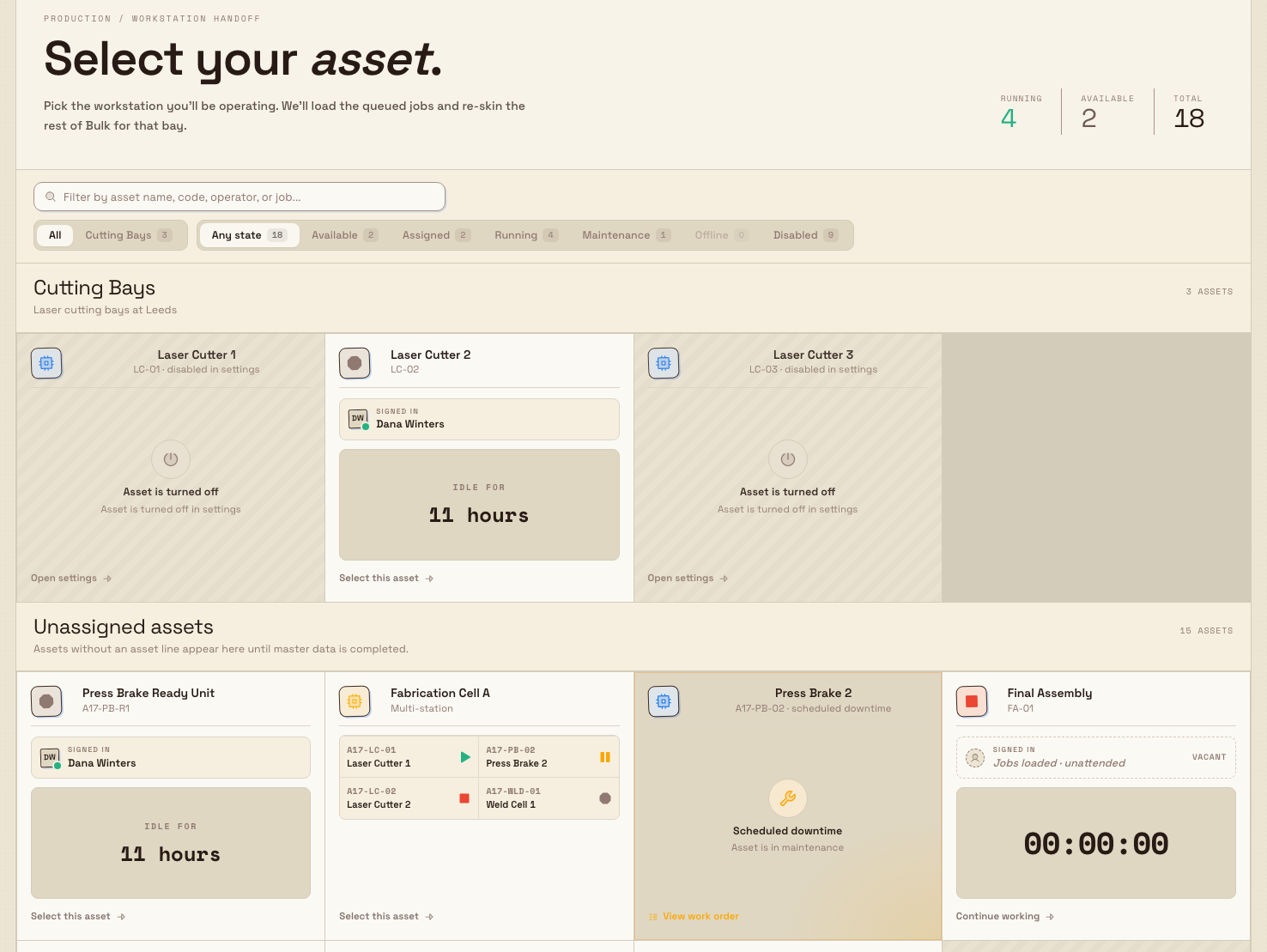
- Workstations (in the Platform group, at the top of the sidebar) is the shop-floor entry point. It opens the Select your asset screen, where an operator searches or filters the tile grid and picks the workstation they will run. Its header shows Running, Paused, Stopped and Idle timer totals; separate tile-state filters narrow the grid.
- Scheduling opens the planning board, where you place jobs into time windows so you can see sequence and capacity. In the sidebar, select Scheduling. It opens the board directly. There is no Planning item under it. See Plan on the planning board.
- Prioritisation is its own sidebar item. You use it to rank which step each machine runs next. It is not a rename of the Scheduling planning board. See Prioritise work on the board.
- Inventory is where the consumables and stock consumed during production are set up and tracked.
Follow a complete workflow
Each guide below strings the individual tasks of one stage into a single, end-to-end workflow. Start with the one that matches what you are trying to do.
- Turn customer work into production: take an incoming customer request from an inbound document, promote it into a production order, and set up the jobs that will deliver it.
- Prepare and run a workstation safely: the operator's path: choose a workstation, clear its safety pre-use check, work through the routing steps, and record output as the job runs.
- Manage materials through production: keep stock accurate by recording the consumables a job uses and watching for replenishment as work draws down inventory.
Before you begin
What you can do in this section depends on your role and the permissions it grants. A role is the named set of permissions an administrator assigns you; a permission is a single thing you are allowed to do.
- Office-side production uses separate view, update and planning permissions. The built-in Operator baseline can view and update orders/jobs, plan on Scheduling, rank on Prioritisation and view stock. It does not include the workstation operate controls.
- Shop-floor execution needs the matching load, timer, output, consumables, phase and unload permissions. The built-in Tablet user role includes these. Custom roles can differ, so check the actual grants for the person doing the work.
- To release and manage orders and jobs at scale, a Manager or administrator role adds the wider controls, such as cancelling orders or jobs.
- Your plant must be set up to produce. The work below assumes an administrator has already created the assets (workstations) your operators run and the consumables your jobs draw on. If a plant has no assets, the Select your asset screen has nothing to show.
Access shapes what you see
If Production, Workstations, Scheduling, Prioritisation, or Inventory is missing from your navigation, it is almost always an access matter rather than a fault. Your role may not include it, or your plant may not use it yet. Ask your administrator to grant the access you need.
A day at Gotham
A typical request from Fox Precision could move through the following path at Gotham Applied Sciences. This example explains the workflow; it does not claim a new saved customer request or production run.
- Bruce Wayne reviews an inbound purchase order for precision couplings, then promotes the reviewed work into a production order and sets up its jobs.
- The jobs carry their routing steps and resource requirements. Planning places a step into a time window on Scheduling, while Prioritisation ranks what a machine should run next.
- An operator opens Workstations, chooses the correct bench, clears any required checks honestly, and explicitly loads the work. The operator records output and completes the configured steps.
- Log Material attaches the consumables used to the job. Tracked variants also produce stock movements, so Inventory can flag replenishment needs.
- Completing the required work advances the job and order toward Completed, with the linked records available for downstream invoicing.
The customer's request, order, jobs, workstation records and materials stay on the same data thread.
Expected result
When you are comfortable with this section you can:
- recognize the arc every piece of work follows: order → job → workstation → materials: and where each stage lives in Bulk;
- open the Production Orders and Production Jobs lists and read an order or job's status at a glance;
- send an operator to the right workstation and understand how queued jobs are shown and then loaded there;
- tell the Scheduling planning board and Prioritisation apart: you place work in time on the planning board, and you rank which step comes next on Prioritisation, which is not a renamed planning board; and
- follow any of the three end-to-end workflows for the stage you need.
Feature state and what to expect
The core produce flow, Production Orders, Production Jobs, and Workstations, is generally available. It is the standard, supported way to run work through a Bulk plant.
Scheduling, Prioritisation, and Transactions do not carry a Beta label in the navigation. Scheduling is the planning board, where you place steps on a machine timeline. Prioritisation is a second module, not a renamed planning board: you rank which step each machine runs next. Transactions is the item-and-step view of jobs.
You can complete the plan-and-produce arc with Production and Workstations. Scheduling, Prioritisation, and Transactions add planning and a closer look at each step.
If something isn't where you expect
- An order or job isn't in the list. Check the status filter on the Production Orders or Production Jobs page: a completed or cancelled record may be filtered out of the default view.
- The Select your asset screen is empty. The plant has no assets you can run, or none are set up yet. An administrator creates the assets (workstations) that appear here.
- A job is stuck in Awaiting approval. That status means the job's routing requires approval and the job is locked until it is approved. A user with the right permission needs to approve the routing before the job can be released to the floor.
- A whole area is missing from your menu. You may not have access to it, or your plant may not use it yet. See Understand access and visible navigation.
Related guidance
- Workflows: every end-to-end workflow, across all of Bulk.
- Turn customer work into production
- Prepare and run a workstation safely
- Manage materials through production
- Review production orders and jobs: the reference detail behind orders and jobs.
- Select a workstation and Load a job: the workstation steps in depth.
- Edit a routing: adjust the steps a job runs through.
- Promote to production: turn an inbound document into an order.
- Plan on the planning board: place jobs into time windows on the Scheduling planning board.
- Prioritise work on the board: rank which step each machine runs next. This is a second module, not a rename of the planning board.
- Record production consumption: track the materials a job uses.
- Production reference, Scheduling reference, and Inventory reference: the full module references.
- For operators and For managers: task guides organized by what your job needs.
Automate and integrate safely
How Bulk's Workflows automation engine and connector integrations fit together, the roles and safeguards that control them, and where to set each up.
Turn customer work into production
Follow a customer's work through Bulk: capture it in Inbound, turn it into a production order and jobs, schedule them, and run them at a workstation.