Create a credit note
Raise a customer credit in Bulk — standalone or against an issued invoice — and save it as a draft ready to issue.
A credit note is a finance document that records money owed back to a customer — for a return, a negotiated discount, a disputed charge, a goodwill gesture, or a price correction. In Bulk, credit notes live in the Finance module alongside invoices. Creating one produces a draft: nothing is committed and no balance changes yet. You review the draft, then issue it later (a separate step) to make the credit real and available to apply against invoices.
This article covers creating the draft. Issuing, voiding, and applying (allocating) the credit are separate steps with their own guides, linked at the end.
Before you start
To create a credit note you need the Create credit notes permission (production_credit_notes.create). This is granted by default to the Owner, Entity admin, Manager, and Invoicing roles. If you do not have it, the New credit note button and the create dialog are hidden — ask an administrator to grant the permission or raise the credit for you. Viewing existing credit notes only needs the View credit notes permission.
There are two shapes of credit note, and where you start determines which one you get:
- Standalone credit — not tied to any invoice. You pick the customer and enter free-form credit lines. The credit is denominated in the customer's currency. Use this for goodwill, pre-payments, or a flat price correction that is not line-for-line against a bill.
- From an invoice — reverses specific lines of an issued invoice. Quantities are capped to what is still creditable on each line, and the customer, currency, and seller details are inherited from that invoice. Use this when a customer returns or disputes items you have already billed.
Amounts are always positive
Credit notes are entered as positive amounts. A credit of 150.00 means the customer is owed 150.00 back — you never type a negative number. Bulk tracks the direction of the money for you.
Create a standalone credit note
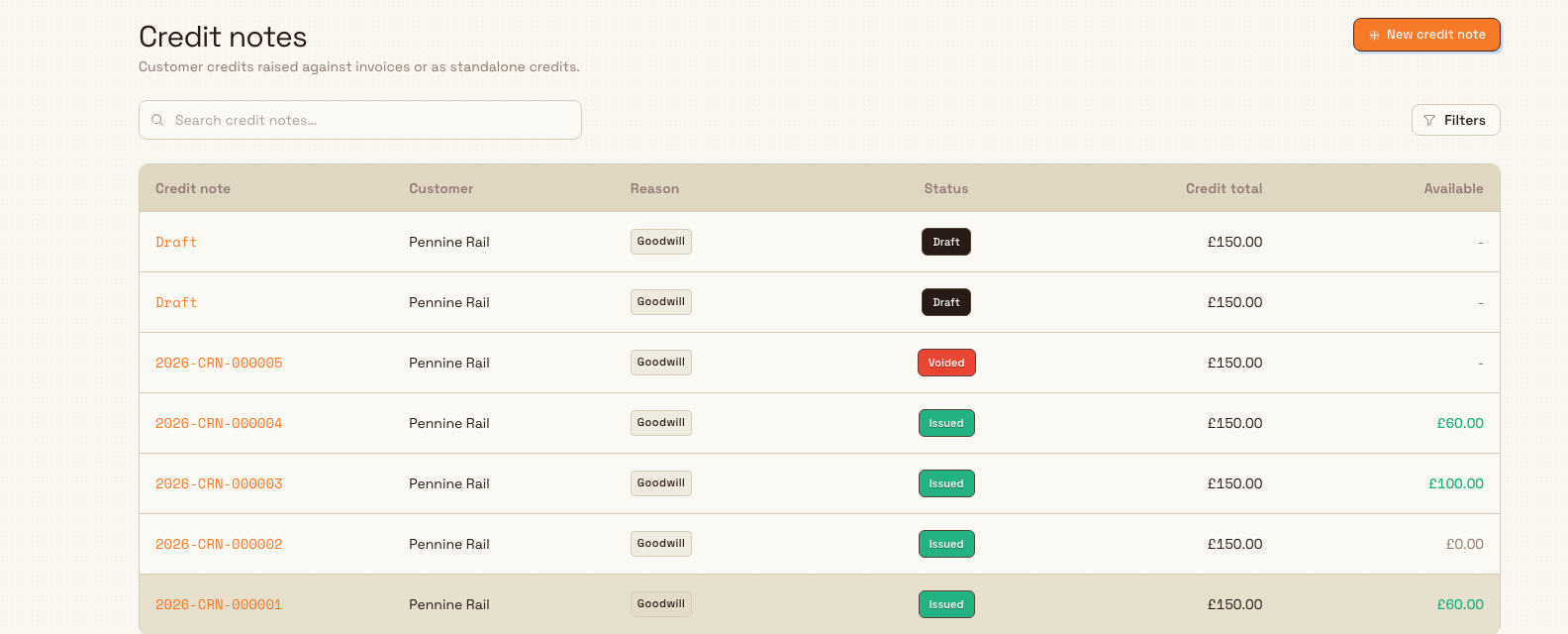
Open the Finance module in the sidebar and choose Credit notes to reach the credit notes list at /finance/credit-notes.
finance.create-credit-note-01
- Select New credit note (top right of the list, or the action on the empty state if you have none yet). The New credit note dialog opens.
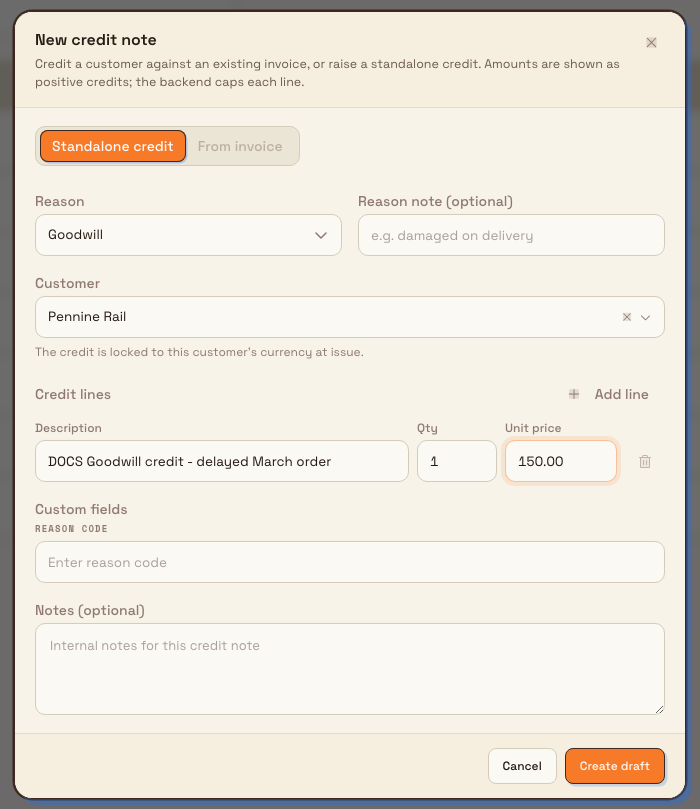
- The dialog offers two tabs, Standalone credit and From invoice. From the list, Standalone credit is the active tab; From invoice is disabled here because it needs an invoice to work from (see the next section).
- Choose a Reason: Return, Discount, Dispute, Goodwill, Price correction, or Other. Add a Reason note (optional) for extra detail — this is especially useful with the "Other" reason.
- Choose a Customer. A short note under the field reminds you that the credit is locked to that customer's currency when it is issued. Until you pick a customer, the unit-price fields stay disabled.
- Add Credit lines. Each line has a Description ("What is being credited?"), a Qty, and a Unit price in the customer's currency. Use Add line for more lines and the trash icon to remove one (you must keep at least one line).
- Fill in any Custom fields your plant requires on credit notes, and add optional internal Notes if useful.
- Select Create draft. On success you see a "Credit note draft created" confirmation and land on the new draft's detail page.
finance.create-credit-note-02
Credit a specific invoice
To reverse lines from an invoice you have already billed, start from that invoice rather than the credit notes list:
- Open the invoice from Finance then Invoices and select it. The invoice must be issued — a draft cannot be credited until it is issued, and a voided invoice cannot be credited at all.
- Open the invoice's actions menu and choose Create credit note. The New credit note dialog opens locked to that invoice, so there is no tab to switch and the customer and currency are already set.
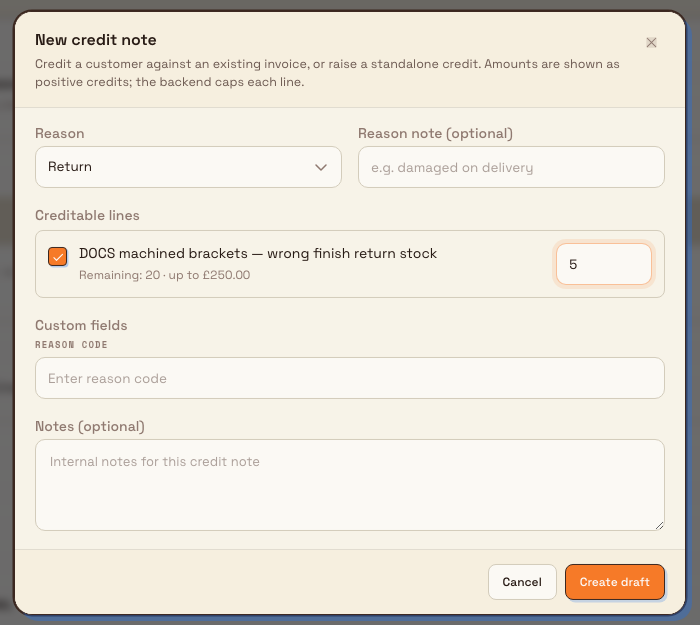
- Choose a Reason and optional reason note as above.
- Under Creditable lines, tick each line you want to credit and set the Credit quantity. Each line shows how much is still creditable — its remaining quantity and an "up to" amount — and lines that are already Fully credited are disabled so you cannot over-credit.
- Add any custom fields and notes, then select Create draft.
finance.create-credit-note-03
Example: a return at Granite Peak Manufacturing
Granite Peak Manufacturing's Leeds Fabrication Plant billed a customer for 20 machined brackets on an issued invoice. The customer returns 5 because they were the wrong finish. A finance user opens that invoice, chooses Create credit note, sets the Reason to Return, ticks the bracket line, and enters a Credit quantity of 5. Bulk pro-rates the credit from the original line price, so the draft credits exactly the value of 5 brackets — never more than was billed. The user selects Create draft and reviews the new draft before issuing it.
Separately, when Granite Peak agrees a 150.00 goodwill gesture for a late delivery, the same user creates a Standalone credit instead: Goodwill reason, the customer selected, and a single free-form line describing the gesture at a unit price of 150.00.
What happens next
Creating the draft does not change any invoice balance and does not assign a credit note number yet — the number is generated when you issue the credit note. The new record starts with the Draft status and opens on its detail page, where you can review the lines, edit header details, and then issue it. Issuing makes the credited amount available; you then apply that available credit to one or more invoices. Those steps are covered in the related guides below.
Feature state and limits
Creating credit notes is generally available. A few behaviours are worth knowing:
- From the credit notes list, you can only create a standalone credit. The From invoice tab is present but disabled there; to credit a billed invoice you must start from that invoice's Create credit note action.
- The from-invoice Creditable lines picker only lists lines when the source invoice is in the issued state. If the invoice is still a draft you are prompted to issue it first, and a voided invoice cannot be credited.
- A draft can be saved with lines, but it must total more than zero before it can be issued. A credit line needs a description and a quantity greater than zero to be saved.
Troubleshooting
- The New credit note button is missing, or the dialog will not open. You most likely lack the Create credit notes permission. Ask an administrator to grant it.
- "Select a customer." A standalone credit needs a customer before it can be created — choose one in the Customer field.
- "Add at least one credit line with a description and quantity." At least one line must have a description and a quantity greater than zero. Empty lines are ignored.
- "Currency for this customer is still loading. Try again in a moment." The customer's currency has not finished loading. Wait a moment, then select Create draft again.
- "Select at least one line to credit." In the from-invoice flow, tick at least one creditable line before creating the draft.
- The invoice cannot be credited. If the message says the invoice is still a draft, issue it first; if it says the invoice has been voided, it can no longer be credited.
Related guidance
Void an invoice
Cancel an issued invoice while keeping it on record for audit, releasing its jobs so they can be invoiced again.
Issue or void a credit note
Commit a draft credit note so its credit becomes usable, or void an issued credit note to cancel it and return the credited amounts to the affected invoices.