Manage custom fields and dates
Define extra fields and milestone dates for inbound work, production, and master data so operators capture the details your site needs on every record.
Custom fields and dates let each site capture the extra details its process needs — purchase-order numbers, lab IDs, inspection dates, or any other milestone — without changing Bulk’s built-in forms. You define the fields once in master-data settings; they then appear on inbound documents, production orders and jobs, and on parts, processes, and customers, depending on how you set them up.
Use this page when you are standing up a site, when a customer or process needs a new piece of data, or when you want shared date milestones on the job card. Everything on this page is per site (entity): fields and dates for the Leeds Fabrication Plant do not appear at another plant.
Before you start
Open the page from Settings, open the Master Data group, and select Custom Fields. The address ends in /settings/master-data/custom-fields. Older bookmarks to /settings/master-data/custom-dates redirect here with the Dates section open (?tab=dates).
You need the right permissions for the section you manage:
- Workflow custom fields and master-data fields — view with
custom_fields.view; create, update, reorder, and delete withcustom_fields.create,custom_fields.update, andcustom_fields.delete. - Date fields — view with
job_date_fields.view; create, update, reorder, and delete withjob_date_fields.create,job_date_fields.update, andjob_date_fields.delete.
Those management permissions are granted by the built-in Super user, Entity admin, Manager, and Master data roles. If Add field or Add date field is missing, ask an administrator to adjust your role.
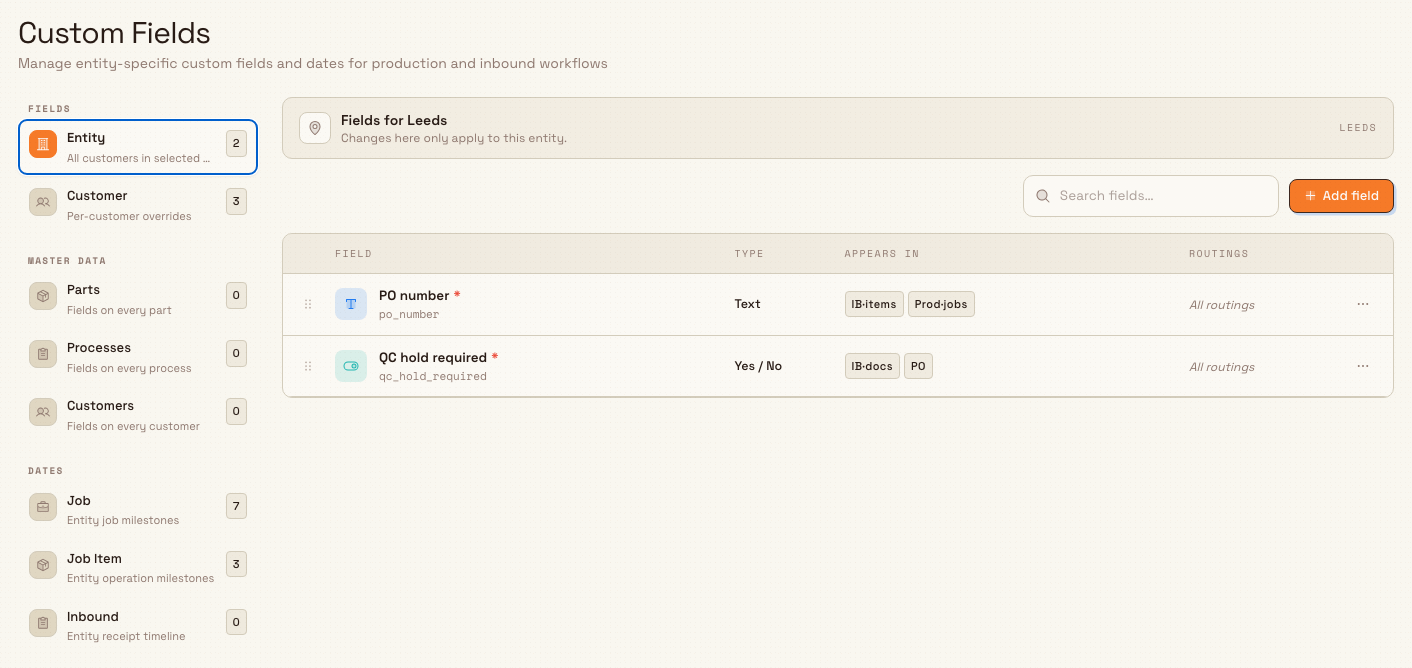
Switch to the correct site first. A banner under the page header names the selected entity (for example “Fields for Leeds Fabrication Plant”) and reminds you that changes apply only to that entity.
What the Custom Fields page shows
The page title is Custom Fields, with the description “Manage entity-specific custom fields and dates for production and inbound workflows.” A left section rail groups three areas; each item shows a count badge:
Fields
- Entity — “All customers in selected entity.” Workflow fields that apply to every customer at this site.
- Customer — “Per-customer overrides.” Workflow fields limited to specific customers.
Master Data
- Parts — “Fields on every part.”
- Processes — “Fields on every process.”
- Customers — “Fields on every customer.”
Dates
- Job — “Entity job milestones.”
- Job Item — “Entity operation milestones.”
- Inbound — “Entity receipt timeline.”
Selecting a rail item updates the main list. Entity and Customer fields use the URL tab fields; master-data tables use master-data; dates use dates (for example /settings/master-data/custom-fields?tab=dates).
Each main panel has a search box, an add button, and a dense list (or an empty state). You can drag non-locked rows by the grip to reorder them; search disables drag while you are filtering.
administration.master-data.custom-fields-dates-01
Workflow fields (Entity and Customer)
Workflow fields appear on inbound documents and items and on production orders and jobs. They are separate from the fields you put on part, process, or customer master records.
List columns
For Entity scope the columns are Field (type chip, display label, key; a red * marks required), Type, Appears in (short codes such as IB·docs, IB·items, PO, Prod·jobs), and Routings (routing codes, or “All routings” when none are limited).
For Customer scope the middle columns swap: Customers (customer codes) then Appears in.
The row menu offers Edit and Delete. Empty Entity scope reads “No entity-wide fields defined” with “Create custom fields that apply to all customers in this entity.” Customer scope reads “No customer-specific fields defined.”
Add a workflow field
- Select Entity or Customer in the rail, then Add field.
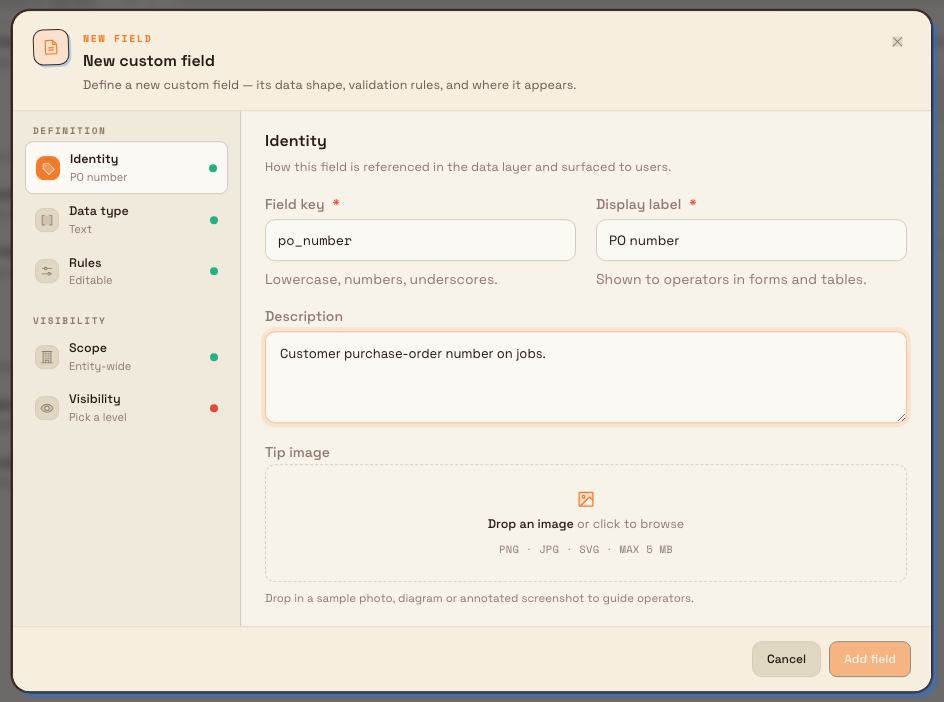
- The dialog title is New custom field (eyebrow New field). A left section rail steps through Definition (Identity, Data type, Rules) and Visibility (Scope, Visibility).
- On Identity, set:
- Field key — lowercase, starts with a letter, letters/numbers/underscores only, max 50 characters (for example
po_number). Locked after create. - Display label — what operators see (for example
PO number), max 100 characters. - Description — optional help text under the field.
- Optional Tip image to guide operators (Auto / Inline / Tooltip placement).
- Field key — lowercase, starts with a letter, letters/numbers/underscores only, max 50 characters (for example
- On Data type, pick the type. Date and date-time are not offered here — use the Dates section instead. Available types include Text, Long text, Number, Currency, Yes / No, Dropdown, Multi-select, Array, Object, File, User, and Process. Type-specific options appear below (dropdown choices, array item type, object options, and so on). For Process, set Process catalogue to All catalogues or Specific catalogue; the specific picker includes Uncatalogued and disables catalogues being deleted. The resulting input offers active Approved processes in that scope and stores the selected revision as a snapshot, so a saved value remains visible if that revision later becomes inactive or unapproved. Field key and Type are locked when you edit an existing field.
- On Rules, toggle Required (“Can’t submit until filled in”) and Editable (“Can be amended after submission”).
- On Scope, choose Entity-wide (every customer at this site) or Selected customers (then pick at least one customer). The rail selection when you clicked Add field pre-fills this.
- On Visibility → Where it appears, pick a Level (required before save):
- Inbound Documents + Production Orders (Header) — “Shows on document and order headers.”
- Inbound Items + Production Jobs (Line) — “Shows on individual items and jobs.” For Line, you can optionally limit Routings (checkboxes by routing code/name); leave empty for “All routings.”
- Select Add field. Success reads “Custom field created.” Editing uses Save changes and “Custom field updated.”
Save stays disabled until a visibility level is chosen. Switching level on an existing field asks Switch level? and explains that values on the previous locations are hidden but kept and reappear if you switch back.
Delete a workflow field
From the row menu choose Delete. The Delete Custom Field dialog asks you to confirm and states: “Existing documents, document items, production orders, and production jobs keep their saved values. New records will no longer show this field.” Confirm with Delete; success reads “Custom field deleted.”
administration.master-data.custom-fields-dates-02
Master-data fields (Parts, Processes, Customers)
Master-data fields attach to every part, process, or customer record at the site — not to inbound or production documents. They use the same permission set as workflow fields (custom_fields.*).
Open Parts, Processes, or Customers under Master Data in the rail. The list columns are Field, Type, Default, and Table (Parts / Processes / Customers). A counter shows how many fields you have against the limit of 20 per table (for example 3/20). At the limit, Add field is disabled.
Supported types are a subset of workflow types: Text, Long text, Number, Currency, Yes / No, Dropdown, Multi-select, Array, and Object (no File, User, or Process).
- Select Add field. The dialog title is Add parts field, Add processes field, or Add customers field depending on the rail item.
- Fill Identity, Data type, and Rules (required / editable), and set a default when the field is required — Bulk prompts for a default before saving a required field so existing records can be filled in.
- Select Add field. Success reads “Custom field created.”
Deleting a master-data field is stronger than deleting a workflow field: the dialog warns that “This field and its existing values will be removed immediately from all [parts|processes|customers] records.”
Empty states follow the pattern “No parts fields defined” / “Create fields that appear on every parts record.” (and the same pattern for processes and customers).
Date fields (Job, Job Item, Inbound)
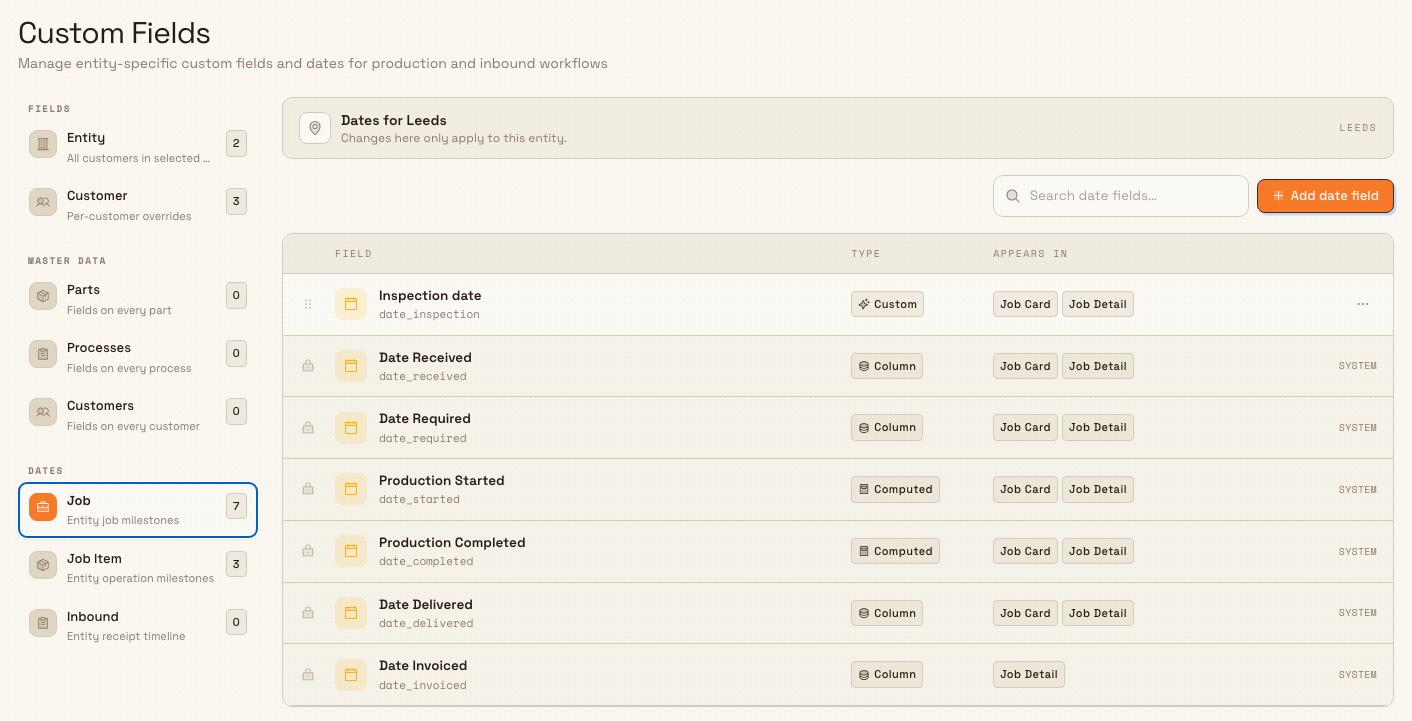
Date fields track milestones. Open Job, Job Item, or Inbound under Dates in the rail. The panel banner reads Dates for the selected entity. Search uses Search date fields…; the add button is Add date field.
System vs custom
Some rows are system fields. They show a lock, a type badge (Column or Computed), and the word System instead of a menu — you cannot edit or delete them from the list. System job dates include Date Received, Date Required, Production Started, Production Completed, Date Delivered, and Date Invoiced. System job-item dates include Item Started, Item Completed, and Item Signed.
Custom date fields you add show type Custom, can be reordered, and offer Edit and Delete.
List columns are Field (name and date_… code), Type, and Appears in (Job Card and/or Job Detail, or “Hidden” if neither is on).
Add a custom date field
- Select the rail target (Job, Job Item, or Inbound), then Add date field.
- The dialog title is New date field. Sections: Identity, Rules, Validation, Appearance.
- On Identity:
- Code — must start with
date_and use lowercase letters and underscores only (max 50), for exampledate_inspection. Locked after create. - Display name — for example
Inspection date. - Description — optional.
- Applies to — Job only, Job item only, Both job and job item, Inbound documents, or Production orders. Defaults from the rail item you started from; locked after create.
- Code — must start with
- On Rules: Required (“Must be set before job completion”) and Auto-set on create (“Set to current time when job created”).
- On Validation (optional): Must be future, Must be past, Must be after another date field, Must be before another date field.
- On Appearance: Show on job card and Show on job detail.
- Select Add date field. Success reads “Date field created.” Editing uses Save changes and “Date field updated.”
Deleting a custom date asks Delete Date Field and states that existing date values will be archived but no longer visible. Success reads “Date field deleted.” System dates cannot be deleted (“Cannot delete system date fields”).
When you create a date field, Applies to can also include Production orders. The left rail on this page lists Job, Job Item, and Inbound; production-order-only dates are managed through the same date dialog and list filters when you choose that apply-to value.
administration.master-data.custom-fields-dates-03
Example: PO number and inspection date at Granite Peak
Granite Peak Manufacturing’s Leeds Fabrication Plant needs every production job to carry the customer’s purchase-order number, and quality wants an inspection date on the job card.
Dana Winters opens Settings → Master Data → Custom Fields, confirms the banner shows Leeds Fabrication Plant, and selects Entity under Fields. She selects Add field, sets key po_number and label PO number, type Text, turns on Required, leaves scope Entity-wide, and sets visibility to the Line level (Inbound Items + Production Jobs) so the field appears on jobs. She saves — “Custom field created.”
She then selects Job under Dates, Add date field, code date_inspection, display name Inspection date, applies to Job only, enables Show on job card and Show on job detail, and saves — “Date field created.” Operators now fill PO number on the job and see Inspection date beside the built-in milestones.
Expected result
- Entity or customer workflow fields appear on the inbound and production surfaces that match their header or line level (and routing filters, when set).
- Master-data fields appear on every part, process, or customer record for the site, with defaults applied where configured.
- Custom date fields appear on job card and/or job detail according to appearance settings; system milestones remain available and locked.
- Reordering updates the order operators see in forms and lists for that scope.
Feature state and limits
Managing custom fields and dates is generally available. Keep these behaviors in mind:
- All definitions on this page are entity-scoped; switch site to manage another plant.
- Workflow field keys and data types cannot change after create; date codes and Applies to cannot change after create.
- Date and date-time values for workflow data must be defined under Dates, not as a custom field data type (“Date fields must be created in the Dates section”).
- Each master-data table allows at most 20 custom fields.
- Deleting a workflow field keeps historical values on existing documents and jobs; deleting a master-data field removes values from those master records immediately.
- Deleting a custom date soft-deletes the definition; records keep frozen snapshots of dates they already stored.
- Invoice and credit-note document fields are configured separately under entity Invoice Fields, not on this page.
Troubleshooting
- Add field or Add date field is missing. — your role may lack create permissions for
custom_fieldsorjob_date_fields. Ask an administrator for Super user, Entity admin, Manager, or Master data (or a custom role with those permissions). - “A custom field with key … already exists”. — keys must be unique per site. Choose another key or edit the existing field.
- “Key must be lowercase, start with a letter…” — fix the key format (or for dates, ensure the code matches
date_plus lowercase letters and underscores). - Save stays disabled on a new workflow field. — pick a visibility Level (Header or Line). A level is required.
- “Customer-scoped fields must have at least one customer assigned”. — under Scope, choose Selected customers and pick at least one customer.
- “Date fields must be created in the Dates section”. — you tried to create a date-typed workflow field. Use Dates → Add date field instead.
- Master-data Add field is disabled and the counter is red. — that table already has 20 fields. Delete or reuse an existing field first.
- System date rows have no Edit/Delete. — expected. Only custom dates can be changed or removed.
- “Cannot delete system date fields”. — you cannot remove built-in milestones such as Date Received.
- Fields do not appear for another plant. — definitions are per entity. Switch site in the header and configure that entity’s fields separately.
Related
- Master data — other master-data setup pages for the site.
- Manage customers — customers used by customer-scoped fields and master-data customer fields.
- Manage parts — parts that show master-data part fields.
- Manage processes — processes that show master-data process fields.
- Manage routings — routings you can limit line-level fields to.
- Manage forms — form builders that also use field types.
- Roles and permissions — grant
custom_fields.*andjob_date_fields.*. - Update inbound custom fields — filling workflow fields on inbound documents.
Manage processes
Create, revise, approve, and organise versioned manufacturing process instructions in catalogues so planners always pick the correct controlled work method.
Manage forms
Create and maintain form templates for inbound documents, production orders, inbound items, and production jobs — sections, fields, categories, and the form builder.