Configure KPI categories
Create and manage the named groups — such as Safety, Quality, and Delivery — that organise KPIs across your organisation, with colour, description, and KPI counts.
A KPI category is a named group you use to organise key performance indicators — for example Safety, Quality, Delivery, Cost, or People. Every KPI must belong to a category. Categories appear when you create or filter KPIs, on reporting views that section results by group, and anywhere Bulk lists KPIs by theme.
Configure categories here when you are setting up KPIs for the first time, adding a new theme your plant tracks, renaming how groups appear, or removing a group that no longer has KPIs. Day-to-day KPI definitions, targets, and value entry live on the other KPI Settings pages and in the product KPI tools — this page is only the category catalogue.
Before you start
Open Settings, expand the KPI group, and select Categories. The page address ends in /settings/kpi/categories.
KPI categories are organisation-wide (tenant scope), not per site. Every plant in the tenant shares the same category list. Switch site only if you need other Settings that are site-scoped; categories do not change with the entity switcher.
You need permission to change the catalogue:
- Create a category requires Create KPIs (
kpi.create). - Edit name, description, or colour requires Edit KPIs (
kpi.update). - Delete requires Delete KPIs (
kpi.delete).
These management permissions are granted by the built-in Super user, Entity admin, and Manager roles. Permission labels describe the capabilities as applying for the organization. The Dashboards role can view KPIs (kpi.view) but does not receive create, edit, or delete. If Add Category or save actions fail, ask an administrator to adjust your role.
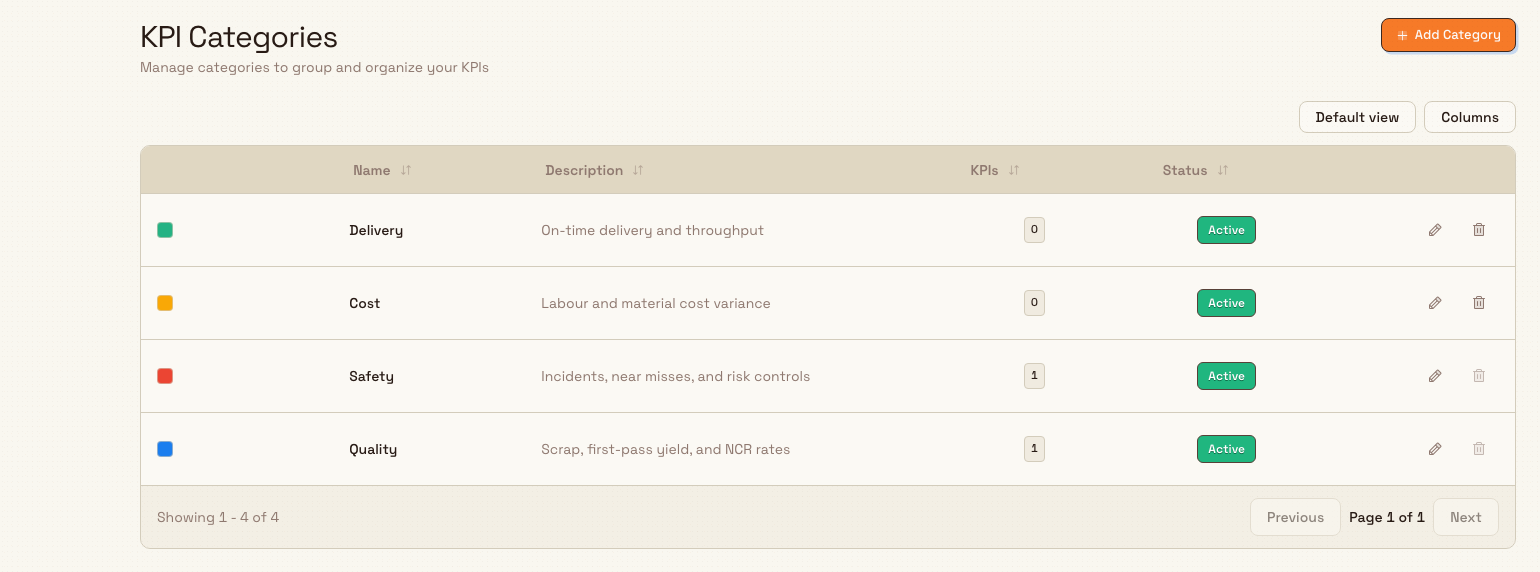
administration.kpis.categories-01
What the KPI Categories page shows
The page header title is KPI Categories, with the description Manage categories to group and organize your KPIs, and an Add Category button.
When categories exist, they appear in a table with:
| Column | What it shows |
|---|---|
| Colour swatch | The category colour (or the default muted tone when none was set) |
| Name | The category name (sortable) |
| Description | Optional notes, or a dash when empty (sortable) |
| KPIs | How many non-deleted KPIs are assigned to this category (sortable) |
| Status | Active or Inactive badge (sortable) |
| Actions | Edit and Delete for that row |
The table supports the usual managed-table controls (sorting, column visibility, pagination). Categories load in their stored order from the server; this page does not offer a drag-to-reorder control.
If the organisation has no categories yet, the empty state reads No categories yet with the message Create your first category to start organizing KPIs. and an Add Category action.
Add a category
- Select Add Category (or the empty-state Add Category). The Create Category dialog opens with the description Add a new category to organize your KPIs.
- Fill in the fields:
- Name — required, up to 100 characters. The placeholder suggests names such as Safety, Quality, or Delivery. Names must be unique among categories that have not been deleted.
- Description — optional, up to 500 characters (placeholder: Optional description for this category...).
- Colour — optional colour used to identify the category in lists and chips. Helper text: Choose a color to identify this category. You can clear the colour so the default muted tone is used.
- Select Create Category, or Cancel to close without saving.
A confirmation reads Category created, with a description that the named category was created successfully. The new category is Active and appears in the table (and in KPI create/filter pickers) for the whole organisation.
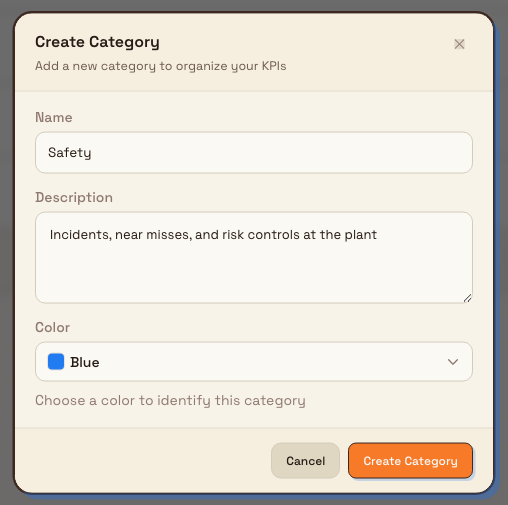
administration.kpis.categories-02
Edit a category
- On the category row, select the edit control (Edit category).
- The Edit Category dialog opens with the description Update the category details. The same Name, Description, and Colour fields appear, prefilled for that category.
- Change the values you need, then select Save Changes, or Cancel to discard.
A confirmation reads Category updated. Edits apply organisation-wide: KPI lists, filters, and reporting sections that show this category name or colour update for everyone. Existing KPIs keep their link to the same category; only the category’s display details change.
This dialog does not include an Active / Inactive switch. Status on the table reflects the category’s stored active flag; new categories are created Active. There is no separate deactivate control on this page.
Delete a category
You can only delete a category that has no KPIs assigned. When the KPIs count is greater than zero, the delete control on that row is disabled.
- On an empty category row, select the delete control (Delete category).
- Confirm in the Delete Category dialog. It asks whether you are sure you want to delete the named category. When no KPIs are assigned, it states that This action cannot be undone.
- Select Delete Category, or Cancel.
A confirmation reads Category deleted. Deletion is a soft delete: the category leaves the active catalogue and is no longer offered when creating or grouping KPIs.
If you try to remove a category that still has KPIs (for example via a race after the count changed), Bulk rejects the delete with Cannot delete category with assigned KPIs. Please reassign or delete the KPIs first. Reassign those KPIs to another category (or delete the KPIs) under KPI Management, then return here.
Example: Safety and Quality at Granite Peak Manufacturing
At Granite Peak Manufacturing, Dana Winters prepares KPI structure before the Leeds Fabrication Plant starts weekly reporting.
She opens Settings → KPI → Categories and selects Add Category. She names the first group Safety, adds a short description about incidents and near misses, picks a colour, and selects Create Category. She repeats for Quality (scrap and first-pass yield) and Delivery (on-time and throughput).
When she later creates KPIs under Settings → KPI → Management, each definition must pick one of these categories. Reporting and filters can then section results under Safety, Quality, and Delivery. Months later, if a temporary pilot category has zero KPIs left, she deletes it from this page so the catalogue stays clean.
Expected result
After configuration, the table lists each category with its colour, name, description, KPI count, and Active status. Those categories appear as choices when someone creates or edits a KPI, when filters group KPIs by category, and on views that section KPIs by group. Adding or renaming a category does not change KPI values or targets — only how KPIs are grouped and labelled.
Feature state and limits
Configuring KPI categories is generally available. Keep these behaviours in mind:
- Categories are organisation-wide; they are not separate per plant.
- Every KPI definition requires a category. Create the groups you need before bulk-creating KPIs.
- Category names must be unique among non-deleted categories.
- Name max length is 100 characters; description max is 500.
- You cannot delete a category while any non-deleted KPI still uses it; reassign or remove those KPIs first.
- Soft-deleted categories leave the list; there is no restore control on this page.
- The backend supports reordering categories and toggling
is_active, but this Settings page does not expose reorder or activate/deactivate controls — only create, edit (name/description/colour), and delete. - Related KPI work (definitions, targets, entry) uses other pages under Settings → KPI (Management, Targets) and the product KPI tools.
Troubleshooting
- Add Category or save fails with a permission error. You need
kpi.createto add categories,kpi.updateto edit them, andkpi.deleteto remove them. Ask for Entity admin, Manager, or Super user, or the matching KPI permissions. - "Category name is required" or name length errors. Enter a non-empty name of at most 100 characters.
- "A category with this name already exists." Another non-deleted category already uses that name. Choose a different name or edit the existing category.
- Delete is disabled on a row. That category still has KPIs (the KPIs badge is greater than zero). Move or delete those KPIs under Settings → KPI → Management, then delete the category.
- "Cannot delete category with assigned KPIs. Please reassign or delete the KPIs first." Same rule from the server — free the category of KPIs, then try again.
- Categories from another company do not appear. Categories are per tenant organisation, not per site. Confirm you are signed into the correct organisation; switching plant alone does not create a separate category list.
- You expected to reorder categories on this page. Order is stored on each category, but the Categories Settings UI does not provide a reorder control today. Categories still sort by their stored order in lists that use that field.
Related
- KPIs — overview of KPI tools in the product.
- Manage KPI categories — product-side guidance for working with categories.
- Create and manage a KPI — define KPIs that must pick a category.
- Set KPI targets — goals for KPIs grouped by category.
- Configure units — units of measure KPIs use when reporting values.
- Manage roles and permissions — grant Create, Edit, and Delete KPIs.
- Configure the asset board — boards can link daily KPIs that sit in these categories.
Configure inbound OCR and extraction
Create inbound OCR configurations, choose an extraction model and automation level, and run the AI extraction wizard so uploaded PDFs become structured document and line-item data.
Configure exports
Build reusable data exports from production, inbound, KPI, and settings tables; save templates, run downloads, schedule email delivery, and track history.