Configure working hours
Set each site's open and closed hours for every day of the week so Bulk can measure how long production work waits and takes inside your operating windows.
Working hours record when a site is open for production, day by day. Bulk is a Manufacturing Execution System (MES) — the software that runs and records work on the shop floor — and it uses a site's working hours to measure elapsed time fairly. Without them, a job that arrives on Friday evening and starts on Monday morning looks like it waited all weekend; with them, Bulk counts only the hours the site was actually open.
You configure working hours per site. In Bulk a site is called an entity, and each entity keeps its own weekly schedule. Use this page whenever a site's operating pattern is set or changes — for example when a plant moves to extended weekday hours, opens on Saturdays for a busy season, or closes an afternoon shift.
Working hours are not staff shifts
Working hours describe when the site is open, as a single window per day. They are the baseline Bulk uses for flow-time calculations. They are separate from shifts, which schedule people and their patterns. If you are rostering the workforce rather than setting a site's open hours, see Configure shifts instead.
Where to find it
Open the left sidebar and go to Settings → Organization → Working hours. The page is titled Working Hours, and its subtitle names the site you are editing — it reads "Configure operational hours for" followed by the current site's name.
Working hours belong to the site you currently have selected. If you manage more than one site, switch to the correct one first using the site switcher. When no site is selected, the page shows "Select an entity to configure working hours" and there is nothing to edit until you pick one.
Before you start
Choose the right site. Because each configuration is tied to one site, confirm the selected site is the one you mean to change before you edit anything.
You need the right permission. Access is gated by four working-hours permissions, all scoped to the organization:
| Permission | What it allows |
|---|---|
| View working hours | See a site's schedule |
| Create working hours | Set up a schedule for a site that has none |
| Edit working hours | Change an existing schedule |
| Delete working hours | Remove a site's schedule |
In the default roles, the Super user, Entity admin, Manager, and People roles hold all four permissions. Other roles, including the standard Operator role, have no working-hours access. If your controls are missing or disabled, ask an administrator to grant the working-hours permissions, or confirm the exact grants for your site under Manage roles and permissions.
How a schedule is structured
A working-hours schedule is one row for each of the seven days, Monday through Sunday. Each day is either:
- Open, with a start time and an end time, or
- Closed, contributing no operating hours that day.
Times use 24-hour HH:MM form, such as 06:00 or 22:00, and are read in the site's own timezone. A site has exactly one working-hours schedule — there is no second or seasonal copy held alongside it.
administration.organization.working-hours-01
Configure a site's working hours
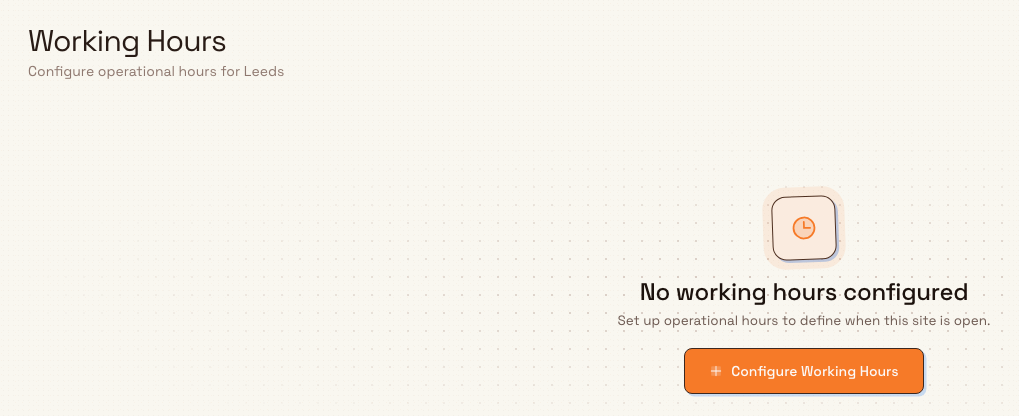
When a site has no schedule yet, the page shows an empty state titled No working hours configured, with the note "Set up operational hours to define when this site is open." and a Configure Working Hours button.
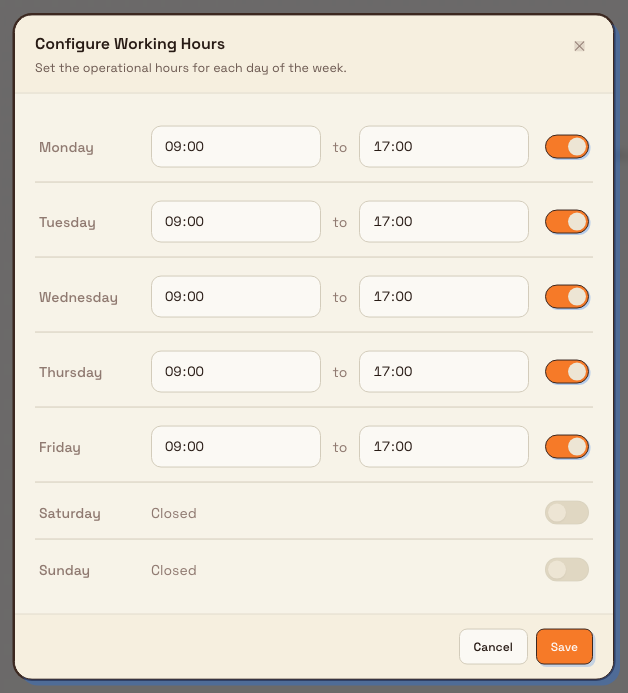
- Select Configure Working Hours. The Configure Working Hours dialog opens with the prompt "Set the operational hours for each day of the week." and one row per day.
- Each day starts from a sensible default: Monday to Friday open 09:00 to 17:00, and Saturday and Sunday closed. Adjust from there.
- Use the toggle at the end of a day's row to switch it between open and closed. Turning a closed day on fills in
09:00to17:00so you have a starting point; a closed day shows Closed instead of time fields. - For each open day, set the start time and the end time in the two time fields, separated by the word "to".
- Select Save. Bulk confirms with a "Working hours configured" message and shows the finished schedule. Choose Cancel to close without saving.
administration.organization.working-hours-02
Review, edit, and delete a schedule
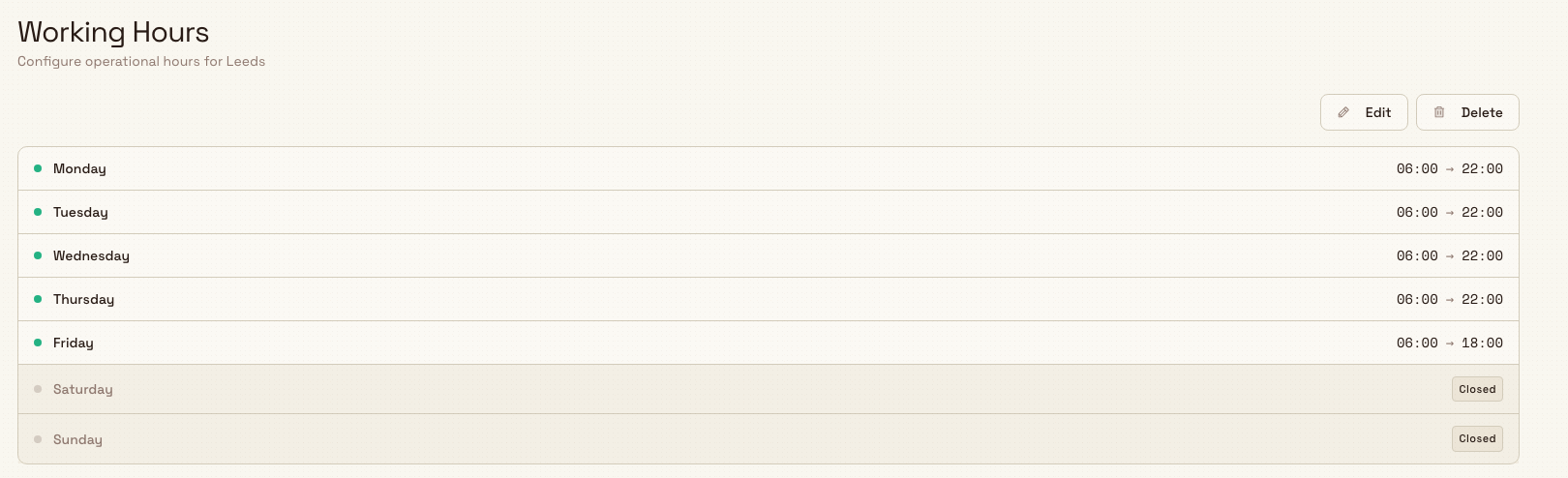
Once a schedule exists, the page shows it as a list of days. Each row has a status dot — green when the day is open, muted when it is closed — the day name, and either the day's start and end times or a Closed badge. Saturday and Sunday are shaded so the working week is easy to scan.
Two buttons sit above the schedule:
- Edit opens the Edit Working Hours dialog, prefilled with the current schedule and prompting you to "Update the operational hours for each day of the week." Change any day, then Save; Bulk confirms with "Working hours updated".
- Delete removes the schedule after you confirm. The confirmation warns that "This site will have no operational hours defined." and, once confirmed, Bulk shows "Working hours deleted".
Deleting a schedule changes how flow time is measured
Removing a site's working hours does not stop the production flow dashboards — but it changes their numbers. With no schedule, those dashboards treat the site as open around the clock, every day, so waiting and elapsed times count full calendar time instead of only operating hours. There is no undo button; to restore the behaviour, set the schedule up again with the same days and times.
administration.organization.working-hours-03
Time rules Bulk enforces
When you save, Bulk checks every open day:
- The start and end must be valid 24-hour
HH:MMtimes. - The start must be before the end on the same day. Overnight windows that cross midnight — an end at or before the start, such as
22:00to06:00— are rejected.
If a day fails these checks, saving stops and Bulk names the day and the reason, for example that the start time must be before the end time. Closed days are not checked, because they hold no operating window. A site can also have only one schedule at a time; Bulk will not create a second one for the same site.
Example: Granite Peak Manufacturing
Granite Peak Manufacturing runs long production days at its Leeds Fabrication Plant. An administrator sets the plant's working hours so the flow dashboards reflect real operating time:
- They select the Leeds Fabrication Plant site, then open Settings → Organization → Working hours.
- On the empty state, they select Configure Working Hours.
- They set Monday to Thursday to
06:00to22:00for the plant's two long shifts, and Friday to06:00to18:00for the shorter end-of-week day. - They leave Saturday and Sunday toggled off, because the plant is normally closed at weekends.
- They select Save, and Bulk confirms with "Working hours configured".
A few weeks later the plant adds a Saturday morning to clear a backlog. The administrator selects Edit, toggles Saturday on, sets it to 08:00 to 12:00, and saves. When the backlog clears, they edit again and switch Saturday back to closed. Each change is recorded in the site's activity log, so there is a history of when the operating pattern changed and who changed it.
Where working hours are used
Once set, a site's working hours feed the production flow dashboards that measure how long work waits and how long it takes to move through the plant:
- On Review production flow and Review Value Flow, the waiting and elapsed times for jobs are clamped to the site's working hours, using the site's timezone. Time that passes while the site is closed does not count against those figures.
- Touch time captured by production timers is not clamped — recorded hands-on time is counted as it happened, whether or not it fell inside working hours.
Expected result
After you save, the site has a clear weekly pattern of open and closed days. The schedule page reflects it at a glance, and the production flow dashboards start measuring waiting and elapsed time against those hours in the site's timezone. Creating, editing, and deleting a schedule are all recorded in Review activity logs.
Limitations and feature state
This feature is generally available. Keep these behaviours in mind:
- One schedule per site. Each site holds a single weekly schedule. There is no built-in way to keep a separate seasonal or holiday calendar — you edit the one schedule when the pattern changes.
- One open window per day. A day is a single start-to-end window. You cannot record a split day, such as a morning and an afternoon session with a closed gap between them, in this schedule.
- No overnight days. Because the end must be after the start on the same day, a window that runs past midnight cannot be entered here.
- Working hours are not dated history. The flow dashboards always apply the site's current working hours, including to past work. Changing a site's hours therefore changes how already-recorded waiting and elapsed time is measured for that site — this recalculation of historical flow figures is verified in the backend clamp logic, not shown on this settings page.
- No schedule means always open. If a site has never had working hours set, or its schedule was deleted, the flow dashboards treat it as open 24 hours a day, every day, and do not clamp waiting or elapsed time.
Troubleshooting
- The page says "Select an entity to configure working hours". No site is selected. Choose a site with the site switcher, then return to the page.
- Saving reports that the start time must be before the end time. One of your open days has an end at or before its start. Fix that day's times so the end is later than the start, or set the day to closed, then save again.
- The Configure or Edit controls are missing or disabled. Your role lacks the working-hours permission you need. Ask an administrator to grant it, or check the grants under Manage roles and permissions.
- A flow dashboard shows more waiting time than expected. Confirm the site actually has a schedule and that its open days and times are correct — a missing schedule makes the dashboard count around-the-clock time rather than operating hours.
Related guidance
- Configure shifts — schedule people and their patterns, which is separate from a site's open hours.
- Manage entities — create and manage the sites whose working hours you set here.
- Configure localization — the formats a site displays; a site's timezone is the one working hours are read in.
- Review production flow and Review Value Flow — the dashboards that clamp waiting and elapsed time to working hours.
- Review activity logs — the record of who changed a schedule and when.
- Organization settings — the rest of the organization-level configuration.