Quality
Understand the Quality module in Bulk, where to find it, what it manages, and how quality issues, NCRs, CAPAs, holds, and 8D reports connect across production.
Last updated
The Quality module is where your team records, investigates, and resolves problems with the things you make. It brings five related quality records into one place: issues, non-conformance reports, corrective and preventive actions, holds, and 8D reports. A defect found on the line can be traced all the way through to a verified fix. Use it when an operator, inspector, customer, or supplier reports something that does not meet specification, and you need a documented, auditable trail from discovery to closure.
You reach the module from the left sidebar under the MODULES group. Select Quality to expand it, then choose one of its sections: Home, Issues, NCRs, CAPAs, Holds, or 8D Reports. None of these sections shows a Beta badge. The categories you pick when raising an issue are maintained under Settings › Quality, so every plant keeps a consistent catalogue.
What each part of the module does
The Quality module organizes work by record type. Each section has its own list and its own step-by-step guide; this page explains what each is for and links you to the detailed instructions.
- Home (
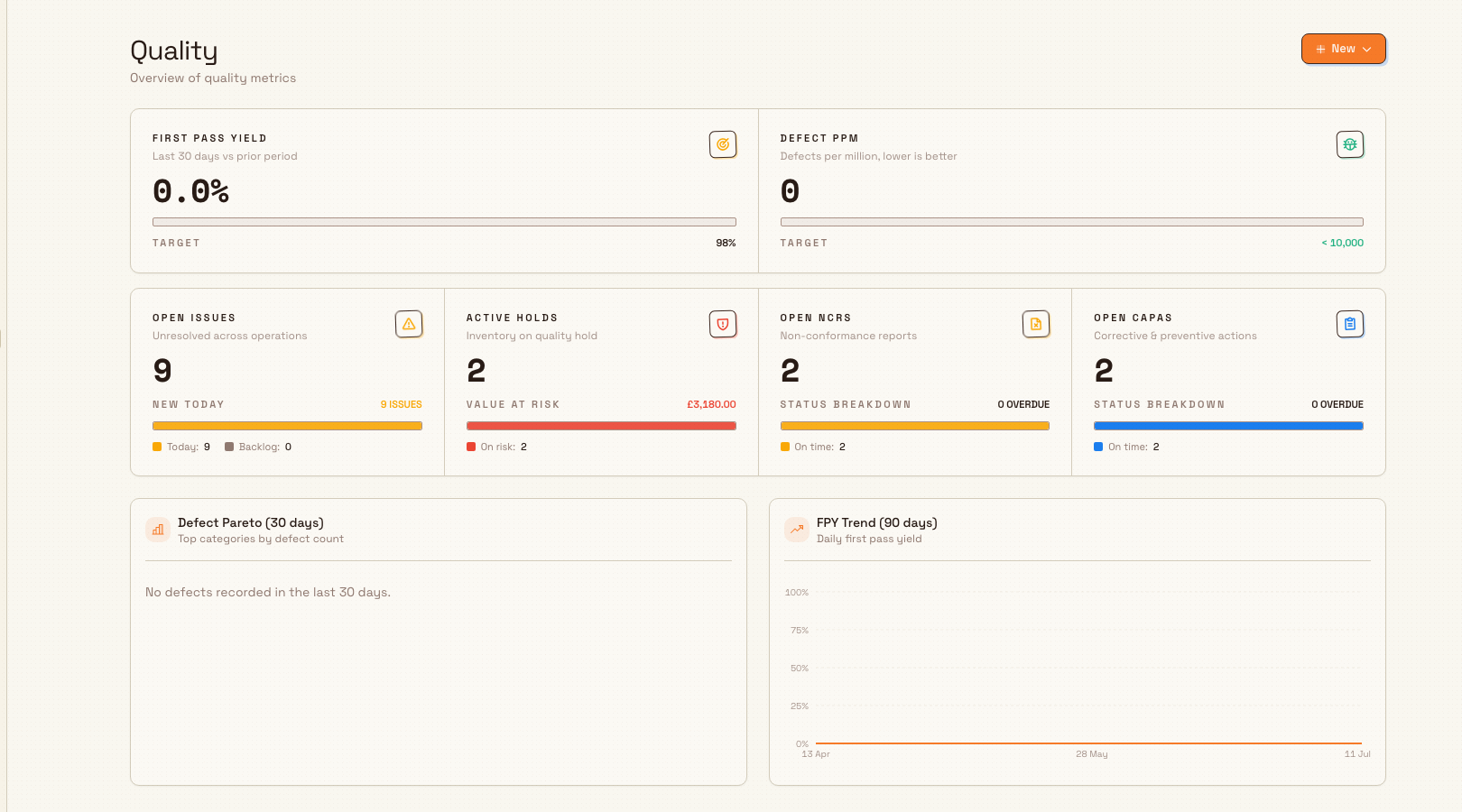
/quality/home) opens the Quality dashboard, titled "Quality" with the subtitle "Overview of quality metrics". It shows headline metrics and open work for the plant you are currently in, plus a New button. - Issues is the "Quality Issues" list, described in the app as "Track and manage quality issues across production". A quality issue is the everyday record of a defect or problem: what was found, how much is affected, how severe it is, and how it was dispositioned (for example scrap, rework, or use-as-is). You create an issue on one scrolling form. Start with Create a quality issue and Review and close a quality issue.
- NCRs is the "Non-Conformance Reports" list, described as "Formal documentation of non-conforming materials and products". An NCR is the formal record used when material must be reviewed and dispositioned, often by a Material Review Board (MRB). You create an NCR on one scrolling form. See Create an NCR and Review and disposition an NCR.
- CAPAs is the "Corrective & Preventive Actions" list, described as a "Systematic approach to root cause elimination". A CAPA drives a problem to its root cause and verifies that the fix actually worked. You create a CAPA on one scrolling form. See Create and manage a CAPA.
- Holds is the "Quality Holds" list, described as "Prevent use or shipment of suspect material". A hold quarantines suspect material or work so it cannot move forward until it is released or scrapped. The hold create page is still a three-step wizard. See Put work on quality hold and Release a quality hold.
- 8D Reports is described as "Eight Disciplines problem-solving reports". An 8D report is a structured, team-based problem-solving format for significant or recurring problems. The 8D create page is one scrolling form. See Create and manage an 8D report.
The New button on the Home page opens New Issue, New NCR, New CAPA, and New 8D Report. It does not include New Hold.
The NCRs, CAPAs, Holds, and 8D Reports lists search and filter the same way as Issues. Each list has a search box above the table, and you filter from the column header menu. Only the Issues list also lets you select several rows for a bulk action.
Work efficiently in Quality Issues
The Quality Issues list supports safe bulk work when several records need the same next step. First filter or sort the list to the group you want to work on, then select one issue. That first selection sets the status group for the batch, for example Open or In Review, and issues with another status cannot be selected. Select all applies only to matching issues on the current page, so changing a filter, sort, page, or page size always starts a new selection.
With a matching group selected, choose one of the bulk actions:
- Assign: choose a person explicitly, or choose Unassigned to clear the owner from every selected issue.
- Change status: Bulk only offers a status when every selected issue can move to it.
- Disposition & Close: choose a disposition and enter the reason, then confirm once to set the disposition and close the group. Any unresolved issue is resolved as part of closing it. The confirmation shows the group's original status and the final Closed status before you submit.
If an issue changes after you select it, for example if another person closes it, Bulk leaves that issue out of the action and tells you how many were skipped. Refresh the list and review any skipped issues before trying again.
Quality issue changes can start a published workflow. When the Workflow Action
catalog offers a Quality Action, the workflow must receive or select the exact
quality_issue record first; it does not guess which issue to change. The
Action then uses the same Quality operation, permissions, status rules, and
history as the issue screen. Failures remain visible in the workflow run log
for correction and retry.
Prerequisites
Access to Quality is controlled by permissions, and each action checks its own permission on the server. The built-in Quality role ("Full quality permissions") grants the whole module; the Entity admin and Super user roles include it as well. An administrator assigns roles per person and per plant.
Individual capabilities map to individual permissions. For example, creating an issue requires quality_issues.create, dispositioning an NCR requires quality_ncrs.mrb, releasing a hold requires quality_holds.release, and the 8D Reports pages require quality_8d_reports.view. If you can open a section but a button is missing or an action is refused, you likely hold view access without the matching edit permission.
Two optional setup areas make records more consistent. Under Settings → Quality, Categories defines the defect categories you can tag on issues, and Root Causes defines the reusable root-cause list. Setting these up first means everyone classifies problems the same way, which makes the Home dashboard's Defect Pareto meaningful.
Reading the Home dashboard
The Home page gives you a fast read on quality health for the current plant. It has two rows of summary tiles and two charts:
- First pass yield: the percentage of production that passed the first time, over the last 30 days versus the prior period, measured against a 98% target.
- Defect PPM: defects per million (lower is better), measured against a target of under 10,000.
- Open issues: unresolved issues across operations, with how many were raised today.
- Active holds: inventory currently on quality hold, with the value at risk.
- Open NCRs and Open CAPAs: outstanding records with how many are overdue.
- Defect Pareto (30 days): the top defect categories by count, so you can see where problems concentrate.
- FPY Trend (90 days): daily first pass yield over time.
How records connect
Quality records are designed to link to each other and to production. A single defect can begin as a quality issue, trigger a hold to stop the affected stock from shipping, escalate to an NCR for formal disposition, and drive a CAPA to eliminate the root cause, with an 8D report coordinating the investigation when the problem is serious. Records can also be linked to the production jobs and orders where the problem occurred, and quality records surface on a Quality tab within those production records. Every issue, NCR, CAPA, hold, and 8D report is given its own sequential number automatically when you create it, so each has a stable reference for audits and conversations. For the linking mechanics, see Link quality and production records.
Example: a defect at Wayne Corp
At Wayne Corp's Gotham Applied Sciences plant, an inspector finds a batch of welded brackets with cracks along a seam. Working through the Quality module, the plant's quality lead:
- Records a quality issue describing the crack, the affected quantity, and a high severity, tagged to the defect category "Weld defect".
- Places a quality hold on the batch so it cannot ship while the problem is investigated, quarantining the affected stock.
- Raises an NCR to formally document the non-conformance and take it to the Material Review Board for a disposition decision.
- Opens a CAPA to find and eliminate the root cause, for example a mis-set welding fixture, and to verify the fix holds over the next production runs.
Because the records are linked and numbered, anyone reviewing the batch later can follow the whole chain from the first issue to the verified corrective action.
Expected result
Once your team works within the module, the Home dashboard reflects live quality health for the plant, each open problem is a tracked record with an owner and a status, suspect material is held rather than shipped, and recurring problems are driven to a documented root cause and a verified fix. The result is an auditable quality history for every plant you run in Bulk.
Troubleshooting
- The 8D Reports page shows an access error or will not open. The 8D Reports section is gated by the
quality_8d_reports.viewpermission. Ask an administrator to grant you the Quality role (or that specific permission) for the plant you are working in. - The Home dashboard shows "Analytics unavailable". The headline analytics could not be loaded for the current plant. Switch away and back to the plant, or reload the page; the live summary tiles can still render while analytics recover. If it persists, contact your administrator.
Dates and time zones
Quality issue, containment, action, and target dates are calendar days in the record's plant and stay on the selected day in linked records, dashboards, and exports. Raised, reviewed, approved, and closed timestamps keep their exact recorded moment.
Related guidance
- Create a quality issue and Review and close a quality issue
- Create an NCR and Review and disposition an NCR
- Create and manage a CAPA
- Put work on quality hold and Release a quality hold
- Create and manage an 8D report
- Link quality and production records
- Related areas: Safety, Audits, and the Improvement and compliance overview
Improvement and compliance
Find, fix, and prove out shop-floor problems with Bulk's Quality, Safety, and Audits modules, which together cover improvement and compliance work.
Create a quality issue
Create a quality issue on one scrolling form. Set source, title, colored severity, category, quantity, and evidence, and filter the job from a column header.