Respond to a blocking pre-use check
Clear a workstation that Bulk has blocked from production by completing its compulsory pre-use check, or by requesting a time-limited supervisor override.
Last updated
A pre-use check is a short inspection an operator completes before running a machine or workstation, such as confirming that guarding is fitted, extraction is running, and emergency stops work. In Bulk a pre-use check is one kind of audit (a structured checklist Bulk records against an asset). When a pre-use check is set to the Compulsory requirement level and its asset type is set to block production, Bulk stops that workstation from starting jobs until the check is complete and passing. This page explains what you see when a workstation is blocked and the two ways to clear it: complete the check, or have a supervisor override the block.
You reach this state on the workstation's production home screen. After you pick a workstation from the production asset list, Bulk opens its home board. If a compulsory pre-use check is incomplete or has failed, a Production Blocked card appears at the top of the board and the workstation cannot load or run jobs.
The blocking card sits above the configurable Home layout. It is not a Home widget, so an administrator cannot move or remove it while arranging the board. The Asset Readiness widget below it can be placed elsewhere in the layout.

Before you start
- To complete a pre-use check you need the audit execution capability (
audits.execute), which production operator, tablet, manager, entity admin, and owner roles hold by default. - To request or revoke a supervisor override you need the override capability (
audits.override). By default only manager, entity admin, and owner roles hold it. A standard operator can complete a check but cannot override a block. - Blocking is a per-asset-type rule. On each asset type, two settings control this behavior: Block production if compulsory incomplete and Supervisor can override. If blocking is turned off for the asset type, an incomplete check does not stop production. If override is turned off, the override action is unavailable. These are configured with the Asset Readiness widget settings; see the related links below.
Read the Production Blocked card
The Production Blocked card names how many checks are outstanding and lists each one:
- A red banner reads Production blocked with the line "Complete n compulsory audits to start production", where n is the number of outstanding checks.
- Each blocking check appears as a row showing its name and a Compulsory badge.
- If you hold the override capability, a Request override button sits in the banner.
The same asset type's Asset Readiness widget lower on the board lists every check with a requirement badge and a status. A compulsory pre-use check that has not passed shows there too, and the readiness banner reads either "n compulsory audits incomplete" or, if a check was run and did not pass, "n compulsory audits failed".
Option 1: Complete the pre-use check
Completing the check is the normal way to clear the block.
- On the workstation home board, find the pre-use check in the Asset Readiness widget. A not-started or in-progress compulsory check is the one holding production.
- Select the check row. Bulk starts the check (or reopens an in-progress one) and takes you to the check screen for that workstation.
- Answer each item on the checklist. Items can be pass/fail responses, yes/no answers, numeric readings, short text, selections, dates or times, or evidence such as a photo or a signature. Some items require a comment or photo when you record a failing answer.
- Submit the completed check.
When every compulsory check on the workstation passes, Bulk clears the block. The Production Blocked card disappears, the Asset Readiness banner turns green and reads "All compulsory audits complete" / "Cleared for production", and the workstation can load and run jobs.
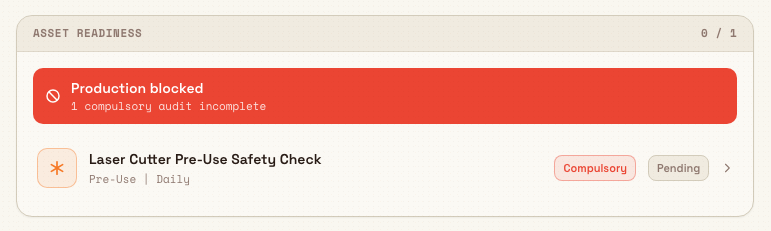
If a compulsory check was run and failed, production stays blocked. Reopen the check from its row (Bulk shows the completed checks for that template) and run it again to a passing result, or ask a supervisor to override the block.
Option 2: Request a supervisor override
When a check genuinely cannot be completed right now, a supervisor can grant a time-limited override so production can proceed. Use it deliberately: an override lets a workstation run with an unverified pre-use check.
An override lets production run without a passing safety check
Pre-use checks often confirm guarding, extraction, and emergency stops. Overriding one allows the workstation to run before those items are verified. Only request an override when it is safe to do so, choose an accurate reason, and complete the check as soon as you can.
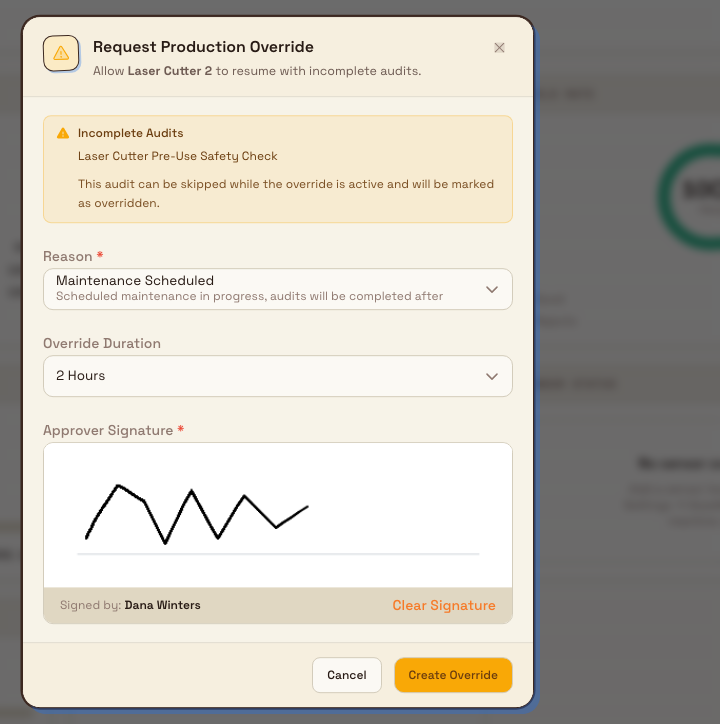
- On the Production Blocked card, select Request override. Bulk opens the Request Production Override dialog, which names the workstation and lists the incomplete checks that will be marked as overridden.
- Choose a Reason. The options are Equipment Issue, Urgent Production, Audit Pending, Maintenance Scheduled, and Other. A reason is required.
- Choose an Override Duration: 1 Hour, 2 Hours, 4 Hours, 8 Hours, or 24 Hours. The default is 2 Hours.
- Sign in the Approver Signature box. A signature is required.
- Select Create Override.
Bulk records the override with your name, reason, duration, and signature for the audit trail, then clears the block for that period. The card changes to Supervisor Override and shows an amber "Supervisor override active" banner with the time remaining, the reason, who authorized it, and the checks that were overridden. Creating a new override replaces any override already active on that workstation.
To end an override early, select Revoke on the Supervisor Override card, enter a reason, and confirm. Production is blocked again immediately until the check is completed. An override also ends on its own when its duration expires.
Example: practice cells at Gotham
At Gotham Applied Sciences, the skills practice cells have two compulsory daily checks: Machine Guard and Emergency Stop Check and Coolant System and Walkway Check.
Bruce completes both checks on Gotham Skills Practice Cell 2, records the inspection comments and submits each response. Its Asset Readiness widget shows 2/2, All compulsory audits complete and Cleared for production.
Gotham Skills Practice Cell 3 still has both checks outstanding. Its blocking card lists both checks, and Asset Readiness shows 0/2 with both rows marked Pending. For a supervised practice setup while the inspections are queued, Bruce selects Request override, chooses Other and 1 Hour, signs and selects Create Override. The saved card shows Supervisor override active, the time remaining, Bruce as authorizer and both overridden checks. The checks still need to be completed before the override ends.
Expected result
- Completing every compulsory pre-use check to a pass removes the Production Blocked card and clears the workstation for jobs.
- A supervisor override clears the block for its chosen duration, marks the affected checks as overridden, and keeps a signed record. The block returns when the override is revoked or expires.
Limitations and behavior to expect
- The feature is generally available. Whether a check blocks production, and whether it can be overridden, depend on the asset type's Block production if compulsory incomplete and Supervisor can override rules. With blocking off, an incomplete check does not stop production.
- Only compulsory checks block production. Checks set to Recommended or Optional never stop a workstation, though Recommended checks are still prompted.
- A failed compulsory check keeps production blocked in the same way an incomplete one does. Re-run the check to a passing result, or request an override.
- Requesting or revoking an override requires the override capability. If your role does not hold it, the Request override button does not appear and the check must be completed instead.
- If the asset type has Supervisor can override turned off, the override is rejected with the message "Supervisor override is disabled for this asset type", even for a supervisor.
- Overrides are time-limited (1 to 24 hours), require a signature, and are recorded for the audit trail. Creating a new override on a workstation revokes any override already active on it.
Troubleshooting
- The workstation is still blocked after I completed the check. The check failed, or another compulsory check remains. Open the Asset Readiness widget: a "compulsory audits failed" banner means the last run did not pass, so re-run that check; otherwise complete the remaining compulsory checks.
- I do not see a Request override button. Your role does not hold the override capability, or the asset type has override turned off. Complete the check, or ask a supervisor or admin to override.
- Creating the override fails with a "disabled for this asset type" message. That asset type does not allow overrides. The block can only be cleared by completing the check.
- Production blocked again on its own. The override expired or was revoked. Complete the check, or request a new override.
Related guidance
- Select a workstation to open the home board where the block appears.
- Asset Readiness explains the readiness rollup and how pre-use checks are configured per asset type.
- Complete an audit response covers answering checklist items in detail.
- Pre-use audit describes the pre-use check type and its results.
- Override an audit response covers overrides across the audits module.
- Production overview lists the rest of the production operator tasks.
Review production transactions
Search and review every production step across your jobs, inspect its output, time, quality, and history, and complete or undo steps in one place.
Operations
Use Inbound, Production, Scheduling, Prioritisation, Inventory, and Finance together to turn incoming customer work into produced, tracked, and invoiced output.