Manage consumables and variants
Build your plant's consumables catalogue in Inventory — parent items, per-variant costs, part numbers, and optional stock tracking with low-stock alerts.
Consumables are the auxiliary materials your plant uses up during production — welding wire, cutting and grinding discs, shielding gas, adhesives — as distinct from the finished parts you ship. In Bulk, a consumable is a parent item, and its variants are the specific, stockable versions that differ by size, grade, or cost. You manage both from a single screen, so operators, planners, and buyers all reference the same catalogue.
Set up consumables and variants when you:
- Onboard a new material your plant will consume during jobs.
- Add a new size or grade of an existing material as its own variant.
- Record a purchase cost, currency, and supplier part number so buyers can reorder.
- Turn on stock tracking and low-stock alerts for a variant you want to keep on hand.
You reach this screen from Inventory (the Package icon in the sidebar) → Consumables.
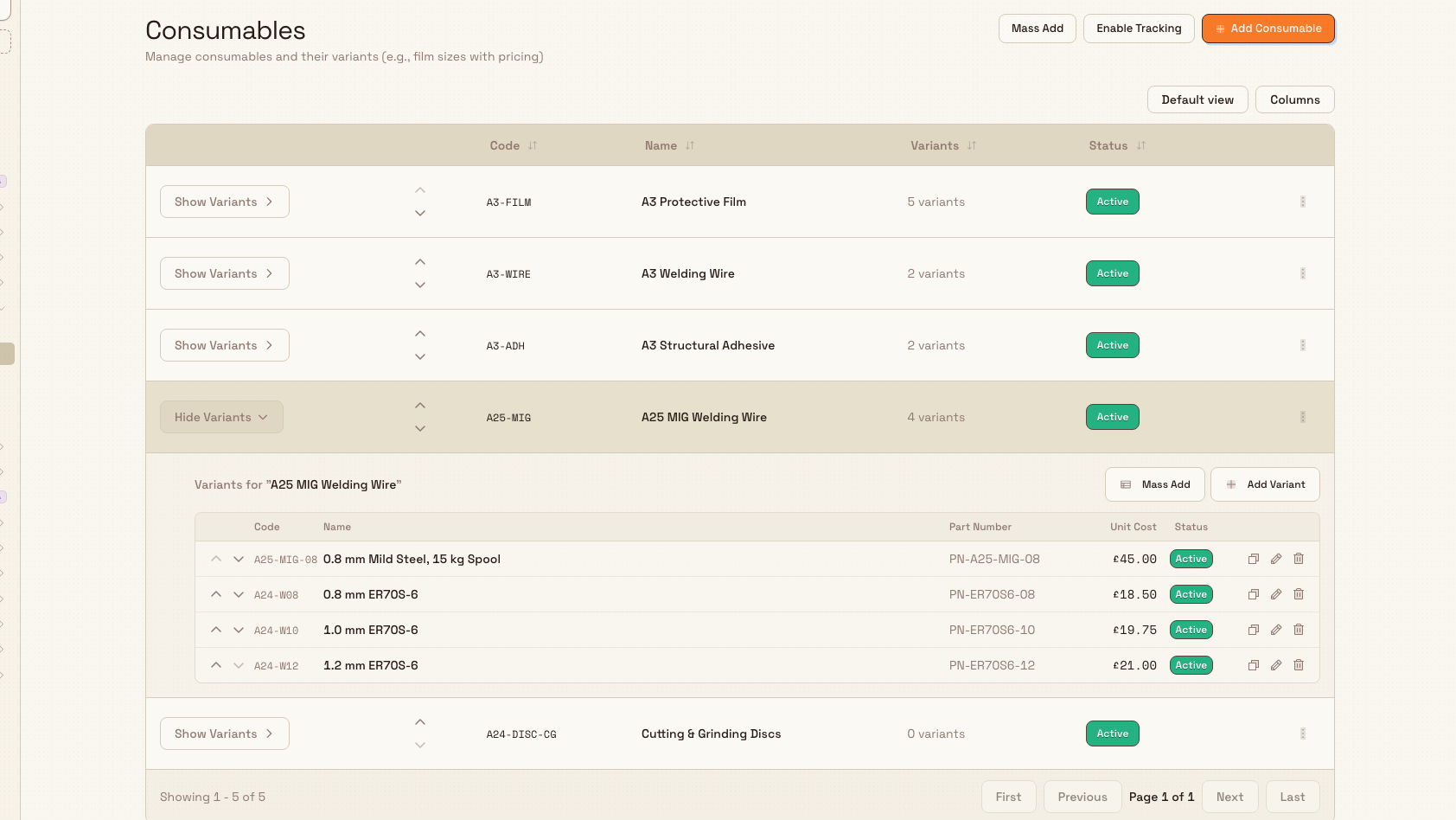
inventory.consumables-variants-01
Before you start
Managing consumables is entity-scoped: each plant (entity) keeps its own catalogue, so the items you create for the Leeds Fabrication Plant are separate from any other site.
Permissions. The screen and its actions are governed by these permissions:
consumables.view— see the consumables list and variants.consumables.create,consumables.update,consumables.delete— add, edit, duplicate, reorder, and delete consumables and variants.inventory.stock.manage— additionally required to turn on stock tracking for a variant (see the Stock section below).
In the default roles, Super user, Entity admin, Manager, and Master data can fully manage consumables and enable stock tracking. The Tablet user role has view-only access. If you cannot see the action buttons or a save is blocked, your role likely lacks the matching permission — ask an administrator.
Supporting data. A variant always needs a currency, and stock tracking uses a stock unit, so make sure your plant's currency and measurement units are set up first. Linking a consumable to a routing, resource, or production mode is optional and pulls from your manufacturing settings.
Add a consumable
- On the Consumables screen, select Add Consumable.
- Complete the form in the Create Consumable dialog:
- Name (required) — a clear label such as
MIG Welding Wire. - Code (required) — a short reference such as
WIRE-MIG. The name and code must each be unique within the plant. - Category — an optional grouping label; pick an existing one or type to create a new one.
- Description — optional free text.
- Associations — optional links that control where the consumable appears. Routing ties it to a process type, Resource ties it to a specific resource, and Production Mode limits it to one production mode. Each defaults to All.
- Name (required) — a clear label such as
- Select Create. The new consumable appears in the table with a Variants count of zero and an Active status.
Screenshot placeholder
No asset at /docs/en/inventory.consumables-variants/inventory.consumables-variants-02.png yet
- Caption
- Adding a consumable: name and code are required; associations are optional filters.
- Framing
- The Create Consumable dialog centred on screen, showing the Name, Code, Category, and Description fields plus the Associations row with Routing, Resource, and Production Mode selectors.
- Product state
- The Create Consumable dialog open over the Consumables page, with the Name and Code fields filled and the Associations section visible.
- Setup
- On Inventory → Consumables for Leeds Fabrication Plant, click Add Consumable and enter Name 'MIG Welding Wire' and Code 'WIRE-MIG', leaving the Associations selectors on All.
inventory.consumables-variants-02
Add and configure variants
A consumable is only useful once it has variants. Expand a consumable's row with Show Variants, then select Add Variant. The variant dialog has two tabs.
Details tab
- Name (required) — the specific version, such as
1.0 mm ER70S-6. Variant names must be unique within their consumable. - Code and Part Number — optional references; the part number is what buyers use to reorder.
- Unit Cost and Currency — the purchase cost per unit. Enter the cost in main currency units (for example,
12.50) and choose the currency, which is required. - Description — optional free text.
Cost and currency apply to future movements
When you edit a tracked variant, its currency and unit cost apply only to future stock movements. Existing stock keeps the currency and cost it was recorded with, so historical valuations stay accurate.
Stock tab
- Enable stock tracking — a switch that starts tracking inventory levels and status for the variant. Turning it on requires the
inventory.stock.managepermission. - When tracking is on, set the Stock Unit (such as rolls or metres), an optional Initial Stock quantity, and Min Stock / Max Stock thresholds. Maximum stock must be greater than or equal to minimum stock.
- Enable stock alerts — a switch that sends notifications as stock moves through the ok, low, critical, and over-maximum statuses. When on, choose an Alert Frequency of Immediate or Digest, and optionally pick Alert Recipients. If you leave recipients empty, your plant's default stock-alert recipients are used.
Select Create to save the variant. It appears in the variant sub-table with its code, part number, unit cost, and status.
Screenshot placeholder
No asset at /docs/en/inventory.consumables-variants/inventory.consumables-variants-03.png yet
- Caption
- A variant's Stock tab: tracking, thresholds, and alerts. Enabling tracking needs the stock-manage permission.
- Framing
- The variant dialog showing the Stock tab: the Enable stock tracking switch on, the Stock Unit selector, the Initial / Min / Max stock inputs, and the Enable stock alerts switch with the Alert Frequency selector.
- Product state
- The Add Variant dialog on its Stock tab, with stock tracking switched on and Stock Unit, Min Stock, and Max Stock filled, plus stock alerts enabled.
- Setup
- From the expanded MIG Welding Wire row, click Add Variant, fill the Details tab (Name '1.0 mm ER70S-6', a unit cost and currency), switch to the Stock tab, enable stock tracking, set Stock Unit to rolls, Min Stock 20 and Max Stock 200, and enable stock alerts with Immediate frequency.
inventory.consumables-variants-03
Edit, reorder, and remove
Each consumable row has an actions menu with Add Variant, Duplicate, Edit, and Delete. Variants have inline Duplicate, Edit, and Delete controls in their sub-table. Duplicating a consumable copies it together with all of its variants; the copy is named with a (Copy) suffix so you can rename it.
Use the up and down arrows on the left of each row to change display order — the order you set is how consumables and variants appear everywhere they are listed. Toggle a consumable's Active or Inactive status from its edit form to retire an item without deleting it.
Deleting a consumable also deletes its variants
Deleting a consumable removes every variant it contains, and deleting a variant cannot be undone from the screen. Set an item to Inactive instead if you only want to hide it while keeping its history.
Work faster in bulk
Two shortcuts help when you are setting up many items at once:
- Mass Add — the Mass Add Consumables and Mass Add Variants dialogs let you enter up to 50 rows at a time and paste directly from a spreadsheet (tab-separated) into any cell. Each row is validated for required fields, length limits, duplicates, and — for consumables — whether any named routing, resource, or production mode exists.
- Enable Tracking — the Bulk Enable Stock Tracking dialog lists every variant that does not yet have tracking, so you can switch several on at once and set their initial, minimum, and maximum stock in one pass.
Worked example: Leeds Fabrication Plant
The Leeds Fabrication Plant at Granite Peak Manufacturing runs several MIG welders and wants one place to manage its wire.
- Dana adds a consumable named
MIG Welding Wirewith codeWIRE-MIGand categoryWelding. - Under it, she adds three variants —
0.8 mm ER70S-6,1.0 mm ER70S-6, and1.2 mm ER70S-6— each with a supplier part number and a unit cost in GBP. - For the high-use
1.0 mm ER70S-6variant, she opens the Stock tab, enables tracking with a stock unit of rolls, sets Min Stock to20and Max Stock to200, and enables immediate alerts to the stores team. - She adds a second consumable,
Cutting & Grinding Discs, with variants for the 115 mm and 230 mm diameters.
Buyers now reorder against accurate part numbers and costs, the tracked wire variant surfaces in stock levels and triggers a low-stock alert before it runs out, and operators select the correct wire and disc when booking production.
Feature state and limitations
Managing consumables and variants is generally available. Keep these behaviours in mind:
- Names and codes are unique per plant; variant names are unique within their parent consumable.
- A variant always requires a currency, even before you record any cost.
- Enabling stock tracking requires the
inventory.stock.managepermission in addition to consumables permissions. Without it, the tracking toggle cannot be saved. - Consumables and variants belong to one plant (entity) and are not shared across plants automatically.
- Editing a tracked variant's currency or unit cost affects only future stock movements, not existing stock.
- This screen defines the catalogue and thresholds. Actual on-hand quantities, movement history, replenishment behaviour, and alert delivery live in the wider Stock area — see the related guidance below.
Troubleshooting
- "Already exists" or "Duplicate in list" on a name or code — another consumable or variant already uses that value, or two rows in a Mass Add batch clash. Choose a unique name and code, or edit the existing item instead of creating a new one.
- Cannot save a variant — a currency is required. Pick one in the Currency field on the Details tab.
- The stock-tracking toggle will not save — enabling tracking needs the
inventory.stock.managepermission. Ask an administrator to grant it or to enable tracking for you. - "Maximum stock must be greater than or equal to minimum stock" — raise the Max Stock value or lower the Min Stock value so the range is valid.
- A Mass Add row shows "Not found" on Routing, Resource, or Prod. Mode — the name must match an existing routing, resource, or production mode exactly. Correct the spelling or leave the cell blank.