Inventory
Track consumable stock across a plant in Bulk — receive and adjust quantities, set reorder points, watch stock health, and act on low-stock alerts.
Bulk's Inventory area is where your plant tracks the physical materials it consumes to make product — items such as film, adhesive, welding wire, or packaging. In Bulk these tracked materials are called consumables, and each countable form of a consumable is a variant (for example, a specific film width or a particular spool size). Inventory keeps a running, real-time count of how much of each variant you have on hand, what it is worth, and whether you are running low.
Reach for Inventory when you need to answer questions like "How much D2 film is left at Leeds?", "Did this morning's delivery get booked in?", or "Which materials are about to run out?" Inventory sits next to production: as jobs record the materials they use, Bulk deducts stock for you, so the counts you see reflect what is actually on the shelf rather than a separate spreadsheet.
Before you start
Inventory is scoped to a single entity — a plant or site in your organization — so first confirm the correct plant is selected in the entity switcher. All the counts and alerts you see belong to that plant.
Access depends on your permissions:
- Viewing stock needs the inventory stock view permission. By default every operator role has it, so most people on the floor can open Inventory and read the numbers.
- Receiving, adjusting, and bulk-receiving stock, and changing alert defaults, need the stock-manage and stock-alert permissions. By default these belong to owners, entity admins, managers, and the master-data role.
Stock only appears for variants that have stock tracking switched on. If you have just started, set up at least one consumable with a tracked variant first — the counts stay empty until something is being tracked.
Only tracked variants are counted
A variant appears in Inventory once Enable stock tracking is turned on for it, on the variant's Stock tab. Variants without tracking are treated as "Untracked" and are hidden from the Stock list, so if an item is missing, tracking is usually the reason.
The Inventory area
Open Inventory from the main navigation. It groups four areas:
- Home — an at-a-glance dashboard. The Stock Overview panel shows how many Tracked variants you have, a Coverage figure (the share of tracked variants that are healthy), and a Breakdown by status. The Stock Alerts panel lists the items sitting below their minimum level. Home also carries the Receive Stock and Bulk Receive buttons for quick booking-in.
- Consumables — where you create and organize consumables and their variants, and switch stock tracking on. See Manage consumables and variants.
- Stock — the Stock Management table of every tracked variant, with Current, Min, Max, Status, Value, and Last Movement columns, plus filters and per-row actions to receive, adjust, or inspect an item. See Review stock levels.
- Alerts — the Stock Alert Configuration screen, where you set default recipients, delivery frequency, and thresholds for stock notifications.
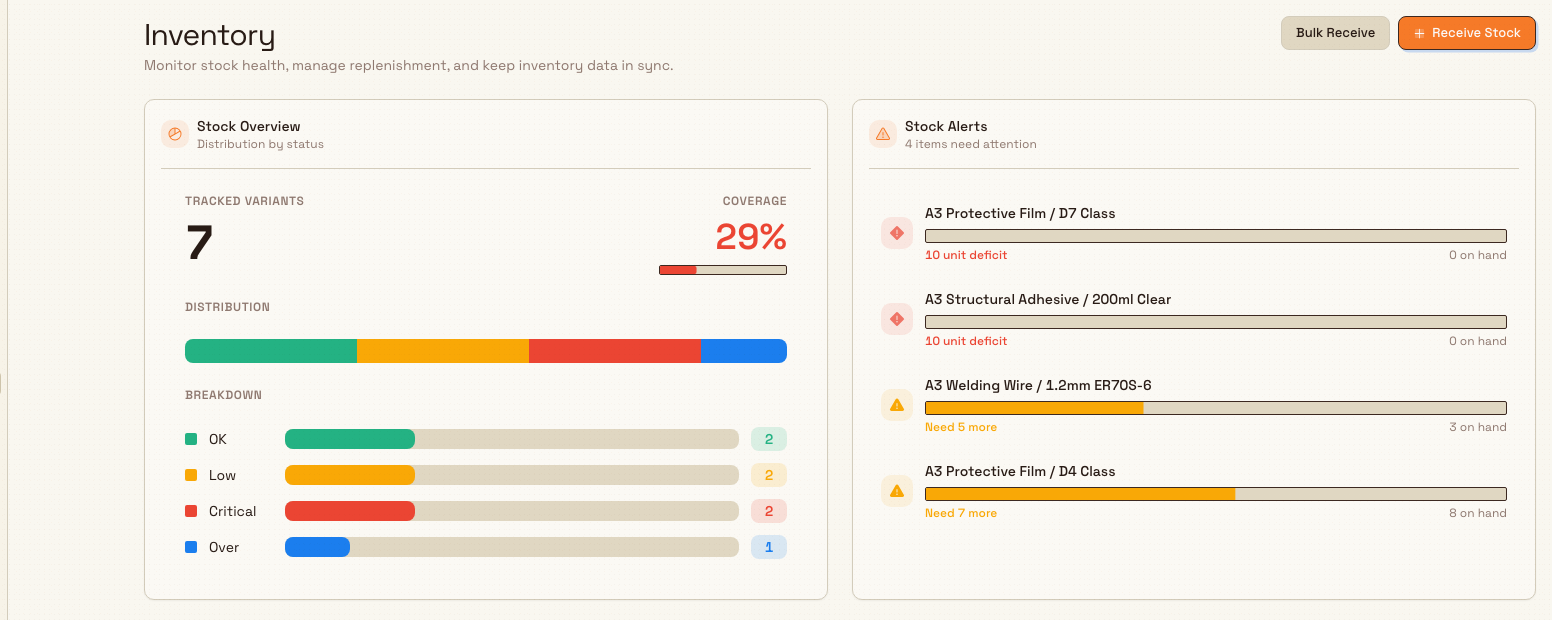
inventory.overview-01
How stock health works
Bulk gives every tracked variant a status based on the quantity on hand and the reorder points you set on the variant:
- OK — the quantity is within range.
- Low — the quantity has fallen below the variant's Min Stock. Min Stock is the reorder point: the level at which you would normally order more.
- Critical — the variant is depleted (the on-hand quantity has reached zero).
- Over — the quantity is above the variant's Max Stock.
- Untracked — stock tracking is off, so Bulk is not counting this variant.
The count changes through stock movements — the individual events that raise or lower a balance. Bulk records a movement for each receipt, adjustment, initial-stock entry, reconciliation, and for the material consumed (or reversed) by production. Every movement stores the balance before and after, who made it, and any reference or note, which gives each variant a complete, auditable history. When a movement pushes a variant into Low, Critical, or Over — or back to OK — Bulk raises or clears the matching stock alert automatically.
Example: keeping film stocked at Leeds
Granite Peak Manufacturing runs a Leeds Fabrication Plant that laminates panels, and its most-used consumable is protective film. A stock coordinator sets up the consumable Protective Film with a variant D2 Class, turns on Enable stock tracking, and sets Min Stock to 20 rolls and Max Stock to 200 rolls.
When a supplier delivery arrives, the coordinator opens Receive Stock, selects the consumable and variant, enters the received Quantity, and adds the purchase-order number under Reference #. Bulk books the rolls in, the Current column on the Stock page jumps up, and the status stays OK. Later in the week, production jobs laminate panels and record the film they used; Bulk deducts those rolls as production-usage movements without anyone re-keying the numbers. Once the balance slips under 20 rolls, the variant flips to Low, a stock alert reaches the configured recipients, and the item surfaces in the Stock Alerts panel on Home — prompting the next order well before the line runs dry.
What good looks like
A well-run Inventory area shows a high Coverage figure, most variants sitting at OK, an accurate Value for each tracked item, and an empty or short alert list. When something drops low, the right people are notified and can top it up before production is affected — and the movement history explains exactly how each balance changed.
Limitations and availability
Inventory is generally available.
- Only variants with stock tracking enabled are counted; untracked variants are hidden from the Stock list.
- A variant's Value only appears when it has a unit cost and currency recorded. Unit cost and currency apply to future movements — existing stock keeps the values it was booked in with.
- Production consumption is deducted automatically from the materials that jobs record; you do not book those movements by hand.
Troubleshooting
- "Stock tracking is disabled for this variant" when receiving or adjusting. The variant is not tracked. Open it in Consumables, go to the Stock tab, and turn on Enable stock tracking, then retry.
- A variant is missing from the Stock page. It is most likely untracked (untracked items are hidden) or excluded by the current status or search filter. Enable tracking, or clear the filters, to see it.
- The Value column shows a dash. The variant has no unit cost or currency set. Add a Unit Cost and Currency on the variant so Bulk can value the on-hand quantity.
Related guidance
- Stock movement times preserve the exact moment goods were received, issued, or adjusted. Calendar-only expiry, required, and planning dates stay on the selected day in the inventory record's plant timezone.
- Manage consumables and variants — create the items Inventory tracks and switch on stock tracking.
- Review stock levels — read the Stock Management table, filters, and per-item detail.
- Record a stock movement — receive, adjust, and bulk-receive stock, and read a variant's history.
- Configure replenishment thresholds — set the Min Stock and Max Stock levels that drive status and alerts.
- Respond to a stock alert — set alert defaults and act when an item runs low.
- Review production consumption — see how production draws material down from stock.
Hand planned work to production
How the Scheduling planning board hands work to the shop floor — what a plan does, how production picks it up, and how the board mirrors what is actually happening.
Manage consumables and variants
Build your plant's consumables catalogue in Inventory — parent items, per-variant costs, part numbers, and optional stock tracking with low-stock alerts.