Configure replenishment thresholds
Set the Min Stock and Max Stock levels on a tracked consumable variant so Bulk flags it Low, Critical, or Over and raises stock alerts at the right time.
Replenishment thresholds are the two levels — Min Stock and Max Stock — that tell Bulk when a material is running low or piling up. In Bulk, a consumable is a material your plant uses up during production (film, welding wire, adhesive, packaging), and a variant is the specific, countable version you actually stock. When a variant has stock tracking turned on, Bulk compares its on-hand quantity against these thresholds and gives it a status — the same status that drives the colour-coded badges on the Stock page and the low-stock alerts your team receives.
Set thresholds when you want an item to warn you before it runs out. Min Stock is the reorder point: the level at which you would normally place another order. Max Stock is the ceiling: the level above which you are holding more than you need. Together they turn a raw quantity into a clear signal — reorder now, this is fine, or you are overstocked.
What the thresholds control
Bulk sets a variant's status automatically from its current quantity and its thresholds. The rules are applied in this order:
- Over — the quantity is above Max Stock.
- Critical — the quantity is zero (or below). You have run out.
- Low — the quantity is below Min Stock but still above zero.
- OK — the quantity is at or above Min Stock and not above Max Stock.
- Untracked — stock tracking is off, so Bulk does not count or rank the variant.
Two consequences follow from those rules and are worth planning around:
- If you leave Min Stock blank, the variant is never flagged Low — it can only reach Critical by hitting zero.
- If you leave Max Stock blank, the variant is never flagged Over, no matter how much you receive.
The boundaries are inclusive: a quantity exactly equal to Min Stock counts as OK, and a quantity exactly equal to Max Stock also counts as OK. Only strictly below the minimum is Low, and only strictly above the maximum is Over.
Before you start
- Pick the right plant. Thresholds belong to one entity (a plant or site). Confirm the correct plant is selected in the entity switcher first, because a variant's thresholds apply only at that plant.
- Turn on stock tracking. Thresholds only take effect on a variant that has Enable stock tracking switched on. The Min Stock and Max Stock fields do not appear until tracking is enabled. See Manage consumables and variants for how to create a variant and turn tracking on.
- Check your permissions. Switching stock tracking on (a prerequisite) needs the manage-stock permission (
inventory.stock.manage). Adding or changing the Min Stock and Max Stock values uses the same permission as editing any variant (consumables.update). In the default roles, Super user, Entity admin, Manager, and Master data hold both and can do everything on this page. The Operator role can view stock but not manage consumables, and the Tablet user role is view-only, so neither can set thresholds.
Set thresholds on a single variant
You configure thresholds from the consumable catalogue, not from the Stock page.
- Open Inventory from the main navigation and select Consumables.
- Expand the consumable whose variant you want to adjust, so its variants are listed.
- On the variant row, select the Edit (pencil) action to open the variant dialog. To set thresholds on a brand-new variant, select Add Variant instead.
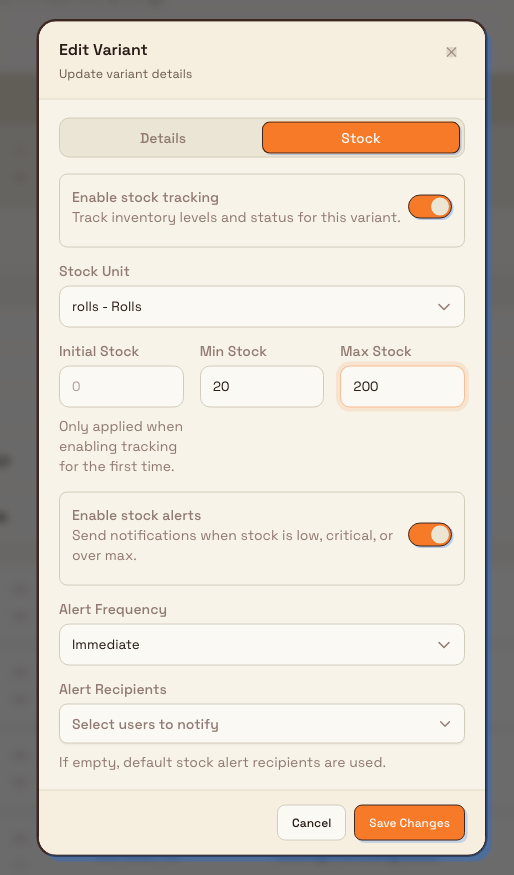
- Switch to the Stock tab and make sure Enable stock tracking is on.
- In the Min Stock and Max Stock fields, enter the levels you want, expressed in the variant's Stock Unit (such as rolls, metres, or kilograms). You can fill one, both, or neither.
- Select the save button (Create for a new variant, or the update button when editing) to apply the change.
inventory.replenishment-thresholds-01
Set thresholds for several variants at once
When you are switching tracking on for many variants, you can set their thresholds in the same pass:
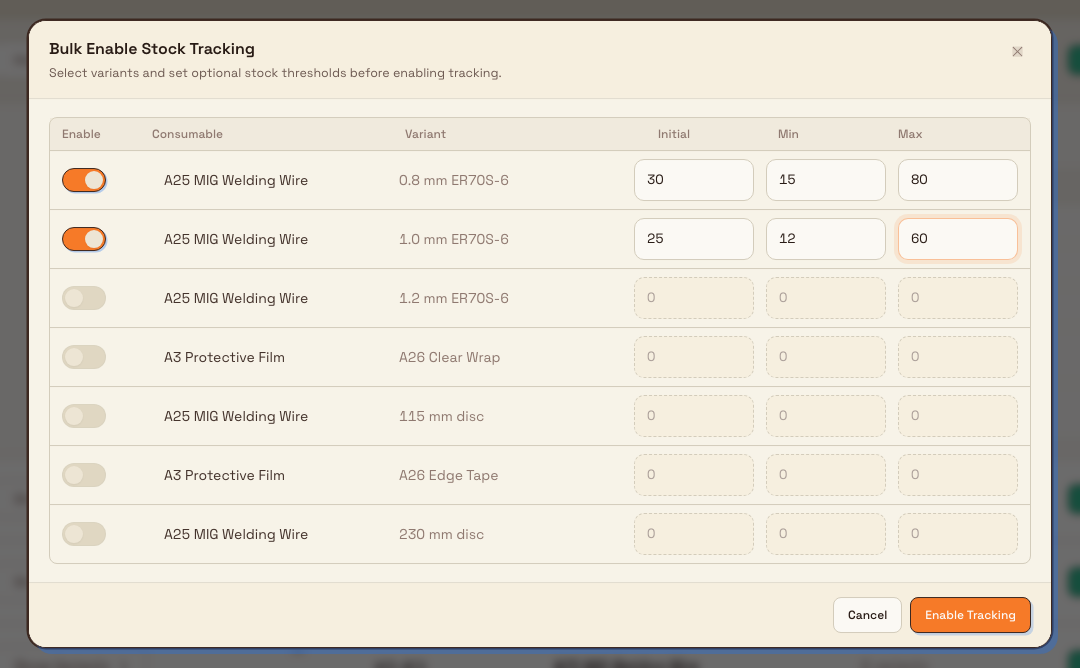
- On the Consumables screen, select Enable Tracking in the header.
- In the Bulk Enable Stock Tracking dialog, each row is a variant that does not yet have tracking. Turn on the Enable switch for the ones you want to track.
- For each enabled row, fill the Initial, Min, and Max columns as needed. The Min and Max columns are the replenishment thresholds.
- Select Enable Tracking to save. Rows you leave switched off are untouched.
This dialog only lists variants that are not yet tracked, so use it for initial setup. To change thresholds on a variant that is already tracked, edit the variant directly as described above.
inventory.replenishment-thresholds-02
Thresholds take effect immediately
Saving a threshold change re-evaluates the variant's status straight away against its current on-hand quantity. If that pushes the variant into Low, Critical, or Over — or back to OK — Bulk updates the status and raises or clears the matching stock alert at once, without waiting for the next stock movement.
Editing a threshold can trigger an alert right away
Because status is recomputed the moment you save, raising a Min Stock above the quantity you currently hold will flip a variant to Low and can notify your stock-alert recipients immediately. That is expected behaviour, not a fault — the new threshold simply describes the stock you have right now.
Rules Bulk enforces
- Both values must be zero or greater. A negative number is rejected with
Minimum stock must be 0 or greaterorMaximum stock must be 0 or greater. - Max must not be below Min. If you enter a maximum lower than the minimum, the save is blocked with
Maximum stock must be greater than or equal to minimum stock. Raise the maximum or lower the minimum so the range is valid. - Blank means no limit on that side. An empty field is stored as "no threshold", which is why a variant with no minimum is never Low and a variant with no maximum is never Over.
- Thresholds need tracking. The Min Stock and Max Stock values only apply while the variant has stock tracking enabled. If you switch tracking off, the variant becomes Untracked and its thresholds stop being evaluated.
Example: keeping film in the right band at Leeds
Granite Peak Manufacturing runs a Leeds Fabrication Plant that laminates panels, and its most-used material is protective film. Dana Winters, the operations lead, wants the plant to reorder film in good time but not overstock a cold store.
- Dana opens Inventory then Consumables, expands Protective Film, and edits the D2 Class variant.
- On the Stock tab, with tracking on and the Stock Unit set to rolls, she sets Min Stock to
20and Max Stock to200, then saves. - The variant now sits at OK while it holds between 20 and 200 rolls. When production draws it down to 18 rolls, it flips to Low and the stores team gets a stock alert; if a large delivery ever pushes it past 200, it shows Over so Dana can hold the next order.
For a made-to-order lamination film that Dana never wants an overstock warning on, she sets only Min Stock and leaves Max Stock blank. That variant can reach Low and Critical but never Over, because with no maximum there is nothing to exceed.
What you can expect
Once thresholds are set, they surface across Inventory:
- The Stock page shows the variant's Min and Max columns, a Status badge, and a Level bar that plots the current quantity between the two thresholds.
- Selecting the variant on the Stock page opens a detail panel with read-only Min Level and Max Level figures and a gauge, so you can confirm the thresholds without reopening the variant.
- Low and critical variants rise to the top of the Stock list and drive the alerts described in the related guidance below.
Feature state and limitations
Configuring replenishment thresholds is generally available. Keep these points in mind:
- Edited from the catalogue only. Thresholds are set on the variant, from Inventory → Consumables (or the Bulk Enable Stock Tracking dialog). The Stock page displays them but does not let you change them there.
- One plant at a time. A variant's thresholds apply at the selected plant (entity); they are not shared across plants automatically.
- Single numeric levels. Each variant has one Min Stock and one Max Stock value in its stock unit. Bulk does not schedule different thresholds by season or supplier.
- Tracking is required. A variant with tracking disabled ignores its thresholds and is treated as Untracked.
Troubleshooting
- The Min Stock and Max Stock fields are missing. The variant does not have tracking on. On the variant's Stock tab, switch Enable stock tracking on; the threshold fields appear underneath.
- "Maximum stock must be greater than or equal to minimum stock" when saving. The maximum you entered is below the minimum. Raise Max Stock or lower Min Stock so the range is valid.
- The item never shows Low even though it is running down. It has no Min Stock set, so Bulk cannot flag it Low — it will only turn Critical at zero. Add a minimum to get an earlier warning.
- The tracking switch will not save. Enabling tracking needs the
inventory.stock.managepermission. Ask an administrator to grant it or to enable tracking for you, then set the thresholds.
Related guidance
- Manage consumables and variants — create variants and switch stock tracking on before setting thresholds.
- Review stock levels — read the Status, Min, Max, and Level columns that thresholds drive.
- Respond to a stock alert — set alert defaults and act when a threshold is crossed.
- Record a stock movement — receive or adjust stock to move a variant between statuses.
- Inventory overview — how stock health fits together across the plant.
Record a stock movement
Receive incoming stock or correct an on-hand count for a tracked consumable variant, recorded as an auditable stock movement with a running balance.
Respond to a stock alert
Notice, act on, and configure the low, critical, and over-stock alerts Bulk raises for tracked consumable variants at your site.