Review production consumption
See how much stock production has drawn down by opening a consumable's movement timeline in the Inventory Stock area, where Production Usage and Production Reversal entries show quantities and running balances.
When an operator records that they used a consumable on a production job, Bulk removes that quantity from your inventory. A consumable is any material you stock and draw down as you work, such as welding wire, cutting discs, adhesive, or coolant. Each of these draw-downs is stored as a stock movement of type Production Usage, and reviewing them tells you exactly how much material a job, an asset, or a shift actually consumed.
This article explains where production consumption appears, how to read a consumable's movement timeline, and how to tell a genuine usage from a correction. It is a review task: you are reading what production already booked, not entering new usage yourself. Usage itself is captured on the production side when operators record consumable use against their jobs.
Before you start
You review production consumption from the Inventory area, so you need access to it:
- Permission. Viewing stock levels and movements requires the
inventory.stock.viewpermission. In a standard setup every operational role has it, including operators, so most people who work in production can open and read these timelines. Receiving or adjusting stock is a separateinventory.stock.managepermission, but you do not need it just to review consumption. - Stock tracking must be on. A Production Usage entry is only created when the consumable variant has stock tracking enabled. If an operator records usage for a variant whose tracking is off, the usage is still attached to the job for costing, but no stock movement is written and nothing appears in the timeline described below.
- The right facility. Stock movements are scoped to the facility (entity) you are currently working in. If you cannot find expected consumption, confirm you are in the facility where the work was recorded before you keep looking.
Where consumption comes from
Production Usage entries are generated automatically when operators record consumable use on the shop floor. You never type them into the Inventory area by hand. To understand how the numbers are captured in the first place, see the production-side guide linked at the end of this page.
Open the Stock area
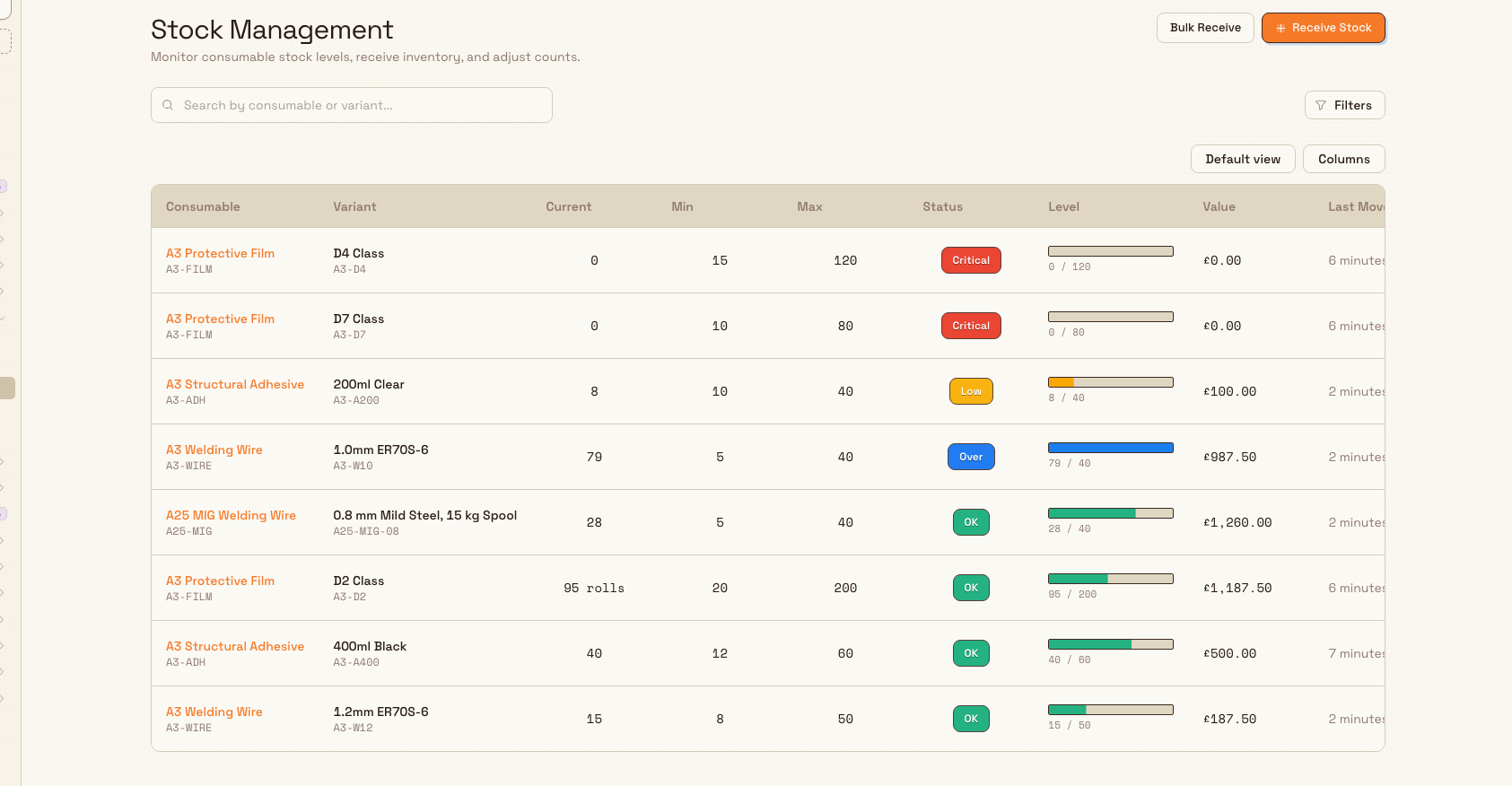
From the left navigation, open Inventory and choose Stock. This opens the Stock Management page, described as "Monitor consumable stock levels, receive inventory, and adjust counts."
The page lists one row per tracked consumable variant, with columns for Consumable, Variant, Current (quantity on hand), Min, Max, Status, Level, Value, and Last Movement. The Status column shows a badge of OK, Low, Critical, Over, or Untracked, and the Last Movement column is your first clue about which variants have recent activity worth opening.
inventory.production-consumption-01
Read a consumable's movement timeline
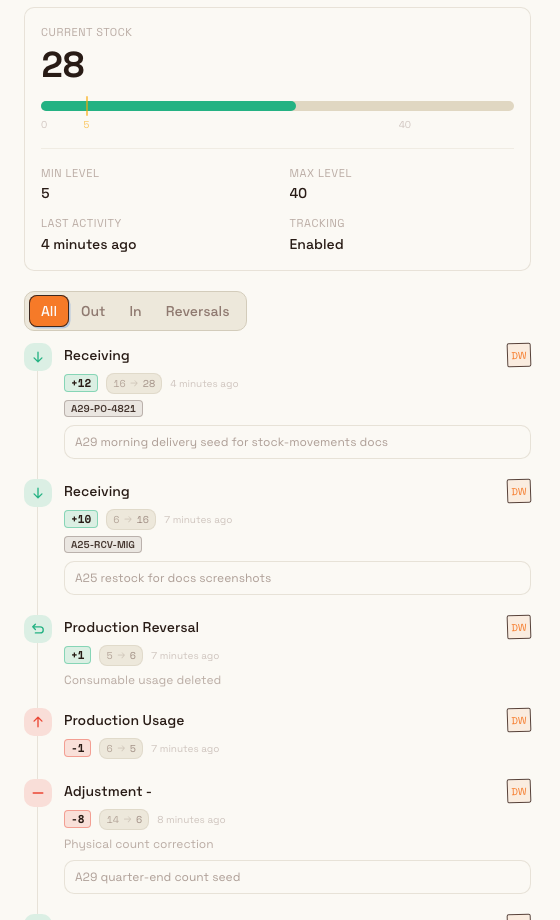
Select any row to open the stock detail sheet on the right. The top of the sheet names the consumable and its variant, shows the current status badge, and presents the Current stock figure. Below that you see the variant's Min Level and Max Level, its Last Activity, and whether Tracking is Enabled or Disabled.
Underneath the summary is the movement timeline. This is where production consumption lives. Each entry shows:
- The movement type label, such as Production Usage for a draw-down or Production Reversal for a correction that puts stock back.
- Who recorded it, shown as an avatar you can hover to see the name.
- A quantity badge, with a minus sign for stock going out and a plus sign for stock coming in.
- The running balance, shown as the balance before the movement, an arrow, and the balance after.
- How long ago it happened.
When there is a mix of activity, the timeline offers filter tabs above it: All, Out, In, and Reversals. Out groups the movements that removed stock, which is where a Production Usage lands. Reversals isolates Production Reversal entries so you can separate genuine consumption from corrections at a glance. Tabs only appear when there is more than one group to show.
Other movement types can share the same timeline, including Receiving, Adjustment +, Adjustment -, Initial Stock, and Reconciliation. Focus on Production Usage and Production Reversal when your question is specifically about what production consumed.
inventory.production-consumption-02
Example: welding wire at Leeds Fabrication Plant
Granite Peak Manufacturing runs its fabrication cells at the Leeds Fabrication Plant. A supervisor wants to confirm how much MIG welding wire a batch of frames really used before the shift closes.
They open Inventory, choose Stock, and select the row for MIG Welding Wire, variant 0.8 mm Mild Steel, 15 kg Spool. The Current stock shows 16 spools with a status of OK. In the timeline they scan the Out tab and see three Production Usage entries from the afternoon, each a minus quantity with the balance stepping down: 20 to 18, 18 to 17, and 17 to 16. That accounts for four spools against the batch.
They also notice one Production Reversal of a single spool under the Reversals tab, moving the balance from 15 back to 16. An operator had scanned the same spool twice and corrected it. The supervisor is satisfied the running balance is right and that the four-spool draw-down matches the batch, so no manual adjustment is needed.
Understand reversals
A Production Reversal is how Bulk undoes a recorded consumption, for example after a mis-scan or a scrapped unit. It adds the reversed quantity back to stock and is labelled so you can tell it apart from a genuine receipt of new material. Because a reversal is a distinct entry rather than an edit to the original, the timeline keeps a complete, honest history: the original Production Usage stays visible and the reversal sits alongside it. Use the Reversals tab when you want to review only these corrections.
What you can and cannot do here
- This area is read-only for consumption. You review Production Usage and Production Reversal entries, but you do not create or reverse consumption from the Inventory Stock page. Those actions happen when production records or corrects consumable use.
- The timeline is per variant. Each detail sheet covers a single consumable variant in the current facility. To compare several materials, open each variant in turn, or use the production and dashboard views linked below for a broader roll-up.
- Entries only exist for tracked variants. Consumption recorded against a variant with tracking disabled is kept for costing on the job but never appears as a stock movement here.
Feature state
Reviewing production consumption is generally available and part of the standard Inventory Stock area. It reflects live stock movements as production records them, so the timeline stays current without any manual refresh on your part.
Troubleshooting
An operator recorded usage but you see no Production Usage entry. The most common cause is that stock tracking is disabled for that variant. Open the detail sheet and check the Tracking field. If it shows Disabled, enable stock tracking on the consumable variant so that future usage deducts and appears here. Turning tracking on does not retroactively create movements for usage that was already recorded while tracking was off.
The timeline looks empty for a brand-new variant. If nothing has been received, set as initial stock, or consumed yet, the sheet shows "No movements yet" with the message "Stock movements will appear here as inventory is received, used, or adjusted." This is expected until the first movement is recorded.
You expected consumption but are in the wrong place. Movements are scoped to the facility you are working in and to one variant at a time. Confirm you selected the correct facility and the exact variant the operator used, since two similar variants can hold very different histories.
Related guidance
- Record consumable use explains how operators book the usage that becomes Production Usage here.
- Review production transactions gives a production-side view of recorded activity.
- Review stock levels covers the quantities and statuses shown on the Stock Management page.
- Record a stock movement covers receiving and adjusting stock by hand.
- Manage consumables and variants explains how variants and their stock tracking are set up.
- Inventory overview links the rest of the inventory guides.
Respond to a stock alert
Notice, act on, and configure the low, critical, and over-stock alerts Bulk raises for tracked consumable variants at your site.
Finance
Understand the Finance area in Bulk — create, approve, issue, and confirm production invoices and raise customer credit notes — and open the step-by-step guide for each task.