Review stock levels
Monitor on-hand quantity, stock status, and value for tracked consumable variants at your selected site.
What the Stock page shows
The Stock page is where you review how much of each tracked material you currently hold at one site. In Bulk, a consumable is a material that gets used up during production — for example glue, thread, powder coat, or ink. Each consumable can have one or more variants, which are the specific versions you actually stock and count (a grade, a colour, or a pack size). The Stock page lists one row per tracked variant and shows its current quantity, its health against your minimum and maximum levels, and its stock value.
Use this page when you want to answer questions such as whether you are about to run out of anything, what is sitting above its maximum, or when an item last moved — without opening each consumable one at a time.
Stock is always scoped to the site (the plant or location) you have selected. Switching sites shows a different set of stock levels.
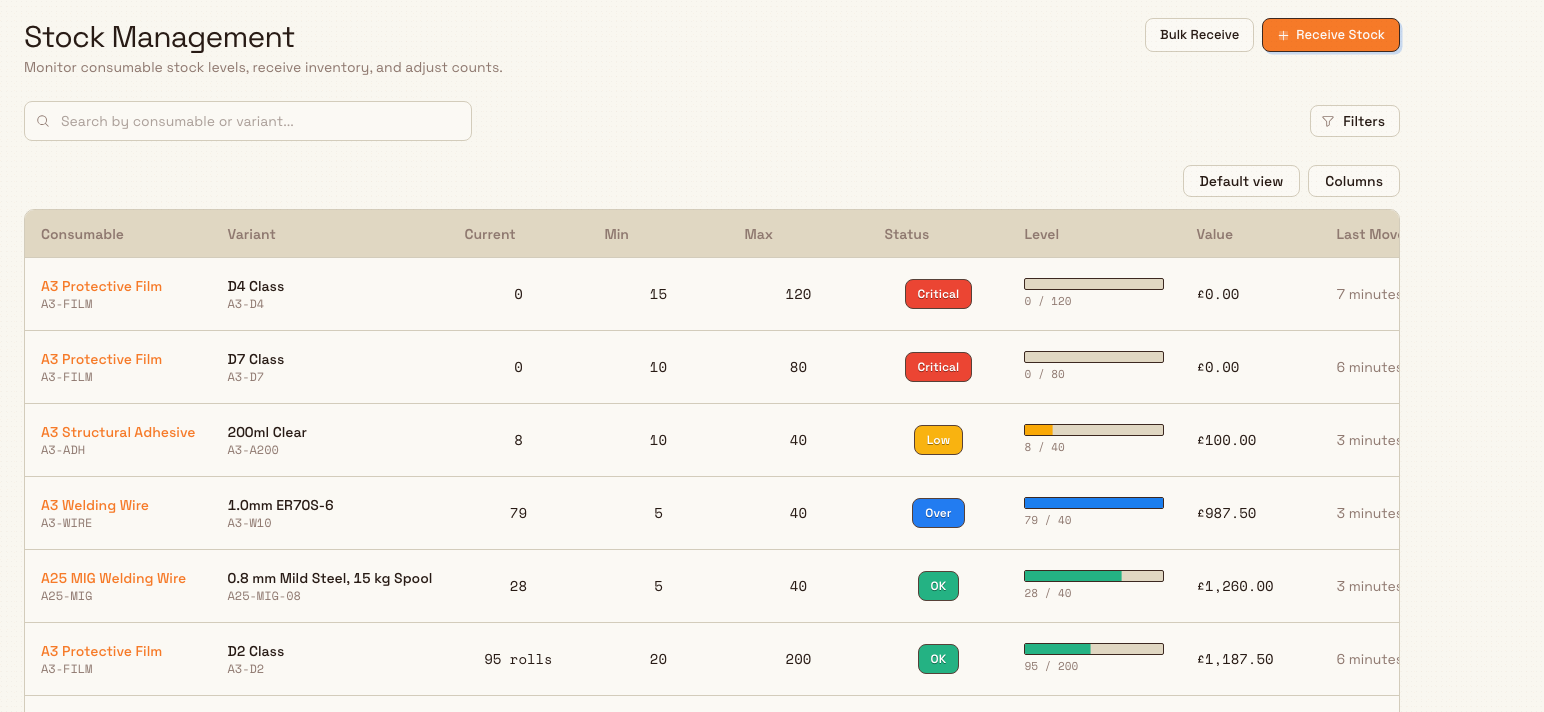
inventory.stock-levels-01
Before you start
- Your role needs the View stock levels permission (
inventory.stock.view). Bulk grants this by default to the Operator, Manager, Master data, and Entity admin roles, as well as Super user, so most production users can open the page. - The Inventory module must be enabled for your workspace. When it is, an Inventory group appears in the main navigation.
- A variant only appears here once Enable stock tracking is turned on for it. Variants without tracking are treated as untracked and are hidden from this view.
Receiving and adjusting stock is a separate, higher permission — Manage stock (inventory.stock.manage) — held by the Manager, Master data, and Entity admin roles but not the Operator role. You can still review levels without it.
Open the Stock page
- In the main navigation, open Inventory.
- Select Stock.
The page header reads Stock Management. Rows load automatically for your selected site.
Read the table
Each row is one tracked variant. The columns are:
- Consumable — the parent material name and its code.
- Variant — the specific variant name and code.
- Current — the quantity on hand, shown in the variant's stock unit.
- Min and Max — the minimum and maximum levels configured for the variant. A dash means none is set.
- Status — a coloured badge summarising health, described below.
- Level — a bar that plots the current quantity between the minimum and maximum.
- Value — the stock value in your workspace currency, or a dash when no unit cost is set.
- Last Movement — how long ago the last change was recorded.
Rows are sorted by urgency: Critical first, then Low, then Over, and finally OK, so the items that need attention rise to the top. Select any row to open its detail panel.
What each status means
Bulk sets the status automatically from the current quantity and the variant's thresholds:
- Critical — the quantity is zero or below. You have run out.
- Low — the quantity is below the configured minimum, but still above zero.
- OK — the quantity is at or above the minimum and not above the maximum.
- Over — the quantity is above the configured maximum.
- Untracked — stock tracking is turned off for the variant, so it is excluded from this view.
If a variant has no minimum set, it is never flagged Low. If it has no maximum set, it is never flagged Over.
Filter and search
Above the table you can narrow the list:
- Search by consumable or variant — type part of a name or code.
- Status — tick one or more of Critical, Low, OK, Over, or Untracked.
- Consumable — pick a single consumable to see only its variants.
Active filters appear as chips that you can clear individually or all at once. You can also show, hide, reorder, and pin columns and save named views using the table's column and view controls.
Inspect a single variant
Selecting a row opens a detail panel on the right. It shows:
- Current stock as a large headline figure.
- A gauge plotting the quantity against the minimum and maximum, shown when a maximum is set.
- Min Level, Max Level, Last Activity, and whether Tracking is Enabled or Disabled.
- A movement timeline of recent changes, which you can filter by All, Out, In, or Reversals.
Each timeline entry shows the movement type — such as Receiving, Production Usage, or an adjustment — the quantity in or out, the running balance before and after, who recorded it, and when.
Screenshot placeholder
No asset at /docs/en/inventory.stock-levels/inventory.stock-levels-02.png yet
- Caption
- Selecting a row opens a detail panel with the current quantity, a min-to-max gauge, and a timeline of recent movements.
- Framing
- The right-hand detail panel from the variant heading through the Current stock figure, the gauge, the Min Level / Max Level / Last Activity / Tracking grid, and the first few movement timeline entries.
- Product state
- The stock detail panel open for a single tracked variant that has a minimum and maximum set and several recent movements, so the gauge, the metadata grid, and the movement timeline are all populated.
- Setup
- On the Stock page for the Leeds Fabrication Plant site, select a row that has a configured minimum and maximum and a history of receiving and production-usage movements (for example a powder coat variant). Let the movement timeline load.
inventory.stock-levels-02
Example: a morning stock review at Granite Peak
Dana Winters, operations lead at Granite Peak Manufacturing's Leeds Fabrication Plant, starts each shift on the Stock page. Overnight production consumed several materials, so two variants now show Critical and three show Low at the top of the list.
Dana selects the Critical row for a slate-grey powder coat variant. The detail panel shows a current quantity of 0 kg against a minimum of 40 kg, and the movement timeline shows a large Production Usage entry from the night shift. Dana notes the shortfall, then filters the table by the powder coat consumable to check whether other colours are also running low before raising a replenishment.
What you can expect
- The list reflects live stock for the selected site and re-sorts as quantities change.
- Only tracked variants appear, so the rows and value shown always exclude untracked items.
- Value is shown per variant in your workspace currency and only appears when the variant has a unit cost.
Limitations and things to know
- Site-scoped: the page shows stock for the one selected site only. There is no combined multi-site total on this page.
- Untracked variants are hidden: a variant with stock tracking disabled does not appear here, even if you tick the Untracked status filter. Turn tracking on to make it appear.
- Value can be blank: the Value column is a dash for any variant without a unit cost. This is expected, not an error.
If a variant is missing
If you expect to see a variant but cannot find it:
- Clear any active search, status, or consumable filters.
- Confirm you are on the correct site.
- Open the variant in its consumable settings and check that Enable stock tracking is turned on. Untracked variants are deliberately excluded from this page.
Related guidance
- Manage consumables and variants — set up the materials and variants that appear here.
- Configure replenishment thresholds — set the minimum and maximum levels that drive stock status.
- Record a stock movement — receive or adjust stock to change quantities.
- Respond to a stock alert — act on low and critical stock notifications.
- Review production consumption — see how production draws stock down.
- Inventory overview — all inventory guidance in one place.
Manage consumables and variants
Build your plant's consumables catalogue in Inventory — parent items, per-variant costs, part numbers, and optional stock tracking with low-stock alerts.
Record a stock movement
Receive incoming stock or correct an on-hand count for a tracked consumable variant, recorded as an auditable stock movement with a running balance.