Record a stock movement
Receive incoming stock or correct an on-hand count for a tracked consumable variant, recorded as an auditable stock movement with a running balance.
What a stock movement is
A stock movement is a single, recorded change to how much of a material you hold. In Bulk, a consumable is a material that gets used up during production — for example glue, thread, powder coat, or ink. Each consumable has one or more variants, the specific versions you actually stock and count (a grade, a colour, or a pack size). Every time a variant's on-hand quantity changes, Bulk writes a movement that records the movement type, whether stock went in or out, the quantity, and the running balance before and after the change. Those movements are what build up a variant's on-hand total and its full history.
This article covers the two movements you record by hand from the Stock page:
- Receiving — stock coming in, such as a supplier delivery.
- Adjustment — a correction to the on-hand count, such as after a physical count or writing off damaged stock.
Other movement types — Production Usage, Production Reversal, Initial Stock, and Reconciliation — are created automatically by Bulk as production runs and as tracking is set up. You do not record those by hand. They are described near the end of this page.
Recording movements here changes the same on-hand figures you review on the Stock page, so the two work together: you record a movement to change a quantity, and you review the result as a stock level.
Before you start
- Your role needs the Manage stock permission (
inventory.stock.manage). Bulk grants this by default to the Manager, Master data, and Entity admin roles, as well as Super user. The Operator role has View stock levels (inventory.stock.view) only, so an Operator can review stock but cannot record a movement. - The Inventory module must be enabled for your workspace. When it is, an Inventory group appears in the main navigation.
- Stock tracking must be turned on for the variant you are moving. A variant only accepts receiving and adjustment movements once Enable stock tracking is switched on for it. If tracking is off, recording fails with the message "Stock tracking is disabled for this variant." See Manage consumables and variants to turn tracking on.
Stock is always scoped to the site (the plant or location) you have selected. A movement you record applies to the variant at your currently selected site. Switching sites shows and affects a different set of stock.
Where you record movements
- In the main navigation, open Inventory.
- Select Stock.
The page header reads Stock Management. Two buttons sit in the header:
- Receive Stock — opens a dialog to record one incoming delivery.
- Bulk Receive — opens a dialog to receive several variants in one action.
Each row in the table also has two quick actions on the right:
- The plus icon (Receive stock) opens the Receive Stock dialog pre-filled with that variant.
- The pencil icon (Adjust stock) opens the Adjust Stock dialog for that variant.
Selecting the rest of a row opens the variant's detail panel, where you can review the movements you have recorded.
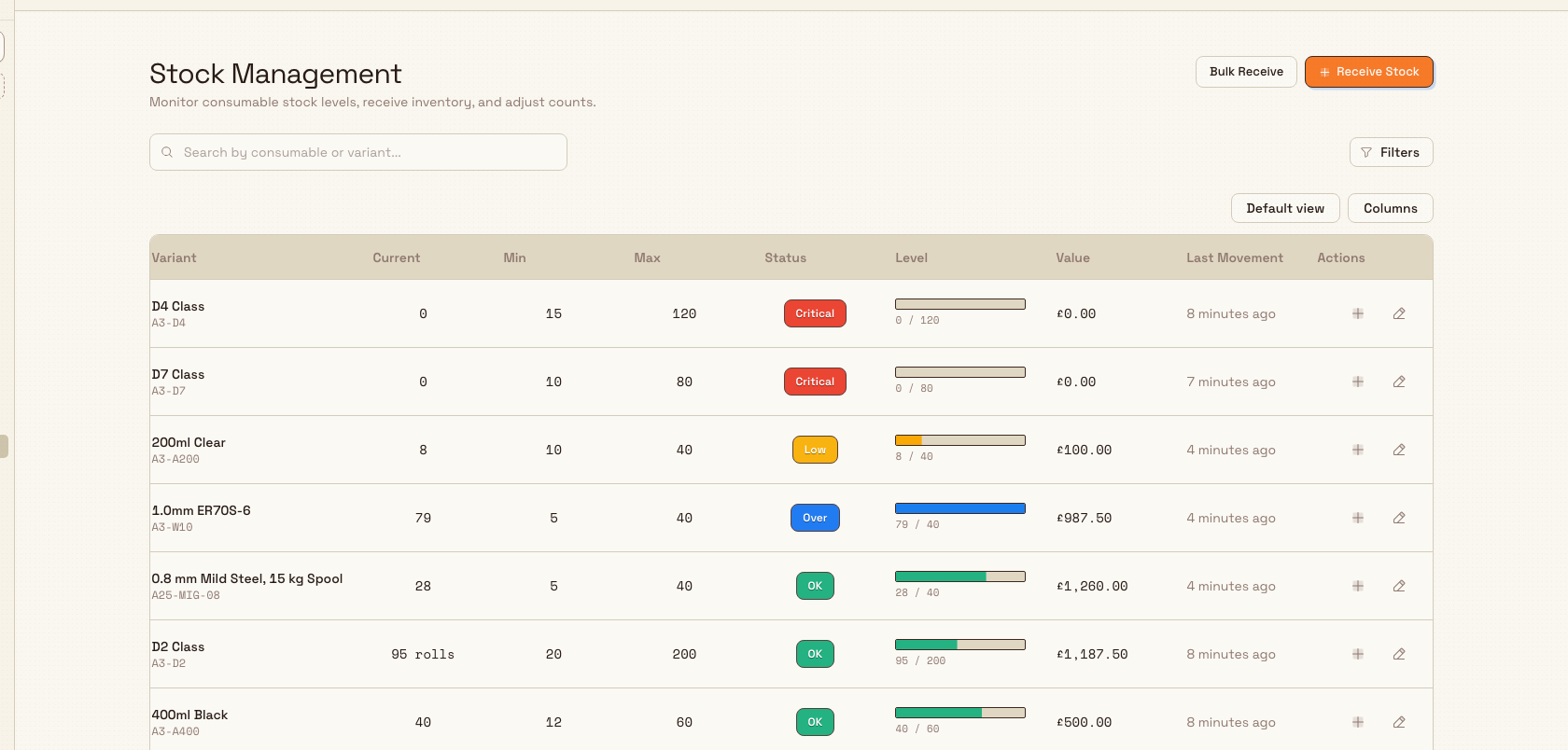
inventory.stock-movements-01
Receive stock
Use Receive Stock when material arrives and you want to add it to on-hand.
- Open the Receive Stock dialog, either from the header button or from a row's plus icon.
- If you opened it from the header, choose the Consumable, then the Variant. When you open it from a row, the variant is already set and these selectors are hidden.
- Enter the Quantity received. It must be greater than 0.
- Optionally enter a Reference # — a purchase order number or other reference for the delivery.
- Optionally add Notes.
- Select Receive Stock.
When you opened the dialog from a row, it shows a preview of the effect — your Current stock and the projected total After receive — so you can confirm the new balance before saving. On success, Bulk records a Receiving movement (direction in), updates the on-hand quantity, and shows a "Stock received" confirmation.
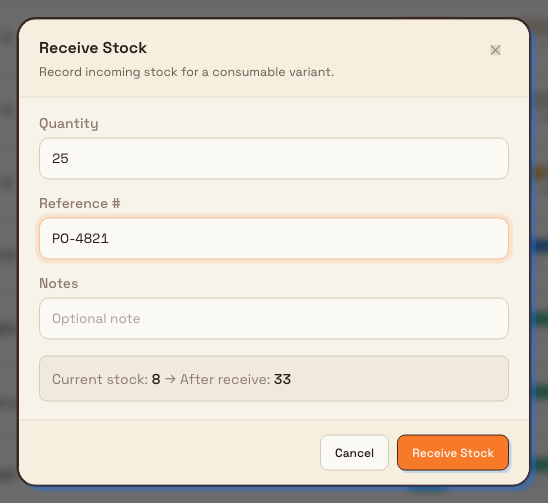
inventory.stock-movements-02
Adjust stock
Use Adjust stock to correct the on-hand count to a known figure — for example after a physical count, or to write off damaged or returned material. An adjustment sets the new absolute level, not a change amount; Bulk works out the difference for you.
- Select the pencil icon (Adjust stock) on the variant's row to open the Adjust Stock dialog. It shows the variant's Current stock.
- Enter the New Stock Level — the count you want on hand. It must be 0 or greater.
- Check the Change line, which shows the difference Bulk will apply, as a positive or negative number.
- Choose a Reason. This is required. The preset reasons are:
- Physical count correction
- Damaged or expired
- Returned to supplier
- Other
- Optionally add Notes.
- Select Save Adjustment.
Bulk compares the new level with the current one and records an Adjustment + movement when stock goes up or an Adjustment - movement when it goes down, then updates the on-hand quantity and shows a "Stock adjusted" confirmation. If the new level is the same as the current level, there is no change to record and no movement is written.
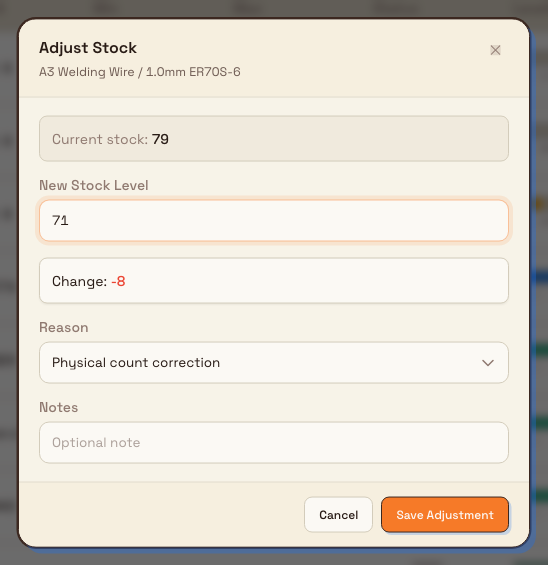
inventory.stock-movements-03
Receive several variants at once
When a delivery covers many items, Bulk Receive records them together.
- Select Bulk Receive in the page header to open the Bulk Receive Stock dialog.
- For each line, pick a Product (the consumable and variant), enter a Qty, and optionally a Reference and Notes.
- Select Add Row to add another line, or the row's remove icon to drop one.
- Select Receive Stock.
Each line with a valid quantity greater than 0 becomes its own Receiving movement, exactly as if you had received it individually. Bulk confirms with a "Bulk stock received" message noting how many movements it recorded (for example, "Recorded 3 stock movements").
Example: a delivery and a count at Granite Peak
Dana Winters, operations lead at Granite Peak Manufacturing's Leeds Fabrication Plant, takes in the morning delivery.
A pallet of slate-grey powder coat arrives against purchase order PO-4821. Dana opens the Stock page, selects the plus icon on the slate-grey powder coat variant, enters a Quantity of 25 (kg), types PO-4821 in Reference #, and selects Receive Stock. The preview showed the balance rising from 8 kg to 33 kg, and the variant moves off Critical.
Later, a physical count of bonding thread shows 112 cones on the shelf, but Bulk shows 120. Dana selects the pencil icon on the thread variant, enters a New Stock Level of 112, sees the Change line read minus 8, keeps the reason on Physical count correction, adds a note "Quarter-end count, aisle 3", and selects Save Adjustment. Bulk records an Adjustment - movement of 8 and the on-hand count is now correct.
What gets recorded
Every movement you record is stored with:
- The movement type (Receiving, Adjustment +, or Adjustment -) and direction (in or out).
- The quantity moved and the balance before and balance after.
- Who recorded it and when.
- Any Reference # (receiving), Reason (adjustment), and Notes you entered.
After a movement, Bulk recalculates the variant's stock status from the new quantity and its configured thresholds. If the change pushes the variant into a low, critical, or over state — or resolves one — it can trigger the matching stock alert. You can see the movements you have recorded in the variant's detail panel on the Stock page, on its movement timeline. See Review stock levels for how to open and read that panel.
Movements Bulk records for you
You do not record these movement types by hand from the Stock page; Bulk creates them automatically:
- Production Usage — stock drawn down as production consumes material.
- Production Reversal — stock returned when a production record is reversed.
- Initial Stock — the opening balance written when stock tracking is first enabled for a variant, including any starting quantity you set at that point.
- Reconciliation — a system correction that keeps the recorded balance consistent.
For how production draws stock down, see Review production consumption.
Limitations and things to know
- Manage stock is required: the Receive and Adjust actions need the Manage stock permission. An Operator with view-only access can open the Stock page, but recording a movement fails with a permission error.
- Tracking must be on: you can only receive or adjust a variant that has stock tracking enabled. Turn tracking on in the variant's consumable settings first.
- Receiving only adds stock: the received quantity must be greater than 0; you cannot receive a negative amount. To reduce a count, use Adjust stock instead.
- Adjustment is an absolute level, not a delta: enter the count you want on hand, not the amount to add or remove. Bulk works out the difference and records it.
- A no-op adjustment records nothing: if the new level equals the current level, Bulk writes no movement.
- Movements are not deleted: there is no delete or edit for a recorded movement. To correct a mistake, record another movement — for example an adjustment back to the right figure — so the history stays complete.
- Value depends on unit cost: a movement stores a value only when the variant has a unit cost set; otherwise the value is left blank.
- Site-scoped: a movement applies to the variant at your selected site only.
Troubleshooting
- "Stock tracking is disabled for this variant." The variant does not have tracking on. Open it in its consumable settings, switch on Enable stock tracking, then record the movement. See Manage consumables and variants.
- "Quantity must be greater than 0." You left the receive quantity blank or entered 0 or a negative value. Enter a positive quantity.
- "Reason is required." An adjustment needs a reason. Choose one of the preset reasons before saving.
- Nothing happened when you adjusted. If you entered the same figure that was already on hand, there is no change to record, so Bulk writes no movement. Enter a different level, or close the dialog.
- Recording fails with a permission error. Your role has view-only access to stock. Ask an administrator for the Manage stock permission, which is carried by the Manager, Master data, and Entity admin roles.
Related guidance
- Review stock levels — see the on-hand quantities and movement history that your movements produce.
- Manage consumables and variants — create variants and turn on stock tracking so they accept movements.
- Configure replenishment thresholds — set the minimum and maximum levels that decide stock status after a movement.
- Respond to a stock alert — act on the low and critical alerts a movement can trigger.
- Review production consumption — see the automatic Production Usage movements.
- Inventory overview — all inventory guidance in one place.
Review stock levels
Monitor on-hand quantity, stock status, and value for tracked consumable variants at your selected site.
Configure replenishment thresholds
Set the Min Stock and Max Stock levels on a tracked consumable variant so Bulk flags it Low, Critical, or Over and raises stock alerts at the right time.