Review capacity and resource context
Read the planning board's asset column and Display controls to see each machine's daily load, live status, and compatible work centres.
Last updated
The job planning board does more than hold blocks of planned work. Its left-hand asset column and Display controls give you the context you need to place work in the right place: how busy each machine already is, whether it is available right now, and which kinds of work it can actually run. This page explains how to read those signals so you can plan against real capacity instead of guessing.
In Bulk, a machine (also called an asset) is a physical station on your shop floor, and a work centre (also called a resource) is a category of work a machine can perform, such as laser cutting or press braking. Every job step names the work centre it needs, and a machine can run that step only when the machine's type is set up to allow that work centre. Reviewing capacity and resource context means reading how these two things line up before you commit a job step to a machine and a time.
When you want to rank which step a machine should run next, without choosing a time of day, use Prioritise work on the board, which is a separate module, not a new name for this planning board.
Reading the board does not change the plan
Open Scheduling in the sidebar. This planning board opens at
/scheduling/home. Choices under Display are saved as your own view
preferences for the selected site.
Before you start
- You need the View job planning permission (
scheduling.view) to open the board and see the work queue, asset timelines, and planned runs for the selected site. This is granted to the Entity admin, Manager, Operator, and Tablet user roles in a standard setup. - Reviewing capacity is read-only, so the separate Plan jobs permission
(
scheduling.plan) is not required just to look. You do need it to place, move, or change work; see the related guides below. - Capacity and compatibility only make sense once your machines are set up. Each machine must be active, and its asset type must allow one or more work centres. A machine set to maintenance or offline will not accept new work.
If the board opens with the message No machines to plan on, no active machines are configured yet. See the troubleshooting section.
Open the board
Open Scheduling from the sidebar (URL /scheduling/home). The
board fills the screen: the work queue sits on the left, the machine timelines
fill the centre, and the asset column runs down the left edge of the timeline
grid. The top-left corner of the grid reads Assets followed by a count, for
example Assets 5, so you can see at a glance how many machines the board is
showing for this site.
By default the board shows every active machine, plus any inactive machine that still has planned work on it. An Asset types filter under Display can limit the lanes. Machines are listed in their configured display order.
Read the asset column
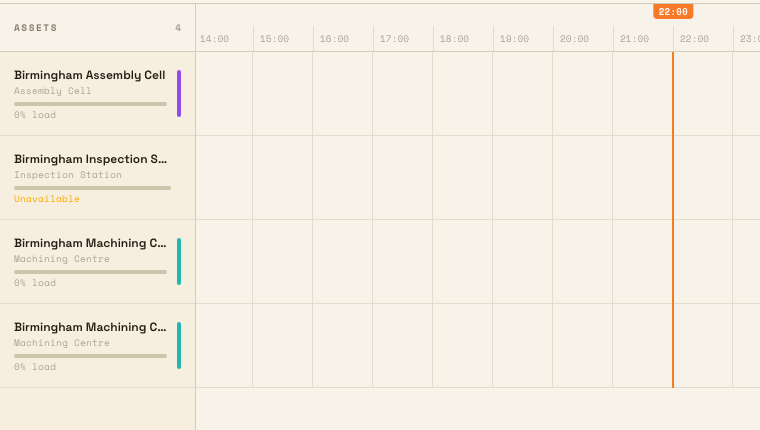
Each row in the asset column is one machine. From top to bottom, a row shows:
- Machine name: the asset's name.
- Asset type: the smaller label beneath the name when a type is set.
InactiveorUnavailableappears beside this label when applicable. - Load bar: a thin horizontal bar that fills from the left. Its length
shows the planned load for the day in view. Hover the bar to read its
percentage, such as
4% load; the current layout does not print a percentage beneath the bar. - Work-centre colour codes: on an available active machine, short vertical colour segments on the far-right edge show the work centres it can accept. Hover a segment to see the work-centre name. Unavailable and inactive machines are not valid planning targets, so they do not show these target codes.
The load bar's colour reflects the machine's live status: it turns green while
the machine is running and red while the machine is unavailable; otherwise it
stays a neutral tone. The Inactive and Unavailable labels are shown in an
amber warning colour so they stand out beside the asset type.
Understand how load is calculated
The load figure is a capacity signal, not a schedule guarantee. For the
machine and the day you are looking at, the board adds up the planned minutes of
every run placed on that machine that falls inside that day, then divides by the
length of the day and rounds to a whole percentage. A machine with twelve hours
of planned work on a given day therefore reads about 50% load.
Two details matter when you read this number:
- It is per day, and it follows the day you are viewing. As you scroll the timeline sideways or use the day chip in the header to move between days, the load bar and percentage update to the day now in view. Always confirm which day you are reading before you draw a conclusion.
- It is measured against the full local calendar day. The denominator is
the whole day, not a shift pattern or working-hours calendar. A machine that is
fully booked across a single eight-hour shift will still read well under
100%, because the rest of the calendar day counts as open time. Across a daylight-saving transition, Bulk uses that local day's actual length rather than assuming exactly 24 hours.
Load never reads above 100%
The percentage is capped at 100%. When work is stacked so heavily that runs
overlap in time, the load bar alone will not show the overload; look instead at
blocks flagged as overlapping on the timeline.
Check resource compatibility
The work-centre colour codes on each machine row answer a different question: what can this machine run? A machine shows a colour segment for every work centre its asset type allows. A job step can only be placed on a machine whose codes include the step's work centre. Machines in maintenance or offline are excluded from accepting new work, so they will not appear as valid targets even if their type would otherwise allow the step.
You will see the same compatibility reflected in two more places when you act on a block:
- When you drag a job step, only the machine lanes that can run it highlight as drop targets; incompatible lanes dim. Placing work is covered in its own guide, linked below.
- When you right-click a placed block, the Move to machine section lists only compatible machines and shows each destination's load for the visible day. The current machine is labelled current. When there are more than eight destinations, use Search machines… to filter the list.
Focus the board with Display
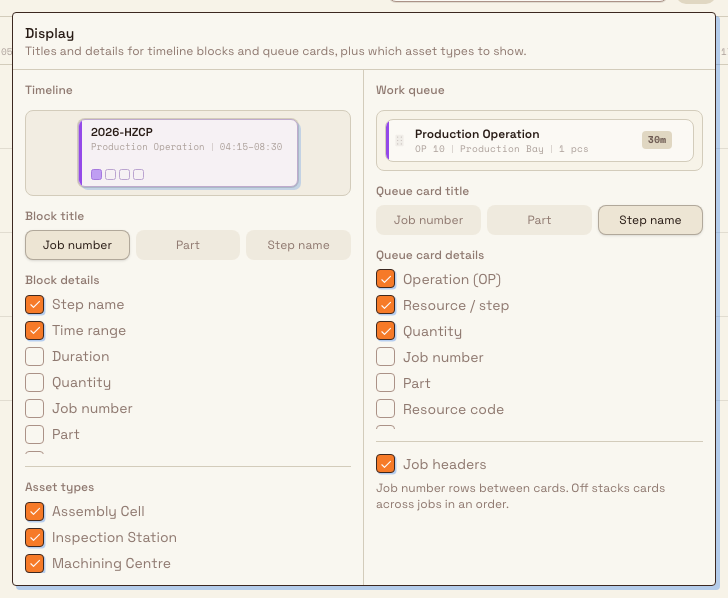
Open the gear-shaped Display settings control when the site has many machine types. The Display panel shows previews for timeline blocks and queue cards, then lets you choose:
- the Block title and Block details shown on timeline blocks;
- the Asset types shown as machine lanes and used to filter relevant queue steps; and
- the Queue columns shown in the Work queue.
The current panel stacks the Timeline preview above the Work queue preview. There is no separate Job headers switch or queue-title choice in this layout.
Bulk keeps at least one asset type selected, so you cannot blank the board by clearing every checkbox. These preferences are saved for you and the selected site; they change what you see, not the underlying plan. When you change the asset-type filter, the Work queue reloads and shows only steps that can run on at least one visible machine type; old unfiltered cards do not remain on screen while that happens. If a saved asset-type filter later matches no active machines, the page explains that no machines match the filter and offers Show all machines.
The bottom strip now lists keyboard shortcuts. It shows board truncated: not all runs shown only when the board reaches its run limit. In that state, some blocks are not drawn and load figures are a lower bound until you narrow the visible window.
Example: reviewing Monday at Gotham Applied Sciences
A planner at Wayne Enterprises opens Monday 5 October at Gotham Applied
Sciences. The Gotham Assembly Cell already has the saved WE-2026-0079
assembly run from 08:00 to 09:00. Its daily load meter reports 4% load, while
Gotham Hydraulic Press reports 1% load for its shorter planned run.
The inspection lane reads Unavailable, so it is not a valid new planning
target. The available lanes retain their compatible work-centre accents. The
planner reviews these signals and the existing blocks before placing any more
work. This review leaves the saved plans and machine configuration unchanged.
What you can rely on
After reviewing the asset column and timeline you can tell, for the site and day in view:
- which machines can run a given step, from the work-centre colour codes;
- how heavily each of those machines is already loaded that day;
- which machines are running, idle, inactive, or unavailable; and
- whether any placed work overlaps, from blocks marked
overlaps.
That is enough to choose a sensible machine and day before you place work in the place-or-move guide.
Limitations
- Load is against the whole local calendar day. The percentage does not account for shift patterns, planned downtime, or working hours. The day may be 23 or 25 hours across a daylight-saving transition.
- Load is capped at 100%. Over-committed time shows up as conflicts, not as
a load reading above
100%. - Status reflects the machine's recorded station state.
Running,Idle, andUnavailablecome from each machine's station status in your data, which may be set manually or by a connected station, and may not update in real time on every setup. - Large sites may truncate. When a site has a very large number of placed runs, the board stops drawing beyond its limit and shows the truncation warning; visible blocks and loads then understate the true total.
Troubleshooting
- The board says "No machines to plan on". No active machines are set up for this site, or none of their asset types allow a work centre. Add machines and allow work centres on their asset types in master data, then reopen the board. The empty state includes a shortcut to your asset settings.
- A machine you expected is missing. The board only lists active machines, plus inactive machines that still hold planned work. A machine that is inactive and has no runs will not appear. Re-activate it in master data if you need to plan on it.
- A compatible machine will not accept a drop. Machines in maintenance or offline are removed from valid targets. Return the machine to service, or choose another machine that carries the same work-centre colour code.
- The controls to move or change work are missing. Reviewing capacity needs only the View job planning permission. Placing and moving work needs the Plan jobs permission; ask your administrator if you need it.
Related guidance
Set a planning time window
Control which days and how much of the timeline the job planning board shows so you can plan and review production work across the right span of time.
Hand planned work to production
How the Scheduling planning board hands work to the shop floor: what a plan does, how production picks it up, and how the board mirrors reality.