Beta
Place or move a job
Put an unplanned job step onto a machine at a chosen time, and move or reschedule placed work, on the Scheduling planning board.
The planning board in Scheduling lets you decide which machine runs each job step, and when. "Placing" a step means taking a piece of unplanned work out of the queue and dropping it onto a machine at a specific time. "Moving" means picking up work you already placed and relocating it to a different machine, a different time, or both. Use it when you are laying out the next few days of production, balancing load across machines, or reacting to a rush order that has to jump the queue.
A quick vocabulary check, because the board uses these terms throughout:
- A job is a piece of production work for an order. Each job is made of ordered steps (also called operations), and every step needs one resource — the skill or process it requires, such as welding or laser cutting.
- A machine (an asset) is the physical station a step runs on. A machine can run a step only when its asset type is set up to allow that step's resource. The board calls these compatible machines.
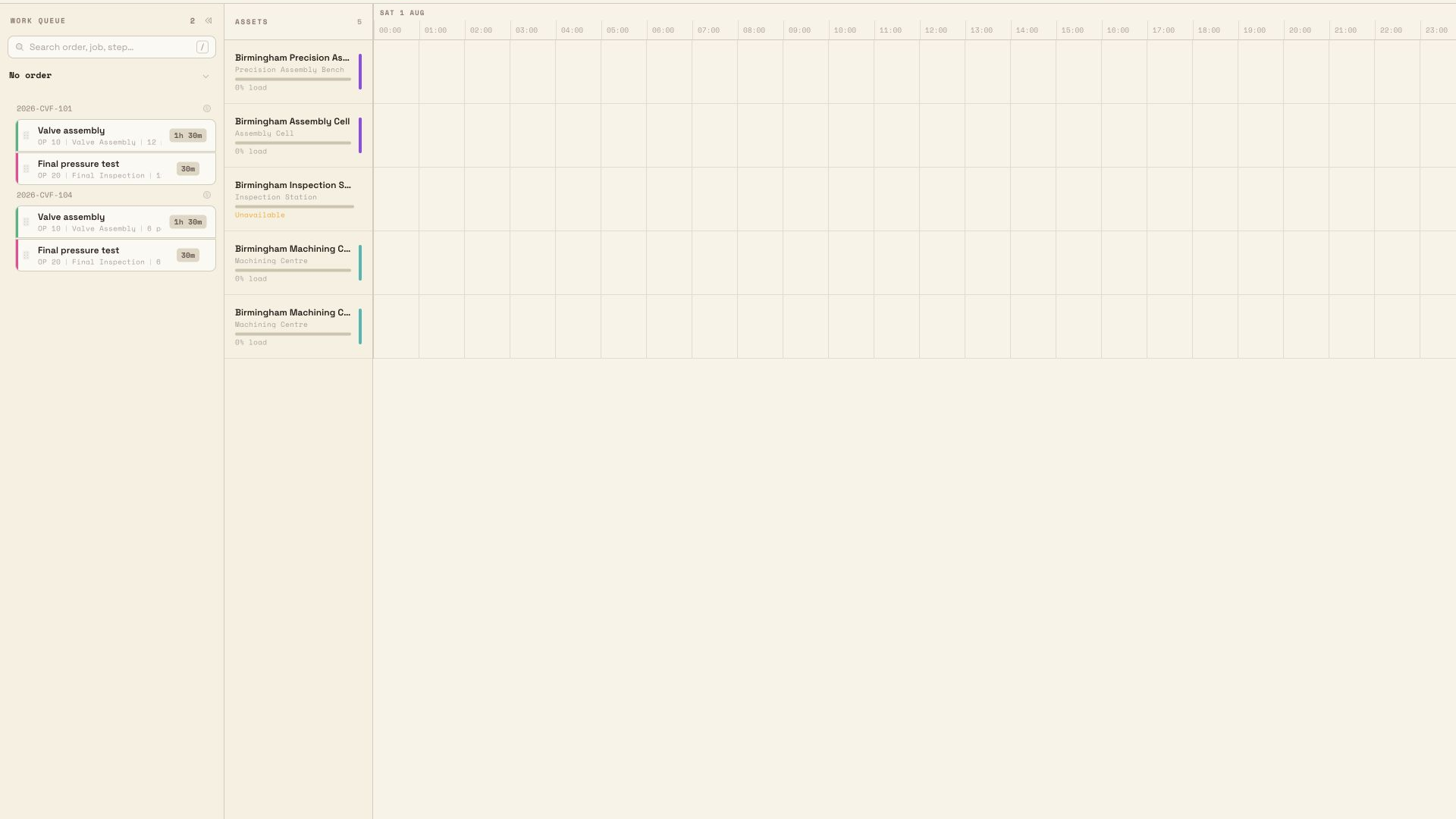
- The work queue is the left-hand list of steps that are not yet planned, grouped by order and job.
- A run (shown as a block on the timeline) is a step once you have placed it on a machine.
This article covers placing and moving individual job steps. For a full tour of the board's panels and controls, see the planning board overview linked at the end.
Before you start
- You need the Plan jobs permission. Placing, moving, resizing, splitting, merging, and returning work to the queue all require the
Plan jobspermission (internallyscheduling.plan). By default the Entity admin, Manager, and Operator roles include it. The Tablet user role has onlyView job planning, so it can open the board and see the plan but cannot change it. If your controls are missing or greyed out, you likely have view-only access. - You need at least one compatible machine. If the entity has no machines that can run the queued steps, the board shows an empty state titled
No machines to plan on, with guidance to add machines in Settings and allow resources on their asset types. Until a machine is compatible with a step's resource, that step cannot be placed. - The board is scoped to the selected site. You plan work for the site (entity) you currently have open. Switch sites first if you need to plan elsewhere.
scheduling.place-move-job-01
Place a job step from the queue
On a large site, the queue loads more jobs automatically in the background. You can work with the cards already shown while Loading more jobs… appears. To jump to work that has not loaded yet, press / and search by order, job, customer, or step. Search uses the whole board and queue, not only the visible cards, and can temporarily show a matching unplanned job at the top when it is beyond the queue's 30,000-job display limit.
There are two ways to place a step. Both snap the start time to the nearest 15-minute point.
Drag and drop
- In the Work queue, find the step you want. Each step card shows the operation number, the resource it needs, the piece count, and an estimated duration.
- Press and hold the drag handle on the left of the card and drag it onto the timeline. Compatible machine lanes highlight; machines that cannot run the step dim out.
- As you move over a lane, a preview block shows exactly where the step will land and how long it will take. The preview turns invalid over a machine that cannot run the step.
- Release over a valid lane and time to place the step. It leaves the queue and appears as a block on that machine's lane.
Keyboard
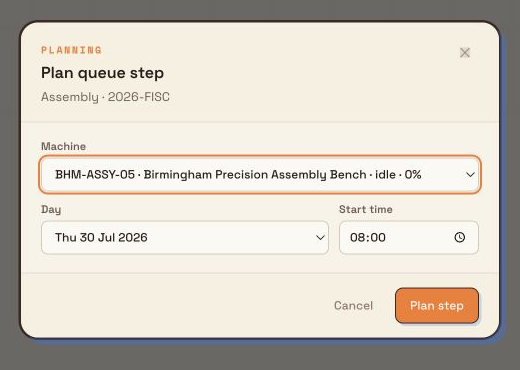
- Click a step card in the work queue to focus it, then press Enter. The
Plan queue stepdialog opens. Space selects or clears a card instead of opening the dialog. - Choose the Machine, the Day, and the Start time. Only compatible machines appear in the list; if none do, the dialog shows
No compatible machines are available. - Select Plan step to place it.
Faster planning
You do not have to drag. Focus any queue card and press Enter to place it from the keyboard, and press the / key anywhere on the board to open Find job or step and jump straight to a specific job.
scheduling.place-move-job-02
Move or reschedule placed work
Once a step is a block on the timeline, you can move it as often as you need.
Drag to a new slot — Drag the block to another time on the same lane, or to a different machine lane. The same compatibility highlighting and 15-minute snapping apply. Dropping it commits the move immediately.
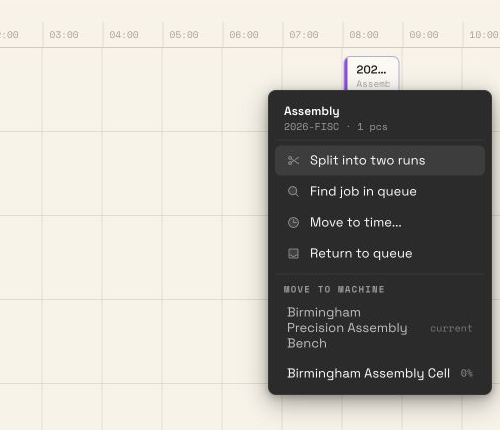
Use the block menu — Right-click a block (or focus it and press Shift+F10) to open its menu. From here you can:
- Move to time… — opens a dialog to set the machine, day, start time, and duration precisely, then select Save move.
- Move to machine — shows the machine the block is on now (labelled current), then other compatible machines with their load. When the list is long, search by machine name. Picking a destination keeps the current start time and just changes lane.
- Return to queue — unplaces the step and sends it back to the work queue, without losing it.
- Find job in queue — jumps to the step's job in the queue.
Every placement and move saves the moment you make it, and the board updates live for everyone planning at the same time.
scheduling.place-move-job-03
A Granite Peak example
At the Leeds Fabrication Plant, order SO-4821 for the customer Pennine Rail contains job J-10233 with three steps: laser cut, press brake, and MIG weld. The MIG weld step needs the Welding resource and carries a three-hour estimate, and it is sitting in the work queue.
You drag the MIG weld card onto Weld Bay 2 for tomorrow. As you hover, only the welding-capable bays highlight; you release at 08:00 and the block snaps to an 08:00–11:00 slot.
The next morning a rush job needs Weld Bay 2. You right-click the MIG weld block and choose Move to machine → Weld Bay 3 to keep the 08:00 start on a different bay. If instead you wanted to push the work later, you would drag the block to Thursday, or use Move to time… to set the exact day and time. If plans change entirely, Return to queue puts the step back so someone can re-plan it.
When a slot already has work: planning batches
The board does not stop you from placing two steps over each other on the same machine — overlaps are allowed and simply flagged. A block that overlaps other work shows overlaps.
When you drop a step onto a time that overlaps existing work on the same machine, the board offers a Planning batch — a group of steps that share one machine and start time and then move together as a unit. A dialog appears explaining that the time overlaps planned work on the same machine, and offers three choices:
- Create batch or Add to batch — group the steps so they run together and move as one.
- Plan separately — place the step at the dropped time anyway, overlapping the existing work.
- Cancel — do nothing.
Adjust how long a step takes
Each queued step arrives with an estimated duration. Hover the duration to see where the estimate came from — for example Part history, Step history, Resource, or Fallback — together with confidence, sample detail, and available batch history. After a step is placed, you can drag the right edge of its block to change how long it takes; the new duration snaps to 15 minutes. To undo an override and go back to the system's figure, right-click the block and choose Reset to estimate.
Feature state and what planning does not do
Scheduling is in beta
The planning board is a beta feature and is still evolving, so expect changes. Two things are worth knowing now: automatic planning is not yet available — the Auto-plan button is present but only tells you the capability is not ready, so placing and moving are done by hand. And planning is a separate layer from the shop floor: placing or moving a step on the board arranges the plan, but it does not by itself start production or change a job's live machine assignment. Production picks up the planned work as its own step.
Troubleshooting
- A machine will not accept a step, or you see "This machine cannot run this step". The machine's asset type does not allow that step's resource, so it is not compatible. Drop onto a highlighted lane instead, or have an administrator allow the resource on that asset type in Settings.
- You see "This machine is unavailable right now". The machine is in maintenance or offline. The board marks it as
Unavailableand it will not take new work until it is back. Choose another machine. - You see "This step was already planned" or "This step is already split". Someone else changed that step while you were working. The board refreshes on its own; find the step in its new position and continue from there.
- The keyboard dialog says "No compatible machines are available". No machine in this site can run the step's resource. Add or configure a compatible machine before planning the step.
- The queue stops at "Showing the first … jobs". The scrollable queue has reached its 30,000-job display limit. Use Find job or step to reach the rest.
Related guidance
- Use the planning board — the full tour of the board's panels, navigation, and controls.
- Set a planning time window — choose which days the board shows.
- Review capacity and resource context — read machine load and compatibility while you plan.
- Hand planned work to production — how the plan connects to the shop floor.
- Scheduling overview — where this fits in the module.
- Assets and layouts and Resources — set up machines and the resources their asset types allow, so steps become placeable.
- Roles and permissions — grant the Plan jobs permission.
Use the planning board
Orient yourself on the Scheduling planning board — the drag-and-drop view where you plan job steps onto machines across a multi-day timeline — and learn how to open, read, and work it.
Set a planning time window
Control which days and how much of the timeline the job planning board shows so you can plan and review production work across the right span of time.