Beta
Hand planned work to production
How the Scheduling planning board hands work to the shop floor — what a plan does, how production picks it up, and how the board mirrors what is actually happening.
The planning board in Scheduling is where you lay out when and on which machine each job step should run. This page explains what happens next: how that plan reaches the shop floor, what production has to do to pick it up, and how the board reflects the real state of the work once it starts.
A job step is one operation on a job (for example, "Laser cut" or "Powder coat"). A machine is one of your assets — the physical equipment a step runs on. When you drag a step onto a machine's timeline, you create a planned run: a proposed placement in time.
How the handoff works
In this release the planning board is an advisory overlay. Placing a step proposes a machine and a start time — it does not reserve the machine, lock the step, or push an assignment into production on its own. Nothing on the board forces the shop floor to run the work in that order.
Work actually reaches production at the moment the shop floor loads the step onto a machine in the Production module. Loading is what puts a job step in front of an operator to run. So "handing planned work to production" is not a single button in Scheduling — it is the point where production loads and starts the work you planned.
Two things connect your plan to what production does:
- Grouping carries over. If you group several steps into one planning batch on the same machine at the same start time, then when production loads them onto that machine they load together as one batch, instead of as separate items.
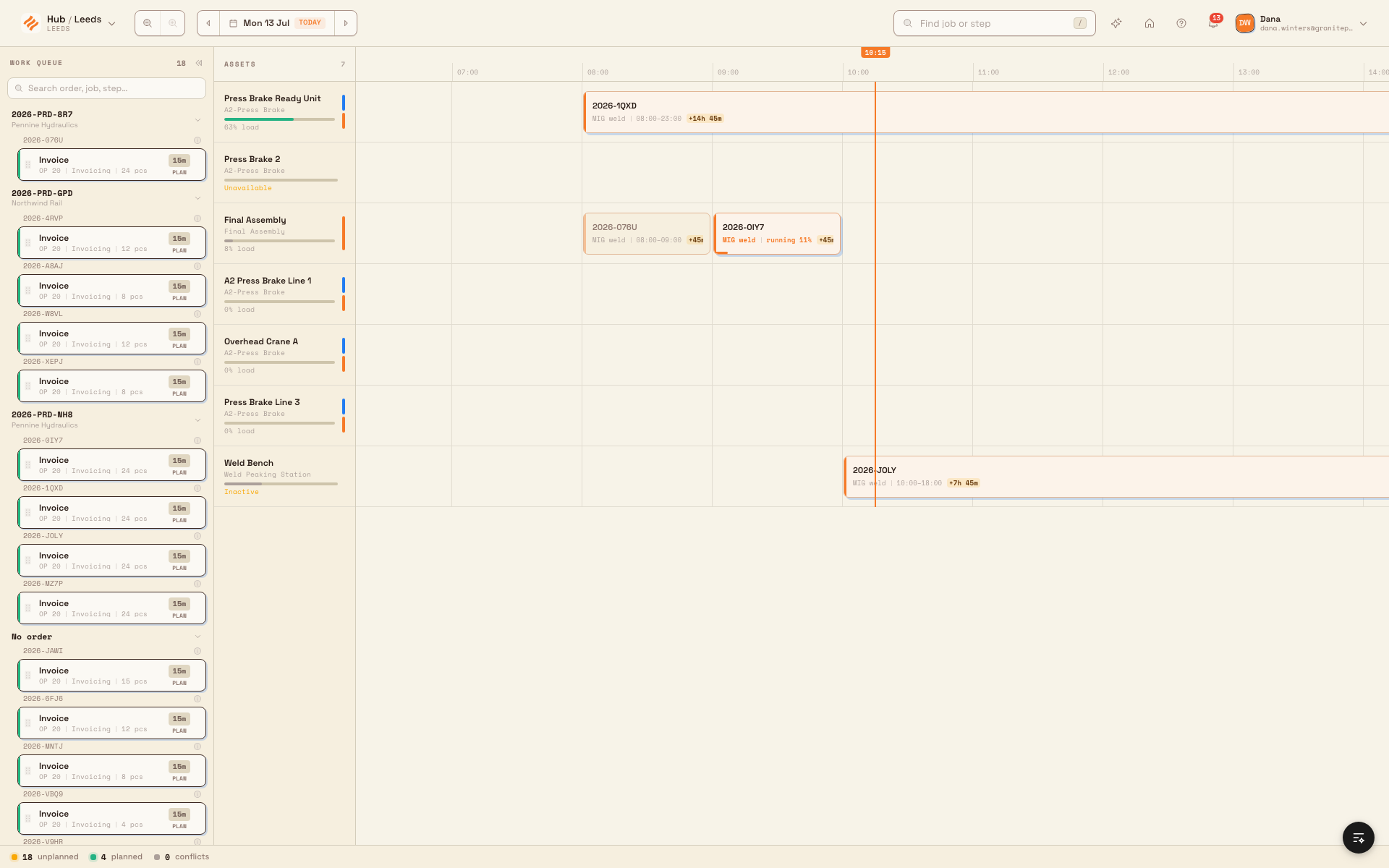
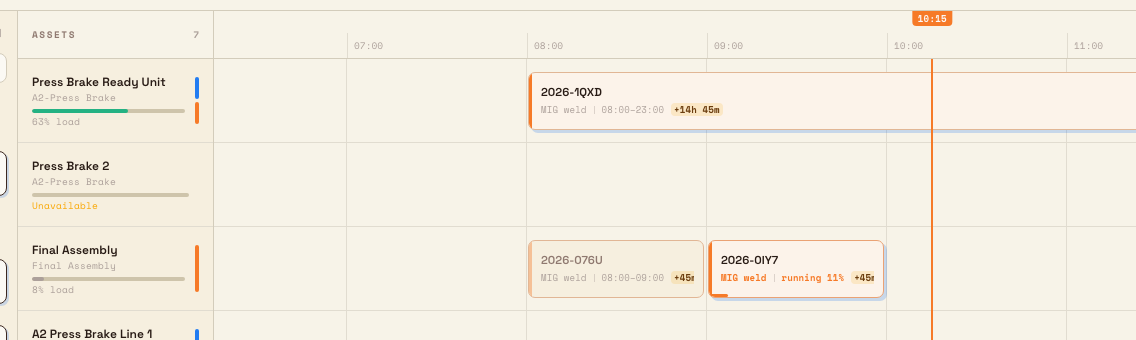
- The board mirrors execution. Each block's state follows the real job step. A block stays planned until an operator starts it, then it shows Running, and finally Done when the step is completed.
The plan guides, it does not force
Production can load and run work with or without a plan. A plan makes the intended machine and sequence visible and lets grouped steps load as one batch, but the shop floor is never blocked from loading something different.
Before you start
You need all of the following:
- The Scheduling module enabled for your site, with the Planning area available (it is labelled Beta in the navigation).
- Permission to open the board. View job planning (
scheduling.view) lets you open the board and see the work queue, machine timelines, and planned runs. Plan jobs (scheduling.plan) lets you place, move, resize, split, merge, and unplan steps. In the default roles, Owner/admin, Manager, and Operator can plan; the shop-floor tablet role can view only. - At least one machine (asset) that is active and not in maintenance or offline, whose asset type allows the step's resource. A resource is the work centre or skill a step needs; a machine can only run a step when its asset type lists that resource. If the board shows "No machines to plan on", add machines in Settings, then allow resources on their asset types.
- Live jobs to plan. Only steps on open or in progress jobs, in a pending or loaded state, appear in the work queue and can be planned.
Hand a plan to production
You do not push the plan across in one action. You prepare it on the board, and the shop floor draws it down. The typical flow is:
- Place the work. Drag each step from the Work queue onto the right machine and time slot, or use the keyboard placement dialog. See Place or move a job and Use the planning board.
- Group steps that should run together. Drop one placed block onto another at the same machine and start time to form a planning batch. Batching is the grouping that carries into production — steps in one planning batch load as a single batch on that machine.
- Let production load it. On the shop floor, an operator loads the planned step (or the whole order) onto the machine. See Load a job and Load a production order. When the step you planned is loaded onto the machine you planned it on, its planning batch is preserved as the real machine batch.
- Watch the board update. As operators start and finish steps, the matching blocks change state on the board in real time, so planners always see the live picture without touching anything.
scheduling.handoff-production-01
Granite Peak Manufacturing example
Granite Peak's Leeds Fabrication Plant has a rush order for 40 steel brackets, job 2026-4101. The production planner opens Scheduling → Planning and places the job's two steps for tomorrow morning: Laser cut on the Trumpf laser at 07:00 and Powder coat on the coating line at 10:00. Two other small jobs also need the laser first thing, so the planner drops their cut steps onto the same 07:00 slot on the Trumpf laser, forming one planning batch.
The next morning the laser operator opens their workstation and loads the 07:00 batch onto the Trumpf laser in one action. Because the three cut steps were planned as one batch on that machine, they load together as a single machine batch rather than three separate items. As the operator starts cutting, the batch's block on the planning board turns from planned to Running, and the planner — watching the board from the office — can see the rush order is underway without asking anyone.
What you see after the handoff
- Footer status strip. The bottom of the board summarises the plan: a count of unplanned steps still in the queue, planned steps placed on machines, and conflicts (placements that overlap on the same machine).
- Block states. A placed step reads as planned until work starts, then Running (with a progress fill) while an operator is on it, then Done when completed. In the board's search, a step shows as "In queue", "Running", or "Done" alongside the machine code.
- Started work locks. Once an operator starts a step, its block can no longer be moved, resized, split, or returned to the queue from the board — the plan yields to what production is actually doing.
scheduling.handoff-production-02
Feature state and limitations
Planning is in beta. The behaviour below is verified against the current build; treat it as beta rather than a finished, generally available workflow.
- Advisory overlay only. Planning placements never change a job step's assigned machine or its production loading records on their own. There is no "send to production", "release", or "commit plan" button in Scheduling — the handoff happens when production loads the work.
- Overlaps are allowed, not blocked. You can place two steps on the same machine at the same time. The board flags the overlap as a conflict in the footer count and on the blocks, but it does not stop you — resolving conflicts is left to the planner.
- Grouping carry-over is per machine and start. A planning batch only forms for steps on the same machine at the same start time, and it only loads as one batch when production loads those steps onto that same machine. Loading the same step onto a different machine does not inherit the planned grouping.
- The board has a display limit. If a site has a very large number of planned runs, the board loads up to its cap and shows "board truncated — not all runs shown" in the footer. Work is not lost; some blocks are simply not drawn.
Troubleshooting
- A block will not move, resize, or return to the queue. The step has already been started or completed in production, so the plan is locked to reality. Attempting to plan it returns "This step can no longer be planned". This is expected — coordinate the change on the shop floor instead.
- A step will not drop onto a machine ("This machine cannot run this step"). The machine's asset type does not list the step's resource. Pick a compatible machine, or update the asset type's allowed resources in Settings. See Review capacity and resource context.
- A machine refuses new work ("This machine is unavailable right now"). The machine is in maintenance or offline. Bring it back online or plan onto another compatible machine.
- A step vanished from the board ("The job for this step is not active"). Its job was completed, cancelled, or deleted, so it is no longer plannable. Only steps on open or in-progress jobs stay on the board.
- Production loaded the steps but they did not batch together. They were only grouped if they sat in one planning batch on the same machine and were loaded onto that same machine. Confirm the batch on the board before the shop floor loads, and load onto the planned machine.
Related guidance
- Use the planning board — the board layout, work queue, and day window.
- Place or move a job — placing, moving, splitting, and batching steps.
- Review capacity and resource context — machine and resource compatibility and load.
- Load a job and Load a production order — how the shop floor picks up planned work.
- Unload production work — reversing a load on the shop floor.
- Production overview — the wider production execution workflow.
Review capacity and resource context
Read the planning board's asset column and Display controls to see each machine's daily load, live status, and compatible work centres.
Inventory
Track consumable stock across a plant in Bulk — receive and adjust quantities, set reorder points, watch stock health, and act on low-stock alerts.