Manage resources
Create, edit, duplicate, and archive the resources — the named capabilities, machines, and workstations — that become the steps of your production routings.
A resource in Bulk is a named capability, machine, or workstation that carries out one operation on a job — for example laser cutting, welding, powder coating, or final inspection. Resources are the building blocks of routings (the ordered sequence of steps a job follows through your plant): when you build a routing, each resource appears as a draggable card, and dropping it on the canvas creates a step that points at that resource. Defining a resource once means you can reuse it across every routing, and every job that passes through it reports against the same named step.
Manage resources when you are setting up your operations for the first time, when you add a new machine or process step that jobs need to move through, or when a step is retired and you want to keep it out of new routings.
Before you start
The Resources page lives in your settings. To open it, go to Settings, open the Master Data group, and select Resources. The direct path is /settings/master-data/resources.
You need permission to work with resources:
- View the list requires the
resources.viewpermission. - Add, edit, duplicate, archive, and restore resources require the
resources.create,resources.update, andresources.deletepermissions.
Full access is granted by the built-in Super user, Entity admin, Manager, and Master data roles. The Tablet user and Invoicing roles can view resources but not change them. If the Add Resource button or the row action menus are missing, ask an administrator to adjust your role.
Resources are organization-wide. A resource you add or change here is shared by every site (entity) in your organization, and each resource Code must be unique across the organization.
administration.master-data.resources-01
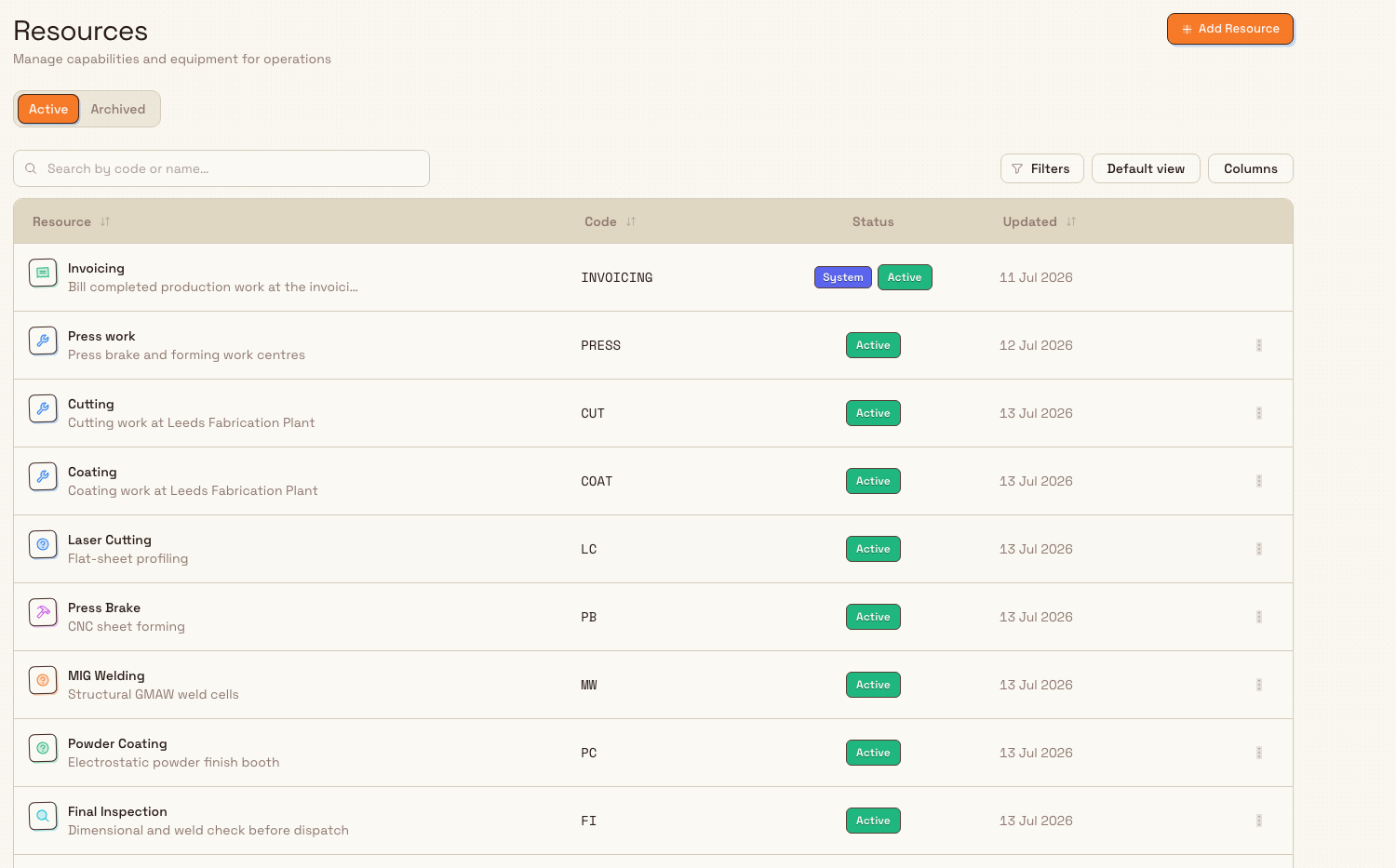
What the Resources page shows
The page has two tabs:
- Active — the resources currently available to use in routings. This tab has the Add Resource button.
- Archived — resources you have archived (soft-deleted). They are hidden from routing building but can be restored.
Each row on the Active tab shows:
- Resource — the resource icon in its chosen color, its Name, and its description underneath.
- Code — the short internal code (shown in a monospace font), unique within your organization.
- Status — an Active or Inactive badge, plus a System badge on the system-managed resource.
- Updated — the date the resource was last changed.
- An actions menu (the three-dots button) with Edit, Duplicate, and Archive.
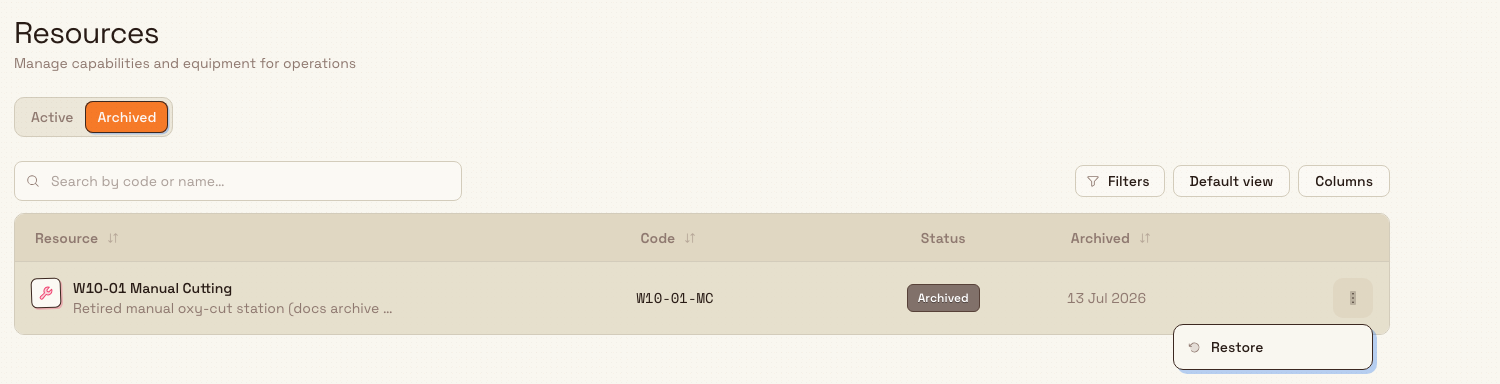
The Archived tab replaces the Updated column with an Archived date and offers a single Restore action per row.
Use the Search by code or name… box to filter the list. Search is resolved by Bulk and matches a resource's name, code, or description, so you can find a step by any of those. Clearing the box, or switching tabs, drops the filter immediately.
Add a resource
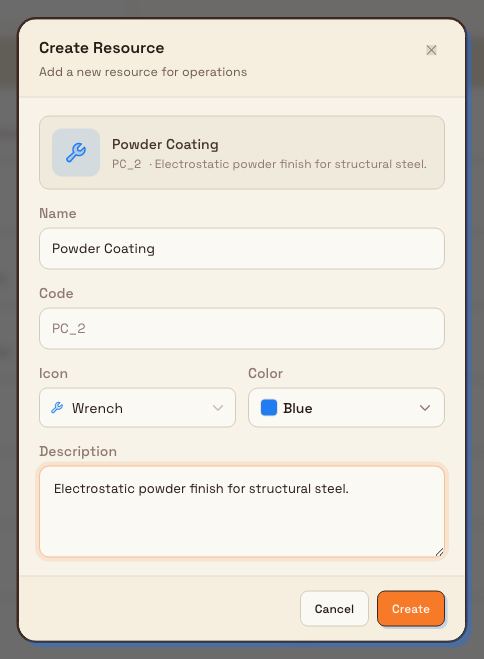
- On the Active tab, select Add Resource. The Create Resource dialog opens with the subtitle "Add a new resource for operations".
- Fill in the fields. A live preview chip at the top of the dialog shows how the resource's icon, name, and code will look together as you type.
- Name — the readable name of the step, up to 100 characters (for example
Final Inspection). - Code — a short code Bulk generates automatically from the Name and shows as read-only (the field reads "Auto-generated from name"). Bulk builds it from the initials or first letters of the Name, puts it in capitals, and adds a numeric suffix if that code is already taken, so every code stays unique. You do not type the Code yourself.
- Kind — Machine, Office, or External. This setting only affects how the step is drawn on flow dashboards: office and external steps show no machine activity. It does not change how the step behaves. Machine is the default.
- Icon — pick an icon from the icon picker to give the resource a visual identity.
- Color — pick a color for the icon; leave it unset to use the default.
- Description — an optional short note about the resource, up to 500 characters (for example
Dimensional and weld check before dispatch).
- Name — the readable name of the step, up to 100 characters (for example
- Select Create.
The new resource appears in the Active list with an Active status, and it becomes immediately available as a draggable card when you build a routing.
The Code is set once and stays fixed
Bulk generates the Code from the Name when you first create a resource. The Edit Resource dialog does not show the Code field, so the code stays stable after creation — routings and jobs that already reference the resource keep pointing at it. Choose a clear Name up front; if you need a different code later, create a new resource and archive the old one.
administration.master-data.resources-02
Edit a resource
Open a resource's actions menu and select Edit. The Edit Resource dialog opens with the subtitle "Update resource details". You can change the Name, Kind, Icon, Color, and Description, then select Save Changes. The Code is not shown here and cannot be changed.
Duplicate a resource
To create a similar resource without filling in the form from scratch, open a resource's actions menu and select Duplicate. Bulk asks you to confirm ("This will create a copy … with a new unique code. You can rename it afterwards."), then creates an active copy. The copy keeps the original's kind, icon, color, and description; its name has (Copy) added, and it is given a fresh unique code. Open the copy and edit it to give it its own name.
Archive and restore a resource
Archiving removes a resource from the pickers used to build new routings without deleting its history.
- Open a resource's actions menu and select Archive.
- In the Archive Resource dialog, confirm. The resource moves to the Archived tab. Its status becomes Inactive and it no longer appears when you build routings.
To bring a resource back, open the Archived tab, open the row's actions menu, and select Restore. The resource returns to the Active list.
Bulk protects work in progress, so it blocks archiving in a few cases and explains why:
- The resource is used by one or more active routings. The message names the routings. Remove the resource from those routings, or deactivate the routings, then try again.
- The resource is used by open or in-progress jobs. The message names the jobs. Complete or cancel those jobs first, then try again.
- The resource is the system Invoicing resource. That resource cannot be archived (see below).
Restoring is blocked by a code clash
A resource keeps its Code while archived. If you create a new active resource that happens to take the same code, restoring the archived one is blocked with "Cannot restore: an active resource with code … already exists. Rename it first, then try again." Change the conflicting code owner — or archive it — and restore again.
administration.master-data.resources-03
The system Invoicing resource
Your organization has one system-managed resource named Invoicing, shown with a System badge and pinned to the top of the Active list. Bulk provisions it automatically; you do not create it. It represents the invoicing workstation, where completed production work is billed before a job finishes.
The Invoicing resource is fully read-only: it has no actions menu, and it cannot be edited, duplicated, or archived. If a request somehow reaches the server, Bulk rejects it with a message explaining that it is a system resource managed by Bulk.
Example: setting up resources at Granite Peak Manufacturing
Granite Peak Manufacturing runs the Leeds Fabrication Plant, where sheet steel is cut, formed, welded, coated, and inspected before dispatch. Dana Winters sets up one resource per step so the plant's routings can be built from them.
She opens Settings, then Master Data, then Resources, and sees the system Invoicing resource already pinned at the top. She selects Add Resource and creates the plant's steps one at a time:
- Laser Cutting — Kind Machine, a cutting icon, description
Flat-sheet profiling. Bulk suggests the CodeLC. - Press Brake — Kind Machine, Code
PB. - MIG Welding — Kind Machine, Code
MW. - Powder Coating — Kind Machine, Code
PC. - Final Inspection — Kind Machine, description
Dimensional and weld check before dispatch, CodeFI.
Galvanizing is sent to an outside subcontractor, so Dana adds Galvanizing with Kind External so it shows on flow dashboards without machine activity. She also adds Drawing Review with Kind Office for the engineering sign-off step.
When Granite Peak later retires an old manual cutting station, Dana opens its actions menu and selects Archive. Because no active routing or open job still uses it, it moves to the Archived tab, out of the way of new routings but available to restore if the plant ever needs it again.
Expected result
Each resource you add appears immediately in the Active list with its icon, name, code, and an Active status. From that point it is available as a step you can drop into any routing, and every job that flows through it reports against that named resource. Archived resources drop out of routing building until you restore them, and the system Invoicing resource stays pinned and read-only throughout.
Feature state and limits
Managing resources is a generally available feature. Keep these behaviors in mind:
- Resources are organization-wide, so a change here affects every site.
- Each Code must be unique across the organization. Bulk generates the code from the name and will not create two active resources with the same code.
- The Code is fixed after creation — the Edit dialog does not expose it.
- Kind (Machine / Office / External) only changes how a step is drawn on flow dashboards; it has no effect on how jobs are processed.
- The single Invoicing resource is system-managed and read-only; it cannot be edited, duplicated, or archived.
- Archiving is a soft delete, not a permanent one: archived resources keep their history and can be restored.
Troubleshooting
- "A resource with the code … already exists" — the auto-generated or submitted code is already taken by another active resource. Adjust the Name so Bulk derives a different code, or archive the resource that holds the code.
- Archive is blocked because a resource is in use — the message tells you whether active routings or open/in-progress jobs are using it. Remove the resource from those routings (or deactivate them), and complete or cancel the named jobs, then archive again.
- You cannot edit, duplicate, or archive the Invoicing resource — that is expected. It is the system-managed invoicing workstation and is intentionally read-only.
- Restore is blocked with a code clash — an active resource already uses the archived one's code. Rename or archive the active one, then restore.
Related
- Master data — the full set of master-data pages that define your production building blocks.
- Manage routings — where resources become the ordered steps a job follows.
- Manage processes — the processes resources carry out.
- Manage assets and layouts — the physical machines and workstations behind your operations.
- Invoicing profile — the settings behind the system Invoicing resource and when jobs are billed.
- Activity logs — where changes to resources are recorded.
Manage production modes and items
Define your organization's operational production modes and the tracking buttons operators press to record good output, defects, and inspections on the shop floor.
Manage customers
Add, edit, and organize the customer records that Bulk reuses across inbound documents, production jobs, invoices, and pricing for the selected site.