Use the absence calendar
Read your team's approved and pending absences on a monthly calendar, spot coverage gaps at a glance, and log or manage an absence directly from any day.
The absence calendar is the month-at-a-glance view of who is away in your People module. It shows every approved and pending absence for the current site laid out on a calendar grid, so you can see coverage for a whole month in one place and plan around it. Use it when you are scheduling work, checking whether enough people are on shift for a busy week, or reviewing who has time off booked before you commit to a deadline.
An absence is a booked period away from work — annual leave, sick leave, training, or any other reason your site tracks. Each absence is tied to one employee, an absence type, and a date range. The calendar is the visual planning surface for those records. It sits alongside the Absences page, which is the list-and-approvals view of the same data.
Where to find it
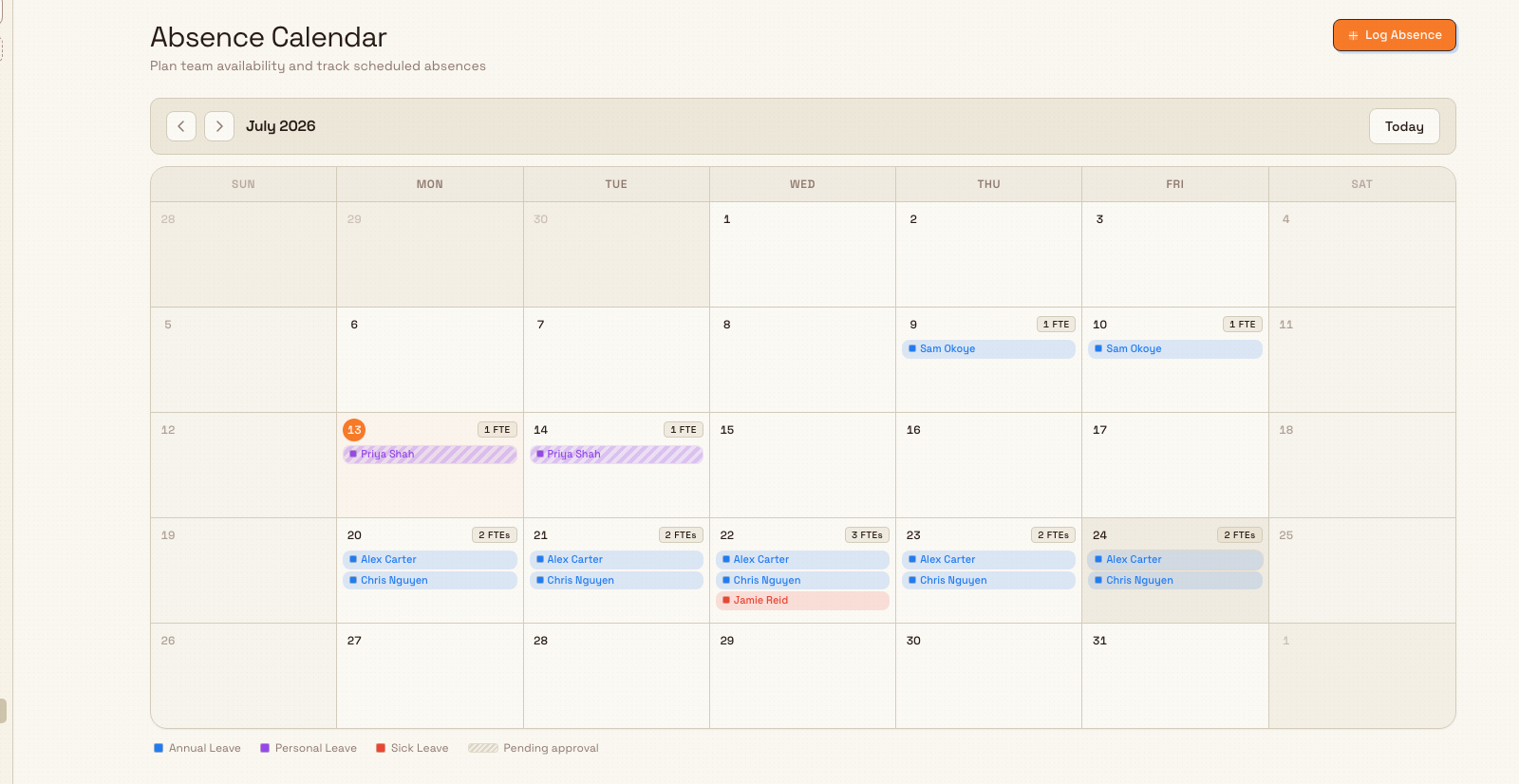
Open the People module in the main navigation, then select Absence Calendar. The page opens on the current month and is titled Absence Calendar with the summary "Plan team availability and track scheduled absences".
The neighbouring Absences item in the same menu opens Absence Management, a list view with Requests and All Absences tabs. Use the calendar when you want a visual, month-by-month picture; use Absences when you want to work through a list of requests or filter records. Both read and write the same absence records, so a change made in one shows up in the other.
people.absence-calendar-01
Before you start
Access to the calendar and its actions is controlled by permissions on your role:
- View team absences (
absences.view_team) — required to open the calendar and see any absences. Without it the calendar loads empty. - Create absence requests (
absences.create) — required to log an absence. This is what enables the Log Absence button and lets you click a day to start a new absence. - Approve absences (
absences.approve) — required to approve or reject a pending request from the calendar.
These permissions are granted by default to the Super user, Entity admin, Manager, and People roles. Operators and tablet users do not have them by default. If the calendar is empty when you expect entries, or an action is missing, check your role with your administrator.
One data prerequisite matters before you can log anything: each employee must have a default shift assigned. Bulk counts an absence in shift days — the working days in that employee's shift pattern — not raw calendar days. An employee with no default shift cannot have an absence logged until one is set. See the shifts guide linked below.
Read the calendar
The calendar shows only absences that are Approved or Pending. Rejected and cancelled records do not appear here — you will find those in the Absences list view.
Move around the month. The toolbar at the top has a previous-month and next-month arrow, the current month and year label, and a Today button that jumps back to the month containing today. Today's date is marked with a filled circle in its day cell.
Read a day cell. Each day shows:
- The day number in the corner.
- A small count badge — for example
3 FTEs— on any day where at least one person is absent. FTE is short for full-time equivalent; here the number simply counts how many people are absent that day, so you can spot thin coverage quickly. - One coloured pill per absent person, showing the employee's name. The pill's colour matches the absence type. A multi-day absence appears on every day it spans.
Spot pending requests. A pending absence is drawn with a diagonal striped pattern over its pill, so requests that still need a decision stand out from confirmed absences.
Use the legend. Below the grid, a legend lists each absence type currently on the calendar with its colour swatch, plus a Pending approval marker that shows the striped pattern. The legend only lists types that actually appear in the current view.
Get the detail. Hover over any pill to see a tooltip with the employee name, absence type, status, the date range, and the number of days.
Log an absence from the calendar
You can start a new absence two ways, both of which need the Create absence requests permission:
- Select Log Absence in the page header.
- Click any day cell in the grid. This opens the same dialog with the Start Date and End Date pre-filled to that day.
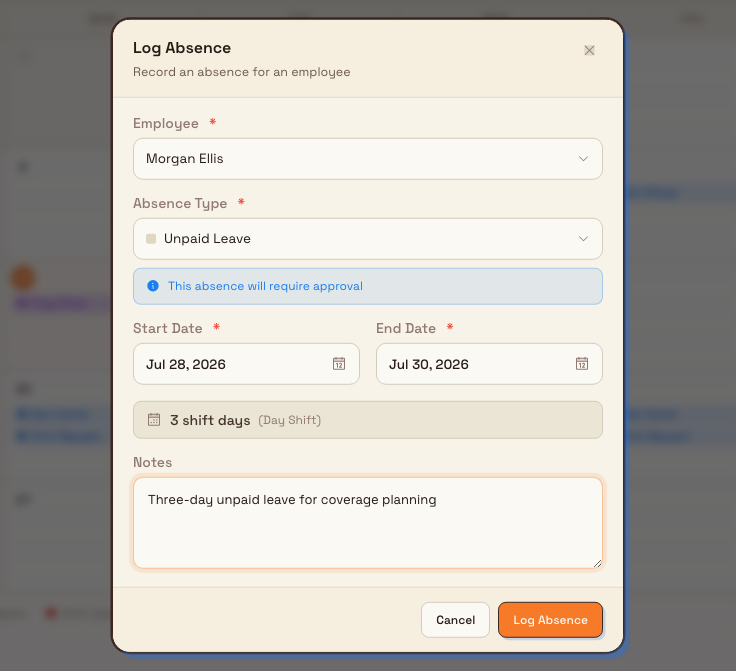
The Log Absence dialog asks for the Employee (searchable by name or code), the Absence Type, a Start Date and End Date, and optional Notes. As you choose a type, a note tells you whether the absence "will require approval" or "will be automatically approved". Once an employee and dates are set, a line shows the calculated shift days for that range and the shift it used, so you can confirm the count before saving. Select Log Absence to save.
If the chosen type requires approval and you also hold the approve permission, Bulk asks Approve this absence? right after saving, with Leave pending and Approve now options — a shortcut so you can book and approve in one step.
people.absence-calendar-02
For the full field-by-field walkthrough of logging an absence, including how shift days are counted, see the Record absence guide linked below. The calendar simply gives you a faster starting point.
Manage an existing absence
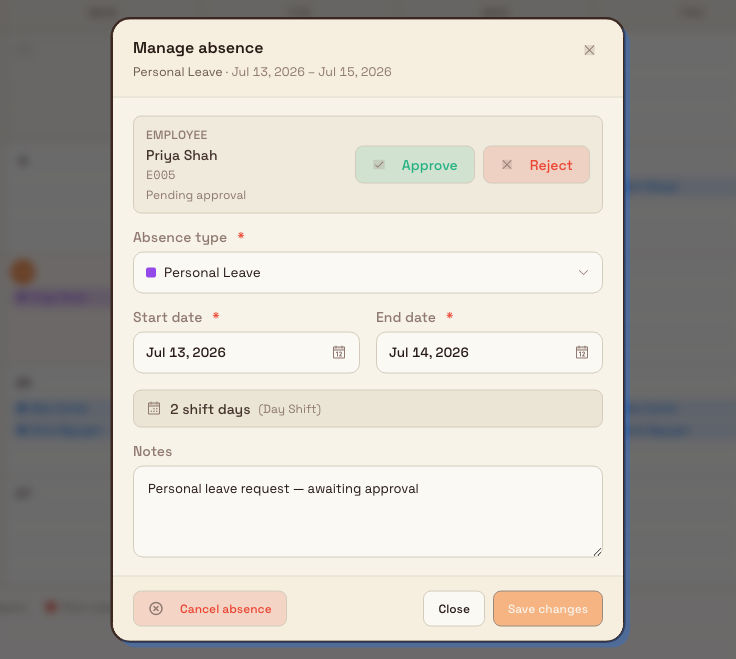
Click any pill to open the Manage absence dialog for that record. The dialog header shows the absence type and date range. What you can do depends on the record's status:
- Pending or approved absences open in an editable form. You can change the Absence type, Start date, End date, and Notes, then select Save changes. The shift-days line recalculates as you adjust the dates.
- If the record is Pending and you can approve it, Approve and Reject buttons appear next to the employee details. Rejecting opens a short Reject absence request dialog where you can add an optional reason.
- If the record can be cancelled, a Cancel absence button appears in the footer. Cancelling asks you to confirm and warns you when the absence has already been approved. A cancelled absence leaves the calendar but is kept in the records list.
- Rejected or cancelled absences open as a read-only summary showing the type, dates, day count, any notes, and who reviewed it.
people.absence-calendar-03
Example: planning a fabrication week at Granite Peak
You supervise the fabrication line at Granite Peak Manufacturing's Leeds Fabrication Plant and need to confirm you have enough welders for a large frame order the week of 20 July.
You open People, then Absence Calendar, and page to July. Monday 20 July shows a 2 FTEs badge: two welders are on Annual Leave (blue pills) all week. Wednesday adds a third pill drawn with the diagonal stripe — a Sick Leave request from a shift lead that is still pending. Hovering each pill confirms the names, types, and dates.
That is one welder short of what the order needs on Wednesday. You click the pending sick-leave pill, and because you hold the approve permission the Manage absence dialog offers Approve and Reject. You approve it so the schedule reflects reality, then click Thursday to open Log Absence and book a half-week of Training for a fourth operator you are moving off the line — the shift-days line confirms it counts as two shift days against their pattern. With the month laid out, you reschedule the frame order's welding step to Thursday, when coverage recovers.
Expected result
After you work through the calendar you can see, for any month, exactly who is away and on what type of absence, with pending requests visually flagged. Absences you log appear immediately as pills on the days they cover; absences you approve lose their striped pattern; and absences you cancel drop off the calendar while staying in the Absences records list. Because the calendar and the Absences list share the same data, any teammate viewing either surface sees the same up-to-date picture.
Limitations and feature state
The absence calendar is generally available.
- The calendar shows Approved and Pending absences only. To see rejected or cancelled records, use the All Absences tab on the Absences page.
- Absences are scoped to the currently selected site. The calendar shows the whole team for that site, not other facilities. Switch site to see another facility's absences.
- Absence length is measured in shift days from the employee's default shift, so a booked range can count fewer days than the number of calendar days it spans (weekends and non-working pattern days are not counted).
- The calendar is a month view. There is no week or day layout on this page.
Troubleshooting
The calendar is empty. Either no approved or pending absences fall in the month you are viewing, or your role lacks the View team absences permission. Page to a month you know has absences to tell the two apart, and check your permissions with your administrator.
You cannot click a day or see the Log Absence button. Logging requires the Create absence requests permission. Without it the calendar is read-only.
"Employee has no default shift assigned." The employee you picked in Log Absence has no default shift, so Bulk cannot count shift days. Assign a default shift on the employee's record first, then log the absence. If the message is "Employee default shift was not found" or mentions a different facility, reassign a valid shift for the current site.
"Overlapping absence." The employee already has an absence that overlaps the dates you chose. Adjust the range, or open the existing absence from the calendar to edit it instead of creating a second one.
Related guidance
- Record absence — the full walkthrough for logging an absence and how shift days are counted.
- Shifts — assign the default shift each employee needs before an absence can be logged.
- Employee record — where an employee's shift and other details live.
- People — overview of the People module and its other tools.
Record an absence
Log a planned or unplanned absence for an employee, choosing the absence type and dates while Bulk counts the shift days it covers.
Manage shifts
Define reusable work patterns — working days, start and end times, breaks, and multi-week rotations — that you assign to employees and that drive absence day-counting.