Review an employee record
Open an employee's record to review their employment details, training compliance, absence balances, and weekly production from one tabbed page.
An employee record is the single page that pulls together everything Bulk knows about one person on your workforce: their employment details, their training compliance, their leave balances, and — when their record is linked to a Bulk login — the production work they logged. You open it to check on one employee before a decision: assigning them to a job, approving a leave request, confirming a certification is still valid, or preparing for a return-to-work or shift handover.
This page is read-only. You review information here; you change it elsewhere. To create the record in the first place, see Create an employee. To record time off, see Record an absence.
Before you begin
- The employee must already exist in your workforce. New records are added from the Employees list — see Create an employee.
- To open any employee record you need the employees.view permission. This is granted by default to the Super user, Entity admin, Manager, and People roles. If the Employees list is empty or a record will not open, ask an administrator to check your role.
- Two tabs need extra permissions:
- The Absences entitlement figures need the absences.view_own permission.
- The Training tab only appears if you have the training_assignments.view permission. Without it, the record shows just Overview, Production, and Absences.
- Employees are scoped to a site (called an entity in Bulk). You see the records for the site you are working in.
Open a record
- In the main navigation, go to People, then Employees.
- Find the person in the list. Select their row to open the record. The web address ends in
/people/employees/followed by the employee's identifier.
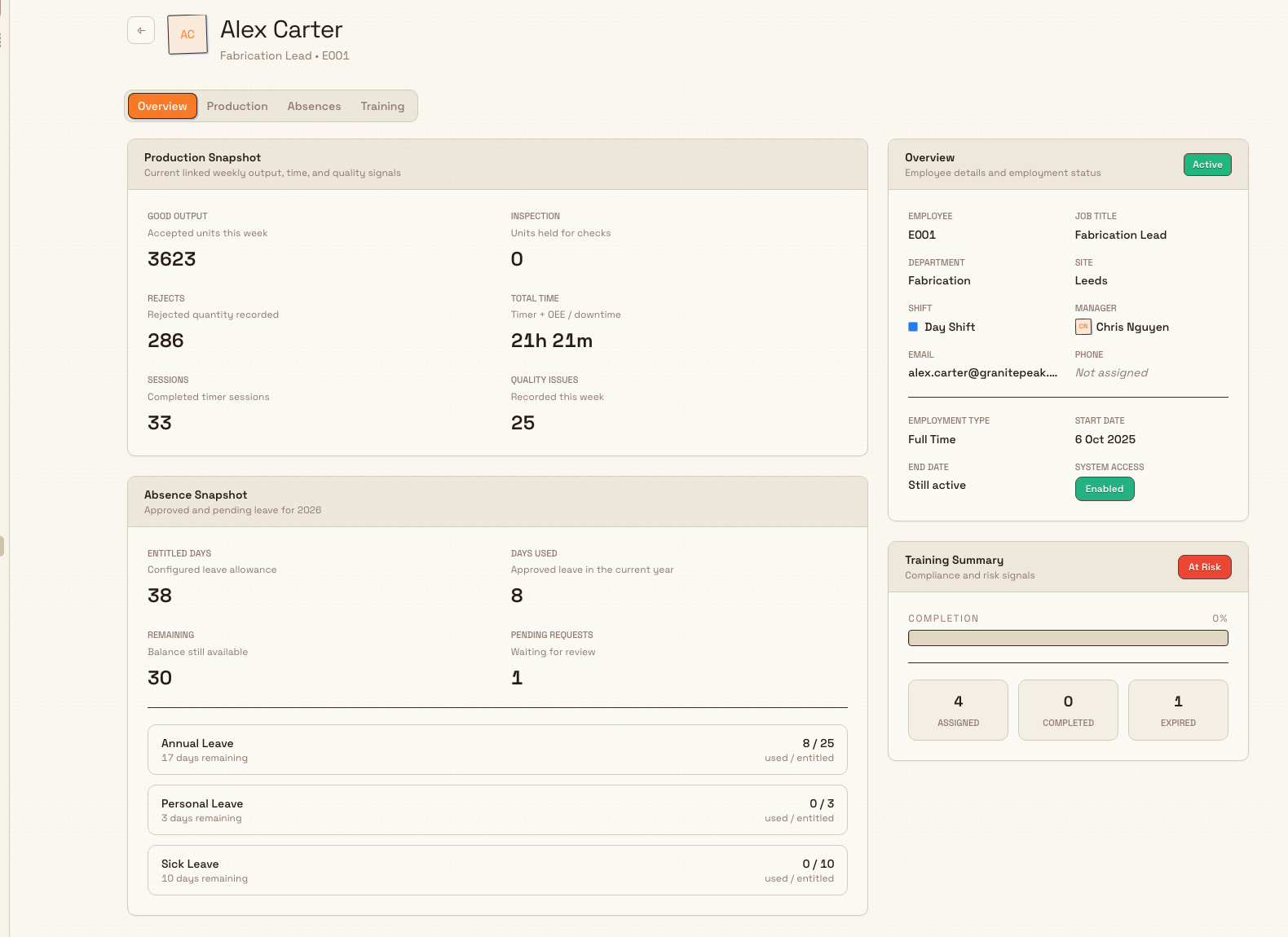
The record opens with a header showing the employee's initials, their full name, and — below the name — their job title and employee code. Use the back arrow to return to the Employees list.
people.employee-record-01
What each tab shows
The record is organised into tabs. A sticky sidebar on the right stays visible across all of them, holding the two summary cards.
The sidebar (always visible)
- Overview card — the employment status badge (Active, On Leave, Pending, or Terminated) plus the core details: Employee code, Job Title, Department, Site, Shift, Manager, Email, and Phone, followed by Employment Type, Start Date, End Date (shown as Still active when there is no leaving date), and System Access. System Access reads Enabled when the record is linked to a Bulk login and No Access when it is not.
- Training Summary card — a compliance badge and progress bar, with three counts: Assigned, Completed, and Expired. Use this for an at-a-glance read on whether the person's required training is up to date.
Overview tab
The default tab. It carries two snapshot cards:
- Production Snapshot — the current linked week's Good Output, Inspection, Rejects, Total Time, Sessions, and Quality Issues. If the record is not linked to a user account, this card shows No linked production data instead.
- Absence Snapshot — this year's Entitled Days, Days Used, Remaining, and Pending Requests, with a per-leave-type breakdown underneath.
Production tab
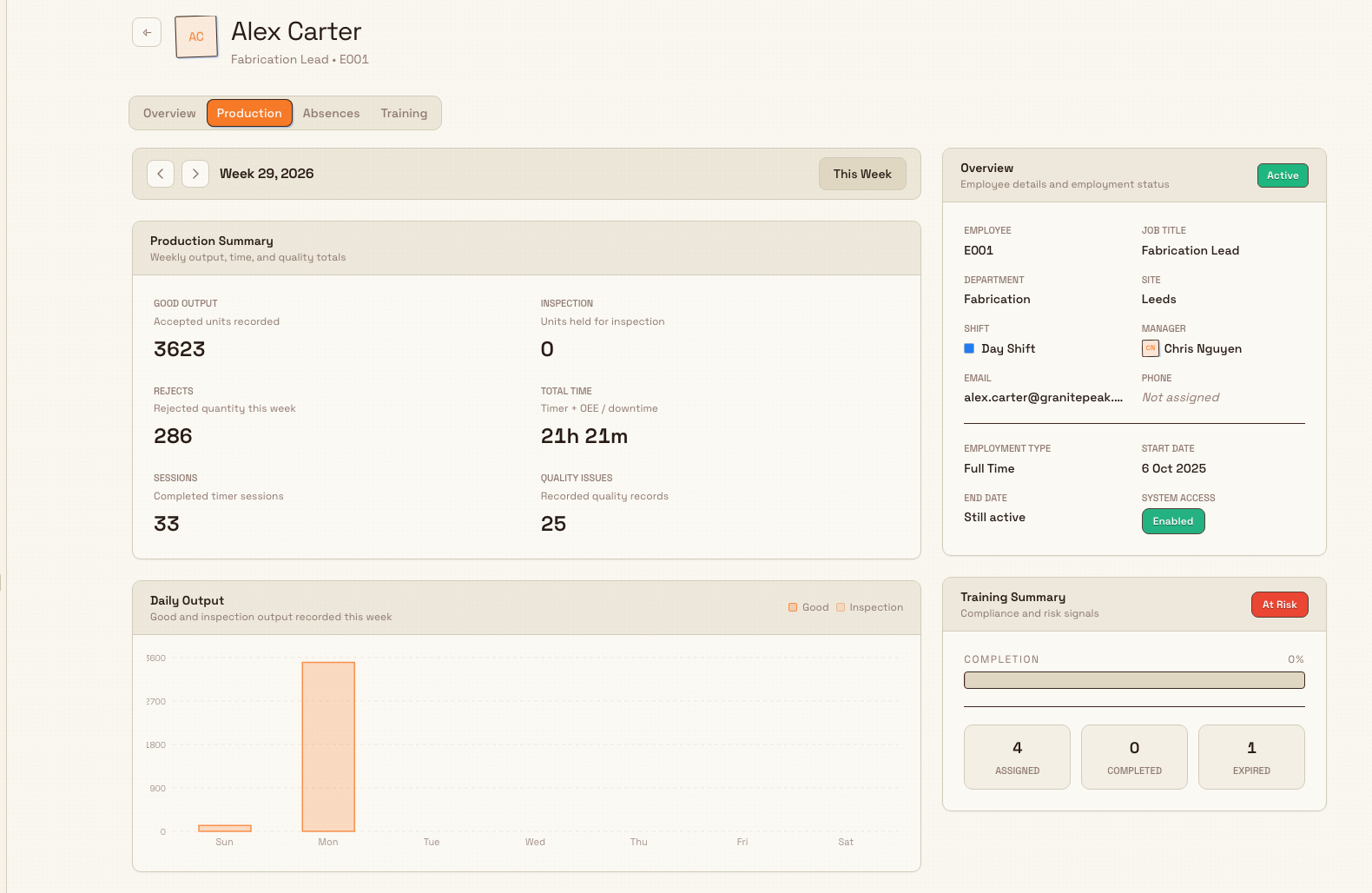
A weekly view of the work this employee logged, keyed to their linked user account. A week navigator at the top moves between weeks, with a This Week button to jump back to the current one. Below it:
- Production Summary — the same six totals as the snapshot, for the selected week.
- Daily Output — a bar chart of Good and Inspection units per day.
- Daily Time — a bar chart of Timer time versus OEE / Downtime per day. (OEE, overall equipment effectiveness, is Bulk's measure of productive machine time; downtime is time lost to stoppages.)
- Daily Quality Issues — rejects and quality records grouped by category.
If the employee has no linked user account, the tab shows No user account linked with a Link User Account button, because production is recorded against the person's login, not their employee record on its own.
people.employee-record-02
Absences tab
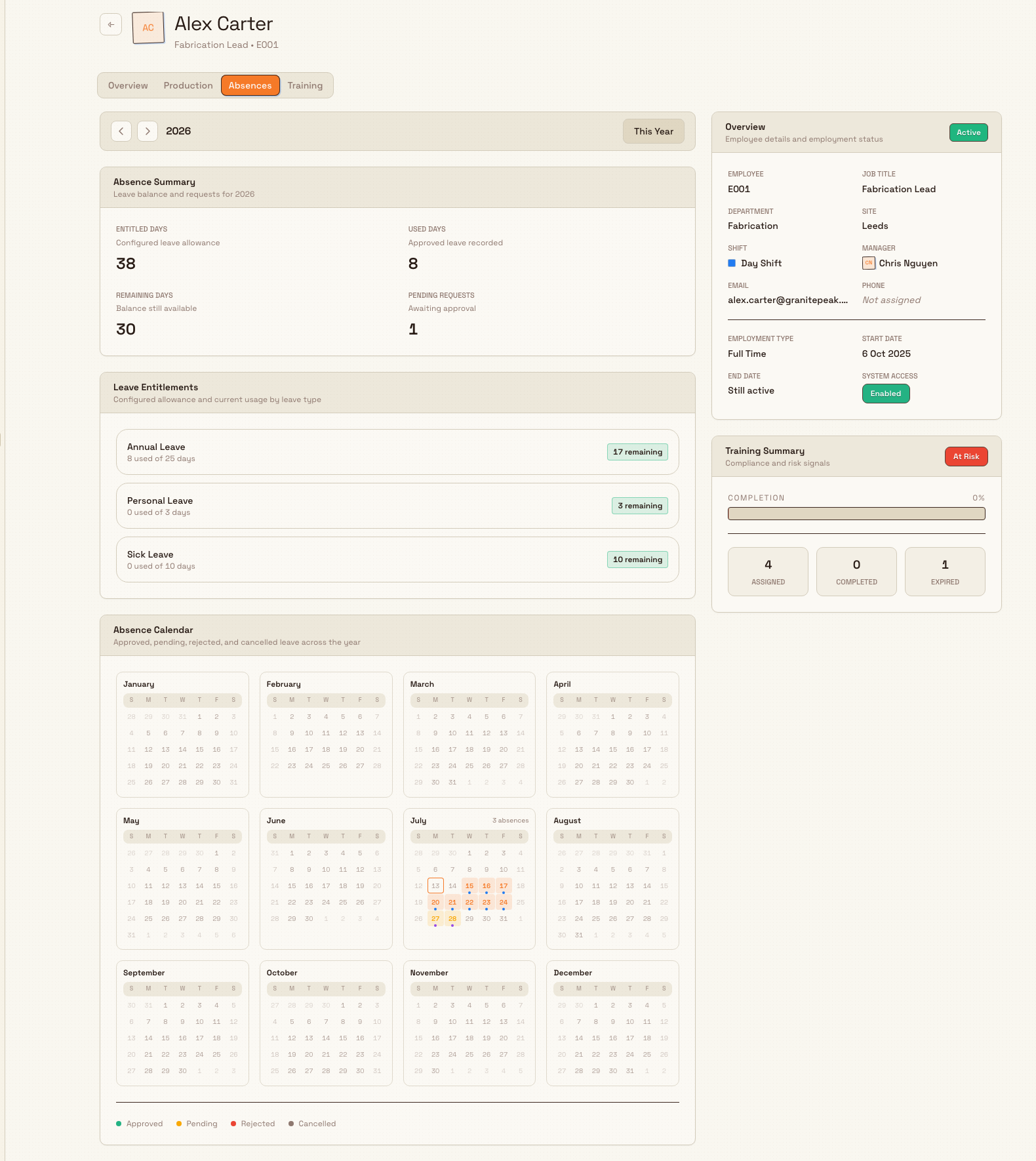
A full-year view of this employee's leave. A year navigator at the top moves between years, with a This Year button. Below it:
- Absence Summary — Entitled Days, Used Days, Remaining Days, and Pending Requests for the selected year.
- Leave Entitlements — each leave type with its used-of-entitled days and a remaining-days badge. When no allowance is set for the year, this reads No entitlement records.
- Absence Calendar — a twelve-month grid with each booked day marked, and a legend for Approved, Pending, Rejected, and Cancelled leave. Hover a marked day to see the leave type, status, and length.
people.employee-record-03
Training tab
When your role includes training visibility, this tab lists the employee's training assignments and their completion state. For the full training workflow — assigning, recording completion, and renewing — see Review training records.
Example: checking an operator before a job assignment at Leeds Fabrication Plant
At Granite Peak Manufacturing's Leeds Fabrication Plant, a shift lead needs to put a press-brake operator, employee code EMP-0412, onto a new bracket-forming job next week. Before assigning them, the shift lead opens People, then Employees, and selects the operator's row.
On the record, the Training Summary card shows the operator is compliant on most items but has one Expired count. The shift lead switches to the Training tab, confirms the expired item is the press-brake safety refresher, and flags it for renewal. They then open the Absences tab, where the Absence Calendar confirms the operator's approved annual leave ends this Friday, so they are available Monday. Finally, the Production tab shows a healthy week of Good Output with no unusual Rejects. The shift lead has everything they need — pending the safety renewal — without leaving the page.
Expected result
Opening a record gives you a complete, current picture of one employee: their employment details and status in the sidebar, their training compliance at a glance, a week of production in charts, and a year of absences on a calendar. Because the page reads live data, the figures reflect the latest records the moment you open it.
Limitations and availability
This capability is generally available.
- The record is read-only. You review here and edit elsewhere. Changing details, recording absences, or updating training happens on the Employees list and in the related workflows, not on this page.
- Production and System Access both depend on a linked user account. Production totals and charts only appear when the employee record is linked to a Bulk login; the same link drives the System Access field (Enabled versus No Access). An unlinked record shows No user account linked on the Production tab and No linked production data on the Overview snapshot.
- The Training tab is permission-gated. It only appears with the training_assignments.view permission; otherwise the record shows Overview, Production, and Absences.
- Production is a one-week view. The Production tab and the Overview snapshot show a single week at a time. Use the week navigator to move between weeks.
Troubleshooting
- The record will not open, or the Employees list is empty. You likely lack the employees.view permission, or you are working in a different site than the employee. Ask an administrator to confirm your role and site.
- The Training tab is missing. Your role does not include training_assignments.view. The rest of the record still works; ask an administrator if you need training visibility.
- The Production tab says "No user account linked." The employee record is not tied to a Bulk login, so there is no production to show. Link the record to a user account — production data appears once the link exists and the person logs work. See Create an employee for how linking is set.
- Leave Entitlements shows "No entitlement records." No leave allowance has been set for that year. Entitlements appear once an allowance is assigned for the year you are viewing.
Related guidance
Create an employee
Add a person to your workforce directory with the three-step Add Employee wizard, setting their employee code, name and contact details, and their manager, home site, role, shift, and employment settings.
Manage departments
Create, organize, and maintain the department hierarchy that groups people, assigns a manager, and shapes reporting lines for a site.