Publish company news
Write and publish company news posts so everyone at a site sees announcements, welcomes, and milestones on the People News page and on Home.
Company news is a short, in-app post — an announcement, a welcome, or a milestone — that appears on the News page under People and in the news widget on Home. Use it to reach the people who work at a site with the kind of update that would otherwise live on a break-room noticeboard: a new hire joining a shift, an audit passed, a canteen rota change, or an all-hands invite.
News is entity-scoped, which in Bulk means it belongs to the site (entity) you have selected. A post you publish for one plant is not seen at another. Switch to a different site first if you want to post there.
This guide covers writing a post in the composer, choosing who it is for, publishing it, and what a reader sees.
Before you start
Publishing news depends on your role at the selected site. Bulk uses four company-news permissions:
- View company news (
company_news.view) — read posts on the News page and Home. - Create company news (
company_news.create) — create drafts and published posts. - Edit company news (
company_news.update) — edit an existing draft or published post. - Archive company news (
company_news.delete) — archive a post so it drops off the News page.
By default these permissions are granted to the Super user, Entity admin, Manager, and People roles. Any custom role an administrator has granted "Create company news" can also publish. If you do not see the New post button on the News page, you most likely lack create permission at this site, or you have the wrong site selected.
Permissions are per site
Because news is entity-scoped, a role that lets you publish at your home plant does not automatically let you publish at another site. Confirm the site name shown in the page header before you write.
Open the composer
- In the left navigation, open People, then News. This is the
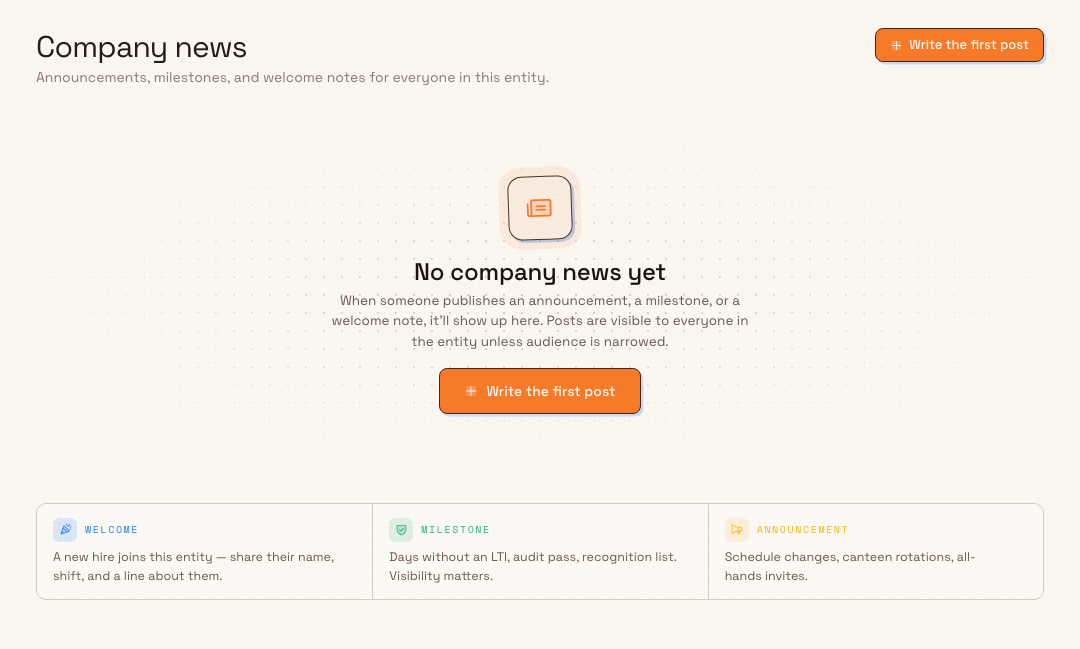
/people/newspage, headed Company news. - Select New post. On an empty site the same action reads Write the first post.
The News page has one list layout. Use All, People, Safety, Training, or Teamboards to filter it. The newest post appears first, followed by the earlier rows; pagination appears when there are more than 12 posts. There is no grid-view switch.
people.company-news-01
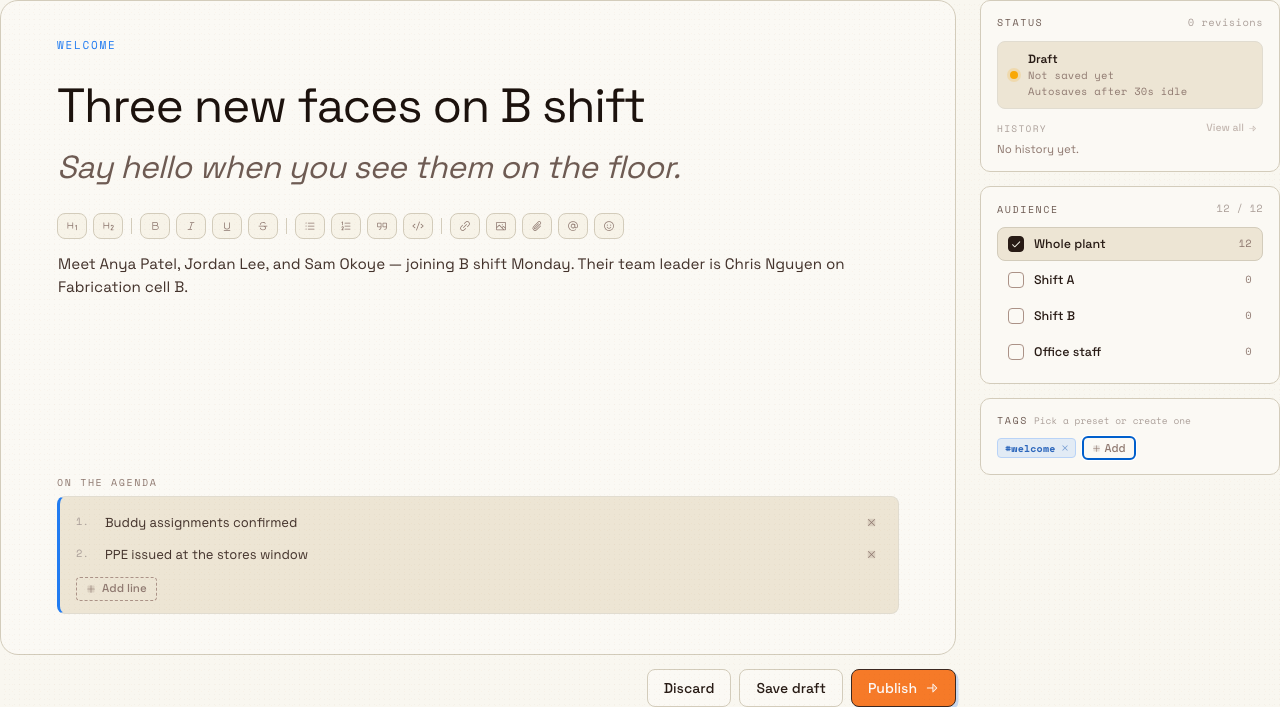
The composer opens on its own page. The large sheet on the left holds the post itself; a narrow rail on the right holds the Status, Audience, and Tags cards; and a footer below the sheet carries Discard, Save draft, and Publish.
people.company-news-02
Write the post
Fill the sheet from the top. Only the headline is required.
- Kicker — a short uppercase label above the headline, such as
WELCOMEorSAFETY. Optional. The field placeholder reads "Kicker · Section". - Headline — the post title. This is the one required field; you cannot publish without it.
- Italic continuation — an optional italic sub-line under the headline, useful for a standfirst or a second clause.
- Body — the main text, written in a rich editor. A toolbar above the sheet offers Heading 1, Heading 2, Bold, Italic, Underline, Strikethrough, Bulleted list, Numbered list, Quote, Code block, Insert link, Insert image, Attach file, Mention person, and Insert emoji.
- On the agenda — an optional numbered list of talking points shown in its own panel. Use Add line to add items and the remove control to delete one.
Add a headline before inserting media
If you try to insert an image or attach a file on a post that has not been saved yet, Bulk asks you to add a title first ("Add a title before uploading media"). Type a headline, then insert the image or file; Bulk saves a draft so the upload has a post to attach to.
Choose the audience
The Audience card lists preset groups: Whole plant, Shift A, Shift B, and Office staff. New posts start with Whole plant selected. Selection is multi-select — you can tick more than one group.
The Whole plant row shows a live count of active employees at the site; the other groups currently show a count of 0. Read the important limitation on audience below before you rely on this to control who sees a post.
Add tags
The Tags card labels a post so readers can filter the News list. Select Add to open the tag picker, then either choose a preset (for example welcome, all-hands, safety, recognition, or ops) or type a label under New tag, pick a colour, and select Create. A new tag is saved for the site so it is available on the next post. Remove an assigned tag with the small remove control on its chip.
Save a draft, or let autosave hold it
You do not have to publish straight away.
- Save draft keeps the post in the Draft state and shows a "Draft saved" confirmation. A brand-new post moves to its edit URL so you can keep working.
- Autosave saves a draft on its own after about 30 seconds of no typing, but only once the post has a headline and only while it is still a draft. The save hint on the Status card shows the state — for example "Not saved yet. Autosaves after 30s idle" or "Saving draft…". If autosave fails it shows "Save failed · use Save draft", which means you should press Save draft to retry.
The Status card also tracks revisions and a History timeline. Select View all to open the Company news history dialog, which lists each checkpoint — created, saved, published, or archived — newest first.
Leaving the composer with unsaved work asks you to confirm: Discard for a post that was never saved, or Delete (which archives) when the post already has an id.
Publish
When the post is ready, select Publish in the footer. Bulk publishes the post immediately and confirms with "Post published". You return to the News page. A published post appears in the list for the site and in the news widget on Home.
A Granite Peak Manufacturing example
Three press-brake operators are joining B shift at the Leeds Fabrication Plant. Priya, the site's People lead, wants everyone to know before their first Monday.
She opens People → News at the Leeds site and selects New post. She sets the kicker to WELCOME, writes the headline "Three new faces on B shift", and adds an italic continuation, "Say hello when you see them on the floor." In the body she writes a short paragraph introducing each operator and uses Mention person to tag their new team leader. Under On the agenda she adds "Buddy assignments confirmed" and "PPE issued at the stores window".
She tags the post welcome and people, leaves the audience on Whole plant, and selects Publish. She sees "Post published" and lands back on the News page with the post live for the site.
What a reader sees
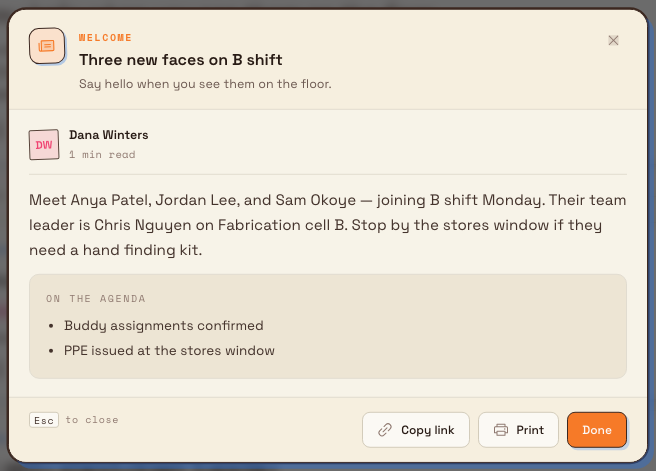
Anyone with view permission at the site can open the post. Selecting it opens a reader dialog with the kicker as an eyebrow, the headline and italic sub-line, a byline showing the author and an estimated read time, the body, and the On the agenda list if there is one. The dialog footer offers three actions:
- Copy link — copies a shareable link to the post.
- Print — generates a print-ready "Floor-board PDF" of the post and downloads it, which is handy for pinning a physical copy on the shop floor. The post must be saved and published first.
- Done — closes the reader.
people.company-news-03
Edit or archive a post
To change a published post, open it from the News list and use its edit action to return to the composer at /people/news/:postId/edit. Editing requires the Edit company news permission. Saving records a new revision in the post's history.
To take a post down, archive it. Archiving needs the Archive company news permission and moves the post to the Archived state, which removes it from the News list and from reader views. Archiving is Bulk's soft-delete for news; the post is retained for its history rather than permanently erased here.
Limitations and current behaviour
This feature is generally available, but a few behaviours are worth knowing before you rely on them:
- Posts belong to one site. News is entity-scoped. To post for a different plant, switch to that site first.
- The composer always publishes under the People module. The All / People / Safety / Training / Teamboards tabs on the News list organise posts by their originating module, but a post you write in this composer is always a People post.
- Audience does not yet restrict who can see a post. The audience you choose is recorded on the post, but every person with view permission at the site sees every published post; the reading and list views do not filter by audience group. Treat audience as a label for the intended readers, not as access control. Only Whole plant shows a live headcount today.
- The author is whoever created the post. The composer does not offer a way to add co-authors.
- The reads counter does not increment from the reader. A read count can appear on posts, but opening a post in the current reading UI does not raise it, so the number stays at its saved value.
- Publish is always immediate. There is no scheduled-publish option; selecting Publish makes the post live straight away.
Troubleshooting
- "Add a title before uploading media." Type a headline first, then insert the image or attach the file. Bulk needs a saved draft to attach media to.
- No New post button, or Publish is refused. You likely lack the Create company news or Edit company news permission at this site, or you have a different site selected. Ask an administrator to grant the permission, or switch to the correct site.
- The save hint reads "Save failed · use Save draft". Autosave could not complete. Select Save draft to save manually and keep your work.
- Print says the post must be published. Publish the post first, then open it and select Print from the reader.
- A post is missing from Home. Only published posts appear on Home. A draft or an archived post will not show.
Related guidance
- People overview — the rest of the People area, including employees, departments, and absences.
- Create an employee — add the people your welcome posts are about.
- Shifts — define the shifts your audience groups are named for.
- People and Training reference — the full module reference.
Manage shifts
Define reusable work patterns — working days, start and end times, breaks, and multi-week rotations — that you assign to employees and that drive absence day-counting.
Training
Track workforce competency, certifications, and training compliance across your plant using the Training module's dashboard, records, versatility matrix, and catalog.