View the organization structure
See your site's reporting lines as an automatic org chart, and draft drag-and-drop reorganization scenarios that never change real employee records.
The Org Structure page turns the reporting lines on your employee records into a visual org chart — a diagram of who reports to whom. It draws every active person at your current site into connected cards so you can see the shape of your organization at a glance, spot gaps or overloaded managers, and plan changes.
Use it in two ways:
- Read the live chart to understand the current reporting structure for the site you are working in.
- Draft a variation — a saved, hypothetical reorganization — when you want to model a change (a new shift pattern, a merged team, a promotion) before making it real. A variation is a sandbox: it never touches anyone's actual employee record.
In Bulk, an entity is a single site or plant within your company. The org chart always reflects the entity you are currently working in.
Before you start
You need the right access and a little data in place:
- To open the page, you need permission to view employees (
employees.view). - To create, edit, or delete a variation, you also need permission to update employees (
employees.update).
In the standard role catalog, both permissions come with the Super user, Entity admin, Manager, and People roles. If the page is missing from your sidebar or you cannot create a variation, ask an administrator to review your role.
The chart is built from reporting lines — the manager set on each person's employee record. For the hierarchy to appear, your people need managers assigned:
- People with no manager sit at the top level of the chart.
- Everyone else connects upward to the person named as their manager.
You set or change a person's manager on their employee record, not on this page. See Review an employee record and Create an employee.
Open the org structure
In the sidebar, open People, then select Org Structure. The page opens on the Live org chart for your current site.
The header shows the title Org Structure with the summary "Visualize your reporting lines, or draft hypothetical reorg scenarios." Below it, the chart fills a scrollable canvas you can pan and zoom, with standard controls and a mini-map in the corners.
If the site has no employees yet, you see an empty state titled No employees yet with the prompt "Add employees with reporting lines to see your organization take shape here." Add people first, then return here.
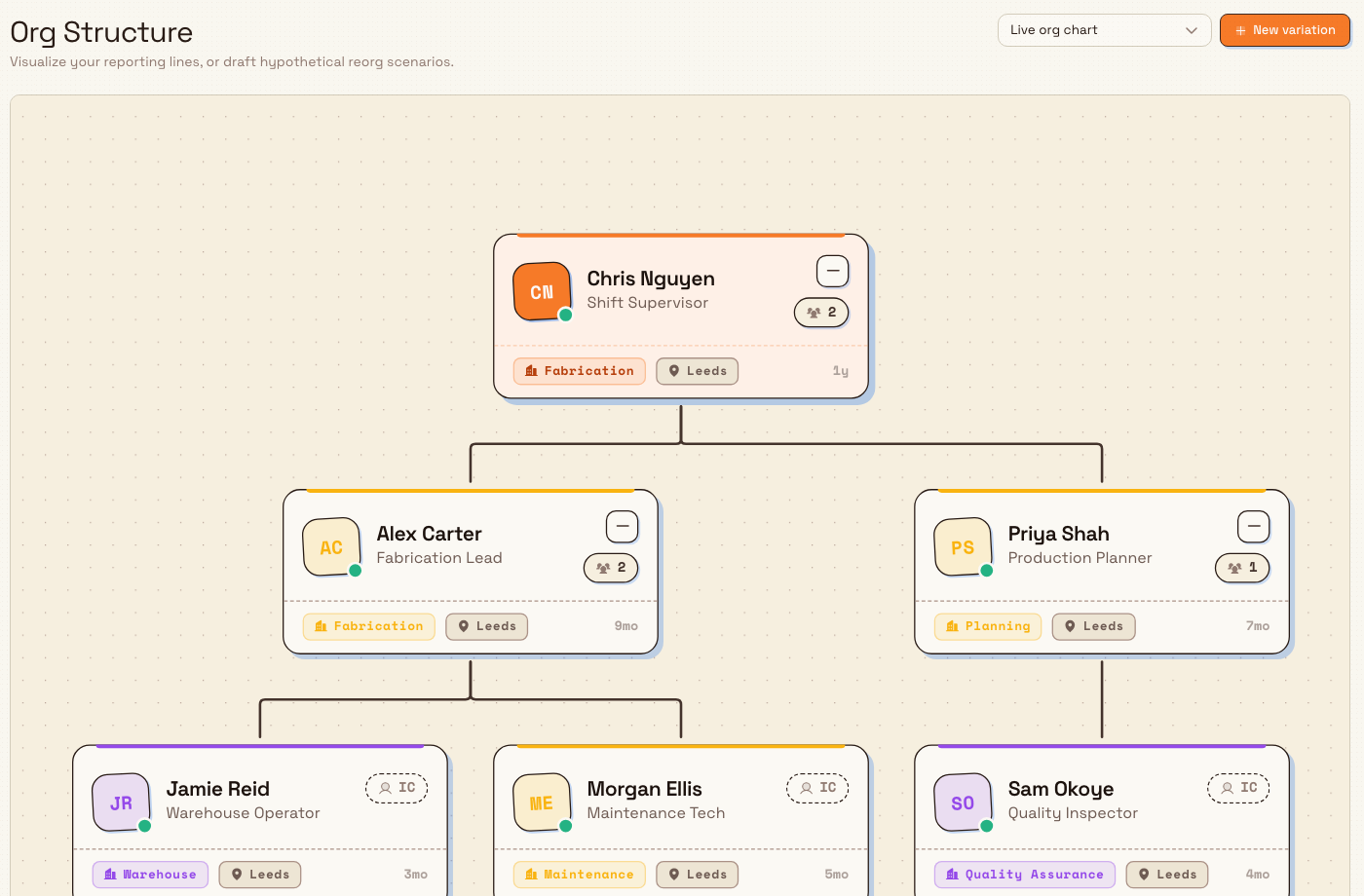
people.organization-structure-01
Read the org chart
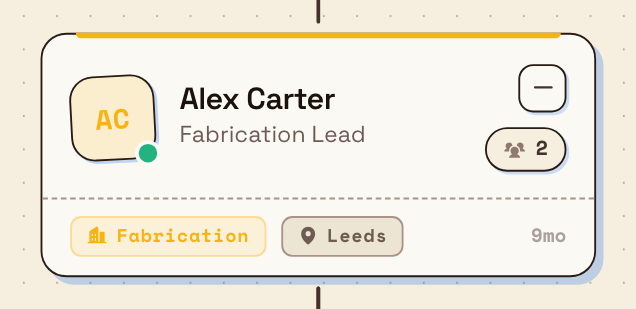
Each person appears as a card. A card summarizes who they are and where they sit in the structure:
- Photo or initials, with a small presence dot — green when the person is on site, amber when they are on leave.
- Name and job title.
- Department and location chips, when those are set on the record.
- Tenure — how long the person has been with the company, based on their start date.
- A direct-report count for managers, or an IC marker for an individual contributor (someone with no direct reports).
Managers with reports have a collapse control on their card. Use it to fold a team away when a large chart gets busy:
- Choose Collapse reports to hide everyone below that manager. The card then shows a "+N hidden" badge, where N is the number of people tucked away.
- Choose Expand reports to bring the team back.
Collapsing is a view aid only. It is not saved, it does not change anyone's record, and it resets when you switch to a different chart or variation. It works on both the live chart and variations.
people.organization-structure-02
The live chart is read-only. You can pan, zoom, and collapse teams, but you cannot move cards or change reporting lines here. To rearrange anything, work in a variation.
Draft a reorganization with a variation
A variation is an editable copy of the chart where you can restructure freely. Nothing you do in a variation changes real employee records — re-parenting, removals, and card positions are stored only as part of the scenario. This makes a variation a safe place to propose and discuss a reorg before committing to it.
Create a variation
- Select New variation in the header.
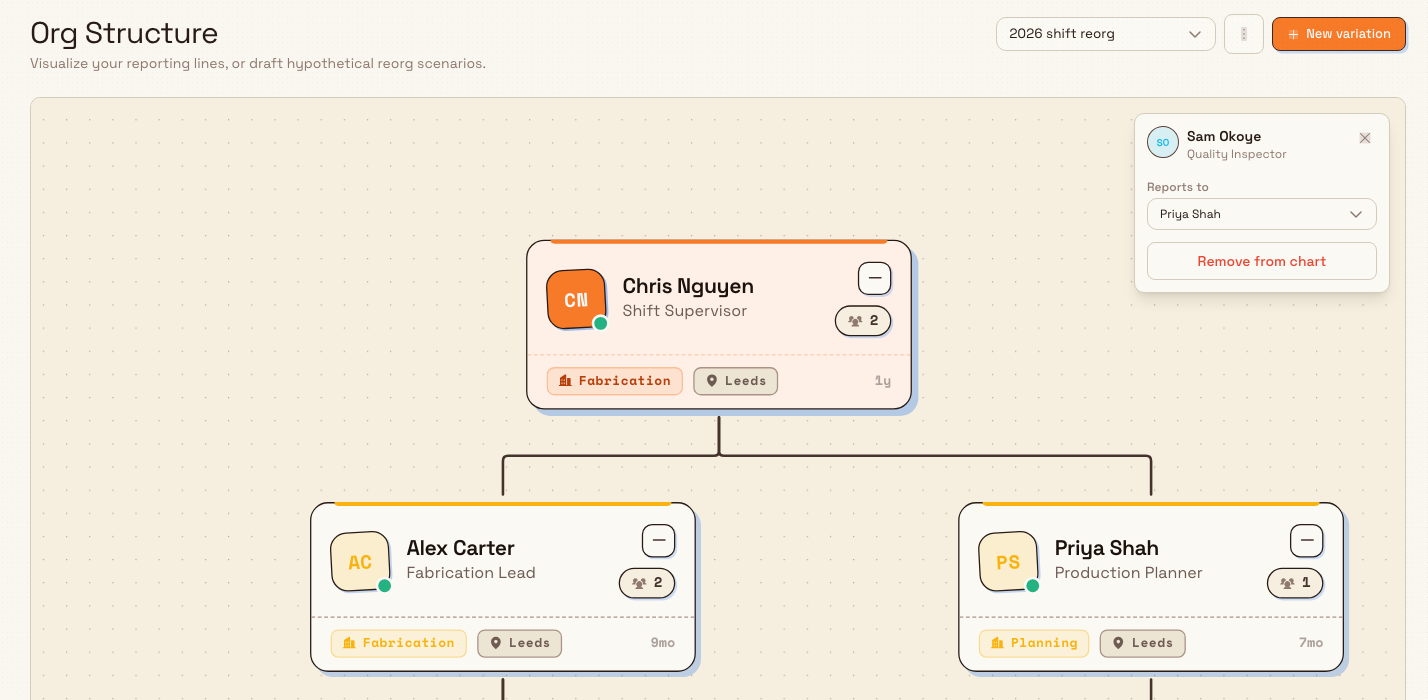
- In the New variation dialog, type a Name — for example, "2026 shift reorg". The dialog reminds you that a variation is "an editable copy of the current chart you can restructure freely. It never changes real employee records."
- Select Create.
Bulk saves the variation, switches the chart to it, and confirms with a "Variation created" message. Your new variation now appears in the structure switcher at the top of the page, alongside Live org chart, so you can return to it later.
Move someone in the chart
With a variation selected, the chart becomes editable. There are two ways to change who a person reports to:
- Drag their card onto the card of a new manager. Bulk re-parents the person and confirms the change with a message such as "Priya Nair now reports to Marcus Bell".
- Click their card to open the inspector panel in the top-right corner. Use the Reports to menu to pick a new manager, or choose the
— Top level (no manager) —option to lift the person to the top of the chart.
You can also drag a card to an empty spot to reposition it without changing who it reports to. Every edit saves automatically as you go.
To take a person out of the scenario entirely, open their card and select Remove from chart in the inspector. They disappear from this variation, and anyone who reported to them moves up a level. This only affects the scenario — the person keeps their real record and reporting line.
Bulk stops you from creating an impossible loop: if you try to move a manager underneath one of their own reports, the move is rejected with "You cannot move someone under their own report" and the card snaps back. Pick a different manager.
people.organization-structure-03
Tidy, rename, or delete a variation
When a variation is selected, an actions menu (the three-dot button next to the switcher) offers:
- Auto-arrange — re-runs the automatic layout to tidy the chart. It clears any manual card positions but keeps your reporting and removal changes.
- Rename — give the variation a clearer name.
- Delete — remove the variation.
Selecting Delete asks you to confirm and reminds you that "This only removes the scenario — your real employee records are untouched." Deleting discards the scenario and returns you to the live chart.
Example: planning a shift reorg at Leeds Fabrication Plant
Granite Peak Manufacturing runs several sites. At the Leeds Fabrication Plant, the plant manager wants to propose splitting the fabrication team across two shifts, each with its own supervisor, for the 2026 season — without disrupting the live records while the plan is still under discussion.
- They open People → Org Structure at the Leeds site and read the live chart. Today, four welders and two fabricators all report to a single supervisor, Priya Nair — a clear span-of-control problem the chart makes obvious at a glance.
- They select New variation and name it "2026 shift reorg".
- In the variation, they drag the two night-shift welders onto Marcus Bell, a team lead they plan to promote to shift supervisor. Bulk confirms each move ("... now reports to Marcus Bell") and saves as they go.
- They open Priya Nair's card and, using the inspector, confirm the remaining day-shift team still reports to her.
- They select Auto-arrange to tidy the layout, then share their screen in a planning meeting.
Because everything lives in the variation, Priya, Marcus, and the welders keep their real reporting lines the entire time. If the plan is approved, the plant manager makes the changes for real on each employee record; if it is shelved, they simply delete the variation.
What variations can and can't do
The Org Structure page is generally available. Keep these boundaries in mind:
- The chart shows one site at a time. It reflects the entity you are currently working in. Switch sites to see a different site's people; a person appears in the chart for the site their record belongs to.
- Only active people appear. Employees who have left (terminated) are not drawn, and neither are archived records.
- Variations are hypothetical. Re-parenting a person, removing them from a variation, or moving their card never changes their real record, their manager, or their department. Real changes are made on the employee record.
- Collapsing is not saved. Folding a team away is a temporary view; it resets when you change the selected chart.
- Presence has two states. The dot shows on site or on leave. It does not track remote working.
Variations are a safe sandbox
Nothing you do inside a variation — dragging, re-parenting, or removing people — writes back to your employee records. When a plan is approved, apply it for real by editing each person's manager on their employee record.
Troubleshooting
- The page shows "No employees yet." The current site has no active employees. Add people and assign their managers, then reopen the page. See Create an employee.
- Everyone sits at the top level with no lines between them. No managers are set, so Bulk has no reporting lines to draw. Set each person's manager on their employee record.
- You can't drag cards or change reporting lines. You are on the read-only Live org chart. Create or select a variation first, then edit.
- A move is rejected with "You cannot move someone under their own report." That change would create a loop (a manager reporting into their own team). Choose a different manager.
- Someone you expect is missing. They may have left the company, may not yet have a record at this site, or may belong to a different site. Confirm on the employee record and check you are working in the right site.
Related guides
- Review an employee record — set or change a person's manager, job title, and department.
- Create an employee — add people so they appear in the chart.
- Manage departments — the department shown on each card.
- Manage job titles — the role shown on each card.
- People — the rest of the People module.
Manage job titles
Create, edit, reorder, and delete the standard job titles your site uses to classify employees for people records and training requirements.
Record an absence
Log a planned or unplanned absence for an employee, choosing the absence type and dates while Bulk counts the shift days it covers.