Record an absence
Log a planned or unplanned absence for an employee, choosing the absence type and dates while Bulk counts the shift days it covers.
Recording an absence tells Bulk that an employee will not be working on specific dates. In Bulk, an absence is a dated leave record attached to one employee, such as sick leave, annual leave, or unpaid leave. Once recorded, the absence appears on the Absence Calendar, feeds each person's remaining leave balance, and lets planners see who is unavailable before they schedule work.
You record an absence on behalf of an employee. This is the supervisor and administrator path for logging leave, whether it is planned ahead (a booked holiday) or entered after the fact (a call-in sick day). Absences are scoped to a single site, so the record belongs to the facility you are currently working in.
Before you start
You need a few things in place before Bulk will accept an absence:
- Permission to create absences. Logging an absence requires the Create absence requests permission (
absences.create). It is granted by default to the Super user, Entity admin, Manager, and People roles. The Operator role does not include it, so shop-floor operator accounts cannot log absences. - At least one absence type. An absence type (for example Annual Leave or Sick Leave) defines whether the leave needs approval and whether it is paid. Absence types are managed under Settings, People, Absence Types. If no types exist yet, create one first — the Absence Type field cannot be left empty.
- A default shift on the employee. Bulk counts leave in shift days, meaning the working days in your chosen range according to the employee's assigned shift pattern. The employee must have a default shift set on their record, or Bulk cannot work out how many days the absence covers.
Where to record an absence
Both entry points live in the People module and open the same Log Absence dialog.
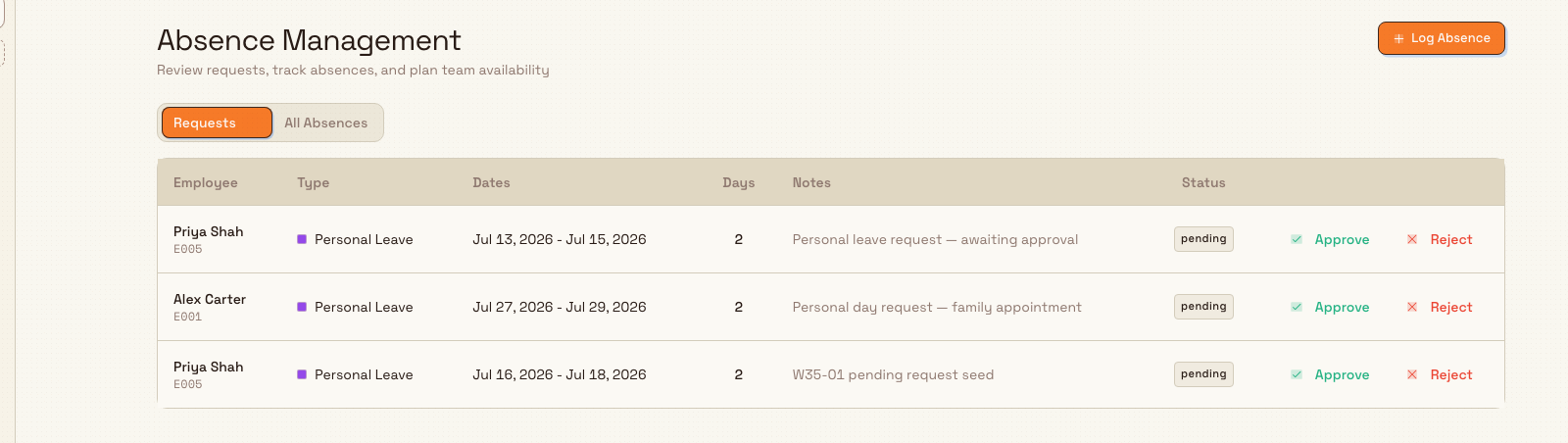
- Absences page (People, then Absences). The page is titled Absence Management. Select Log Absence in the top-right corner.
- Absence Calendar (People, then Absence Calendar). Select Log Absence in the top-right corner, or click a specific day in the calendar to open the dialog with that date already filled in.
people.record-absence-01
Record the absence
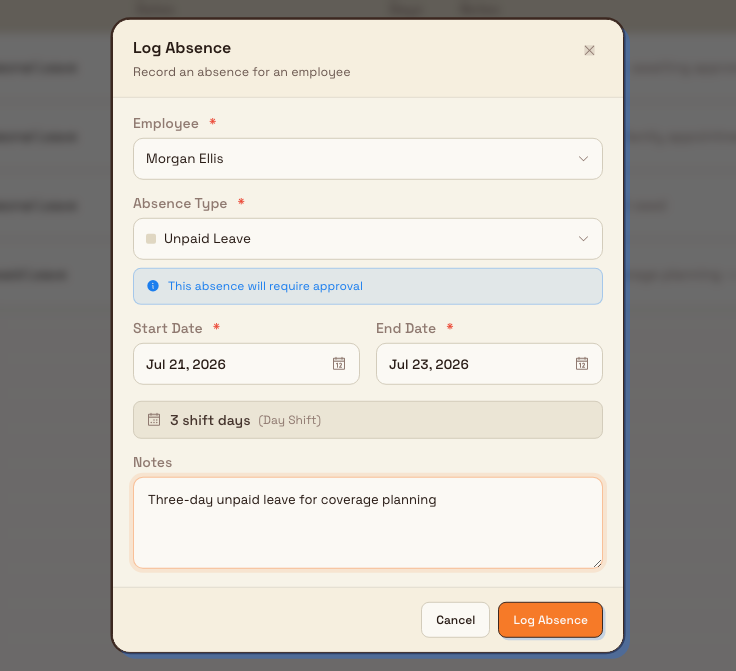
Selecting Log Absence opens the dialog titled Log Absence. Fill in the fields:
- Employee (required). Search by name or employee code and select the person the absence is for.
- Absence Type (required). Choose the type of leave. Each type is marked either Requires approval or Auto-approved in the list. After you pick one, a note confirms what will happen: This absence will require approval or This absence will be automatically approved.
- Start Date and End Date (both required). Pick the first and last day of the absence. If you move the start date past the end date, Bulk pushes the end date to match. The end date must be on or after the start date.
- Shift day count. Once an employee and a date range are set, the dialog shows how many shift days the absence covers and names the shift pattern it used, for example 3 shift days. This count comes from the employee's default shift, so weekends or rest days in the range are not counted.
- Notes (optional). Add a reason or any detail the approver should see.
Select Log Absence at the bottom of the dialog to save. The button stays disabled until the shift day count is a positive number, which prevents you from saving a range that covers no working days.
people.record-absence-02
What happens after you save
What Bulk does next depends on the absence type you chose:
- Auto-approved types are recorded and approved immediately. A confirmation reads Absence logged, and the absence is active straight away.
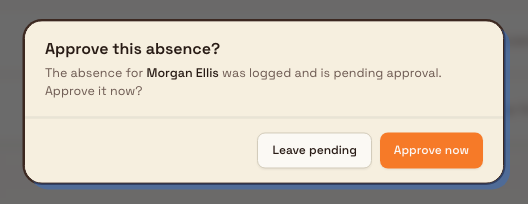
- Types that require approval are saved with a pending status. If you also hold the Approve absences permission (
absences.approve), Bulk asks Approve this absence? right after saving, with the choice to Leave pending or Approve now. If you do not hold that permission, the absence is submitted for approval and a confirmation reads Submitted for approval.
Pending requests appear on the Requests tab of the Absences page, where an approver can approve or reject them.
people.record-absence-03
Example: a sick day at Leeds Fabrication Plant
A press-brake operator at Granite Peak Manufacturing's Leeds Fabrication Plant calls in sick on Monday morning and expects to be back on Wednesday. Their shift supervisor, who holds the Manager role, opens People, then Absences, and selects Log Absence.
The supervisor searches for the operator by name, chooses the Sick Leave type — which is set to auto-approve so the shop floor is not waiting on a manager — and sets both the start and end date to cover Monday and Tuesday. The dialog shows 2 shift days against the operator's weekday shift. The supervisor adds a short note and selects Log Absence. The confirmation reads Absence logged, and the two days immediately show on the Absence Calendar so the planner reassigning that press brake can see the gap.
Troubleshooting
- "Employee has no default shift assigned." Bulk cannot count shift days without a shift pattern. Open the employee's record and assign a default shift, then log the absence again.
- "Overlapping absence." The employee already has an absence that overlaps the dates you chose. The message names the conflicting absence — adjust your dates, or edit the existing absence from the Absence Calendar instead of creating a second one.
- The Log Absence button will not save. The button is disabled until the shift day count is above zero. If your range lands entirely on the employee's rest days, the count is zero; pick dates that include working days for that shift.
- "End date must be on or after start date." Correct the dates so the end is the same as or later than the start.
Leave is counted in shift days, not calendar days
Bulk always counts the working days in your range for the employee's assigned shift, so a Monday-to-Sunday absence for a weekday shift records five shift days, not seven. The count shown in the dialog is the number that is saved.
Permissions and availability
Recording an absence is generally available. It is gated by the Create absence requests permission and is scoped to the site you are working in, so an absence you log belongs to that facility only. Approving an approval-required absence is a separate permission (Approve absences), which is why some users can log an absence but not approve it.
Related
- Absence calendar — see logged absences and plan team availability.
- Shifts — set up the shift patterns that decide how many shift days an absence covers.
- Employee record — assign an employee's default shift.
- People — everything in the People module.
View the organization structure
See your site's reporting lines as an automatic org chart, and draft drag-and-drop reorganization scenarios that never change real employee records.
Use the absence calendar
Read your team's approved and pending absences on a monthly calendar, spot coverage gaps at a glance, and log or manage an absence directly from any day.