Assign training
Assign a training program to an employee from the Versatility Matrix so their progress toward competency is tracked.
Assigning training puts a specific training program onto a specific employee's record so their progress can be tracked. In Bulk, a training program is a defined competency or course (for example a machine qualification or a safety induction), and an employee is a person on your team. You assign training when someone needs to gain a competency they do not have yet — a new hire starting on a machine, or an existing operator picking up a second skill.
In Bulk you assign training from the Versatility Matrix — a grid that shows every employee against every training program. Starting training on an employee's cell creates a training record and moves that person to the "In Training" stage for that program. From there you can record a completion, adjust their skill level, or cancel the training.
Before you start
Confirm the following before you assign training:
- Permission to manage training assignments. Assigning is gated by the
training_assignments.managepermission. The Owner and admin role and the built-in Training role both include it. Without it, the matrix opens read-only: you can view every cell, but the action buttons that create records do not appear. - At least one training program exists. Programs are the columns of the matrix. If your Catalog is empty, the grid has nothing to assign. See Create a training program.
- The employee exists and is active. Employees are the rows of the matrix. The grid lists active people for the current site, so the person you want to train must already be set up in People.
One site at a time
The matrix shows the employees and programs for the site (entity) you are currently working in. Assigning training records it against that site. Switch sites first if you need to assign training somewhere else.
Open the Versatility Matrix
From the main navigation, open Training, then Matrix. This opens the Versatility Matrix picker. The picker lists a built-in card named All trainings & people, plus any saved layouts your team has created. A saved layout narrows the grid to a chosen set of trainings and people; the built-in card shows everyone against every program.
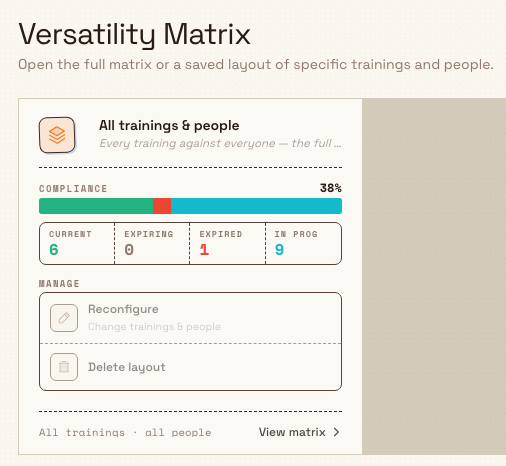
training.assign-01
Open the All trainings & people card (or a saved layout that contains the person and program you need). The grid loads with employees down the left as rows and training programs across the top as columns.
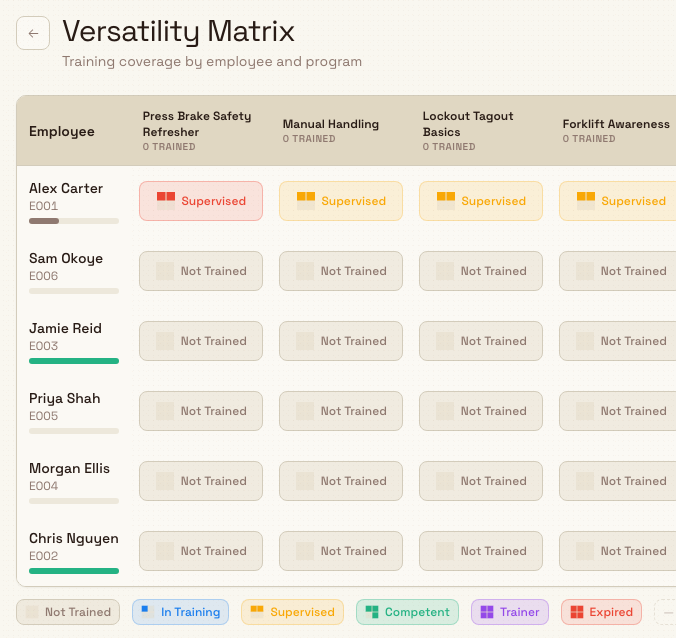
training.assign-02
Assign a training program
Each cell in the grid is one employee's status for one program. To assign training:
- Find the row for the employee and the column for the training program you want to assign.
- Click the cell where that row and column meet. The Training Details dialog opens, showing the employee, the program, and the current status.
- For a cell that reads Not Trained, click Start Training in the dialog footer.
Bulk creates the training record and moves the employee to the In Training stage for that program. A confirmation message reads "Training started — record created", and the cell colour updates to reflect the new stage.
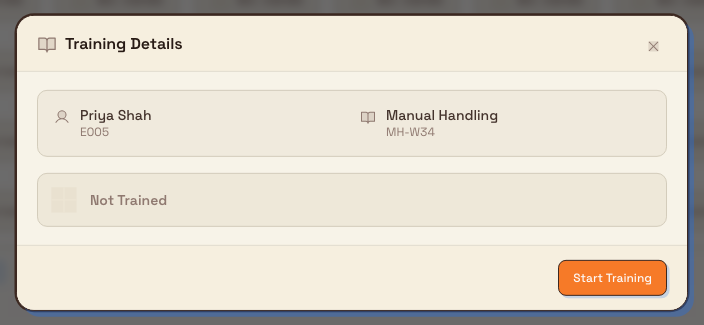
training.assign-03
Example: onboarding a new welder at Granite Peak Manufacturing
Granite Peak Manufacturing has just hired Priya Nair as a fabrication operator at the Leeds Fabrication Plant. Before Priya works unsupervised, the plant needs her tracked against two programs: "MIG Welding Qualification" and "Safe Manual Handling".
The training coordinator opens Training, then Matrix, and opens the All trainings & people card. In Priya's row they find the MIG Welding Qualification column, click the Not Trained cell, and choose Start Training. They repeat this for the Safe Manual Handling column. Both cells now show In Training, and Priya appears on the training records for those two programs. When she finishes each course and provides evidence, the coordinator records the completion to move her forward.
What happens after you assign
Starting training creates a live record you can act on:
- The employee moves from Not Trained to In Training for that program, and the cell colour changes.
- The pairing now appears in the site's training Records and on the employee's own training detail page.
- Re-opening the cell shows new actions: Record Completion (to log that the training was passed and start the validity period) and Cancel Training (to remove the record and return the cell to Not Trained).
Recording a completion is a separate step covered in Record training completion and evidence.
Skill levels
Training in Bulk moves through a ladder of skill levels. Assigning training only sets the first active stage; the higher stages are reached by recording a completion and then adjusting the level.
| Skill level | Meaning |
|---|---|
| Not Trained | No record yet — the starting point for every cell. |
| In Training | Assigned and learning. This is the stage "Start Training" sets. |
| Supervised | Passed the training and can work under supervision. |
| Competent | Fully qualified to work unsupervised. |
| Trainer | Qualified and able to train others. |
Bulk only lets you set Supervised, Competent, or Trainer after a completion is on record. Until then, an assigned cell can move between Not Trained and In Training only. Once a completion exists, the Adjust Skill Level control in the cell dialog offers the full ladder.
If you cannot assign training
- The action buttons are missing and the dialog only offers Close. Your
account does not have the
training_assignments.managepermission. Ask an administrator to grant it or to assign the training for you. - The employee's row is not in the grid. The matrix lists active employees for the current site. Check that the person is set up and active in People, and that you are working in the correct site.
- The program column is not in the grid. The training program may not exist yet, may be inactive, or a saved layout may be filtering it out. Open the All trainings & people card to see every program, or create the program in the Catalog first.
Availability
Assigning training is generally available. It is part of the Training area and does not require a preview or beta opt-in. Assignment is done one cell at a time from the Versatility Matrix; Bulk does not currently offer a single control to assign one program to many employees at once, so repeat the steps above for each person who needs the training.
Related guidance
Review training records
Open the Training Records page to review each employee's training compliance, filter by status or department, and drill into one person's completed, expiring, and expired training.
Browse the training catalog
Find, read, and organize your site's training programs and certification requirements, grouped into colour-coded categories in the Training Catalog.