Browse the training catalog
Find, read, and organize your site's training programs and certification requirements, grouped into colour-coded categories in the Training Catalog.
The Training Catalog is the master list of every training program your site offers. A training program is a single course or certification requirement — for example "Forklift Safety Certification" or "MIG Welding Level 2". A category is a colour-coded folder that groups related programs together, such as "Safety" or "Welding & Fabrication".
Use the catalog when you want to see everything your site trains people on in one place, check how a program is set up, or find the program you need before you assign it to employees. The catalog is the starting point for the rest of the Training module: you build your list of programs here, then assign them to people and track completion elsewhere.
The catalog is specific to the site (in Bulk, an entity) you are working in. Each site keeps its own programs and categories, so what you see reflects the plant you are currently signed in to.
Before you start
You reach the catalog from the main navigation under Training > Catalog, at
the address /training/catalog.
Viewing the catalog requires training view access. Adding, editing, or archiving programs requires the training program management permission, and adding or editing categories requires the category management permission. In practice these are granted together: the built-in Training role has full access, as do administrator and owner-level roles. If you can open the page but the Add Program and Add Category buttons do nothing useful, ask an administrator to confirm your role includes training management.
How the catalog is organized
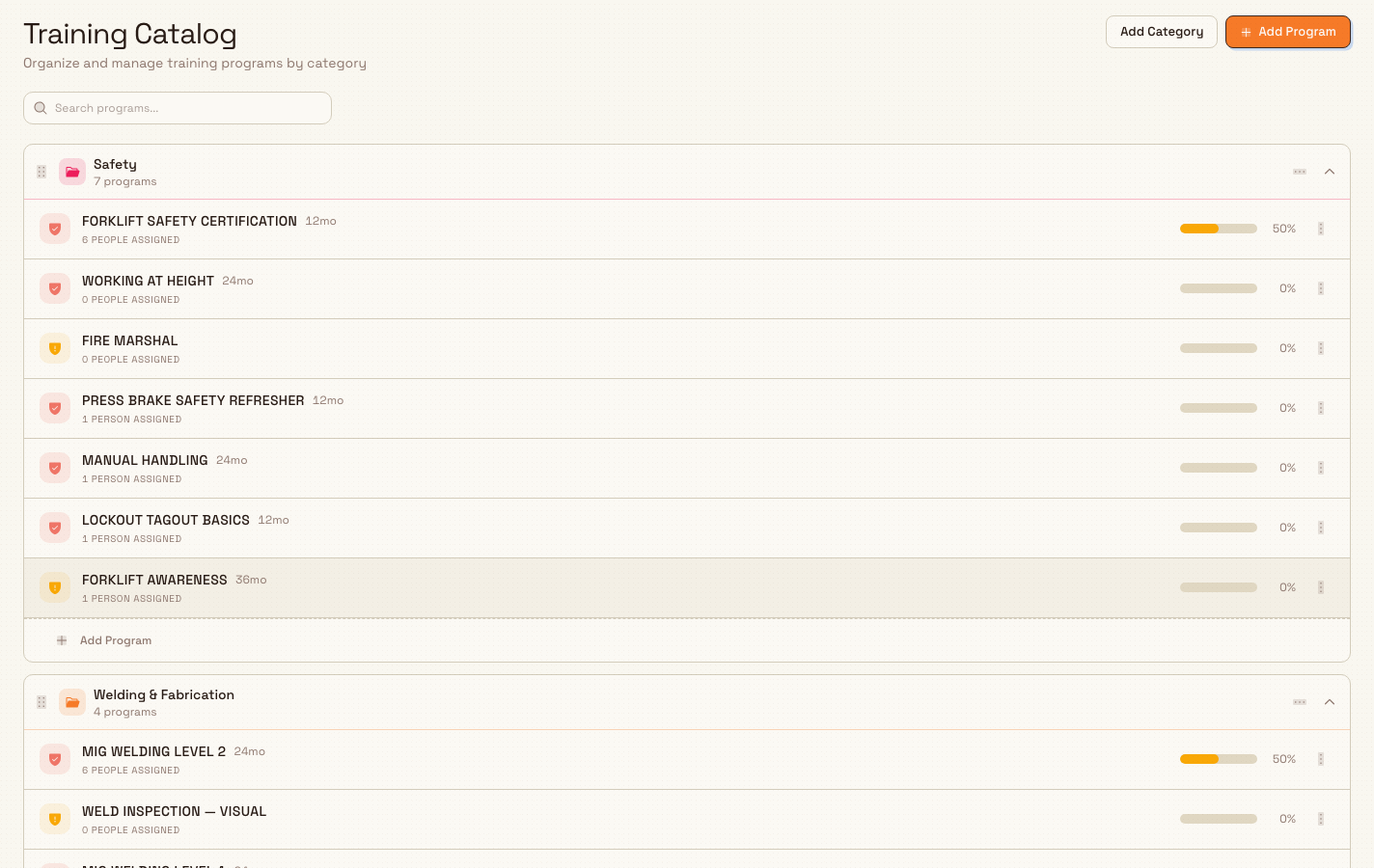
The catalog is a vertical stack of category folders. Each folder shows its colour accent, its name, and the number of programs it contains (for example "3 programs"). Folders are expanded by default; click a folder header or the chevron on its right to collapse it, and click again to reopen it.
Programs that have not been placed in any category collect in a separate, dashed-outline Uncategorized folder at the bottom of the list. This folder only appears when you have at least one uncategorized program.
The page header carries two actions: Add Category and Add Program. Both open a dialog; the detailed steps live in the linked task articles below.
training.catalog-01
Reading a program row
Inside each folder, every program appears as a row. From left to right, a row shows:
- A requirement shield icon. Hover it to see the requirement level: Mandatory, Recommended, or Optional. The requirement level signals how important the program is and becomes the default level applied when you assign the program to people.
- The program name, shown in uppercase.
- The validity, shown as a number of months (for example "12mo") when the program has a validity period. Validity is how long a completion stays valid before it must be renewed. Programs with no validity period never expire.
- An Inactive label when the program has been deactivated.
- A count of how many people the program is currently assigned to (for example "8 people assigned").
- A completion bar and percentage on wider screens. This is the share of assigned people who have completed the program and whose training is still valid (not expired). The bar turns green at 80% or above, amber from 50%, and grey below that.

training.catalog-02
Find a program
Above the folders is a Search programs... field. Type any part of a program's name or its code to filter the list. While a search is active, categories with no matching program are hidden, so you only see folders that contain a result. If nothing matches, the page shows "No programs match your search" with a Clear search button.
To change the order of your categories, drag a folder by the handle on its left edge and drop it into the position you want. The new order is saved for everyone at the site. Programs inside a folder are listed with active programs first, followed by any inactive ones.
Add and manage programs from the catalog
The catalog is also where you maintain your list of programs and categories.
- Add Category and Add Program in the page header create new entries. See the linked task articles for the full field-by-field steps.
- Each program row has an actions menu (the three-dots icon) with Edit,
Duplicate, Activate or Deactivate, and Archive.
- Duplicate creates a copy named with a "(Copy)" suffix that you can rename and adjust — useful when a new program is a small variation on an existing one.
- Deactivate hides a program from new assignments while keeping it in the catalog, greyed out with an Inactive label. You can reactivate it at any time.
- Archive removes the program from the catalog. Archived programs are no longer available for new assignments.
- Each category folder has its own menu with Edit Category, Activate or Deactivate, and Delete Category.
Archiving is not the same as deactivating
Deactivate is reversible — the program stays in the catalog and can be switched back on. Archive takes the program out of the catalog. If a program has active assignments, the archive confirmation warns you first. Archive only when you are sure the program is retired.
Example: Granite Peak Manufacturing
The training lead at Granite Peak Manufacturing's Leeds Fabrication Plant opens Training > Catalog to prepare for a new intake of fabricators.
They see three category folders. The Safety folder (red) holds "Forklift Safety Certification" (Mandatory, 12mo), "Working at Height" (Mandatory, 24mo), and "Fire Marshal" (Recommended). The Welding & Fabrication folder holds "MIG Welding Level 2" (Mandatory) and "Weld Inspection — Visual" (Recommended). A Quality folder holds "ISO 9001 Awareness" (Recommended, 24mo).
The lead types "weld" into the search field, and the catalog narrows to the two welding programs. The "MIG Welding Level 2" row shows "6 people assigned" and a 50% amber completion bar, so the lead knows half of the assigned welders still need to finish. They clear the search, then open the row's actions menu and choose Duplicate to create a starting point for a new "MIG Welding Level 3" program, which they rename and set to Mandatory.
What you can expect
After opening the catalog you can see, at a glance, every training program your site offers, how each one is classified and how long it stays valid, how many people hold each assignment, and how close each program is to full completion. From the same page you can search for a specific program, reorder your categories, and open any program to edit, duplicate, activate, deactivate, or archive it.
Limitations and feature state
The Training Catalog is generally available.
- The catalog is per-site. Programs and categories you create belong to the entity you are signed in to and do not automatically appear at other sites.
- A category's colour is a visual grouping aid only; it does not change how programs behave.
- You can drag categories into a new order, but you cannot drag individual program rows to reorder them within a folder — programs sort with active ones first, then by their saved order.
- The people assigned count and the completion bar reflect current assignments and completions. A brand-new program with no one assigned shows no completion bar and a count of zero until you assign it to people.
Troubleshooting
- The catalog is empty. If you see "No training programs yet", no programs have been created for this site. Start with Add Category to set up your groupings, then add programs. See the linked task articles below.
- Deleting a category is blocked. Deleting a category fails while any training program still uses it. Move or archive those programs first, or edit each one to a different category, then delete the empty category.
- A program disappeared after archiving. Archiving removes a program from the catalog. If you archived it by mistake, recreate it (or duplicate a similar program) — archived programs are not shown in the catalog list.
- You cannot see the completion bar. The completion bar is hidden on narrow screens. Widen the window or use a larger display to see completion percentages.
Related guidance
- Training overview — how the whole Training module fits together.
- Create a training program — the full steps for the Add Program dialog.
- Manage training categories — create, colour, reorder, and delete the folders in this catalog.
- Assign training — give programs to employees once they are in the catalog.
- Training matrix — see who is trained on what across the whole site.