Use the training matrix
Read workforce competency in the Versatility Matrix, a grid of people against training programs, and record, renew, or adjust skill levels directly from any cell.
The Versatility Matrix is a grid that maps every person at your plant against every training program in your catalog. Each cell shows one person's skill level — how capable they are at that task — so you can see at a glance who can cover which job, where cross-training is thin, and which certifications have lapsed. A training program is a single course or certification you track (for example a forklift licence or a welding qualification), and a certification is a qualification that can expire.
Use the matrix when you plan shift cover and want to be sure a line always has enough qualified operators, when you audit competency for a quality or customer requirement, or when you want to update a person's skill level right where you spotted the gap. Unlike a static spreadsheet, the matrix updates as soon as you record training, and you can act on any cell without leaving the grid.
Before you start
The matrix lives in the People module, so your workspace must have People enabled for it to appear.
What you can do depends on your permissions:
- View the matrix requires the
training_matrix.viewpermission. - Update a cell (start training, record completion, renew, or adjust a skill level) requires the
training_assignments.managepermission. Without it, the matrix is read-only and cells open in a view-only state. - Create, reconfigure, or delete a saved layout requires the
training_matrix.managepermission.
Owners and administrators have every permission. The built-in Training role and the built-in People role both grant the full set of training permissions, including all three above. If the matrix does not appear, or a cell will not let you make changes, ask an owner or administrator to grant one of those roles.
Open the matrix
In the main navigation, open the People group, then Training, then Matrix. This opens the matrix picker, titled Versatility Matrix.
The picker lists two kinds of view:
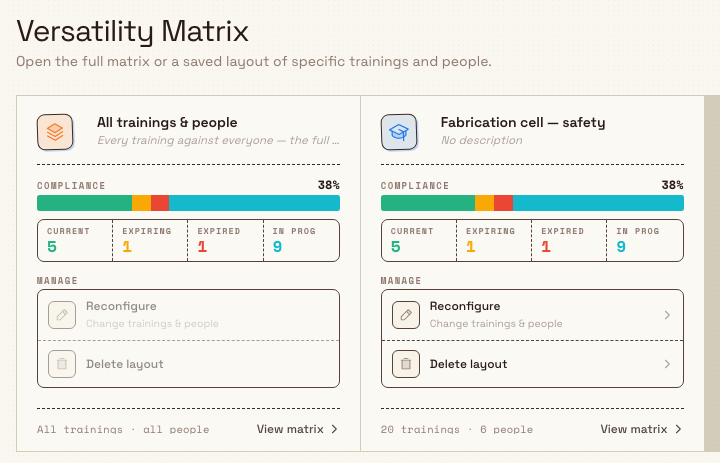
- The built-in full matrix, shown as an All tile ("Every training against everyone — the full matrix"). It covers all trainings against all people.
- Any saved layouts — narrower views that pin the grid to a specific set of trainings and people. Each saved layout is its own tile.
Every tile shows a Compliance section: a color-coded bar and a stats row of Current, Expiring, Expired, and In prog counts, with a compliance percentage. Beneath that, a meta line reads, for example, "All trainings · all people" or "8 trainings · 24 people". Select a tile — or use its View matrix link — to open that grid.
training.matrix-01
To narrow the grid to a specific area or team, open a saved layout instead of the full matrix. The full matrix itself has no inline filters — saved layouts are how you scope it. See Save a training matrix layout.
Read the grid
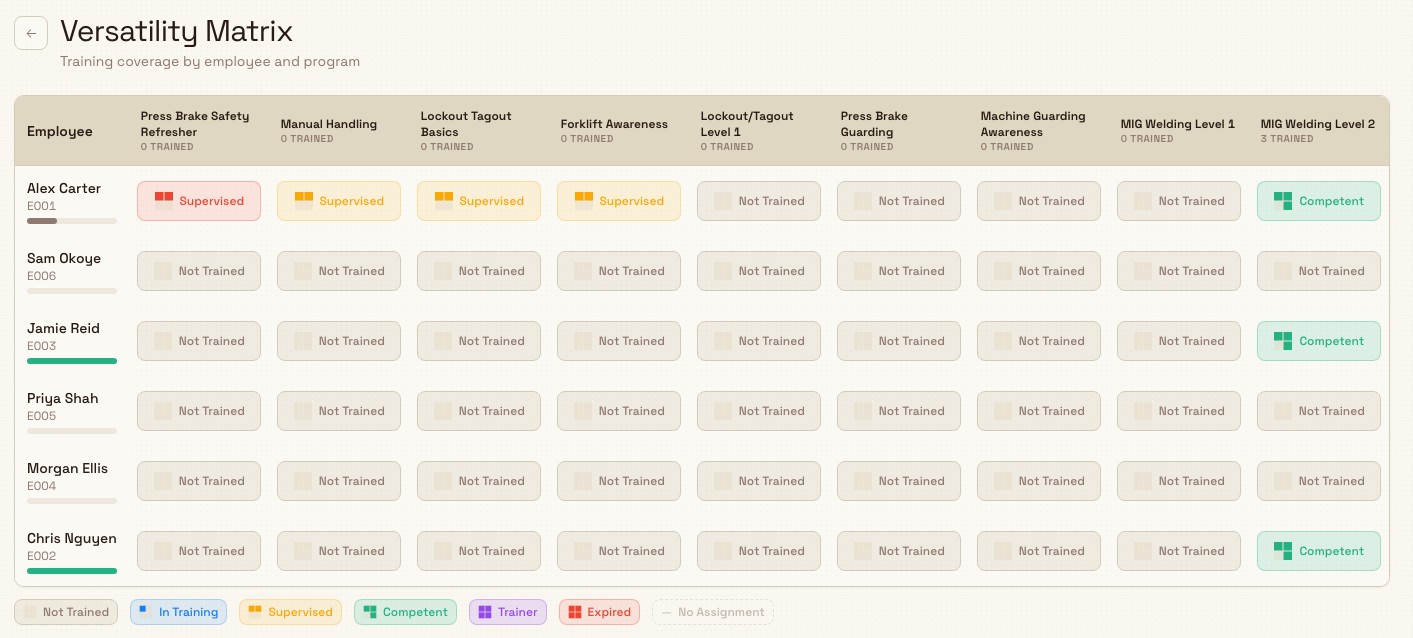
The full matrix shows every active workforce employee as a row and every active training program as a column. People who have left (terminated or deactivated) and archived programs are hidden by default; a saved layout can pin a specific set instead.
- Rows are people. Under each name and employee code sits a small completion bar showing how much of that person's assigned training is complete and current — green when most of it is, amber for partial, and muted when little is.
- Columns are programs. Each header shows the program name and a "N trained" count: the number of people in the current view who are Competent or Trainer for that program and whose training has not expired.
- Cells show one person's current skill level for one program. A four-part square icon fills as the level rises, and the level's name appears next to it when the column is wide enough.
A legend under the grid names every state. Skill levels run from lowest to highest:
- Not Trained — no training recorded yet.
- In Training — training has started but is not complete.
- Supervised — can perform the task under supervision.
- Competent — can perform the task unaided.
- Trainer — competent and able to train others.
Two more markers complete the legend: Expired (a completed certification that is now past its validity date) and No Assignment (shown as a dash) for a cell with nothing to display in a filtered view. Bulk counts a person as qualified for a program only when they are Competent or Trainer and the training is still valid; Supervised and lower do not count toward the "trained" total.
training.matrix-02
Update training from a cell
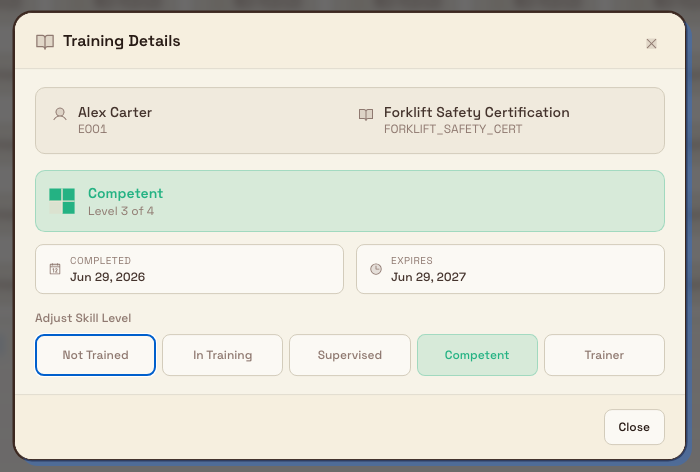
Select any cell — a left-click or a right-click both work — to open the Training Details dialog. It shows the person and program, the current skill level (with "Level X of 4"), the completion and expiry dates, and an expiry warning when one applies (for example "12 days remaining", "Expires today", or "Expired 3 days ago").
When you have the training_assignments.manage permission, the dialog also lets you act on that cell without leaving the grid. The available actions follow the cell's current state:
- Not Trained — a Start Training button creates the record and moves the person to In Training.
- In Training — Record Completion opens a short form to log the completion, and Cancel Training returns the cell to Not Trained.
- Competent or Trainer, still valid — the dialog is informational, with a Close button.
- Expired — a Renew Training button records a fresh completion and restores validity.
When the person has a recorded completion, an Adjust Skill Level row lets you move them between levels. Bulk requires a recorded completion before a person can reach Supervised or higher, so until you record one, the only choices are Not Trained and In Training.
Recording a completion and renewing use the same forms as the rest of the module. For the detail of each, see Record training completion and evidence and Renew expiring training.
training.matrix-03
Example: Leeds Fabrication Plant
Granite Peak Manufacturing runs a fabrication cell at its Leeds Fabrication Plant. Ahead of a customer audit, the quality lead opens People then Training then Matrix and selects the All tile to see the full grid.
Scanning the MIG Welding Qualification column, she sees two welders at Competent and a new hire at In Training, so she knows not to schedule that person on an unsupervised shift. The Counterbalance Forklift Licence column header reads "3 trained", but one warehouse operator's cell is marked Expired. She clicks that cell, reads "Expired 8 days ago" in Training Details, selects Renew Training, and logs the refreshed completion — the cell turns valid again immediately.
She then clicks the new hire's welding cell, which is In Training, selects Record Completion to log their assessment, and uses Adjust Skill Level to move them to Supervised. The column's trained count and the welder's completion bar update on the spot. Finally, she saves a layout scoped to the fabrication cell so the same view is one click away next time.
What to expect
Every change you make in a cell is written straight to that person's training record, so the grid, the column trained counts, the row completion bars, and the compliance figures on the picker and the Training Home dashboard all refresh on their own. Because the matrix is a live view of recorded training, its figures are only ever as complete as the completions you and your team log.
Feature state
The Versatility Matrix is generally available. It is scoped to a single entity (plant): the grid, its programs, and its people all reflect the plant you are currently working in, and a saved layout created in one plant is not shared with another.
Limitations
- The full matrix has no inline filters. To narrow it to a department, team, or subset of programs, open or create a saved layout.
- Rows and columns default to active workforce employees and active programs. Terminated or deactivated people and archived programs do not appear on the full matrix unless a saved layout pins them.
- The trained count and compliance figures count only Competent and Trainer cells that are still valid. A Supervised cell has a recorded completion but does not count as qualified.
- Editing a cell requires the
training_assignments.managepermission. With view-only access, the Training Details dialog opens but offers only Close.
Troubleshooting
- A cell will not let you make changes. Only Close appears when you have view access but not the
training_assignments.managepermission. Ask an owner or administrator for the Training or People role. - You cannot raise someone above In Training. A completion must be recorded first. Use Record Completion in the cell, then use Adjust Skill Level to set Supervised, Competent, or Trainer.
- A person or program is missing from the grid. The full matrix hides people who have left and programs that are archived. Confirm the person is an active employee and the program is active in the catalog. If you are viewing a saved layout, it may simply not include them — open the full matrix or widen the layout.
- A saved layout will not open and shows "Matrix layout not found". The layout was deleted or is no longer available. Go back to the picker and open another view or the full matrix.
Related guidance
Set training prerequisites
Understand what training prerequisites are in Bulk and how to manage prerequisite requirements today using requirement levels, assignment order, and the versatility matrix.
Save a training matrix layout
Create, name, and share a reusable view of the Versatility Matrix that narrows it to a chosen set of trainings and people.