Save a training matrix layout
Create, name, and share a reusable view of the Versatility Matrix that narrows it to a chosen set of trainings and people.
The Versatility Matrix is a grid that maps training programs (columns) against people (rows) at your site, so you can see at a glance who is qualified for what. On a large team that full grid gets wide and slow to scan. A saved matrix layout is a reusable preset that narrows the matrix to just the trainings and people you care about — for example one production line, one department, or one set of certifications. You save it once, give it a name, and anyone at your site can reopen the same focused view.
Use a saved layout whenever you keep returning to the same slice of the matrix: a shift supervisor checking cover for one cell, a quality lead reviewing a single compliance category, or a people (HR) lead tracking one department's certifications.
Before you start
Creating, editing, and deleting layouts requires the Manage matrix layouts permission (training_matrix.manage). The built-in People, Training, and Entity admin roles all include it, and Owners have every permission. Without it you can still open and read the matrix, but the New layout button and the per-tile management controls do not appear. Ask an owner or administrator for one of those roles if you need to create layouts.
Two things make layouts useful before you build one:
- Your site needs some training programs and employees, or there is nothing to put in a layout. See Create a training program and Create an employee.
- To filter people by department or job title, your role also needs view access to that People-module data. The People role and Owner accounts include it; the Training role on its own does not.
Layouts are shared per site. A layout you save is visible to everyone working in that site (entity), and it applies only to the site you are currently in — it is not copied to your other plants.
Create a layout
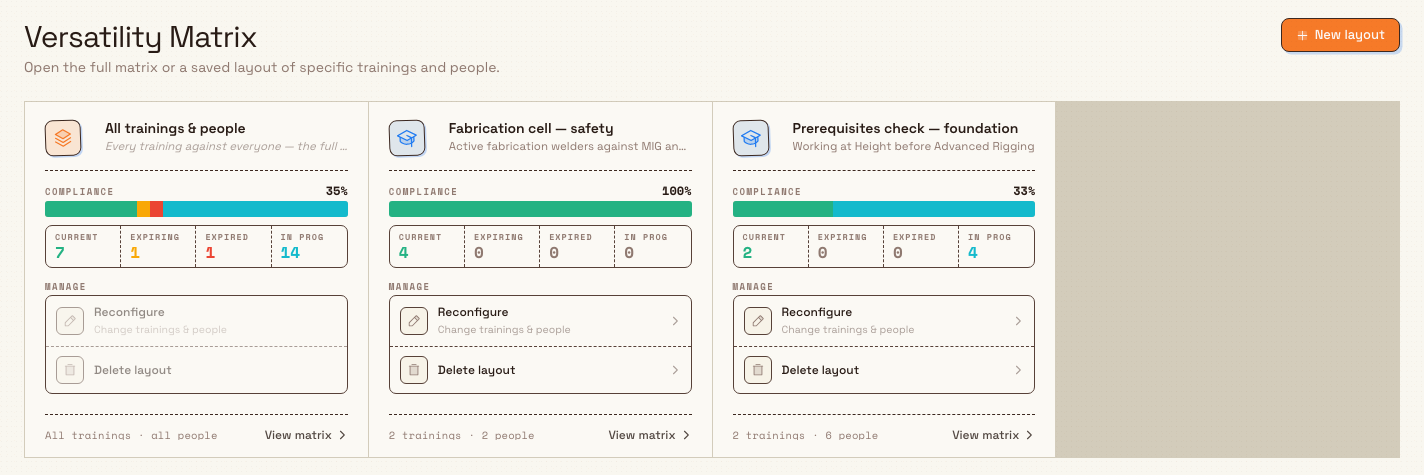
- In the main navigation, open People, then Training, then Matrix. This opens the Versatility Matrix picker, which lists the built-in full matrix and every saved layout as a tile.
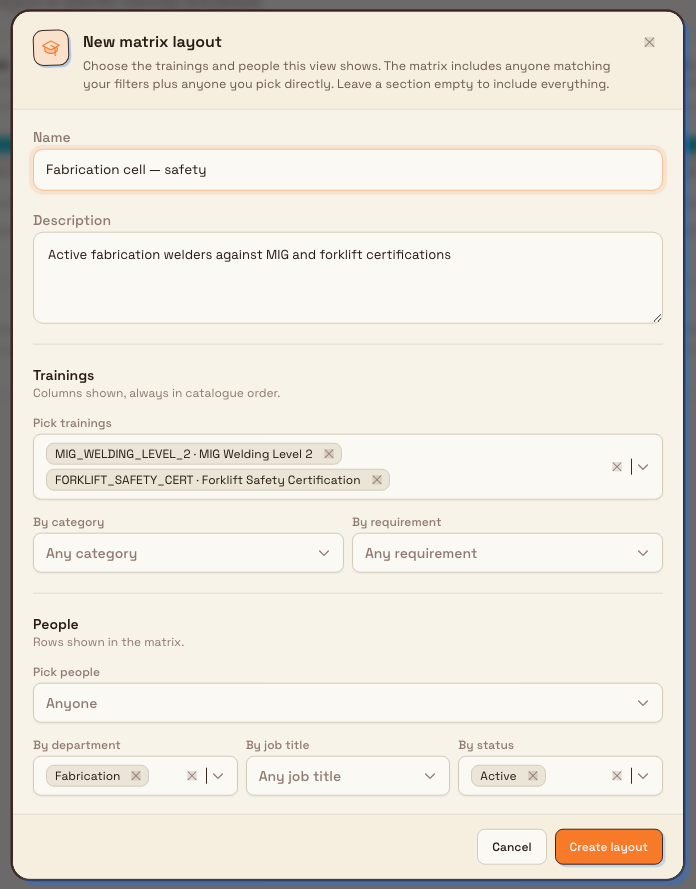
- Select New layout in the top-right of the page. The New matrix layout dialog opens.
training.save-matrix-layout-01
- Enter a Name (required) and, optionally, a Description. The name shows on the layout's tile and on its page header, so make it recognizable, such as "Packing line — safety".
- Under Trainings, choose which programs become the columns. These are always shown in catalogue order:
- Pick trainings — select individual programs by code and name.
- By category — include every program in a training category.
- By requirement — include programs by requirement level: Mandatory, Recommended, or Optional.
- Under People, choose which employees become the rows:
- Pick people — select individual employees.
- By department, By job title, and By status (Active, On leave, or Terminated) — include everyone matching those rules.
- Select Create layout.
training.save-matrix-layout-02
Leave a section empty to include everything
In every selector, leaving it empty means "all" on that axis. Pick a few trainings but leave the People section untouched to track those certifications against everyone; or filter people by department and leave Trainings empty to show every program for that team.
How the selection combines
The matrix shows anyone matching your filters plus anyone you pick directly — picks and filters are added together, not intersected. Within a single selector (say two departments) the rule is "any of these". Across different selectors it is "all of these". A person is included if the explicit picks contain them or if they satisfy every filter you set.
Expected result
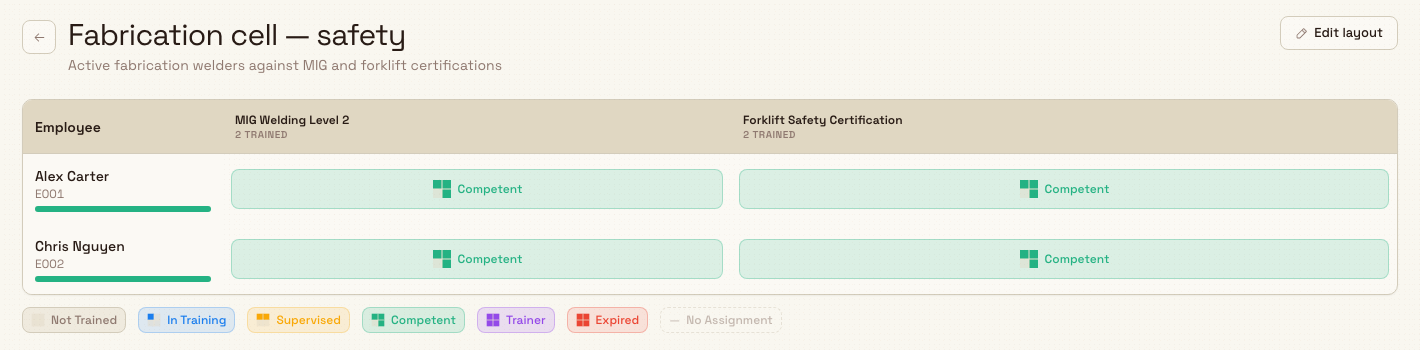
When you select Create layout, Bulk confirms with a Layout created message and opens the new layout immediately as its own matrix, titled with the name you gave it. Columns appear in catalogue order and rows list the matched people.
Back on the picker (People, then Training, then Matrix), the layout now appears as its own tile next to the built-in full matrix, for everyone at your site. Each tile carries a compliance bar and the coverage counts — how many trainings by how many people the layout resolves to.
training.save-matrix-layout-03
Edit or delete a saved layout
You can change a layout whenever the team or the trainings change:
- From the picker, on the layout's tile, select Reconfigure ("Change trainings & people").
- Or open the layout and select Edit layout in the page header.
Both open the same dialog, now titled Edit layout. Adjust any field and select Save changes.
To remove a layout, open its tile and select Delete layout, then confirm in the Delete layout? dialog.
Deleting a layout affects everyone at the site
Deleting a layout removes it for everyone working in that site, and it cannot be undone from the app. Only the saved view is removed — the trainings, the people, and their training records are not affected.
The built-in full matrix (the All tile) cannot be reconfigured or deleted; its management rows appear but stay disabled, because it always shows every training against everyone.
Example: Leeds Fabrication Plant
At Granite Peak Manufacturing's Leeds Fabrication Plant, the quality lead wants a standing view for the welding cell. She opens People, then Training, then Matrix, selects New layout, and names it "Fabrication cell — safety". Under Trainings she picks two programs, the MIG Welding Qualification and the Counterbalance Forklift Licence. Under People she sets By department to Fabrication and By status to Active. She selects Create layout, and the grid opens showing just the active fabrication welders against those two certifications.
From then on, before each shift the supervisor opens the same "Fabrication cell — safety" tile instead of scrolling the plant-wide matrix, and sees immediately whether enough welders are qualified and in date to run the cell. When a new welder joins the Fabrication department, they appear in the layout automatically, because it filters by department rather than by named individuals.
Feature state
Saved matrix layouts are generally available. They are scoped to a single site (entity): a layout is shared with everyone at that site and is not shared across plants. The compliance figures on each layout tile are drawn from the same assignments and completions as the rest of the Training module, so they are only as complete as the records you keep.
Troubleshooting
- "Nothing to show for this layout." The layout's picks and filters matched no trainings or people. Select Edit layout and widen the selection — for example clear a status filter or add a department.
- "Matrix layout not found." The layout was deleted or is no longer available at this site. Return to the picker to open another saved view or the full matrix.
- The New layout button is missing. Your role does not include the Manage matrix layouts permission. Ask an owner or administrator for the Training, People, or Entity admin role.
- The People selectors show no options. The Pick people, By department, and By job title lists come from the People module. If they are empty, confirm your site has employees, departments, and job titles set up, and that your role includes People view access.
Related guidance
Use the training matrix
Read workforce competency in the Versatility Matrix, a grid of people against training programs, and record, renew, or adjust skill levels directly from any cell.
Record training completion and evidence
Log that an employee finished an assigned training, set its completion and expiry dates, and attach certificates as verifiable evidence held against the record.