Manage training categories
Create, colour-code, reorder, and retire the training categories that group your plant's training programs in the Training Catalog.
A training category is a labelled, colour-coded group that organises your training programs — the courses, certifications, and competencies your people complete. Categories are the folders of the Training Catalog: each one gathers related programs so operators, supervisors, and administrators can find the right training quickly and keep the catalog, the training matrix, and employee records tidy as your program list grows.
You manage categories from the Training Catalog. Categories have no separate settings screen — the older /settings/training/categories path now redirects into the catalog, where categories and their programs are edited side by side.
Where categories live
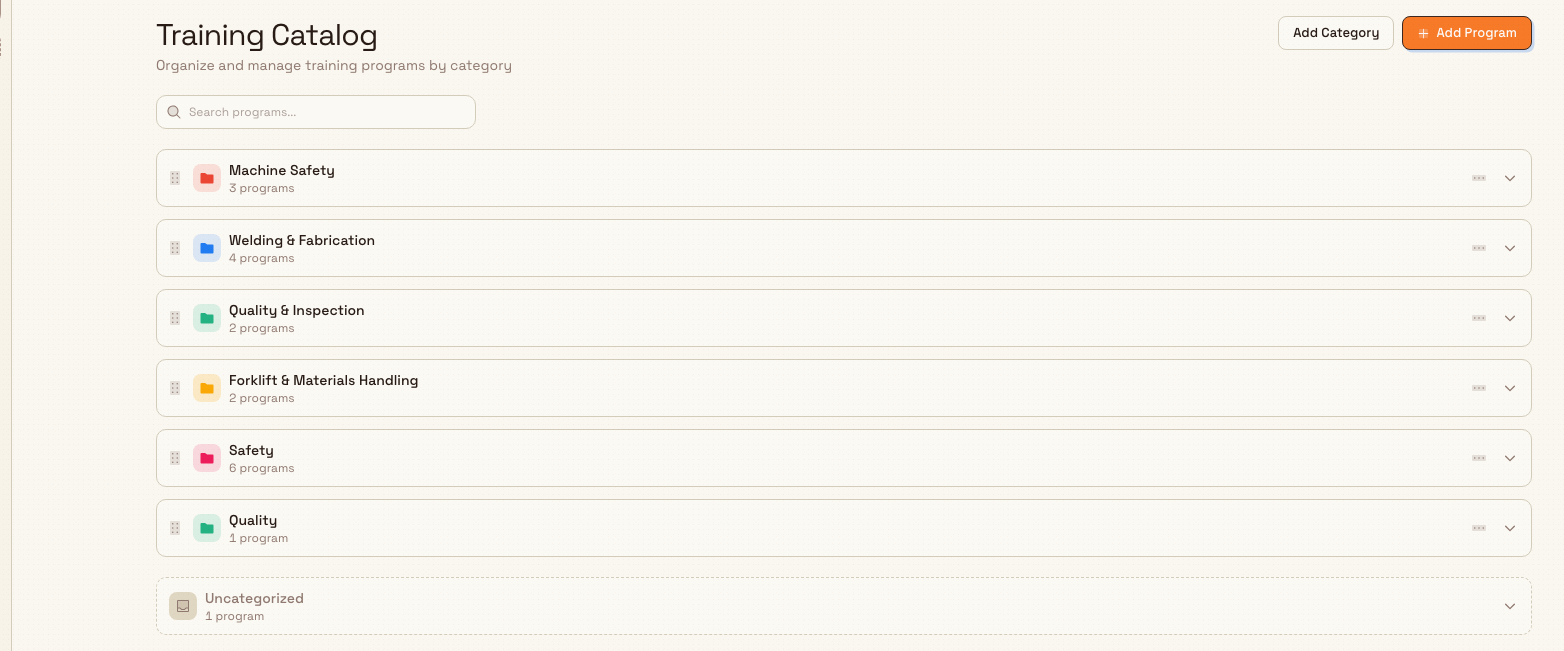
Open the left sidebar, choose Training, then Catalog (/training/catalog). The page is titled Training Catalog with the subtitle "Organize and manage training programs by category". Every category appears as a folder showing its colour, its name, and a count such as "6 programs" or "1 program". Programs that have not been placed in a category are gathered in a fixed Uncategorized folder at the bottom.
training.categories-01
Before you begin
Managing categories is gated by two permissions:
- View the catalog requires the
training.viewpermission. - Create, edit, reorder, deactivate, or delete a category requires the
training_categories.managepermission.
In the default role set, the roles that hold both permissions are Super user, Entity admin, Training, and People. If your role grants training.view but not training_categories.manage, you can read the catalog but the save will fail when you try to add or change a category. Ask a plant administrator to adjust your role if you need to manage categories. Categories are scoped to the entity (site) you are working in, so the categories you see and change belong to the plant currently selected in the entity switcher.
Create a category
- In the Training Catalog, select Add Category in the top-right of the page.
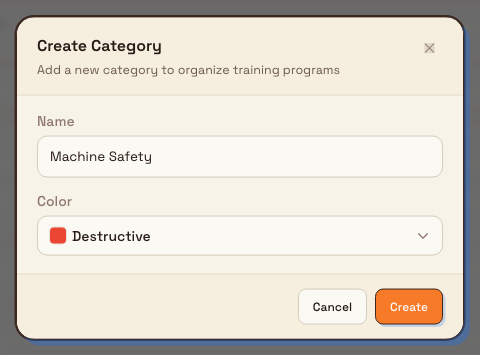
- In the Create Category dialog, enter a Name — the label people will see on the folder, for example "Machine Safety".
- Choose a Color. The colour appears on the folder icon and helps people scan the catalog at a glance.
- Select Create.
Bulk confirms with a "Category created" message and the new folder appears in the catalog. Behind the scenes, Bulk also assigns each category a short unique code generated from its name; you do not enter this code, and it is not shown on the folder.
Only name and colour are stored
The Create and Edit dialogs collect a category Name and Color — that is the complete set of details a category stores. There is no category description, so keep the name clear and specific (for example "Welding & Fabrication" rather than "Misc").
training.categories-02
Granite Peak Manufacturing example
Dana Winters administers the Leeds Fabrication Plant for Granite Peak Manufacturing. To organise the site's training, she creates a small set of categories that mirror how the shop floor actually works:
- Machine Safety — coloured red, so safety training stands out first.
- Welding & Fabrication — coloured blue, for MIG, TIG, and structural fabrication courses.
- Quality & Inspection — coloured green, for first-article inspection and measurement training.
- Forklift & Materials Handling — coloured amber, for lift-truck and load-handling certifications.
With these four folders in place, every program Dana adds later — such as a "Forklift Safety Certification" or "MIG Welding Level 2" — has a clear home, and new supervisors can understand the plant's training structure at a glance.
Edit or recolour a category
- On the category folder, select the actions button (the three-dots menu on the right of the folder header).
- Choose Edit Category.
- Update the Name or Color in the Edit Category dialog.
- Select Save Changes.
A "Category updated" message confirms the change, and the folder refreshes with the new name or colour. Renaming or recolouring a category does not move or affect the programs inside it.
Reorder categories
Categories appear in the order you set, and that order is shared across everyone at the plant. To change it, drag a folder by its drag handle (the grip icon on the left of the folder header) and drop it into the position you want. Bulk saves the new order as you release the folder.
Put the categories your team reaches for most — or the ones that matter most, like safety — at the top so they are the first thing people see in the catalog.

training.categories-03
Deactivate or reactivate a category
Deactivating is the reversible way to retire a category without losing it or its programs.
- Open the category folder's actions menu.
- Select Deactivate.
The category stays in the catalog marked with an Inactive badge and dimmed, and its programs are preserved. By default, lists elsewhere in Bulk that show only active categories will leave it out, so deactivating is a good way to phase out a category you no longer want people to choose. To bring it back, open the same menu and select Activate. Bulk confirms each change with a "Category deactivated" or "Category activated" message.
Delete a category
Deleting removes the category from the catalog. Use it only for categories created in error or ones you are certain you will not need again — deactivating is usually the safer choice.
- Open the category folder's actions menu.
- Select Delete Category.
- Read the confirmation, then select Delete to confirm.
Deleting a category cannot be undone
The confirmation dialog states plainly that "This action cannot be undone" and warns that the deletion "will fail if any training programs are using this category." Before you delete, move the folder's programs to another category or leave them uncategorised, and prefer Deactivate whenever you only need to retire a category rather than erase it.
What to expect
After each action, Bulk shows a short confirmation message and the catalog updates immediately:
- Creating a category adds a new folder and shows "Category created".
- Editing shows "Category updated" and refreshes the folder.
- Reordering saves silently as you drop the folder.
- Deactivating adds the Inactive badge; activating removes it.
- Deleting removes the folder and shows "Category deleted".
Limitations and availability
Training categories are a generally available part of the Training module.
- Categories store a name and a colour only. There is no description field for categories.
- There is no dedicated categories settings page. The legacy
/settings/training/categoriesroute redirects to the Training Catalog, where all category management happens. - Categories are entity-scoped: each plant (entity) maintains its own list, and the categories you manage apply to the plant selected in the entity switcher.
Troubleshooting
The Add Category button does nothing, or saving a category fails. Your role likely lacks the training_categories.manage permission. You can view the catalog with training.view, but creating or changing categories needs the manage permission held by the Super user, Entity admin, Training, and People roles. Ask a plant administrator to update your role.
A deactivated category is still visible in the catalog. That is expected. The Training Catalog deliberately shows inactive categories, dimmed and marked Inactive, so administrators can still see and reactivate them. Views that request only active categories will exclude it.
You want to remove a category that still has programs. Reassign its programs to another category (or leave them uncategorised) first, then delete the category — the delete confirmation warns that it will fail while programs still use it. If you simply want to stop people choosing the category, deactivate it instead.
Related guidance
- Browse the training catalog — how the catalog is laid out and how to find programs within categories.
- Create a training program — add programs and assign them to the categories you set up here.
- Training — an overview of the Training module, including records and the versatility matrix.
Browse the training catalog
Find, read, and organize your site's training programs and certification requirements, grouped into colour-coded categories in the Training Catalog.
Create a training program
Add a new training program or certification to the Training Catalog, set its requirement level and validity period, and place it in a category so you can assign and track it.