Organize projects in folders
Create project folders, group and move projects, add tasks directly to a folder, and understand what happens when a folder is deleted.
A project folder groups related projects for the selected site. It can also hold tasks directly, so you can capture work before deciding whether it needs its own project.
On a folder page, Bulk combines:
- the projects assigned to that folder;
- tasks from those member projects; and
- tasks created directly in the folder.
Bulk stores folder-direct tasks in one hidden inbox project named after the folder. That inbox does not appear as a project in lists or project counts, but its tasks are normal tasks and appear in the folder's task list.
Folders belong to the site selected in the header. Switching sites changes the folders, projects, and tasks you can see.
Permissions
| Permission | What it allows in folders |
|---|---|
projects.view | View the Projects page, folder list, and folder project strip |
projects.create | Create a folder |
projects.update | Rename or edit a folder and move projects into or out of it |
projects.delete | Delete a folder |
tasks.view | View the grouped task list on a folder page |
tasks.create | Use Add task to create a task directly in a folder |
tasks.update | Edit existing tasks where the task list offers editing actions |
Built-in Super user, Entity admin, and Manager roles include the
project and task permissions needed for full folder management. A custom role
can be more limited. For example, a user with project view permission can open
a folder, while edit, delete, and add-project controls are shown only for their
matching permissions. The New Folder dialog can open from the Active
Projects page, but saving still requires projects.create.
See grouped projects
- Open Tasks → Projects, or go to
/projects. - Keep the Active tab selected.
- With no text search, the sheet groups projects under folder headers. Select a chevron to collapse or expand a folder. Bulk remembers that choice for the current site.
- Select a folder name to open
/folders/{folderId}.
Each folder header shows the folder name and the number of project rows in that group. An empty folder shows No active projects in this folder yet. Projects without a folder appear below the folder groups under Projects. When no folders exist, root projects appear without that extra group header.
Status filters keep the folder groups. A text search flattens matching projects into one result list, regardless of folder. The Archived tab is also flat and does not show New Folder.
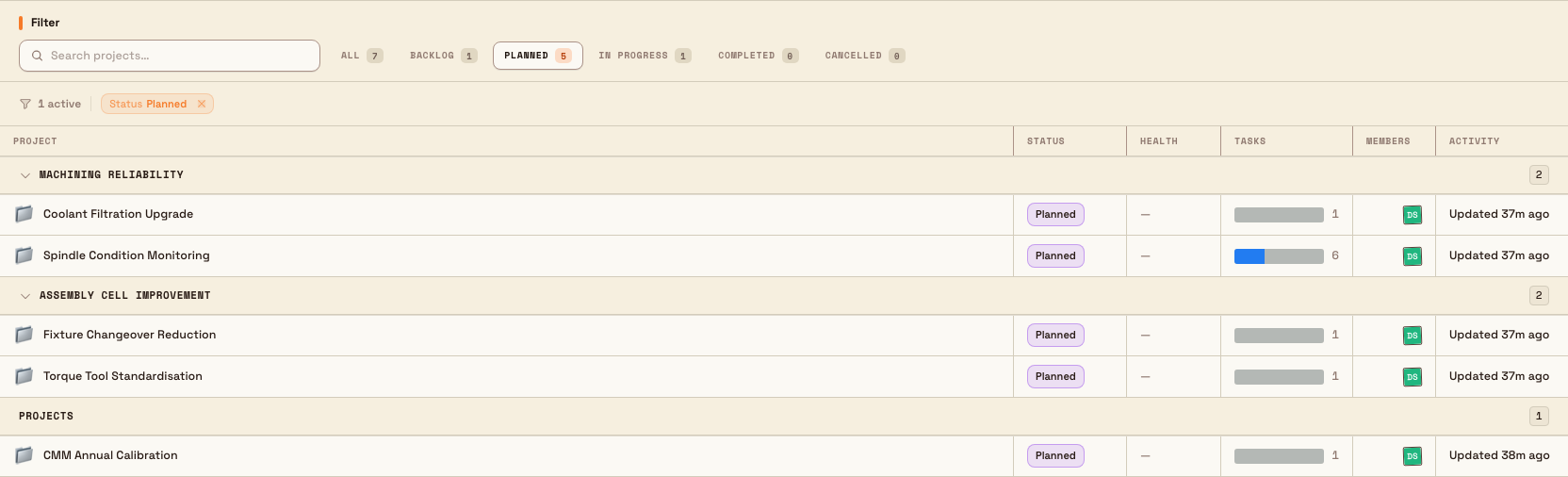
projects.folders-01
Create a folder
- On Projects → Active, select New Folder.
- Enter a Name. It is required and can contain up to 120 characters.
- Optionally enter a Description.
- Select Create Folder.
The success message is Folder created, and Bulk opens the new folder page. Folders use the standard folder icon and fixed folder colour. There is no custom emoji or colour field.
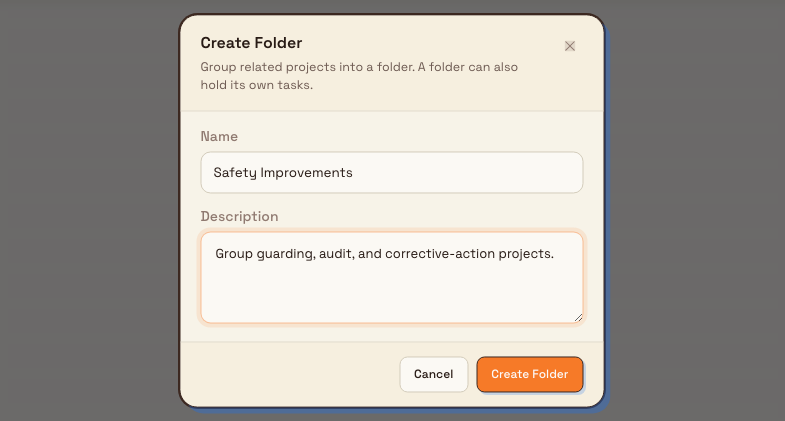
projects.folders-02
If the name is empty, the form shows Folder name is required. A failed save shows an error message and leaves the form open.
Use the folder page
The folder page header shows its fixed folder icon, name, optional description, and a summary such as 3 projects · 18 tasks. The project count covers active member projects and excludes the hidden inbox. The task count includes tasks from active member projects plus tasks created directly in the folder.
Below the header:
- Projects shows the member project cards and a section count. Each card links to its project and shows status and task progress.
- Tasks shows one folder-scoped grouped list. It combines direct folder tasks with tasks from the folder's member projects.
Archived projects keep their folder membership. They can still appear on the folder page, and their tasks remain in the folder-scoped task list. The counts in the folder header cover active member projects and their tasks, plus tasks created directly in the folder, so an archived member can make the visible rows differ from those summary counts.
The task list groups by Status by default. Use Group to switch to Assignee or Priority. Each group header can collapse or expand and shows its task count. Large groups offer Load more.
Create a task directly in the folder
With tasks.create:
- Find the correct group in the folder's Tasks section.
- Select Add task at the bottom of that group.
- Enter the task name and press Enter.
The new task inherits the selected group's value: status, assignee, or priority. In the No priority group, Bulk uses the default Normal priority. For the first direct task in a folder, Bulk creates the hidden inbox project automatically. Later direct tasks reuse it. Renaming the folder also keeps that hidden inbox name in sync.
Add or move projects
On a folder page, select Add project to move an existing root project into the folder. The menu lists projects that are currently outside folders. If none are available, it shows No projects outside folders.
To move a member project back to the root, point to its card and select Move out of folder.
You can also set the Folder field when creating or editing a project, or in the project Overview properties. Choose Root (no folder) to remove its folder membership. A project can belong to only one folder, and a project and its target folder must belong to the same site.
Moving a project changes only its folder membership. The project and its tasks stay intact.
Edit or delete a folder
With projects.update, select the folder name to rename it inline, or open
Folder actions → Edit folder to change its name and optional
description. A successful dialog save shows Folder updated.
To delete a folder:
- Open Folder actions.
- Select Delete folder….
- Review Delete Folder. The confirmation explains that nothing inside is deleted.
- Confirm the deletion.
Deletion preserves the folder's contents:
- Member projects move to Root (no folder). Their tasks are unchanged.
- If the folder has direct tasks, its hidden inbox becomes a visible regular root project named after the folder, preserving those tasks.
- If the hidden inbox is empty, Bulk removes it instead of leaving an empty project behind.
After success, Bulk shows Folder deleted and returns to Projects.
Loading, empty, and error states
- The Projects page shows a sheet skeleton while folder groups and counts load.
- A folder page shows a loading spinner while its directory loads.
- An empty folder's project section shows No projects in this folder yet.
- An empty task section shows No tasks yet and explains that member-project tasks appear there and Add task creates a direct folder task.
- An invalid folder ID returns to Projects. A missing or deleted folder shows Folder not found with Back to Projects.
- If a project or task section fails, it shows Something went wrong with Try again. A missing permission shows You don't have access or the full-page You don't have access here state.
- Moving a project to a folder from another site is rejected. The project stays in its previous location and an error message appears.
Behaviour to expect
- Folders are one level only; folders cannot contain other folders.
- Archived projects keep their folder membership, but the Archived Projects tab is a flat list. Folder summary counts cover active member projects; the folder page can still show archived members and their tasks.
- Folders use Bulk's standard folder icon and fixed colour; custom folder emoji are not supported.
- Project folders are separate from document folders under Files.
Related
Create a project
Create a project from the Projects page to group related tasks into one board for a plant, give it a color and members, and start assigning work.
Work with a project
Use a project's Overview, Tasks, Gantt, and Activity tabs to track properties, milestones, work, schedules, and updates.