Update project settings
Rename a project, change its color and description, define custom fields for its tasks, and delete a project from the project settings page.
Project settings is where you manage a single project's identity and the extra information its tasks capture. A project in Bulk is a container that groups related tasks (units of work) for one plant. From the settings page you can rename the project, change its description and color, define custom fields (extra pieces of information recorded on every task in the project), and, when a project is no longer needed, delete it.
Use this page when a project's name or purpose changes, when you want the project to stand out with its own color on boards and lists, when you need tasks to record structured details that the standard fields do not cover, or when you are cleaning up a project that is finished.
Before you start
- You need a role that can manage projects. Opening the settings page requires a role that can view projects. Saving changes on either tab requires the update projects permission, and deleting a project requires the delete projects permission. Roles that include full project management are Super user, Entity admin, and Manager. An Operator can open a project but cannot save settings changes. See Roles and permissions.
- The project must already exist. Create one first if you have not — see Create a project.
- Settings are scoped to the project's plant. A project belongs to one entity (a plant or site), and you must have access to that plant to change its settings.
Open project settings
- Open the project you want to change from your projects list. This shows the project's tasks.
- In the header, select the gear (settings) button labelled Project settings.
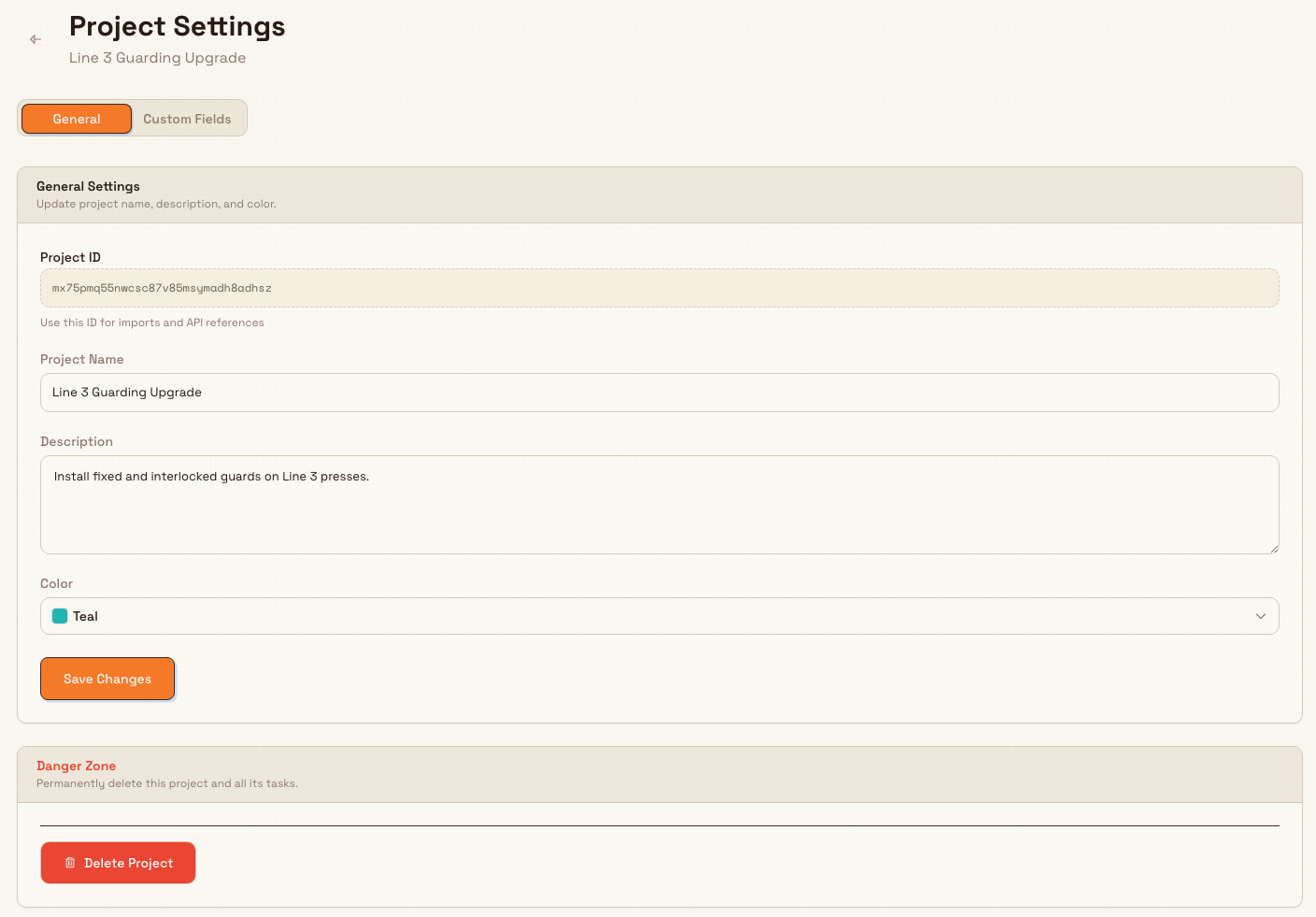
- The Project Settings page opens with the project name shown beneath the title and two tabs: General and Custom Fields.
projects.settings-01
General tab
The General tab holds the project's core identity. Its card is titled General Settings with the description "Update project name, description, and color." It contains:
- Project ID — a read-only identifier used for imports and API references. You cannot change it.
- Project Name — the name shown everywhere the project appears.
- Description — an optional longer explanation of the project's purpose.
- Color — a preset color chosen from a grouped palette. The color is used to distinguish the project in lists and on boards.
After editing any field, select Save Changes. The button shows Saving... while the update is in progress, and a "Project updated" confirmation appears when it succeeds.
Custom fields
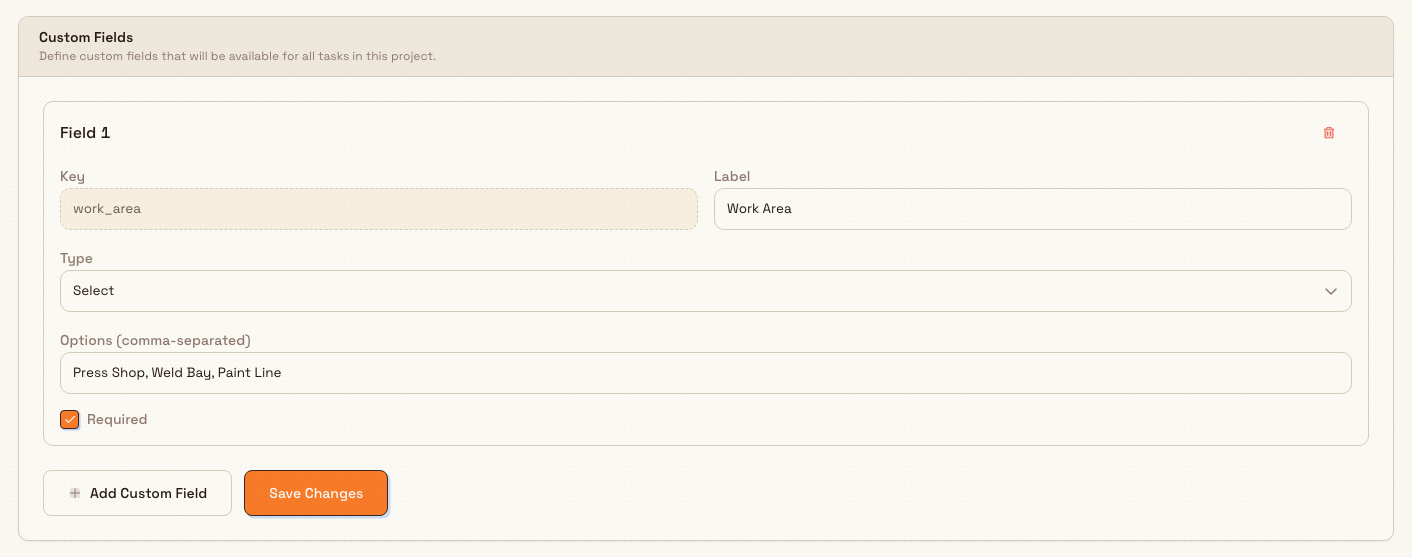
The Custom Fields tab lets you define extra fields that appear on every task in the project. Its card description reads "Define custom fields that will be available for all tasks in this project." Use custom fields when your tasks need to record structured information that the built-in task fields do not cover, so every task is captured consistently.
To add a field:
- Select the Custom Fields tab.
- Select Add Custom Field. A new field block appears titled Field 1 (numbered in order).
- Fill in the field:
- Key — generated automatically and shown read-only. It is the stable internal name for the field.
- Label — the name shown to people filling in the task.
- Type — choose Text, Number, Date, or Select.
- Options (comma-separated) — appears only when the type is Select.
Enter the allowed choices separated by commas, for example
Option 1, Option 2, Option 3. - Required — tick this to make the field mandatory on every task.
- Select Save Changes. A "Project settings updated" confirmation appears.
To remove a field, select the trash icon in that field's block, then save.
Once saved, the fields appear on the task create and edit forms for the project. Each type renders the matching input — a text box, a number box, a date picker, or a dropdown of your options — and a required field is marked with a red asterisk next to its label.
projects.settings-02
Field validation
A Select field must have at least one option, or the save is rejected with "Select type custom fields must have options". Each field's Key must be unique within the project; because keys are generated automatically, this is handled for you.
Delete a project
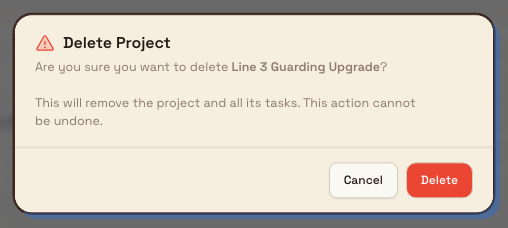
The Danger Zone card on the General tab is titled "Permanently delete this project and all its tasks." Select Delete Project to open a confirmation dialog. When deletion is allowed, the dialog explains that it "will remove the project and all its tasks" and that the action "cannot be undone." Confirm to delete; a "Project deleted" confirmation appears.
Deleting a project is permanent
Deleting a project also deletes all of its tasks, and it cannot be undone. If you only want to hide a finished project, archive it instead — archiving is reversible. See Archive a project.
projects.settings-03
If the project is used by a widget on a teamboard, deletion is blocked. The dialog shows "Cannot delete this project" and lists the teamboards involved, with the message "This project is assigned to N teamboard widget(s). Remove the project from these widgets before deleting." Remove the project from those widgets first — see Use and manage teamboards — or archive the project instead.
Example: Granite Peak Manufacturing
Dana Winters administers Granite Peak Manufacturing's Leeds Fabrication Plant. She sets up a project called Line 3 Guarding Upgrade to coordinate a machine-guarding improvement.
On the General tab she keeps the name, adds the description "Install fixed and interlocked guards on Line 3 presses," and sets the project color to a distinct shade so it stands out on the plant's teamboards.
On the Custom Fields tab she adds three fields so every task is captured consistently:
- Work Area — type Select, options
Press Shop, Weld Bay, Paint Line, marked Required. - Permit Number — type Text.
- Target Completion — type Date.
She selects Save Changes. From now on, anyone creating a task in the Line 3 Guarding Upgrade project must pick a Work Area and can record a permit number and target date directly on the task.
When the upgrade is finished, Dana decides to remove an old duplicate test project. It is pinned to a task widget on the "Leeds Ops" teamboard, so the delete is blocked with the teamboard message. She removes it from that widget first, then deletes it — or archives it to keep the history.
Expected result
- General changes (name, description, color) are saved immediately and reflected wherever the project appears, confirmed by a "Project updated" message.
- Saved custom fields appear on the project's task create and edit forms, using the input that matches each type, with required fields marked by a red asterisk.
- Deleting a project removes it and all of its tasks permanently; a blocked delete leaves everything unchanged until you clear the teamboard widget.
Troubleshooting
- Save Changes does nothing or shows an error. You likely lack the update projects permission. Ask an administrator, or confirm your role includes project management (see Roles and permissions).
- A Select field will not save. Add at least one option in the Options (comma-separated) box; a Select field cannot be saved with no options.
- Delete Project is blocked. The project is assigned to one or more teamboard widgets. Remove it from those widgets, then delete — or archive the project instead.
Limitations and feature state
Project settings is generally available. Note the following verified behaviors:
- The General tab and the Custom Fields tab save independently. Saving one does not save pending edits on the other.
- A custom field's Key is generated automatically and is read-only; you can change its Label, Type, Options, and Required flag but not its key.
- The Project ID on the General tab is read-only and exists for imports and API references.
- Deletion is permanent and cascades to every task in the project; archiving is the only reversible way to take a project out of active use.
Related guidance
Use the project Gantt timeline
Plan project work on a timeline: filter and group tasks, drag or resize dates, organise sections and subtasks, and connect dependent work.
Archive a project
Hide a finished or paused project from your active Projects list while keeping its board, tasks, and history, then restore it whenever you need it again.