Projects
Group related tasks into projects for one site, organise active projects in folders, filter the sheet, and open project work views.
A project groups related tasks so a team can plan and track a piece of work in one place. Each project belongs to the site currently selected in the header. Switch sites to see a different set of projects.
Bulk assigns each project a site-specific code such as PRJ-014. Projects can
also sit inside folders. See
Organize projects in folders.
Projects follow the selected site
If a project is missing, first check the site selected in the header. Creating, archiving, restoring, and deleting also apply to that selected site.
Before you start
Viewing the list needs the projects.view permission. Other actions have their
own checks:
- New Folder and New Project need
projects.create. - Editing project details or folder membership needs
projects.update. - Archive and Restore need
projects.archive. - Delete needs
projects.delete.
Bulk checks these permissions when the action runs. If a control is visible but the action is refused, ask an administrator to check your role. See Roles and permissions.
Open the Projects page
Open Tasks → Projects in the sidebar. The page starts on Active and shows live counts on the Active and Archived tabs.
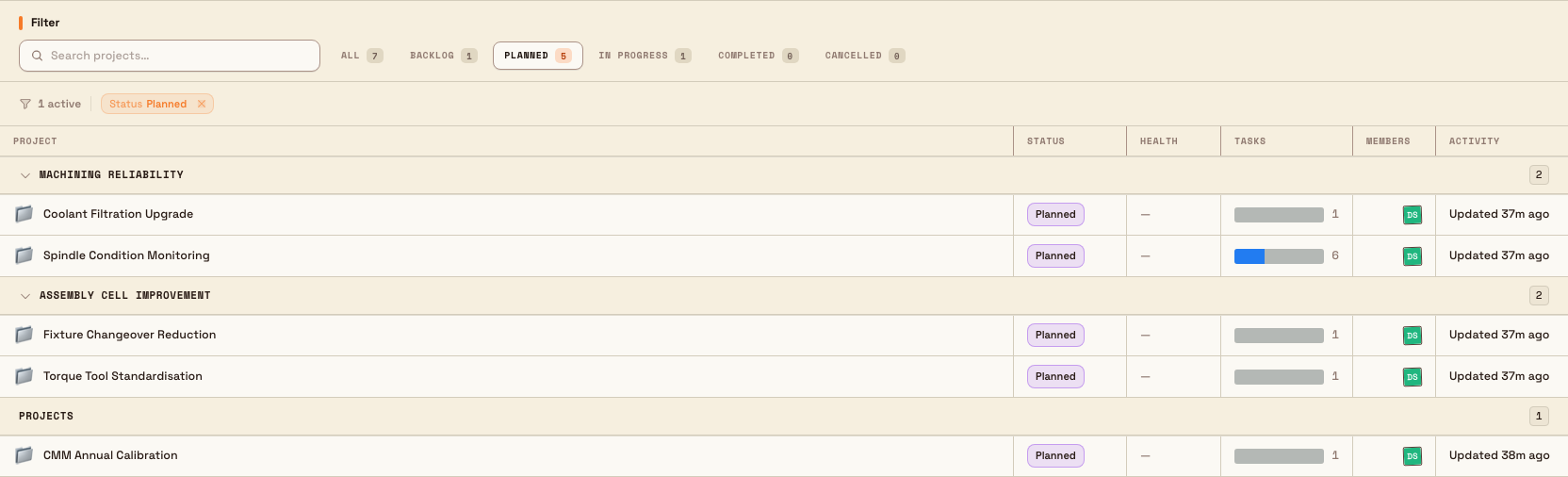
Active projects use one spreadsheet-style sheet. There is no card/grid view. The columns are:
- Project — the project icon and name.
- Status — Backlog, Planned, In Progress, Completed, or Cancelled.
- Health — the latest project health, or a dash when none is set.
- Tasks — a progress bar and the total task count. Hover over the bar to see open, in-progress, done, and overdue counts.
- Members — member avatars.
- Activity — the latest activity label, such as Updated 3d ago.
Select a row, or press Enter or Space while it has focus, to open that project's Tasks tab.
projects.overview-01
Understand folders and root projects
On Active, projects are grouped by folder whenever there is no text search:
- Each folder gets a header with its name, visible-project count, and a control to collapse or expand its rows. Bulk remembers collapsed folders for that site in the current browser.
- An expanded folder with no matching active projects says No active projects in this folder yet. The folder still remains visible.
- Projects outside folders appear after the folder groups. When folders and root projects both exist, this section has a non-collapsible Projects header. If there are no folders, root projects appear directly under the column headings.
The Archived tab is always a flat list without folder headers.
Search and filter
Use Search projects… to match a project by name, description, or project code. Text search returns one flat result list across folders and root projects, so folder headers disappear while a search is active.
Use the status pills — All, Backlog, Planned, In Progress, Completed, and Cancelled — to narrow the rows. On Active, a status-only filter keeps the folder groups. Combining status with text search uses the flat search result list. Active status pills show live counts; Archived remains a flat list.
Active filters appear as removable filter chips. Choose Clear All to reset both search and status filters.
Create a folder or project
The New Folder and New Project buttons appear only on the Active tab.
- New Folder opens the folder form. After Bulk creates the folder, it opens that folder's page.
- New Project opens a form for the name, optional description, members, icon, status, priority, dates, labels, and optional folder. Bulk uses the signed-in person as the lead unless another workflow changes it later.
See Create a project for the full creation workflow.
Open and manage a project
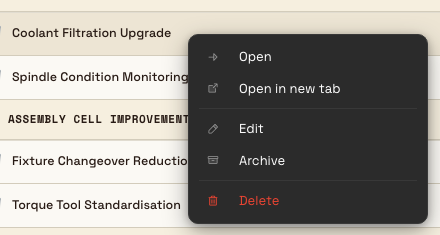
Right-click a project row to open its context menu. It contains Open, Open in new tab, Edit, Archive or Restore, and Delete. These actions are not shown as pencil or three-dot buttons on the row.
projects.overview-02
Opening a row from the list takes you directly to the project's Tasks tab. The project page has four tabs:
- Overview — description, milestones, task progress, and properties such as status, priority, lead, members, dates, labels, and folder.
- Tasks — the project's task list and task creation workflow.
- Gantt — the project timeline.
- Activity — project updates and the activity feed.
People with projects.update can edit Overview properties and post project
updates. Use the settings button in the project header for project settings.
See Work with project task views,
Use the project Gantt timeline,
and Update project settings.
Loading, empty, and error states
- While the live project subscriptions load, the sheet shows skeleton rows and keeps the page header visible.
- A brand-new site with no folders or projects shows the first-run empty state.
- If every project is archived and no folders exist, Active offers a start-new state; Archived shows the retained projects.
- A search with no matches shows the search-empty state and lets you clear the search or start a project with that name.
- An empty Archived tab shows its own empty state.
- If a project URL is invalid, Bulk returns to Projects. If the project no longer exists or you cannot access it, the project page shows Project not found with a Back to Projects action.
- A failure in the list or an individual project tab is contained to that section instead of replacing the whole application shell.
Example
At a fabrication site, a team creates Press Brake Guarding and places it in a Safety Improvements folder. On Active, the folder header shows the project count and its expanded rows. The project's Tasks cell shows its live progress, while Status and Health show the management view of the work.
Selecting the row opens its Tasks tab. When the work is complete, an authorised manager right-clicks the row and chooses Archive. The project moves from Active to Archived without losing its tasks or history. It can be restored later.
Availability and limits
Projects is generally available in desktop Yogi.
- Projects are per-site. A project appears only for its selected site.
- Active projects may count toward your plan. Archiving can free a project slot; restoring may be refused when the plan limit is already reached.
- Archiving is reversible. Deleting is permanent. Deleting removes the project and all its tasks.
Deleting a project also deletes its tasks
Bulk warns that deletion removes the project and all its tasks and cannot be undone. Use Archive when you only need to remove finished work from Active.
Deletion is also blocked while a project is used by a teamboard widget. Remove the project from the named widgets first, or archive it instead.
Related guidance
Use AI assistance with tasks
Draft new tasks and refine task descriptions and checklists with Hugo, Bulk's built-in AI task assistant, which proposes every change as a plan you review and apply yourself.
Create a project
Create a project from the Projects page to group related tasks into one board for a plant, give it a color and members, and start assigning work.