Work with a project
Use a project's Overview, Tasks, Gantt, and Activity tabs to track properties, milestones, work, schedules, and updates.
Every project has one page with four tabs in this order: Overview, Tasks, Gantt, and Activity. The header stays visible while you move between them. It shows the project name and date range, the latest health when one exists, Create Task, and project settings.
Before you start
- You need View projects (
projects.view) to open the project and read its Overview and Activity feed. - You also need View tasks (
tasks.view) to load the Tasks and Gantt tabs. - Update projects (
projects.update) enables the inline Overview editors, milestone changes, and the Activity update composer. - Create tasks (
tasks.create) is required to submit the header dialog or an inline Add task row. Update tasks (tasks.update) enables inline status and Gantt changes. Deleting a task still requires Delete tasks.
Default Entity admin and Manager roles have these project and task permissions. Operator can view projects and create or update tasks, but cannot delete them. Dashboards is read-only. Custom roles can differ.
Open a project and choose a tab
Open Tasks → Projects, then select a project. The Projects list currently
links to /projects/<project-id>/tasks, so this path opens the Tasks tab.
The base project address, /projects/<project-id>, opens Overview unless a
tab query parameter chooses another tab.
Select any tab in the project header to move between views.

projects.task-views-01
Create Task is available in the header on every tab. From Overview, Gantt,
or Activity, selecting it first moves to Tasks and then opens Create Task.
From Tasks, the dialog opens immediately. The current project is preselected;
the task is not created until you submit the dialog. If your role lacks
tasks.create, Bulk rejects the submission and reports the permission error.
The settings button opens /projects/<project-id>/settings. The back control
returns to Projects, or to the previous safe in-app location when available.
Overview
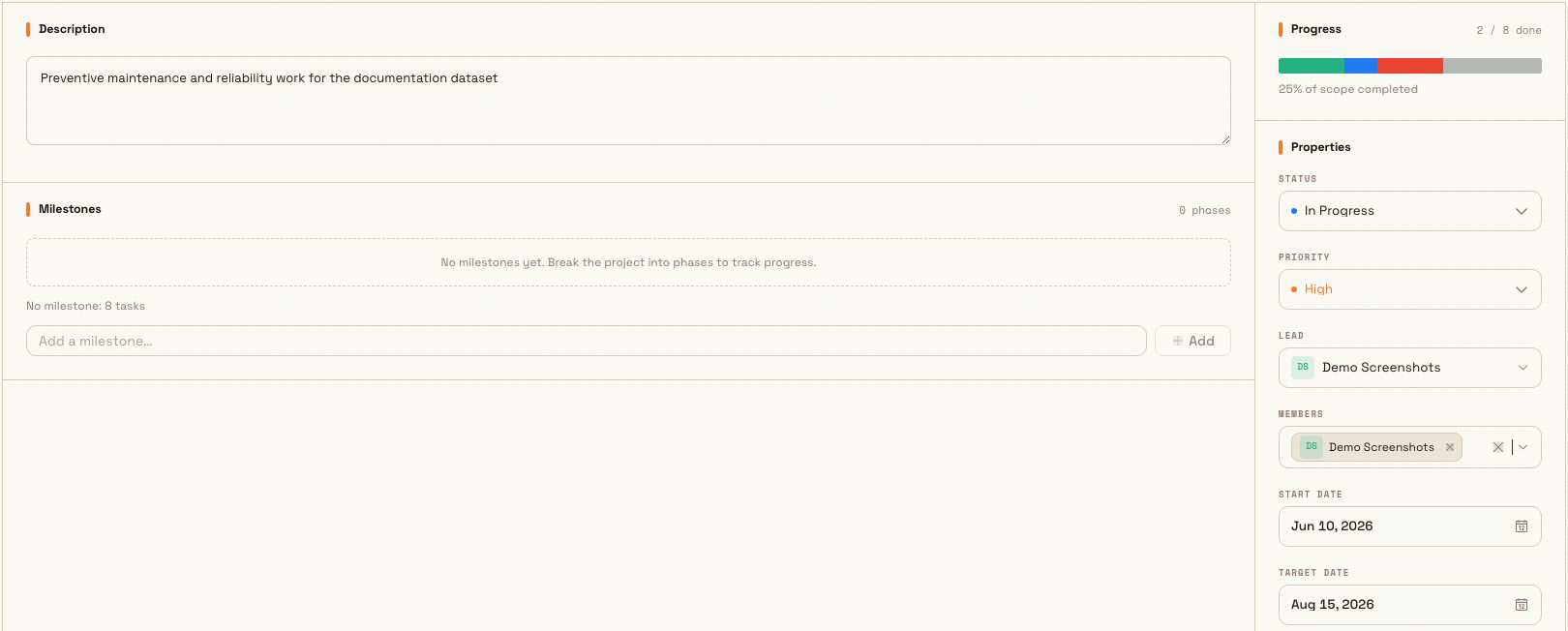
Overview is a two-column project sheet:
- Description saves plain text when you leave the field. Without
projects.update, it is disabled and shows the saved text only. - Milestones are ordered project phases. Each can have a target date and shows completed tasks over total tasks plus a progress bar. Editors can add, rename, retarget, move, or delete a milestone. Deleting one leaves its tasks in the project without a milestone.
- Progress shows completed tasks over all project tasks and a segmented progress bar. With no tasks it says No tasks yet.
- Properties contains Status, Priority, Lead, Members, Start date, Target
date, Labels, and Folder. These fields save as they change and are disabled
without
projects.update.
Tasks not assigned to a phase appear below the milestone list as No milestone: n tasks. When there are no phases, the panel says No milestones yet. Break the project into phases to track progress.
projects.task-views-02
Tasks
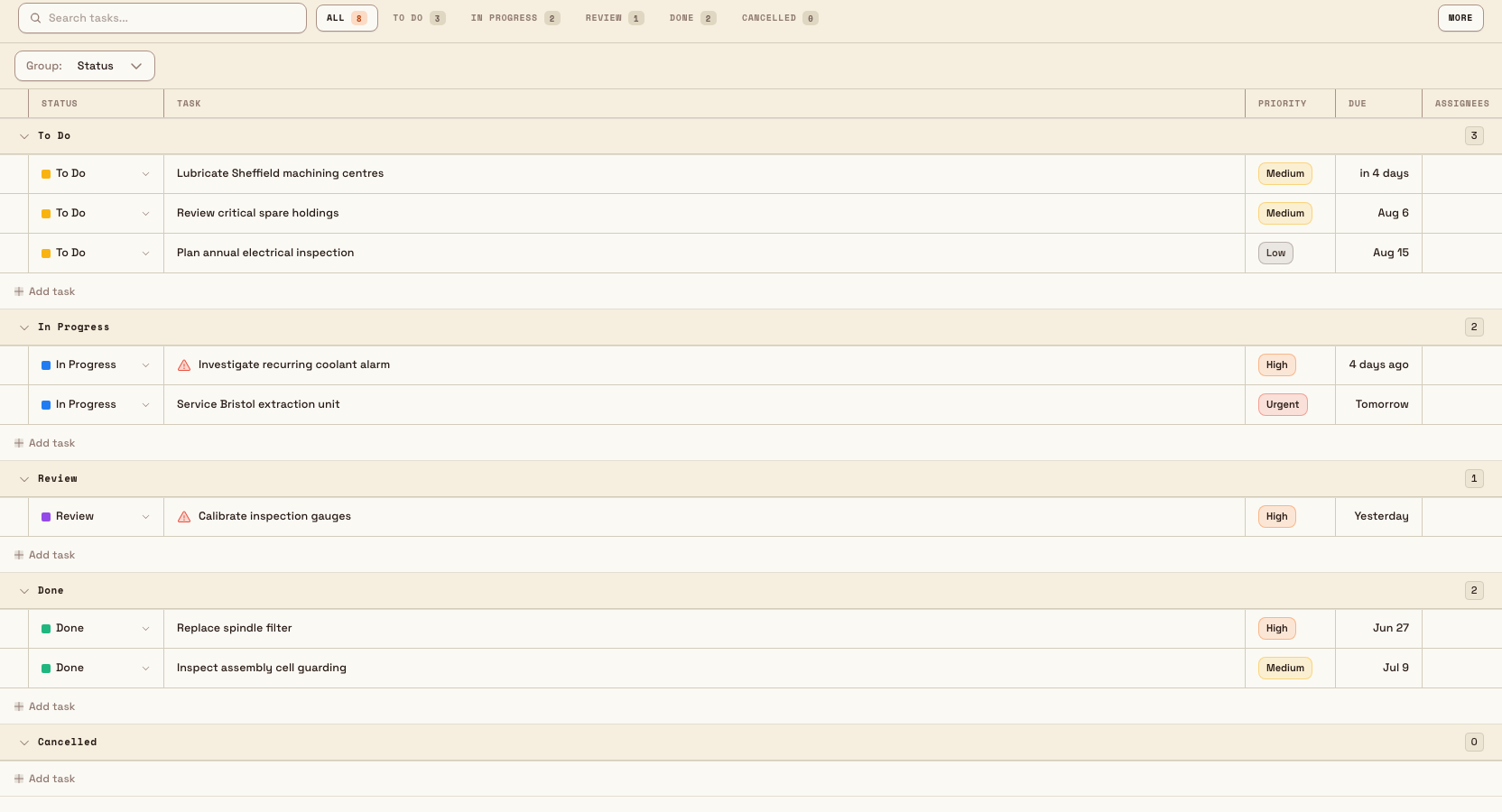
Tasks is a live grouped list scoped to this project. With no free-text search, it groups by Status by default. Use Group to switch to Assignee or Priority.
The grouping rules are deliberate:
- Status always shows To Do, In Progress, Review, Done, and Cancelled, including groups with a count of 0.
- Priority always shows Urgent, High, Medium, Normal, Low, and No priority, including empty groups.
- Assignee shows people who have matching work and always includes Unassigned. A task with several assignees can appear in several groups.
- Subtasks always sit directly under their parent when both are present in the same visible group. If a filter, group, or loaded slice excludes the parent, the child remains visible as a root row.
There is no Nested switch and no Empty groups switch. The old toggles were removed: hierarchy is always on, and known empty groups stay visible. Each group can still be collapsed, and Bulk remembers collapsed groups for the current user, project, and grouping. The current hierarchical list does not offer manual drag reordering.
Rows show Status, Task, Priority, Due date, and Assignees. Select a row to open
the task dialog, or use its context menu for Open and View Details.
With tasks.update, Status is editable inline. With tasks.create, every
expanded project group has an Add task row.
projects.task-views-03
Search, status pills, and More filters narrow the project. A non-empty free-text search temporarily uses the flat search-results table; clearing the text returns to the live grouped list. Grouping, sort overrides, search, and filters are stored in the URL so a copied link can reopen the same view.
Gantt
Gantt is the project timeline. It groups by Status by default, with Section, Assignee, and Priority also available. Use Quarter, Month, Week, or Day zoom and Today to return to the current date. Open tasks with neither a start date nor a due date appear in the Unscheduled tray. A due-date-only task stays on the timeline as a one-day bar.
Everyone with task view access can read timeline bars, dependencies, and
milestone markers. Changing dates, dependencies, nesting, status, or sections
requires tasks.update. See
Use the project Gantt timeline
for the full workflow.
Activity
Activity interleaves project updates with the history of project and task
changes. Users with projects.update see Post an update, can choose On
track, At risk, or Off track, and can add an optional rich-text body.
Read-only users see the feed without the composer. Older items load with
Load more.
URLs and deep links
/projects/<id>defaults to Overview.?tab=overview,?tab=tasks,?tab=gantt, and?tab=activityopen the matching tab. An unknown tab value falls back to Overview./projects/<id>/tasksalways opens Tasks. Selecting another tab from that route moves to the base route with itstabvalue.- An old
?view=ganttbookmark is rewritten to?tab=gantton the base project route. - Tasks grouping and temporary sorting use
groupByandgroupSort; task search and filters use their own query parameters. Collapsed groups are stored locally rather than in the URL.
Loading, empty, and error states
- While the project query loads, the page shows a centered spinner. The Tasks grouped list and Activity feed use skeleton rows while their data loads; Gantt uses a timeline skeleton while its code or data loads.
- A malformed project ID returns to Projects. A deleted or unavailable project that resolves to no record shows Project not found with Back to Projects. Missing permissions surface a forbidden state instead.
- An empty milestone panel shows No milestones yet. Empty Tasks groups
remain visible with zero counts; users with
tasks.createalso see their Add task rows. - Gantt with no project tasks shows No tasks to plan yet. An active Gantt filter with no matches shows No tasks match filters and Clear filters.
- Activity with no items shows No activity yet. Post the first update above. The update composer is absent for read-only users.
- A tab section that fails is isolated from the rest of the project page. Bulk shows Something went wrong with Try again, or a permission-specific forbidden state when access is missing.
Related
Organize projects in folders
Create project folders, group and move projects, add tasks directly to a folder, and understand what happens when a folder is deleted.
Use the project Gantt timeline
Plan project work on a timeline: filter and group tasks, drag or resize dates, organise sections and subtasks, and connect dependent work.