Use the project Gantt timeline
Plan project work on a timeline: filter and group tasks, drag or resize dates, organise sections and subtasks, and connect dependent work.
The Gantt tab on a project shows that project’s tasks on a timeline. Each scheduled task appears as a bar spanning its start and due dates. Use Gantt when you need to see what overlaps, what is unscheduled, how work is grouped, and which task must finish before another can begin — without leaving the project.
Gantt is one of the tabs on the project page, alongside Overview, Tasks, and Activity. See Work with a project for the full project layout.
Before you start
- View projects and tasks. Opening Gantt needs permission to view the project and its tasks.
- Update tasks to change the plan. Dragging dates, moving a task between status or section groups, changing parentage, and adding or removing a dependency require task update permission.
- Completely undated open tasks sit in Unscheduled. A task with neither a start nor due date stays in the Unscheduled tray. A due-date-only task is still scheduled and appears as a one-day bar at its deadline. Done and Cancelled tasks are not offered in the tray.
Open Gantt
- Open a project from Tasks → Projects.
- Select the Gantt tab in the project header tabs.
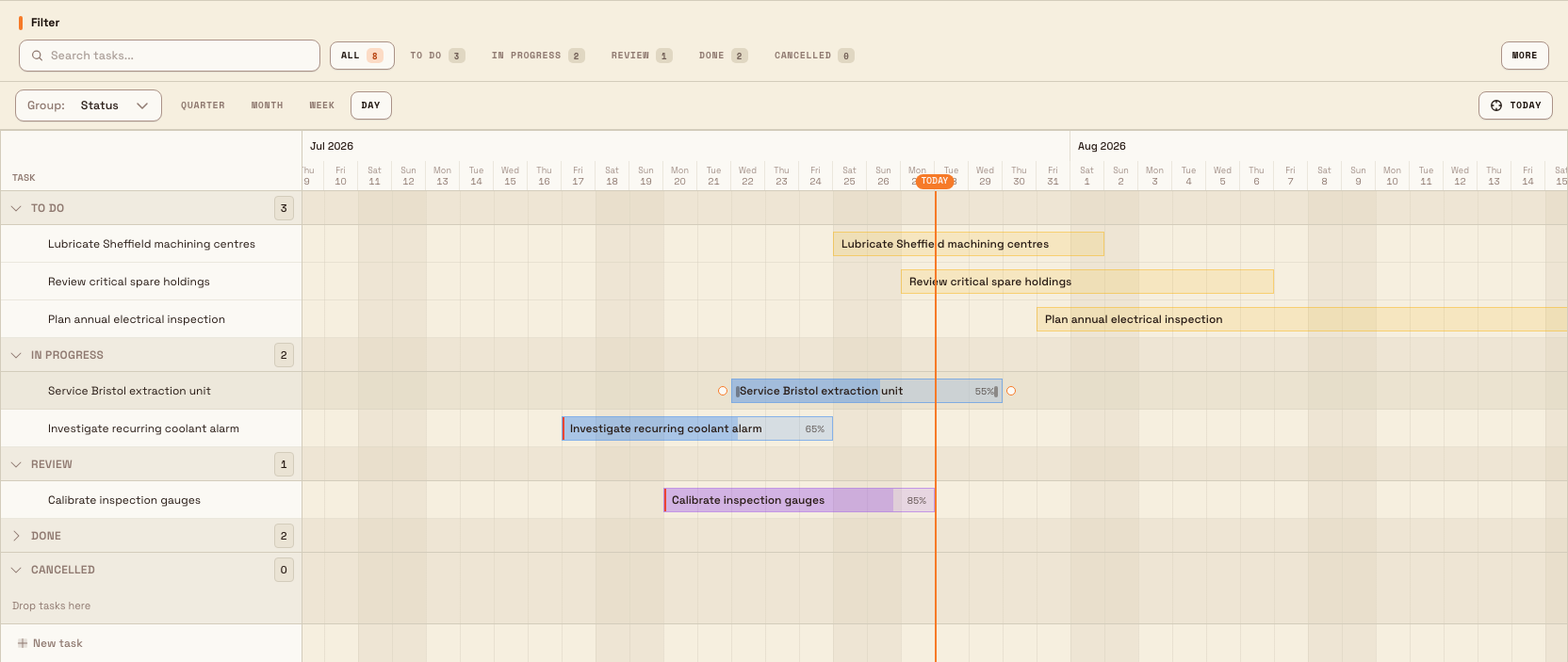
- The timeline fills the main area. Use search and filters first, then choose Section, Status, Assignee, or Priority under Group. Zoom from Quarter to Day, or select Today to return to the current date.
projects.gantt-01
Read the timeline
- Bars show a task’s dates and progress. Colour follows status, and overdue work has a red edge. A due-date-only task uses a one-day bar.
- Grouping stacks related tasks under Section, Status, Assignee, or Priority headers. Empty groups remain visible when no filter is active. Collapse a group when you want a quieter chart.
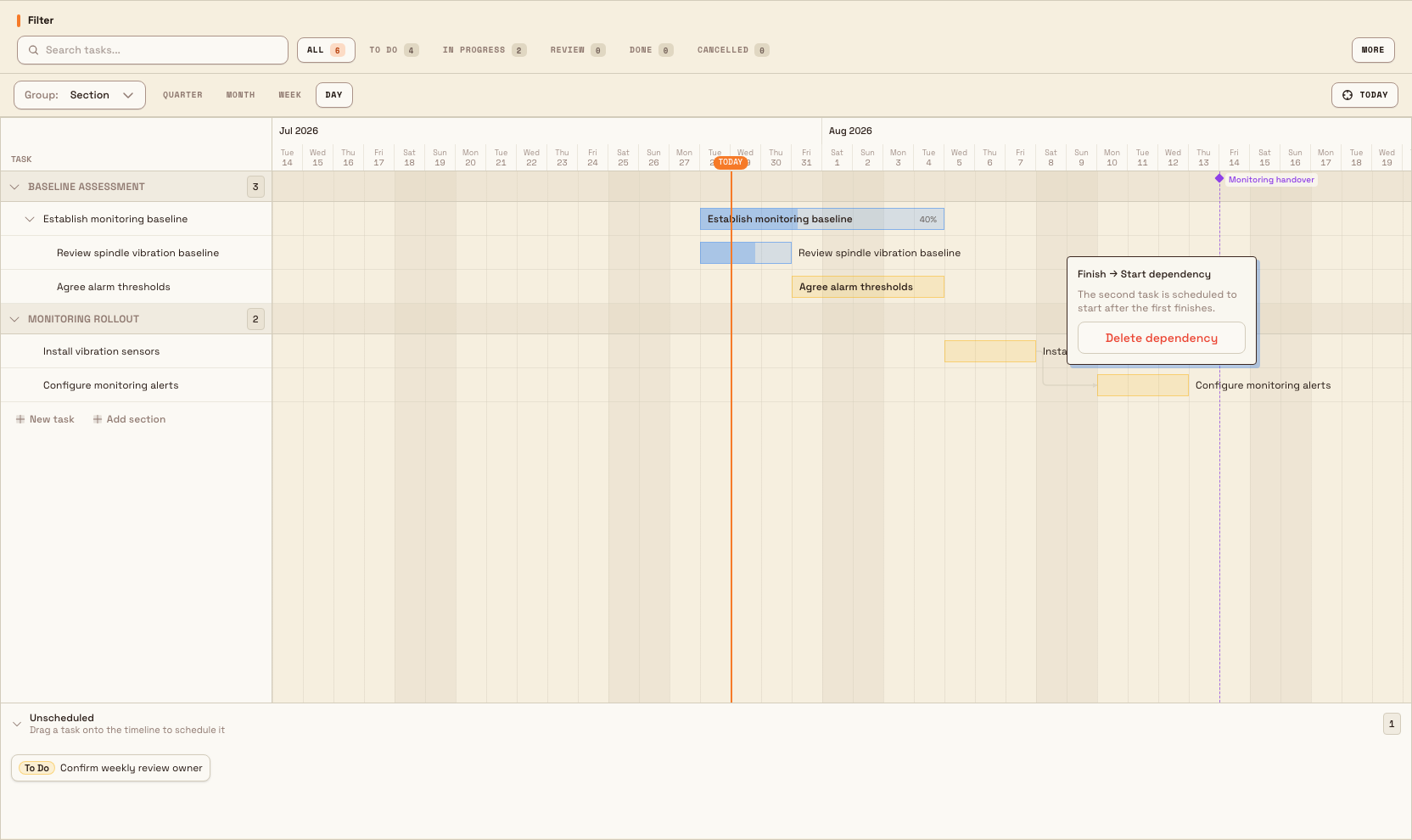
- Subtasks are always nested under their parent; there is no separate “Nested” switch. Expand or collapse the parent in the left panel.
- Project milestones with target dates appear as labelled vertical markers with their current progress. Milestones without a target date do not draw a marker.
- Dependencies appear as Finish → Start arrows. A red arrow means the dependent task is scheduled too early.
- Zoom offers Quarter, Month, Week, and Day. At Day zoom, weekday labels sit under the dates so you can scan the week quickly.
- Today jumps the chart so the current day is in view.
- Unscheduled lists open tasks with no dates. Expand it to see status badges, open a task, or drag it onto the timeline to schedule it.
projects.gantt-02
Edit dates on the chart
If you can update tasks, drag a bar to move its whole window or drag either end to change the start or due date. Changes save when you finish the gesture and the success message offers Undo. The same Start Date and Due Date appear on the task Overview, so either surface stays in sync. Validation still applies: a due date cannot be earlier than the start date.
Drag an Unscheduled chip onto the timeline to assign dates. Drag a row in the left panel to reorder it. Under Status, dropping into another header also changes status. Under Section, dropping into another section changes its section. Collapsed and empty targets accept drops and expand afterwards.
Use Indent to make a row a subtask of the task above, or Outdent to move it up one level. Bulk checks the nesting depth and prevents invalid parent cycles.
Organise sections and dependencies
Choose Section grouping when you want project-specific planning lanes. Use Add section at the bottom of the left panel, then rename or delete a section from its header menu. Deleting a section keeps its tasks and moves them to No section.
To connect work, hover a bar and drag one of its dependency handles onto the other task. Bulk creates a Finish → Start link and refuses self-links, duplicates, links to another project, and cycles. Select an arrow to inspect it; if you can update tasks, you can also Delete dependency there.
Limitations and behaviour to expect
- Gantt is project-scoped. It only shows tasks for the project you opened, not every task across the plant.
- Very short tasks still show a usable minimum bar width so you can grab them.
- Dependencies are Finish → Start only. Bulk does not calculate or display a critical path.
- Filters can hide empty custom sections. Clear active filters when you need to see every section as a drop target.
- Assignee and Priority grouping are for inspection. Drag-to-reorder and cross-group moves are available under Section and Status.
Related
Work with a project
Use a project's Overview, Tasks, Gantt, and Activity tabs to track properties, milestones, work, schedules, and updates.
Update project settings
Rename a project, change its color and description, define custom fields for its tasks, and delete a project from the project settings page.