Create a project
Create a project from the Projects page to group related tasks into one board for a plant, give it a color and members, and start assigning work.
A project in Bulk groups related tasks (individual units of work) into a single board for one plant (a manufacturing site, called an entity in Bulk). Creating a project gives a piece of work its own board, its own color, and its own set of members, so the right people see the right tasks.
Create a project whenever you start a distinct body of work — an SQDCP action board, a machine overhaul, an audit-prep checklist, or any standing list of tasks you want to track together. Everyone you add as a member can find the board, and the project keeps its tasks, owner, and history in one place.
Before you start
- You need permission to create projects. Creating a project requires the Create projects permission. In Bulk's default roles this is granted to Super user, Entity admin, and Manager. An Operator can open and view projects but cannot create them. The permission is checked when you save: the New Project button is shown to everyone on the Active tab, but if your role lacks the permission, Bulk refuses the create with a permission error. Ask a workspace administrator to check your role if you are unsure. See Roles and permissions.
- Pick the right plant first. A project belongs to the plant (entity) you currently have selected, and it is created there. If you manage more than one plant, switch to the plant you want before you create the project — a project cannot be moved to another plant afterward.
- Plan capacity is rarely a concern. Most workspaces can create an unlimited number of projects. A limit only applies if your subscription plan sets an explicit project cap, and only active (non-archived) projects count toward it.
Create a project
- Open Tasks → Projects from the main navigation. This opens the Projects page for your selected plant.
- Make sure the Active tab is selected. The New Project button appears in the page header while you are on the Active tab. It is hidden on the Archived tab, which is only for reviewing and restoring closed projects.
- Select New Project. The Create Project dialog opens with the prompt "Create a new project to organize your tasks."

projects.create-01
- Fill in the dialog fields:
- Name (required) — the project's name, shown everywhere the project appears. A project must have a name; you cannot save without one, and the name can be up to 255 characters.
- Description (optional) — a short explanation of what the project covers. Leave it blank if you do not need one.
- Color — the accent color used to distinguish the project in lists and on boards. A Blue tone is preselected; pick another from the grouped palette (Brand, Status, Tinted, and Neutrals).
- Members — the people who work on this project. Start typing a name to add team members. You do not need to add yourself: the person who creates the project is automatically its owner and first member.
- Select Create Project. The button shows Creating... while Bulk saves the project.
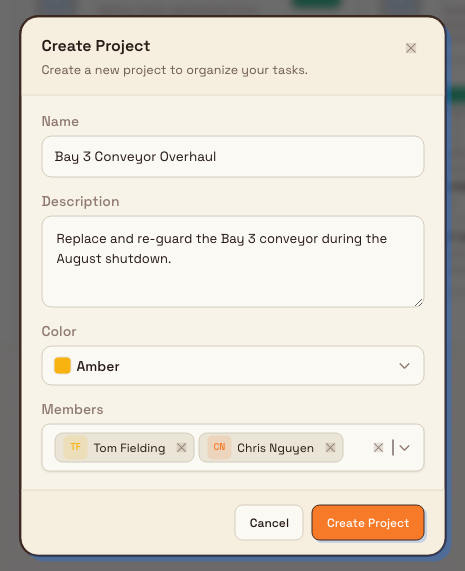
projects.create-02
What happens after you create a project
- Bulk shows a confirmation message — Project "<name>" created — and the dialog closes.
- The new project appears as a card on the Active tab, and the Active count badge rises by one.
- Bulk assigns the project a code automatically, in the form PRJ-001, PRJ-002, and so on. The code is unique within the plant, so you can later find a project by its name, its description, or this code from the search box.
- You are the project's owner and its first member. You can change the owner and members later from the project's Edit project dialog.
The project is created empty. Open it to add tasks, and use its settings to define custom fields — see Work with project task views and Update project settings.
Two shortcuts to the same dialog
When a plant has no projects yet, the Projects page shows a No projects yet panel with a Create your first project button. And if you search for a project that does not exist, the empty state offers a New project named "<your search>" button. Both open the same Create Project dialog — the search shortcut prefills the name for you.
Example: Granite Peak Manufacturing
Dana Winters, an Owner/admin at Granite Peak Manufacturing, is setting up work for the Leeds Fabrication Plant. A run of safety upgrades is starting on Line 3, so she wants a dedicated board for it.
Dana opens Tasks → Projects, confirms that Leeds Fabrication Plant is the selected plant, and selects New Project. In the dialog she enters the name Bay 3 Conveyor Overhaul, adds the description "Replace and re-guard the Bay 3 conveyor during the August shutdown," and sets the color to Amber so the project stands out on the plant's teamboards. She adds two members — the maintenance lead and the plant safety officer — then selects Create Project.
Bulk confirms Project "Bay 3 Conveyor Overhaul" created. The card appears on the Active tab with the code PRJ-004, the Active count ticks up by one, and Dana starts adding tasks to the new board. Because she was the creator, she is already the owner and a member alongside the two people she added.
Expected result
- A new project card is on the Active tab for the selected plant, and the Active count reflects it.
- The project has the name, optional description, and color you set, plus an automatically assigned PRJ-### code.
- You are the owner and a member; any members you added are included too.
- The project starts with no tasks, ready for you to build out its board.
Limitations and feature state
Creating projects is a generally available feature. Note the following verified behaviors:
- A project belongs to one plant. It is created in the plant you have selected and cannot be moved to another plant afterward. Select the correct plant before creating.
- The creator is always the owner and a member. The create dialog does not set a different owner; you can reassign the owner and edit members after the project exists.
- The project code is automatic and read-only. Bulk assigns the next PRJ-### value for the plant; you cannot choose or change it.
- New projects start empty. Tasks and custom fields are added after creation, not in the create dialog.
- Plan limits, when set, count only active projects. Archiving a project frees a slot toward a plan's project cap; archived projects do not count.
Troubleshooting
- You do not see the New Project button. You are on the Archived tab, where the button is hidden. Switch to the Active tab to create a project.
- Create Project shows a permission error. Your role does not include the Create projects permission. The button is shown to everyone on the Active tab, but the action is checked when you submit, so the save is refused with a permission error. Ask an administrator to confirm your role.
- Create Project will not save and the Name field shows an error. The name is required; the field displays Project name is required until you enter one. Add a name, then select Create Project again.
- A plan-limit message appears. Your workspace has reached its plan's active-project limit. Archive or delete an active project to free a slot, or ask an administrator to upgrade the plan, then create the project again.
Related guidance
Projects
Group related tasks into projects for one site, organise active projects in folders, filter the sheet, and open project work views.
Organize projects in folders
Create project folders, group and move projects, add tasks directly to a folder, and understand what happens when a folder is deleted.