Archive a project
Hide a finished or paused project from your active Projects list while keeping its board, tasks, and history, then restore it whenever you need it again.
A project in Bulk groups related tasks into a single board so the right people see the right work. When a project is finished or paused, you can archive it. Archiving moves the project out of your day-to-day Active list but keeps the board, its tasks, and its full history intact, so nothing is lost and you can bring it back at any time.
Archive a project when the work is complete, on hold, or no longer relevant to this quarter, and you want your Active list to show only live work. Because archiving is fully reversible, you do not have to decide whether to keep a project forever — you can archive it now and restore it later.
Archiving is not deleting
Archiving hides a project and frees a slot on your plan's active-project count, but it never removes anything. The board, every task, and the activity history stay exactly as they were. To permanently remove a project and all of its tasks, use Delete instead — that action is separate, is guarded by a confirmation dialog, and cannot be undone.
Before you start
To archive or restore a project you need the Archive or restore projects permission. In Bulk's default roles this permission is granted to Super user, Entity admin, and Manager. If you do not see the Archive option on a project card, ask a workspace administrator to check your role.
You reach projects from the main navigation under Tasks → Projects, which opens the Projects page for the plant (entity) you currently have selected. Archiving only affects the selected plant's projects.
Archive a project
- Open Tasks → Projects from the navigation.
- Make sure the Active tab is selected. The Active and Archived tabs each show a live count of how many projects they contain.
- Find the project you want to archive on the card grid.
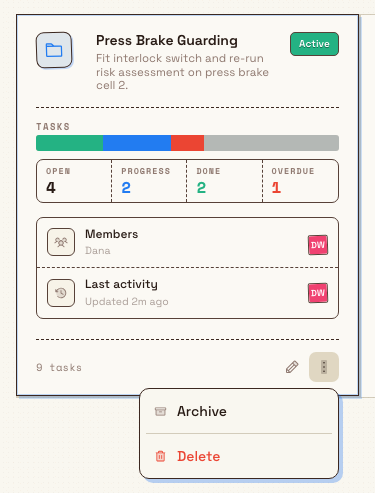
- On that project's card, select the More project actions button (the three-dots icon in the card footer).
- Choose Archive from the menu.
The project is archived immediately — there is no extra confirmation step. Bulk shows a Project archived confirmation message, the card leaves the Active tab, and the Active count drops by one while the Archived count rises by one.
projects.archive-01
Find and restore archived projects
Archived projects live on the Archived tab of the same Projects page.
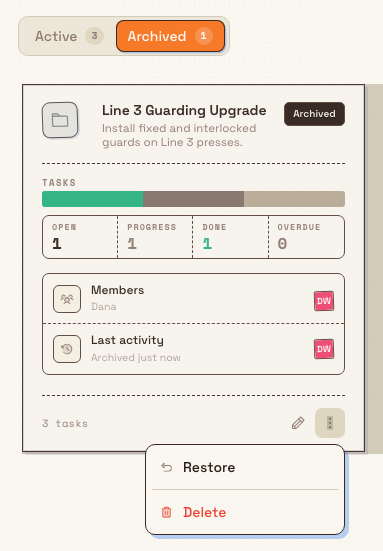
- On the Projects page, select the Archived tab.
- Archived project cards appear here in a muted style with an Archived status badge, and each card's Last activity row is labelled Archived.
- To bring a project back, open the More project actions menu on its card and choose Restore.
Bulk shows a Project restored confirmation message and the project returns to the Active tab, ready to use again with all of its tasks and history in place. Note that the New Project button is hidden while you are on the Archived tab, because that tab is for reviewing and restoring, not for creating.
projects.archive-02
Example: Granite Peak Manufacturing
The Leeds Fabrication Plant team at Granite Peak Manufacturing has just wrapped up their Q2 Guardrail Retrofit project. Every task on the board is done, but the team wants to keep the record for their next audit. Dana Winters, an Owner/admin, opens Tasks → Projects, finds the Q2 Guardrail Retrofit card on the Active tab, opens its More project actions menu, and chooses Archive. The Active list now shows only current work — the Bay 3 Conveyor Overhaul and ISO 9001 Audit Prep projects — while the retrofit sits safely on the Archived tab. Three months later, when a follow-up inspection is scheduled, Dana opens the Archived tab, restores Q2 Guardrail Retrofit, and the whole board with its completed tasks is live again.
What archiving does and does not change
- Keeps everything. The board, all tasks, members, owner, and activity history are preserved unchanged.
- Hides from active views. The project no longer appears on the Active tab, keeping day-to-day lists focused on live work.
- Frees plan capacity. Only active projects count toward your plan's project limit, so archiving a project releases a slot for a new one.
- Is reversible and immediate. Archive and restore both take effect right away with no confirmation dialog, and either can be reversed by the opposite action.
- Applies to one project at a time. You archive or restore each project from its own card; there is no bulk archive.
Troubleshooting
Restore is blocked by a plan-limit message. Because archived projects do not count toward your plan but active ones do, restoring pushes your active-project count back up. If your workspace is already at its plan's active-project limit, the restore is refused with a plan-limit message. Free up capacity by archiving or deleting another active project, or upgrade your plan, then try the restore again.
Restore does not succeed for a project in another plant. Restoring requires the project's plant (entity) to be active. If the plant has been made inactive, reactivate it first, then restore the project.
You cannot see the Archive or Restore option. The menu item only appears if you hold the Archive or restore projects permission. Ask an administrator to confirm your role.
Feature state
Archiving and restoring projects is a generally available feature. It is available to any workspace on the Projects page for every plant you can access, subject to the permission and plan rules described above.
Related
Update project settings
Rename a project, change its color and description, define custom fields for its tasks, and delete a project from the project settings page.
Files
Store, organize, and open manufacturing documents in shared folders with role-based access, per-folder permissions, in-browser previews, and drag-and-drop uploads.