Start an audit
Open a scheduled audit as a checklist from the Audits inbox or the guided Type, Audit, Area start flow, then begin recording responses.
An audit in Bulk is a structured checklist you run against a part of your plant to confirm it meets a standard: a 5S walk of a work cell, a safety inspection of a line, a pre-use check on equipment, or a quality review. Starting an audit turns a scheduled audit into a live checklist you can answer item by item.
This article covers how to start (or resume) a scheduled audit from the Audits area. Once an audit opens, you record responses and submit it; those steps are covered in Complete an audit response.
When you start an audit
Start an audit when a scheduled check is due, overdue, or when you simply need to run one on demand for an area you cover. Common triggers on the shop floor:
- A daily or weekly check is due for your shift and appears in your Audits list.
- A supervisor asks for an unscheduled walk of an area before a customer visit.
- A previous audit failed and you need to re-run it after corrective work.
Before you begin
Two things must be true before an audit can be started:
- You have permission to run audits. Starting an audit requires the "run
audits" permission (
audits.execute). Operators, shift supervisors, managers, tablet users, and administrators have this by default. If you cannot see the Audits area or the start controls are missing, ask an administrator to check your role. - An audit template is scheduled to an area. A template is the reusable checklist (the questions and how they are scored). A schedule links a template to an area on a cadence such as Daily, Weekly, Monthly, or One-Time. An area is the place the audit is run against (a cell, line, or zone). If nothing is scheduled, there is nothing to start.
Setup lives in administration
Templates, areas, and schedules are configured once by an administrator, not on the shop floor. See Audit templates, Audit areas, and Audit schedules. Until a template is both active and scheduled to an area, it will not appear in the start flow.
The Audits inbox
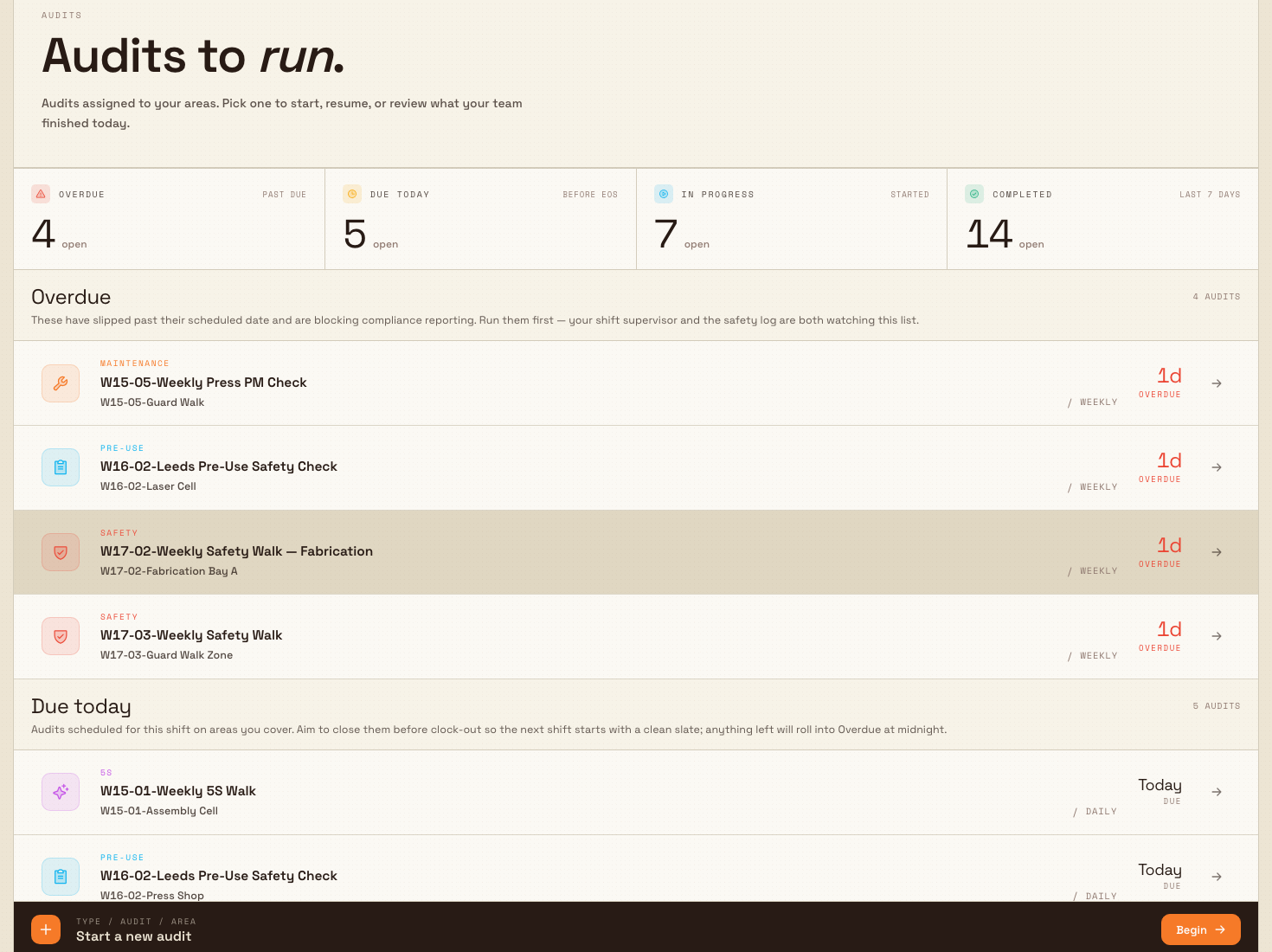
The Audits area opens on an inbox that groups the work assigned to your plant into Overdue, Due today, In progress, and Completed / last 7 days. This is the fastest place to start most audits.
audits.start-01
Start a due or overdue audit directly
In the inbox, select any row under Overdue or Due today. Bulk starts that scheduled audit and opens its checklist immediately. You do not pick the type, template, or area again, because the row already knows all three.
If the audit you tap is already open (it appears under In progress), selecting it takes you back into the existing checklist rather than creating a duplicate.
Start an audit manually
When the audit you want is not listed as due, use the guided start flow:
- On the Audits inbox, find the Start a new audit band at the bottom and select Begin. The three-step start flow opens with the heading "Start a new audit."
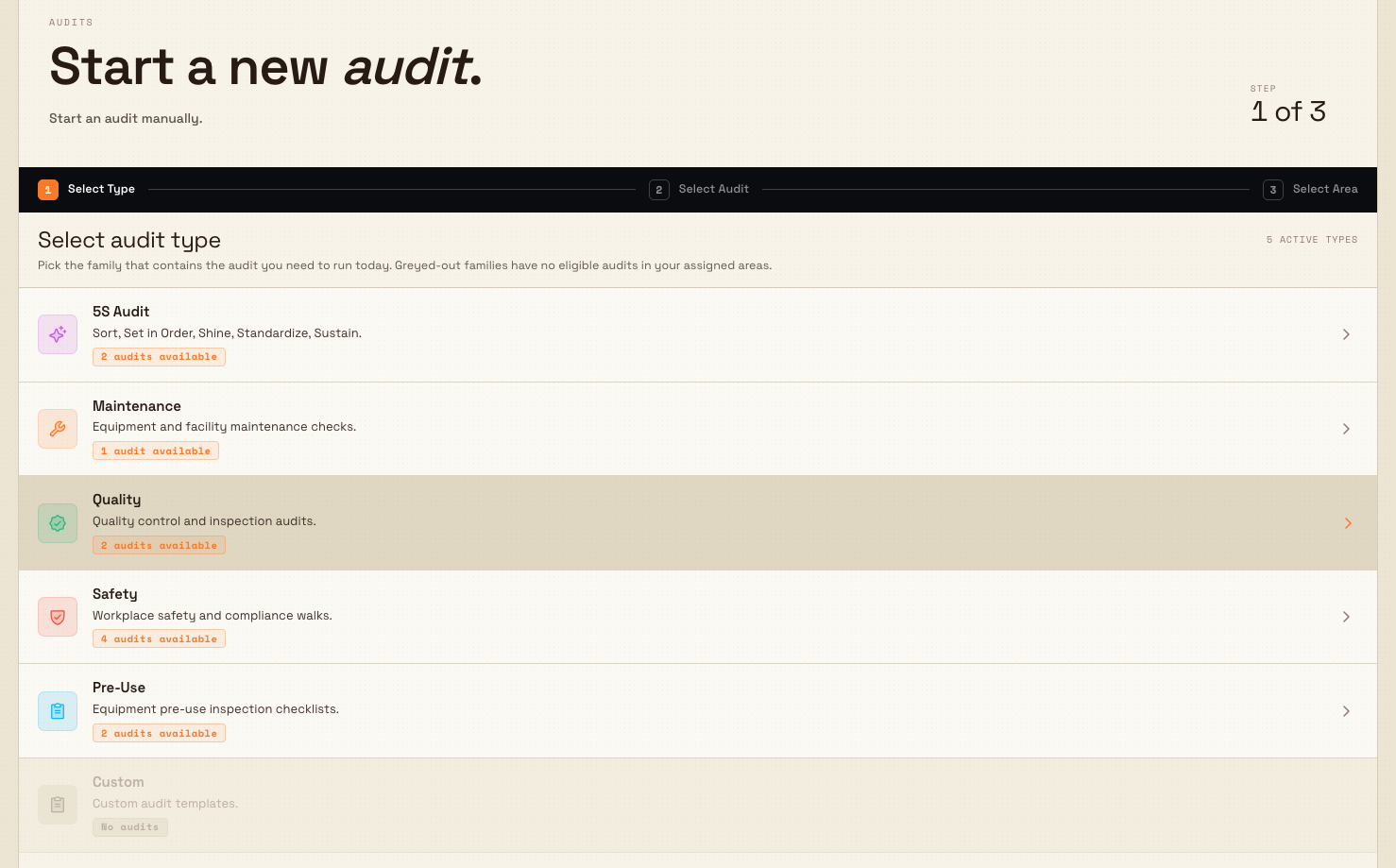
- Select Type. Pick the audit family you need: 5S Audit, Maintenance, Quality, Safety, Pre-Use, or Custom. Families with nothing scheduled are greyed out and show a "No audits" tag; families you can run show a count such as "3 audits available."
- Select Audit. Pick the specific template. Each row shows the template code and its cadence (One-Time, Daily, Weekly, or Monthly).
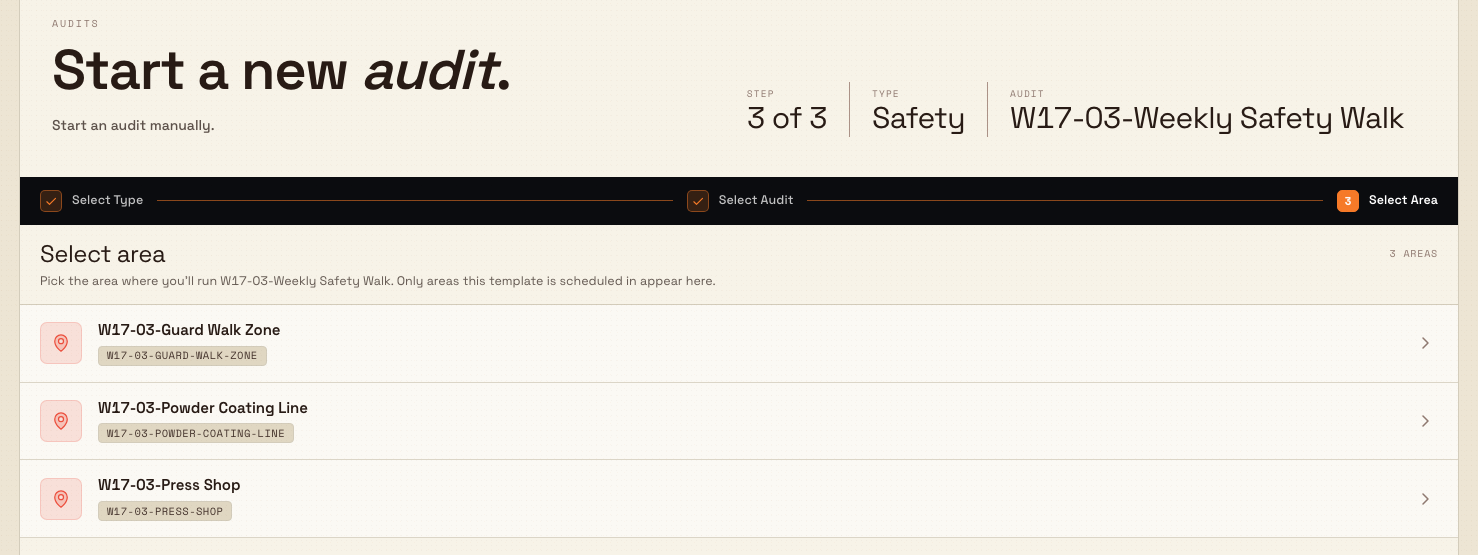
- Select Area. Pick where you are running it. Only the areas this template is scheduled in appear here. Choosing an area starts the audit right away and opens the checklist.
You can move backward at any point using the step bar or the Back control; you cannot skip ahead past a step you have not completed.
audits.start-02
audits.start-03
Example: a due 5S walk at Granite Peak Manufacturing
Marcus, a late-shift supervisor at Granite Peak Manufacturing's Leeds Fabrication Plant, needs to run the daily 5S walk on the Press Shop before clock-out. He opens Audits and sees "Daily 5S — Press Shop" under Due today. He selects the row; the checklist opens on the first question, and he works through the items on the shop-floor tablet.
Later the same week, the plant manager asks Marcus to run an unscheduled safety walk of the Powder Coating Line before an insurer visit. That check is not due today, so Marcus selects Begin on the Start a new audit band, chooses Safety, picks the "Weekly Safety Walk" template, and selects the Powder Coating Line area. The audit starts and he begins recording responses.
What happens after you start
Starting an audit creates a new in-progress record and opens the checklist as a single-question-per-page flow. Your answers save as you go, so you can hand the audit to a colleague or pick it back up from In progress later.
Starting never creates duplicates
If an audit for that same schedule is already in progress, Bulk reopens the existing one instead of creating a second copy. Completed audits do not block you from starting a fresh run of the same scheduled audit.
Availability
Starting an audit is generally available. No part of this flow is in beta or requires a separate opt-in. What you can start depends on what your administrator has scheduled and on your permissions, not on a feature flag.
Troubleshooting
- An audit family is greyed out or shows "No audits." No active template is scheduled for that family in your plant. Ask an administrator to create or activate a template and schedule it to an area. See Audit schedules.
- Select Audit says no templates are available. The chosen family has no active, scheduled template yet. The same fix applies: schedule a template for that family.
- Select Area says no areas are assigned. The template exists but is not scheduled into any area. Add a schedule that links it to at least one area.
- You expected a new audit but the existing one reopened. This is expected. An audit for that schedule was already in progress, so Bulk resumed it.
Related
- Audits overview
- Complete an audit response
- Review audit results
- Run a pre-use check — for equipment checks started from the production board
- Audit schedules
Audits
How the Audits module works — the way scheduled 5S, safety, quality, maintenance, pre-use, and custom checks reach your team, and where to run, complete, and review them.
Complete an audit response
Work through an in-progress audit in Bulk: answer each checklist item, meet comment and photo requirements on failures, and submit to record a Pass, Fail, or Pass with Issues result.