Run a compliance audit program
Set up audit templates, areas, and schedules, then run and review the recurring audits that keep your plant continuously compliant.
An audit in Bulk is a structured checklist you complete against a place or a piece of equipment to confirm work meets a standard — a safety walk, a quality inspection, a 5S check, a maintenance check, or a checklist you design yourself. An audit program is the ongoing practice of running those audits on a schedule, across the areas of your plant, so that compliance is continuous and evidenced rather than something you scramble to prove before an inspection.
This is an end-to-end guide. It walks you through the whole journey — building the checklists, deciding where and how often they run, completing them on the floor, and reviewing the results — and links to the detailed task article for each step. Use it to understand how the pieces fit together; follow the links when you need the click-by-click walkthrough for one task.
How an audit program fits together
A working program in Bulk is built from three configuration pieces that combine to produce the audits your team actually runs:
- Templates — the checklist itself: the questions (Bulk calls them items), how each is answered, and which are required. A template has a Type — 5S Audit, Maintenance, Quality, Safety, Pre-Use, or Custom — and a Frequency.
- Areas — the places you audit: a production floor, a cell, a store, a line. Areas carry owners and can nest under a parent area, so results roll up to the right people.
- Schedules — the link that makes an audit recur. A schedule ties one template to one or more areas and sets how often it repeats.
When a schedule comes due, Bulk creates a due audit for the assigned area. Your team runs it, answers the items, and submits it. Bulk scores the result and files a report you can review, compare over time, and act on. That loop — schedule → due → run → review — is the program.
Audit program vs. one-off audit
You can always start a single audit on demand, but a program is what makes compliance repeatable: the same checks land in the right areas on a cadence, and anything missed rolls into Overdue so nothing quietly slips.
Before you begin
What you can do in the program depends on your role and the audit permissions it carries:
- To set up the program — create and edit templates, areas, and schedules — you need the audit management permissions (
audits.create,audits.update,audits.delete). In the default roles these belong to a Super user, an Entity admin, and the Manager role. - To run audits — start, fill in, and submit them — you need
audits.executeandaudits.view. Those are held by the roles above and also by the Operator, Tablet user, and Invoicing workstation roles, so shop-floor staff can complete the checks assigned to their areas without administrative access. - To override a blocking pre-use check for a piece of equipment, a supervisor needs the separate
audits.overridepermission.
You also need at least one plant (Bulk also calls this a site or entity) selected, and — for running audits — areas that have schedules assigned to them. If you are new to Bulk, start with Getting started.
Stage 1 — Set up the program
Configuration lives under Settings → Audits, which has three pages: Templates, Areas, and Schedules. Build them roughly in that order, because a schedule needs both a template and an area to point at.
- Build your templates. On Settings → Audits → Templates, select New Template, give it a Name, choose a Type and Frequency, and — for equipment checks — turn on Asset Bound so the audit attaches to specific assets. Select Create & Edit to open the builder and add the sections and items operators will answer (Yes / No, Pass / Fail, numeric, text, photo, signature, and more). You can also start from a shared library of ready-made templates. See Manage audit templates and the template library and Build an audit template.
- Define your areas. On Settings → Audits → Areas, select Add Area and set its Name, Location, Owners, and optional Parent Area to build the ownership graph results report against. See Manage audit areas.
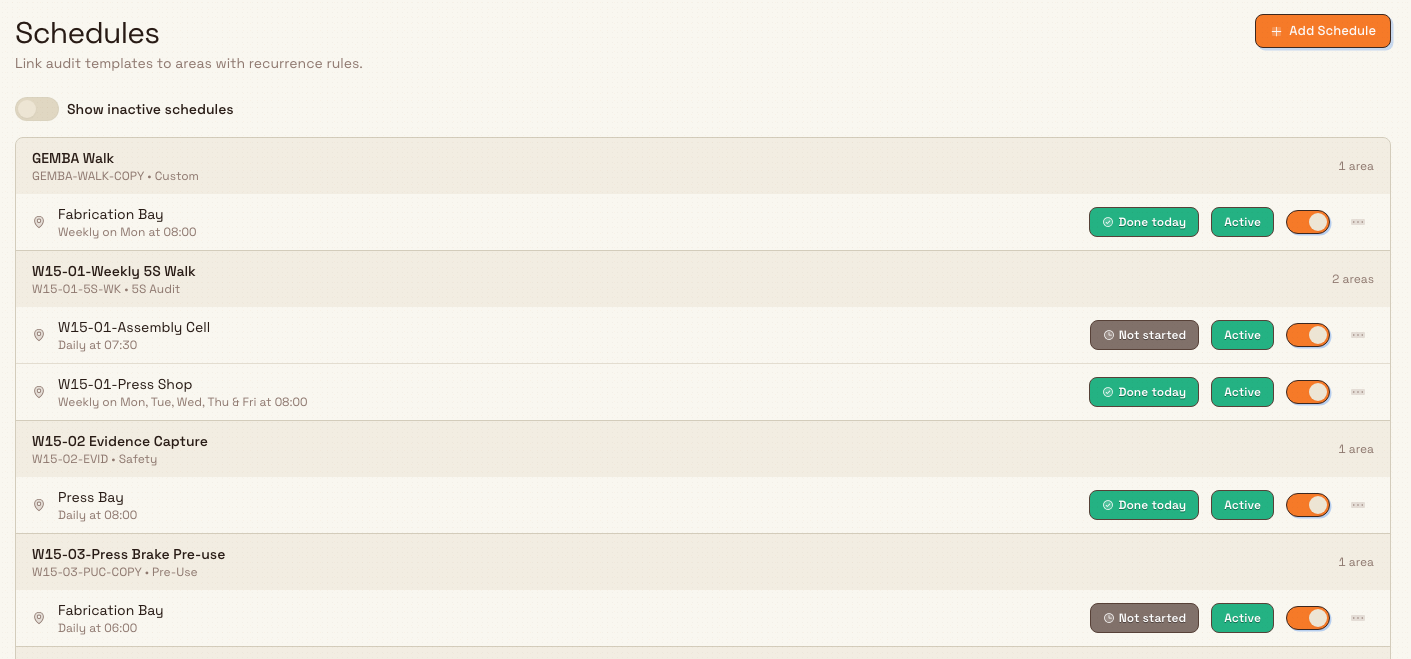
- Schedule the audits. On Settings → Audits → Schedules, select Add Schedule, pick an Audit template, choose one or more Areas, and set the Recurrence — how often it repeats, with a start and an optional end. Keep it Active to have due audits appear for your team. See Schedule audits.
workflow.run-audit-program-01
The three canonical setup guides above cover every field and option in depth. For a broader map of the configuration surface, see Audit configuration.
Stage 2 — Run the due audits
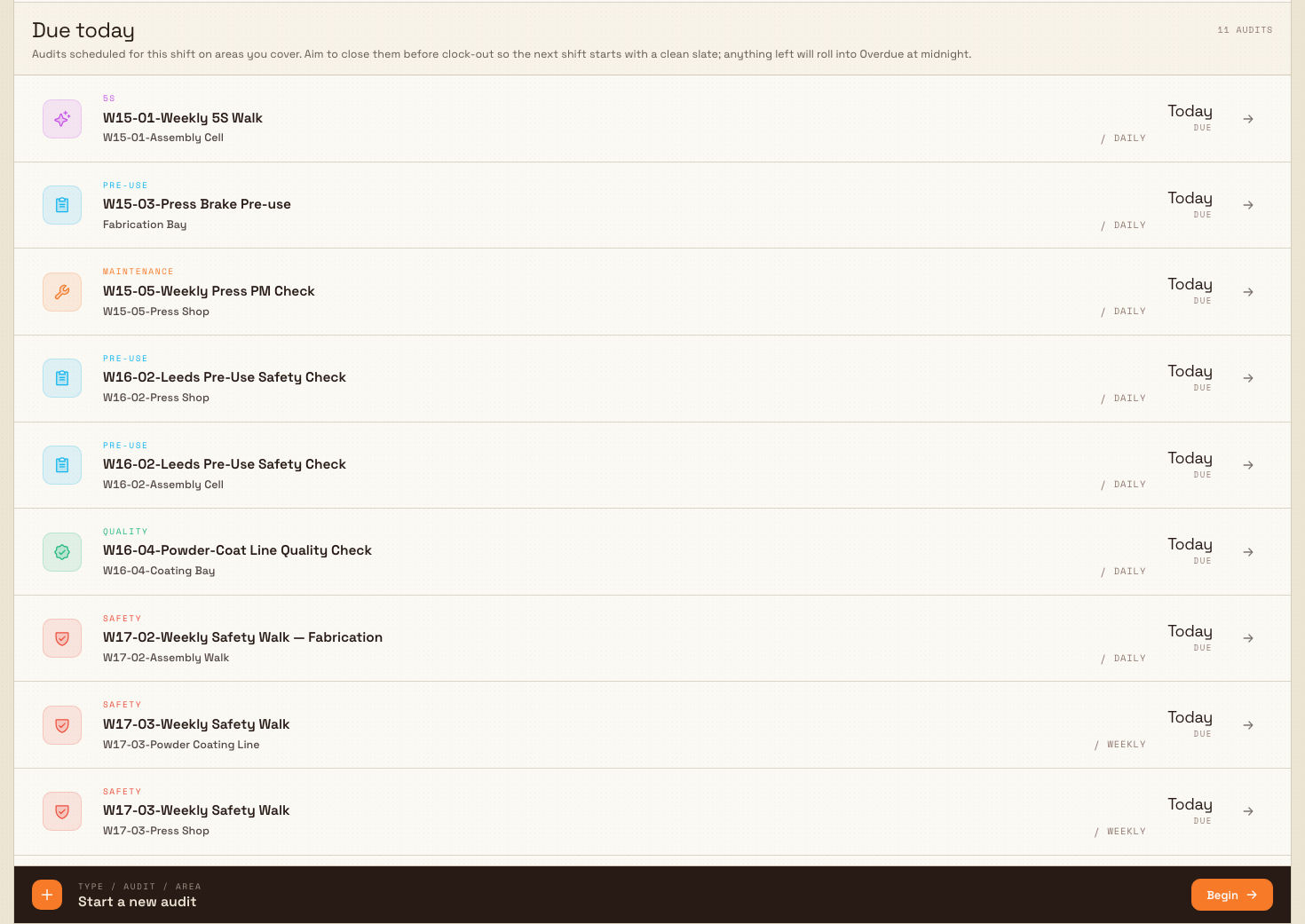
Once schedules are active, the people assigned to those areas run the audits from the Audits area in the main navigation. The landing page is an inbox of everything on your plate, grouped by urgency:
- Overdue — audits past their scheduled date. Run these first; they block compliance reporting.
- Due today — audits scheduled for the current shift on areas you cover. Anything left rolls into Overdue at midnight.
- In progress — audits you or a teammate opened but did not submit. Pick one back up where it was left.
- Completed / last 7 days — recently submitted audits, each showing its score.
Select any due or overdue row to begin, or a row in In progress to resume exactly where it stopped. To start an audit that is not waiting in your inbox, use the Start a new audit band and select Begin. That opens a short three-step picker — Select audit type, then Select audit (the template), then Select area — and the checklist opens as soon as you choose the area.
workflow.run-audit-program-02
In the checklist, answer each item; Bulk saves every response as you go, so a dropped connection or a handoff to a colleague never loses work. Attach a photo or signature where an item asks for evidence. Select Next to move through the checklist and Submit to complete it. Bulk checks that every required item is answered before it accepts the submission — if any are missing, it tells you which ones so you can finish them. On submit, Bulk scores the audit as pass, fail, or pass with issues and records how long the result stays valid.
For the detailed walkthroughs, see Start an audit, Attach audit evidence, and Complete an audit response. Each audit type has its own guide too: Run a safety audit, Run a quality audit, Run a 5S audit, Run a maintenance audit, Run a pre-use audit, and Run a custom audit.
Stage 3 — Review results and act
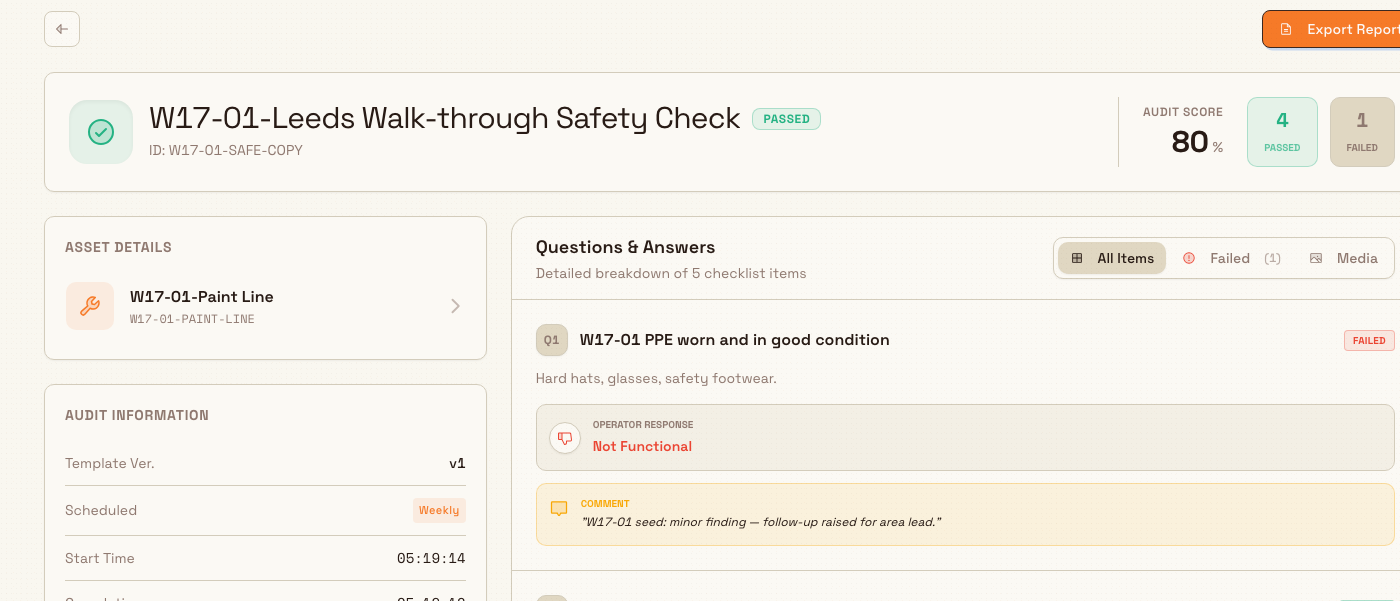
Submitted audits become reports. In the main navigation, Audits lists the results views by type — Safety Audits, Pre-use Checks, Quality Audits, Maintenance Audits, and Custom Audits — and each row opens the full report with the answers, evidence, and score. This is where you close the loop: spot failing items, follow the trend for an area over time, and decide what to fix. See Review audit results.
Two supervisor actions belong to this stage. A supervisor can Override an audit response when a blocking pre-use check would otherwise stop a piece of equipment from running — a time-limited override that requires a signature for the trail. And when an audit surfaces a real problem, it often feeds the wider quality and safety workflows: raising an issue, a hold, or a corrective action.
workflow.run-audit-program-03
Example at Granite Peak Manufacturing
Dana Winters manages the Leeds Fabrication Plant for Granite Peak Manufacturing, a UK precision-fabrication company, and needs a weekly safety walk on the main floor that stands up to a customer audit.
- On Settings → Audits → Templates, Dana selects New Template, names it "Weekly Floor Safety Walk", sets the Type to Safety, and adds Pass / Fail items for guarding, walkways, and PPE, plus a Photo item for anything flagged.
- On Settings → Audits → Areas, she confirms Production Floor A exists with the shift supervisor set as Owner.
- On Settings → Audits → Schedules, she selects Add Schedule, picks the "Weekly Floor Safety Walk" template, assigns Production Floor A, sets the Recurrence to weekly, and leaves it Active.
- Each Monday the walk appears under Due today in the supervisor's Audits inbox. The supervisor runs it on a tablet, snaps a photo of a blocked walkway, and selects Submit. Bulk scores it pass with issues.
- Dana opens Safety Audits, reads the report, sees the flagged walkway, and assigns the fix — with a dated, evidenced record ready for the next customer visit.
The program now runs itself: the walk lands every week, completions build a history, and a missed week shows up as Overdue instead of disappearing.
Expected result
With the program in place you have:
- reusable templates for each kind of audit your plant runs;
- areas with clear owners for results to roll up to;
- schedules that put the right audits in front of the right people on a cadence;
- an Audits inbox your team works from, where overdue checks are impossible to miss; and
- a growing library of scored, evidenced reports you can review and act on.
Availability and limits
Audits are generally available in Bulk. A few things to keep in mind:
- Audits are area- and schedule-driven. An audit only appears in someone's inbox when a schedule assigns it to an area they cover. If the inbox is empty, check the schedule and its areas before assuming anything is wrong.
- Overdue is automatic. An audit not completed by the end of its due day rolls into Overdue — this is by design, so that gaps stay visible.
- Pre-use checks and supervisor overrides are a specialized part of the audit system tied to equipment readiness. They behave differently from scheduled area audits; follow the linked pre-use and override guides for their specifics.
Troubleshooting
- An expected audit is not in the inbox. The inbox only shows audits for areas you cover, and only when an Active schedule assigns the template to that area. Confirm on Settings → Audits → Schedules that a schedule exists, is active, and lists the right area, and that you have access to that plant and area.
- Submit is blocked. Bulk will not accept an audit while required items are unanswered. It lists the missing items — answer them, then select Submit again.
- Work seemed to disappear mid-audit. Responses save as you go and the audit moves to In progress, not lost. Reopen it from the In progress section of the inbox to resume where you left off.
- A greyed-out type in the start picker. In Select audit type, a family is disabled when no template of that type is scheduled in your areas. Add or activate a schedule for that type in Settings.
Related guidance
- Audit configuration — set up templates, areas, and schedules.
- Audits — reference for running and reviewing audits.
- Resolve a quality problem — act on failures an audit surfaces.
- Manage safety risk — the wider safety workflow.
- Quality and safety — task guides for the quality and safety roles.
- Quality and compliance — all quality and compliance workflows.
Manage safety risk
Run the full safety-risk cycle in Bulk's Safety module: assess and score hazards on the risk matrix, control them with measures and approvals, report and investigate incidents, and keep equipment safe with pre-use checks.
People and training
How Bulk's People and Training modules work together to keep your workforce directory current and your team qualified for the work, with links to every task and reference guide.