Manage processes
Create, revise, approve, and organise versioned manufacturing process instructions in catalogues so planners always pick the correct controlled work method.
A process is a versioned manufacturing work instruction — the controlled method people follow when they make or inspect a product. Each process has a stable code (for example WELD-101) and a lineage of numbered revisions (R1, R2, …). Processes are organised in site-level catalogues. The Processes page opens to the catalogue list first; open a catalogue to work with its process lineages. A built-in Uncatalogued row holds lineages that have no catalogue yet.
Approval and availability are separate. A revision moves through Draft → Pending Approval → Approved. Once approved, you can mark it Active or Inactive without changing its approval. More than one active Approved revision of the same code can be offered for new work at the same time. Only active Approved revisions appear in Process pickers for new assignments; work already assigned keeps its process when a revision later becomes inactive.
A process does not carry a routing. Choose the process and the routing separately on inbound items and jobs.
Manage processes when you introduce a new work method, update an existing instruction, organise methods into catalogues, or need formal sign-off before a method is used on inbound documents and jobs.
Before you start
The Processes page lives in master-data settings. To open it, go to Settings, open the Master Data group, and select Processes. The page address ends in /settings/master-data/processes.
You need permission to work with processes:
- View the list requires the
processes.viewpermission. - Add, edit, submit, create a new revision, manage catalogues, and attach or detach a file require
processes.createand/orprocesses.updateas appropriate. - Approve and reject require the separate
processes.approvepermission. - Delete requires
processes.delete.
These management permissions (including approve) are granted by the built-in Super user, Entity admin, Manager, and Master data roles. The Tablet user role can view processes but not change them. If Add Catalogue, New Process, or row actions are unavailable, ask an administrator to adjust your role.
Processes are per site. A process belongs to the entity (site) you are working in, so each plant keeps its own catalogues, process codes, and revisions. Switch site first if you need to manage another plant's processes.
Optional but useful before you create many processes:
- Create catalogues on this page to group related process codes (for example by product family or department).
- Add process custom fields under Manage custom fields and dates if your site needs extra attributes on process records.
- Define routings under Manage routings so planners can assign a routing on items and jobs — independently of the process.
What the Processes page shows
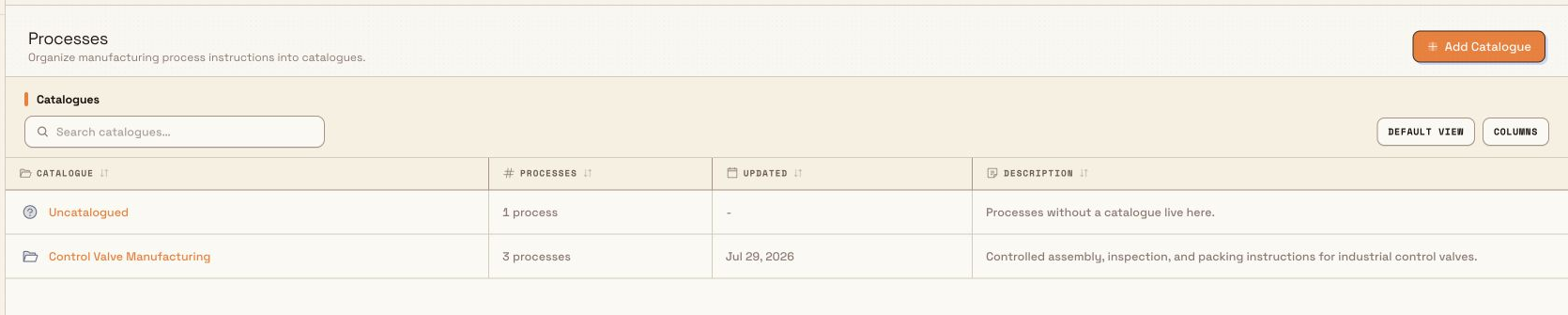
The first screen is the catalogue landing page. Its table has Catalogue, Processes, Updated, and Description columns, plus Search catalogues… and Add Catalogue. Uncatalogued always appears first.
administration.master-data.processes-01
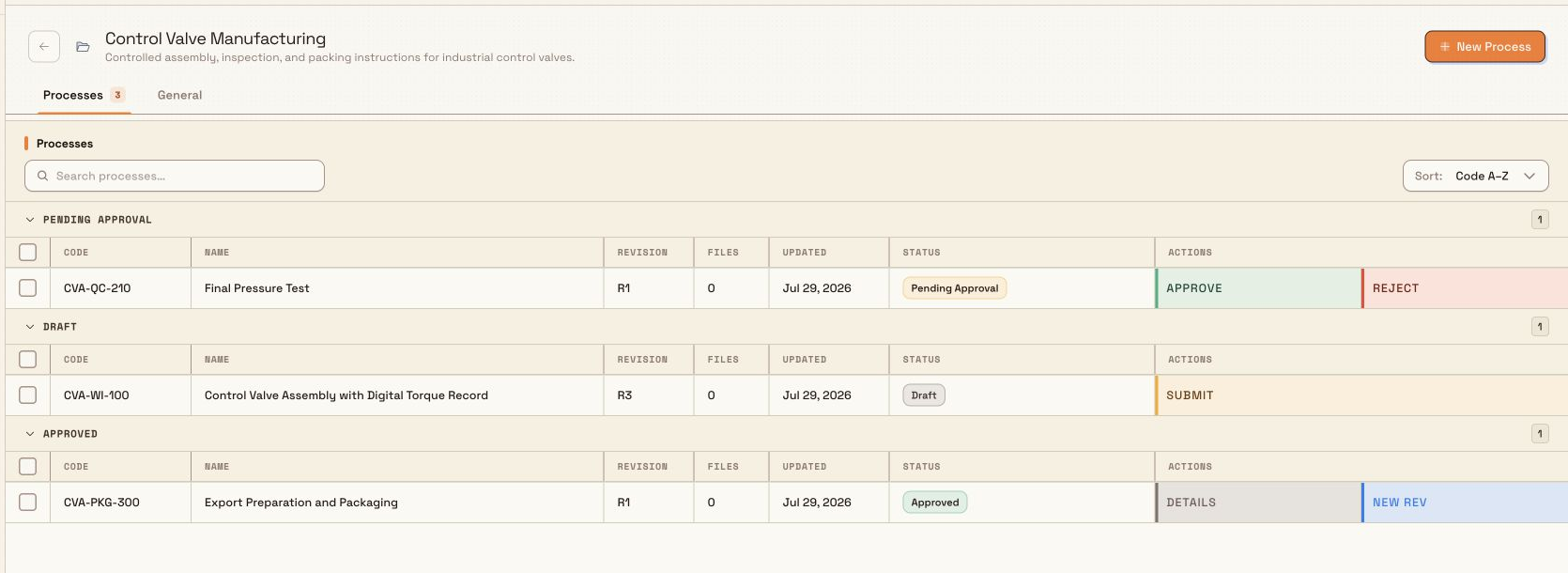
Select a catalogue to open its detail page. The Processes tab shows the latest revision of each process code in that catalogue, grouped by Pending Approval, Draft, and Approved. Columns include:
- Code — the shared identifier for the instruction lineage (for example
WELD-101). - Name — the current revision's display name.
- Revision — shown as
R1,R2, and so on. - Files — the number of attachments on the revision.
- Updated — when the current revision last changed.
- Status — Draft, Pending Approval, or Approved.
- Actions — the next available workflow actions, such as Submit, Approve, Reject, Details, or New Rev.
Use Search processes… to find a lineage and sort by Code A–Z, Name A–Z, or Recently Updated. Select rows to use bulk actions for compatible lineages, including submit, approve, submit and approve, reject, disable, and move to another catalogue.
administration.master-data.processes-02
The catalogue's General tab changes its name, description, icon, and colour. It also contains the catalogue delete action. Uncatalogued has no General tab.
Catalogues and Uncatalogued
- Select Add Catalogue from the landing page to create a catalogue with a name, optional description, icon, and colour.
- A process lineage belongs to one catalogue, and every revision in that lineage moves with it.
- Use a lineage's right-click menu or the bulk Move action to move it to another catalogue or to Uncatalogued.
- Lineages with no catalogue appear in the built-in Uncatalogued row. Uncatalogued cannot be renamed or deleted.
- Deleting a catalogue moves all of its processes to Uncatalogued. It does not delete the processes or their revisions. The delete dialog shows how many processes will move.
Catalogue deletion runs in the background. While Bulk moves its process lineages to Uncatalogued, the General tab shows Catalogue deletion in progress and disables the catalogue settings. The catalogue disappears when the move is complete.
The revision lifecycle
Every revision moves through a fixed approval workflow, with availability managed separately:
| Status | Meaning |
|---|---|
| Draft | Editable working revision. Can be submitted. Can be deleted. |
| Pending Approval | Submitted for review. Can be approved, or rejected (back to draft). |
| Approved | Signed off. May be Active or Inactive. Only active Approved revisions are offered for new work. |
Key rules:
- Creating a process always starts as Draft at the chosen starting revision (default 1).
- Approve on a pending revision makes it Approved. It does not automatically retire every previously approved revision — more than one can stay active.
- When you Create New Revision, Bulk asks whether older active revisions should become inactive after the new revision is approved; deactivation happens only when that new revision is approved.
- Marking an approved revision Inactive keeps its approval, so you can make it active again without another approval cycle.
- Approved methods are not edited in place: change them by creating a new revision, then submitting and approving it.
- Disable on a lineage makes all of its approved revisions inactive so the process cannot be selected for new work; existing assignments continue. Enable activates only the newest approved revision.
- Jobs and inbound readiness that need a process expect an active Approved revision.
Add a process
- Open the catalogue that should contain the new process, or open Uncatalogued.
- Select New Process. The Create Process dialog opens.
- Fill in the details:
- Process Code — required, up to 50 characters, letters, numbers, dashes, and underscores only. The field uppercases as you type (for example
WELD-101). - Starting Revision — whole number, minimum 1 (default 1). Use a higher start only when you are importing an existing controlled document series.
- Name — optional, up to 100 characters (for example
Bracket weld procedure). - Description — optional free text, up to 2000 characters.
- Any site custom fields defined for processes.
- Process Code — required, up to 50 characters, letters, numbers, dashes, and underscores only. The field uppercases as you type (for example
- Select Create.
Bulk creates the first revision as Draft inside the catalogue you opened. A confirmation reads Process created.
Submit, approve, and reject
From the process list:
- Submit (draft only) — moves the revision to Pending Approval after confirmation.
- Approve (pending only; needs
processes.approve) — makes the revision Approved. Older active revisions stay active unless you chose to deactivate them when creating this revision. - Reject (pending only; needs
processes.approve) — returns the revision to Draft so it can be corrected and submitted again.
You can also select several drafts or pending rows and use the bulk bar: Submit, Approve, Submit & Approve, or Reject. Submit & Approve appears only when your role includes both processes.update and processes.approve.
Create a new revision
When an approved instruction must change:
- Select New Rev on an approved lineage, or open Details and select New Revision.
- Review the Create New Revision dialog.
- Confirm, including whether older active revisions should become inactive after this revision is approved. Bulk copies the name, description, custom fields, and all attached files from the source into a new Draft with the next revision number.
- Edit the new draft if needed, then submit and approve it.
Once the new revision is approved, it becomes available for new work (and older revisions become inactive only if you asked for that). In-progress assignments keep the revision they already have.
Edit, attach files, disable, enable, and delete
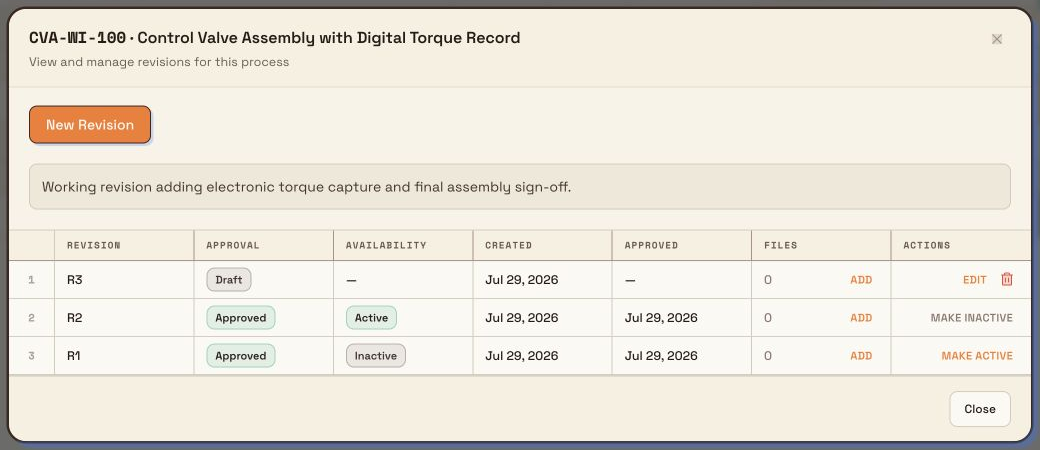
Select a row or Details to open its process detail dialog. That dialog shows every revision in a sheet with Revision, Approval, Availability, Created, Approved, Files, and Actions columns.
- Edit — opens Edit Process for draft revisions. The code is fixed; you can change name, catalogue, description, and custom fields. Select Save Changes.
- Add / Manage in the Files column — opens that revision's attachments, where you can link or unlink files from the library. Removing an attachment only unlinks it from this revision; the file remains available in the file library.
- Set availability — mark an approved revision Active or Inactive without changing its approval.
- Delete — the trash action is available for draft revisions only and removes that draft revision after confirmation.
administration.master-data.processes-03
Right-click a lineage in the catalogue list for View Details, New Revision, Move to Catalogue, Enable Process, and Disable Process. Disable makes every approved revision inactive for new assignments; enable activates only the newest approved revision. Existing assignments continue.
Example: welding instruction at Granite Peak Manufacturing
Granite Peak Manufacturing runs the Leeds Fabrication Plant. Dana Winters maintains the controlled weld procedure for structural brackets.
She opens Settings, then Master Data, then Processes, creates and opens a Structural catalogue, and selects New Process. She enters code WELD-101, leaves starting revision at 1, names it Bracket weld procedure, and pastes the procedure summary into the description. She selects Create.
The new row shows Draft and R1. After quality reviews the text, Dana selects Submit for Approval, then the quality lead selects Approve. The status becomes Approved and Active, and inbound and production can use WELD-101.
Months later the gas mix changes. Dana selects Create New Revision on WELD-101, chooses to deactivate older active revisions when R2 is approved, edits R2 in draft, submits it, and quality approves. R2 becomes the active Approved instruction for new work; R1 stays Approved but Inactive. Work already tied to R1 continues unchanged. Routing for each job is still set on the inbound item or job itself — never from the process.
Expected result
An active approved process shows Approved and Active on its revision. Planners and operators can select that revision where Bulk offers process pickers. Draft and pending revisions stay off the live path until they are approved; inactive approved revisions remain in history and can be reactivated without re-approval. Catalogues (and Uncatalogued) keep the list organised without changing what each instruction means.
Feature state and limits
Managing processes is a generally available feature. Keep these behaviors in mind:
- Processes are per site (entity); they are not shared across sites.
- A catalogue's Processes tab shows the latest revision per code, grouped by approval status; open Details for the full history and availability of each revision.
- More than one revision per code can be Approved and Active at the same time.
- Availability is separate from approval; inactivity does not interrupt existing assignments.
- A process never owns or implies a routing — assign routing on the inbound item or job.
- Approve and Reject need
processes.approve, separate from create/update. - Only draft revisions can be deleted; retire live methods with availability or lineage disable.
- Custom fields on processes are configured under master-data custom fields, not on this page.
- A Process custom field can offer active Approved processes from All catalogues or from one Specific catalogue, including Uncatalogued. The scope filters the picker; it does not move or change the process records.
Troubleshooting
- "Only draft processes can be edited. Create a new revision to make changes." — the revision is not in draft (for example it is approved or pending). Create a new revision, or reject a pending revision back to draft, then edit.
- "Cannot submit: process is …, must be draft" — only drafts can be submitted. Finish editing or create a new revision first.
- "Cannot approve: process is …, must be pending_approval" — submit for approval before approve, or use Submit & Approve in bulk if you have both permissions.
- Approve or Reject is missing or fails for permission reasons. — your role lacks
processes.approve. Ask an administrator for a role that includes process approval (for example Master data or Entity admin). - Delete is disabled. — only Draft revisions can be deleted. Mark approved methods inactive, or disable the lineage, instead of deleting.
- A process does not appear in a Process picker. — it is not an active Approved revision (draft, pending, or inactive). Approve it, set availability to Active, or pick another active Approved revision.
- You deleted a catalogue and expected the processes to disappear. — deleting a catalogue moves its lineages to Uncatalogued; the processes remain usable.
- Add Catalogue, New Process, or row actions are unavailable. — you have view-only access. Ask an administrator for process create/update/delete (and approve if you need to sign off).
Related
- Master data — the full set of master-data pages that feed production.
- Manage routings — the workflows you assign directly on inbound items and jobs.
- Manage custom fields and dates — extra fields on process records.
- Manage parts — products that often pair with process instructions on orders and jobs.
- Roles and permissions — grant process view, update, approve, and delete permissions to a role.
Manage routings
Create, version, publish, and retire routings — the ordered workflow a job follows on the floor — and set the approval policy each one uses.
Manage custom fields and dates
Define extra fields and milestone dates for inbound work, production, and master data so operators capture the details your site needs on every record.