Manage customers
Add, edit, and organize the customer records that Bulk reuses across inbound documents, production jobs, invoices, and pricing for the selected site.
In Bulk, a customer is a company you produce work for. A customer record holds that company's name, a short code, contact details, one or more addresses, its allowed and default billing currencies, and an optional operational status. Bulk reuses these records everywhere a customer is named — on inbound documents, production jobs, invoices, and pricing agreements — so you capture a customer's details once and reference them from then on. An inbound document is the customer paperwork, such as a purchase order or a drawing, that arrives into Bulk and is turned into production work.
Master data is the reference information a site reuses across its day-to-day work, and customers are one kind of master data. Use the Customers page to add a new customer, keep an existing customer's details current, manage delivery, invoice, and business addresses, record the individual people you deal with there, and control whether a customer's work is allowed to proceed.
Customer records are shared by legal entity — the registered company that a manufacturing site belongs to. A single site (a plant, called an entity in Bulk) always belongs to one legal entity, and every site under that same legal entity sees the same customer list. You therefore do not re-enter a customer for each plant. A customer's operational status is the exception: it is assigned per site, so one plant can place a shared customer on hold while another keeps producing for it.
Before you begin
- Select the correct site first. The customer list you see, and the operational status you assign, follow the site shown in Bulk's entity selector. Switch to the right plant before you make changes if your organization runs more than one.
- You need a role that can manage customers. By default the Super user, Entity admin, Manager, and Master data roles can add, edit, and delete customers. The Tablet user and Invoicing roles can view the customer list but cannot change it. Some write controls may remain visible to view-only users, but Bulk rejects create, update, and delete requests without the matching permission. Roles without customer access cannot open this page. See Roles and permissions for how these grants work.
- Enable at least one currency. Every customer needs a default billing currency. The create dialog starts with your organization's global currency; if none is set, it uses the first active currency unit. Configure currencies under Currencies and Units. With no active currency unit, the form has no valid default and cannot be saved.
Open the Customers page
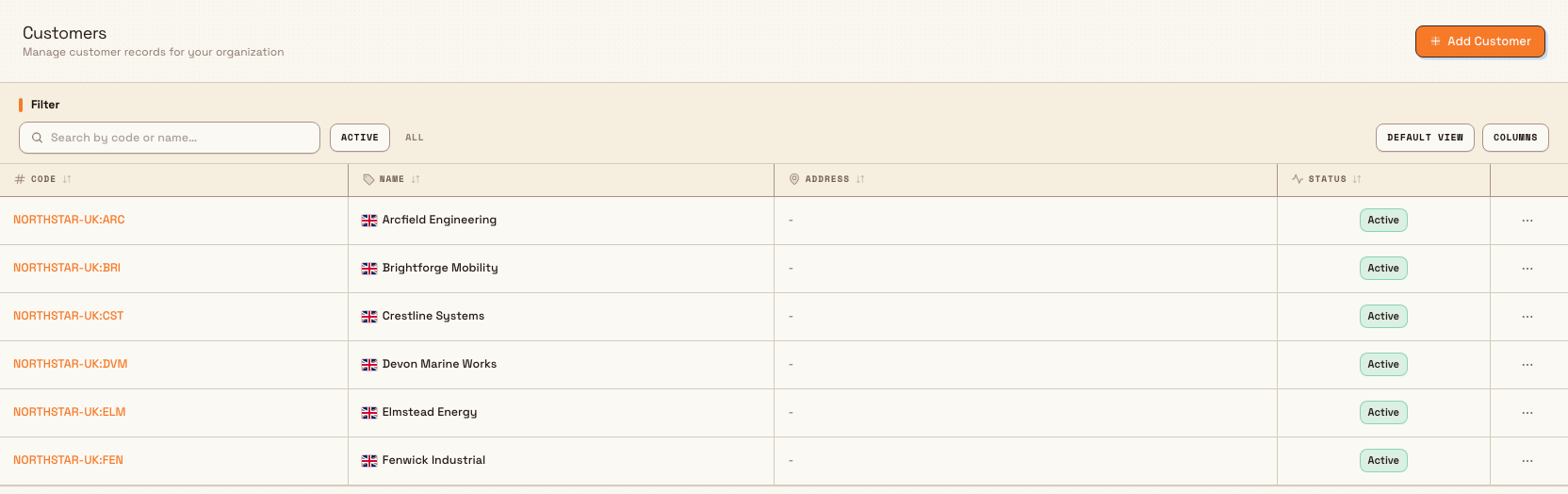
Go to Settings → Master Data → Customers. The page header reads Customers, with an Add Customer button on the right.
The customer list is a table. By default it shows four columns:
- Code — the customer's short code. When the customer's legal entity has its own code, the two are combined into an integration key such as
GPM:PSL. Select the code to edit the customer. - Name — the customer's name, with a flag for its default currency when one can be resolved.
- Address — the primary structured address, shortened to one line.
- Status — an Active or Inactive badge showing the record's state.
Two more columns, Contact (email and phone) and Operational status, exist but are hidden by default. Show them from the table's column controls when you need them.
Above the table, a search box and status filters help you find records:
- Search by code or name filters the list as you type, matching either the code or the name.
- Active / Inactive status tabs switch between customers you still use and archived customers. The list defaults to Active.
administration.master-data.customers-04
Add a customer
Select Add Customer to open the Create Customer dialog, then fill in:
- Name (required) — the customer's company name.
- Code — generated automatically from the name and shown read-only. Bulk abbreviates the name (for example "Pennine Structures Ltd" becomes "PSL") and appends a suffix such as
_2if that code is already taken at this legal entity. You do not type the code yourself. - Email and Phone — general contact details for the company. Email must be a valid address if you enter one.
- Addresses — one or more postal addresses for the customer. The dialog starts with no address row; select Add address when you need one. See Customer addresses below.
- Notes — any free-text notes about the customer.
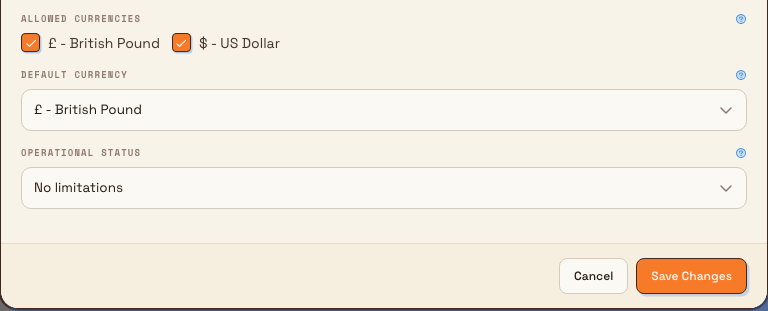
- Allowed currencies — every currency this customer can use when work is booked or explicitly converted. Each selected currency appears as a separate choice in the inbound customer picker.
- Default currency (required) — the currency selected automatically for this customer. It starts with the organization's global currency, or the first active currency when no global currency is set, and must remain in the allowed list. If you remove the current default from Allowed currencies, Bulk moves the default to the first remaining choice.
- Operational status — an optional policy that restricts this customer's work. It defaults to No limitations; see Operational status below.
Select Create to save. Bulk confirms with "Customer created" and the new record appears in the list. Select Cancel to close without saving.
Customer addresses
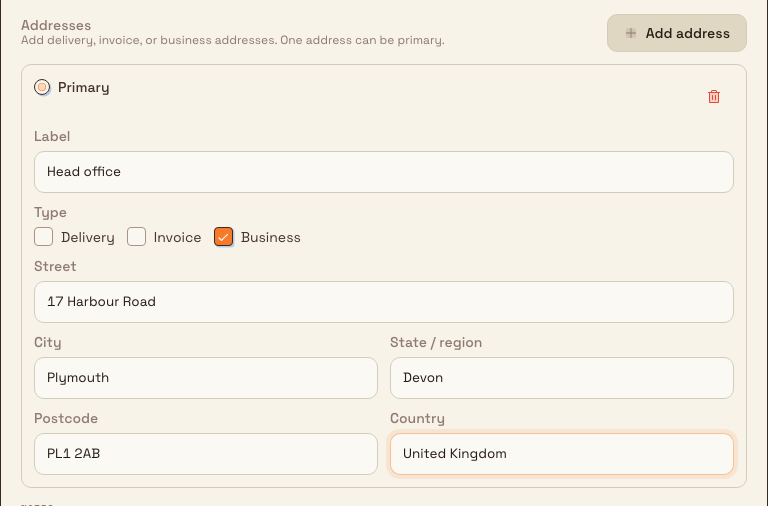
Each customer can store multiple structured addresses. Use this when a company has separate delivery, invoice, and business locations, or several sites you ship to.
For every address you can set:
- Label — an optional short name, for example "Main warehouse" or "Accounts payable".
- Type — select any of Delivery, Invoice, and Business that apply. The field is optional, so an address can also be saved without a type.
- Street, City, State / region, Postcode, and Country.
- Primary — when at least one address is saved, exactly one is primary. The Address column follows that primary row, and Bulk keeps the legacy single-line address field in sync with it.
Select Add address to create another row. Mark a different row as primary when the main location changes. Remove an address you no longer need with its delete control. Saving the customer saves the full address list together with the rest of the record.
administration.master-data.customers-05
If a customer still has only a free-text address from before structured addresses were available, Bulk treats that text as the primary business address until you edit and save the structured list.
Edit a customer and its contacts
Select a customer row or its code to open the Edit Customer dialog. You can also open the row's ⋯ menu or right-click the row and choose Edit. The dialog has two tabs.
Details holds Name, Code, Email, Phone, Addresses, Notes, Allowed currencies, Default currency, and Operational status. Unlike the create dialog's generated read-only code, Code is editable here. Bulk converts it to uppercase on save and rejects a code already used by another customer in the same legal entity.
Changing a customer's allowed currencies controls future customer-picker choices and the targets offered by Convert currency. It does not relabel or recalculate existing documents or orders.
administration.master-data.customers-06
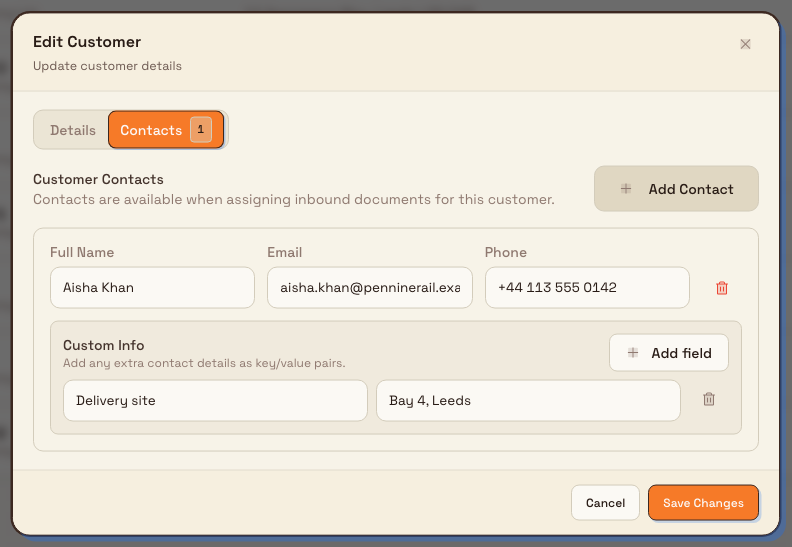
Contacts stores the individual people you deal with at this customer. Bulk makes these named contacts available when you assign an inbound document to the customer, so a document can be tied to a specific person. Select Add Contact to add a card, and for each contact record:
- Full Name, Email, and Phone for the person.
- Custom Info — any extra details as key/value pairs. Select Add field and enter a label and a value, for example a key of "Shipping address" with the address as its value.
Remove a contact with the trash control on its card. Select Save Changes to save the customer and its contacts together; Bulk confirms with "Customer updated".
administration.master-data.customers-03
Operational status
An operational status is a named policy — such as "Invoice hold" — that restricts what your team can do for the customers it is assigned to. You pick one from the Operational status field in the create or edit dialog; leaving it as No limitations places no restrictions. A customer with a restricting status is gated at operations such as submitting inbound work, creating production, and issuing invoices.
The statuses themselves, and exactly which operations each one allows, warns on, or blocks, are defined per site on the entity settings page. Because the assignment is stored per site, the same customer can carry different statuses at different plants. To create or adjust the available statuses, see Update entity settings, which covers the customer-status enforcement matrix in full.
If a status you previously assigned is later archived, the customer keeps it. The Operational status column continues to show its name, while the Edit dialog marks it (Archived). You can still save other edits without clearing it, but any new status you pick is limited to active statuses.
Archive or restore a customer
The Status column marks each record Active or Inactive. Archiving a customer keeps the row and every existing link on orders, jobs, and invoices, but hides it from the default Active list and from new-order customer pickers. Use archive when you no longer trade with a customer but still need the history.
To archive one customer, open its ⋯ menu or right-click the row and choose Archive, then confirm. Bulk confirms and the record moves to the Inactive list. To bring it back, open Inactive, then choose Restore from the row menu. You can also select several rows and use the bulk bar to archive or restore them together.
Custom fields
The create and edit dialogs cover a customer's standard details. If your organization captures extra structured information on every customer — an account manager, a credit limit, a region — those are custom fields, and you configure them under Settings → Custom Fields in the customer scope rather than on this page. See Manage custom fields and dates.
Example: Granite Peak Manufacturing
Granite Peak Manufacturing runs the Leeds Fabrication Plant. Dana Winters, an Entity admin, onboards a new client:
- On the Customers page, Dana selects Add Customer, types the name "Pennine Structures Ltd", and Bulk auto-fills the code "PSL". Dana leaves the currency on the organization default of GBP, adds the company email, enters a primary Business address for the head office, adds a second Delivery address for Bay 4, and selects Create.
- Dana opens the new customer, switches to the Contacts tab, and adds the buyer, Aisha Khan, with her email and phone. Under Custom Info, Dana adds a key of "Preferred delivery bay" with the value "Bay 4" and selects Save Changes.
- Weeks later, Pennine Structures goes over its credit limit. Dana edits the customer and sets its Operational status to Invoice hold (a status the plant defined in entity settings). From then on, Bulk blocks issuing invoices to Pennine Structures at Leeds while still allowing production, and every other customer is unaffected.
Because customers are shared by legal entity, Pennine Structures is immediately available to Granite Peak's other Leeds-registered plants too — but the Invoice hold applies only at the site where Dana set it.
Expected result
A saved customer appears in the list straight away and is available to select on inbound documents, production jobs, invoices, and pricing across every site under the same legal entity. Contacts you add can be attached to that customer's inbound documents. Any operational status you assign begins gating the customer's work at the current site as soon as you save, and each change is recorded for audit in your activity logs.
Dynamics 365 sync
If your organization has a Dynamics 365 (D365) integration set up to send customers, creating, editing, or archiving a customer here also publishes that change to D365. This happens only when an active outbound customer sync is configured; without one, customers stay within Bulk.
Limitations and notes
- This feature is generally available.
- Customers are shared by legal entity; operational status is per site. All plants under one legal entity share the same customer records, but each plant assigns operational status independently. A customer on hold at one site is not automatically on hold at another.
- The code is generated on create, then editable. Bulk derives a read-only code from the name in the Create dialog. In Edit, you can change it; Bulk uppercases the saved value and keeps it unique within the legal entity.
- Archive keeps history and links. Archiving sets the customer inactive without removing
customer_idlinks on existing work. Restore returns the customer to the Active list and pickers. - Use Active / Inactive tabs to find archived customers. The default view shows active customers only; switch to Inactive to restore or review archived records.
- One saved address is always primary. A customer may have no address. When one or more addresses exist, the Address column and legacy single-line address follow the primary row. Address types are limited to Delivery, Invoice, and Business.
- Custom fields are configured elsewhere. Per-customer custom fields are set up under Settings → Custom Fields (customer scope), not in the customer dialogs.
- Currency changes are explicit. Removing an allowed currency does not rewrite existing work. Open an editable document or production order and use Convert currency when its stored amounts need to move to another allowed currency.
Troubleshooting
- Default currency is empty or the form asks for one. No active currency unit is available. Enable one under Units; optionally make it the global default under Currencies, then reopen the Create dialog.
- Saving fails with a permission message. Your role can view customers but not change them. Ask a Super user, Entity admin, Manager, or Master data user to make the change.
- A customer you expect is missing. It may be archived — switch the status filter to Inactive. It may also belong to a different legal entity; switch to a site under that legal entity to see it. Search matches code or name only.
- The Contact or Operational status column is not showing. Both are hidden by default. Use the table's column controls to show them.
- A status shows "(Archived)". The status assigned to that customer was later archived. The customer keeps it until you pick a different, active status; you can save other edits without clearing it first.
Related
- Master data overview
- Update entity settings — define the operational statuses you assign here
- Manage custom fields and dates — add per-customer fields
- Manage pricing — set customer prices and agreements
- Currencies — set the organization currency used for new customers
Manage resources
Create, edit, duplicate, and archive the resources — the named capabilities, machines, and workstations — that become the steps of your production routings.
Manage pricing
Build reusable rate templates, keep a shared service catalogue, ingest per-customer agreements from pricelists, and register the accounting codes your invoices are matched by — all from one Pricing page.