Manage units
Create, import, and format the units of measurement and currency symbols Bulk uses to display quantities, prices, and KPI values across your organization.
Units are the measurement units and currency symbols your organization uses to display numbers consistently everywhere in Bulk — a "unit" here pairs a symbol (such as kg, m, or £) with formatting rules that decide how a value is written out (for example 1,234.56 kg or £1,234.56). Units are defined once for the whole organization and then reused wherever a number needs a label or a currency, including KPI values, production item quantities, part costs, customer currencies, consumable variants, and quality issue amounts.
Manage units when you are setting up a new organization, when a metric or product needs a measurement you have not added yet, or when you want a value to display with a particular symbol, position, or number of decimal places.
Before you start
The Units page lives in organization settings. To open it, go to Settings, open the Organization group, and select Units.
You need permission to work with units:
- View the list requires the
units.viewpermission. - Add, import, edit, reorder, and delete units require the
units.create,units.update, andunits.deletepermissions.
These permissions are granted by the built-in Super user, Entity admin, Manager, and Master data roles. The Dashboards role can view units but not change them. If the action buttons are missing or disabled, ask an administrator to adjust your role.
Units are organization-wide. A unit you add or change here applies to every site (entity) in your organization, not just the site you are currently working in.
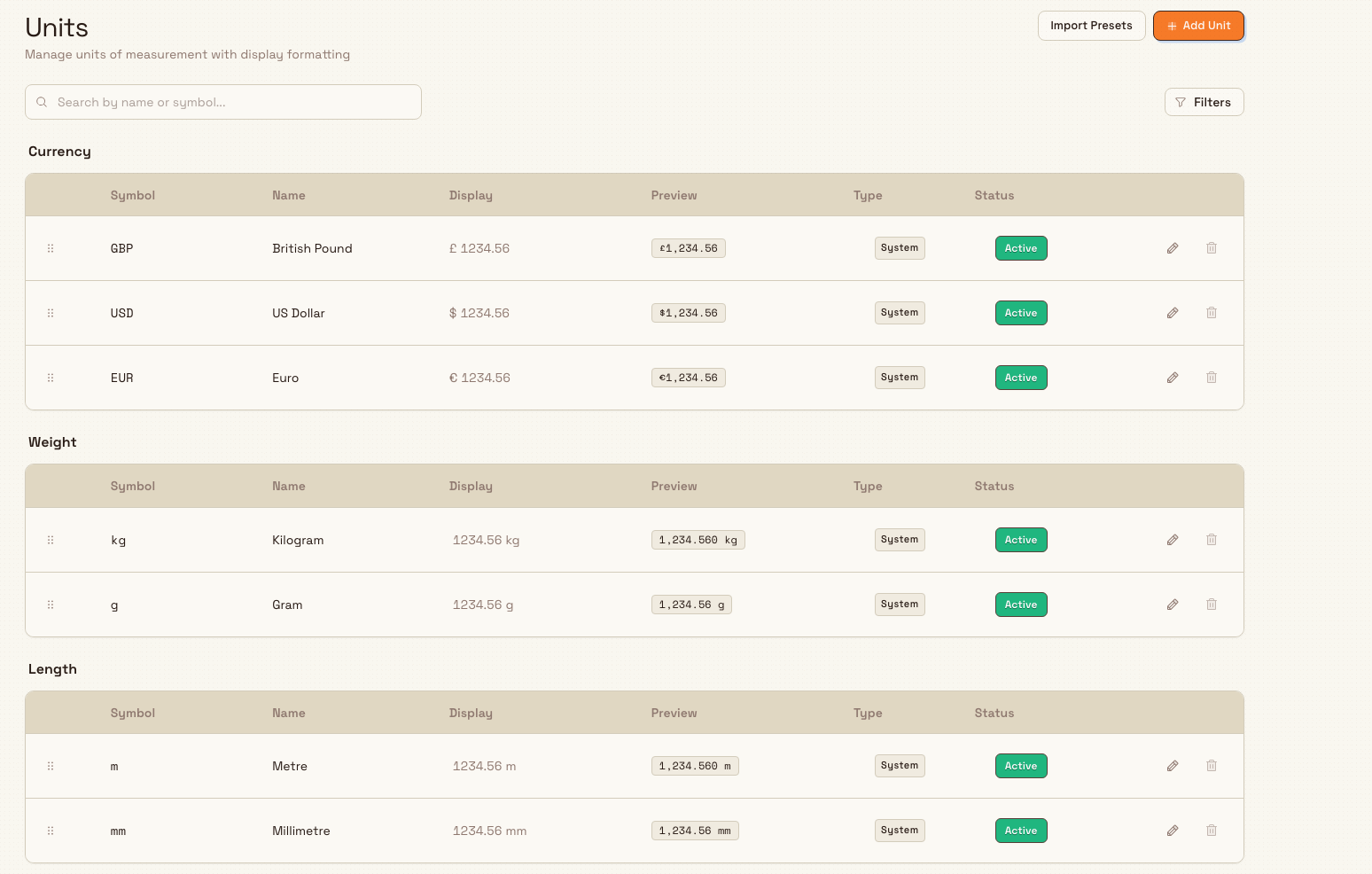
administration.organization.units-01
What the Units page shows
Units are grouped under a heading for each category: Currency, Percentage, Weight, Length, Volume, Temperature, Time, Count, and Other. Within each category, every row lists:
- Symbol — the short internal code, unique within your organization (for example
USDorkg). - Name — the readable name (for example
US DollarorKilogram). - Display — a sample showing where the display symbol sits around the number
1234.56. - Preview — the same sample value fully formatted with your decimal places.
- Type — a System or Custom badge (explained below).
- Status — an Active or Inactive badge.
Use the Search by name or symbol box to filter the list as you type, and open Filters to narrow to a single category. A live result count is shown while filters are active.
System units and custom units
Every unit is either System or Custom, shown by the badge in the Type column.
A unit becomes a System unit when its symbol matches a recognized standard: the currencies USD, EUR, and GBP, and the common units %, #, each, kg, g, mm, cm, m, ml, L, °C, sec, min, hrs, and days. System units are added when you import them from the preset catalog. Every other unit — including one you type in yourself — is a Custom unit.
System units are protected so shared formatting stays stable:
- You cannot delete a System unit.
- You cannot change its Symbol, Display Symbol, or Display Type.
- You can still change its Name, Category, Position, Decimal Places, and active status.
Custom units can be edited and deleted freely, as long as nothing is using them.
Add a unit
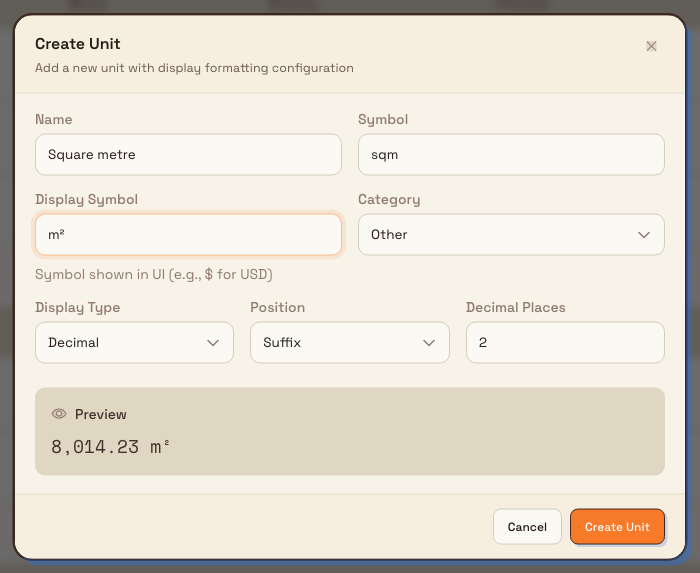
- Select Add Unit. The Create Unit dialog opens with the subtitle "Add a new unit with display formatting configuration".
- Fill in the fields:
- Name — the readable name, up to 100 characters (for example
US DollarorKilogram). - Symbol — the unique short code, up to 20 characters (for example
USDorkg). - Display Symbol — the symbol shown in the interface, up to 20 characters (for example
$for USD). This can differ from the internal symbol. - Category — one of the nine categories listed above.
- Display Type — how the value is formatted: Currency, Percentage, Number, Decimal, or Integer.
- Position — whether the display symbol sits as a Prefix (before the number) or a Suffix (after it).
- Decimal Places — how many digits after the decimal point, from 0 to 8.
- Name — the readable name, up to 100 characters (for example
- Watch the Preview panel. It formats a sample value live so you can confirm the result before saving.
- Select Create Unit.
The display type controls the exact formatting. Currency and decimal units place the symbol with a space when it is a suffix (for example 1,234.56 kg); percentage units attach the symbol with no space (for example 12.5%); integer units drop the decimals entirely (for example 1,235 pcs).
Currency category and currency display type stay in sync
Currency is a paired choice. If you pick the Currency category, the Display Type switches to Currency for you, and if you pick the Currency display type, the Category switches to Currency. A currency unit must use both. Trying to save a currency category with a non-currency display type (or the reverse) returns the error "Currency units must use the Currency category and Currency display type".
administration.organization.units-02
Import preset units
Bulk ships a catalog of ready-made units so you do not have to type common ones by hand.
- Select Import Presets. The Import Unit Presets dialog opens with the subtitle "Select only the units you want to add".
- Presets are grouped by category. Tick individual units, or use Select all to take a whole category. Each preset shows its name, symbol, a System or Custom badge, and an Already added badge when it is already in your list (those are not selectable).
- Select Import Selected.
Bulk creates the units you chose and skips any whose symbol already exists, then reports how many were created and how many were skipped. Presets with a protected symbol (such as GBP, kg, or %) arrive as System units; the rest arrive as Custom units you can edit.
Edit, reorder, and deactivate units
- Edit — select the pencil icon on a row to open the Edit Unit dialog ("Update the unit details and display configuration"), change the fields you need, and select Save Changes. Locked fields are disabled on System units.
- Reorder — drag a row to change the order units appear in within its category. Order is set per category. Drag-to-reorder is turned off while a search filter is active, because reordering only a filtered subset would disturb the hidden rows in that category. Clear the search to reorder again.
Delete a unit
- Select the trash icon on the row. The Delete Unit dialog opens and names the unit.
- Confirm to remove it.
The delete button is only available when the unit is safe to remove. It is disabled — with the reason shown as a tooltip — when the unit is a System unit or is still in use. Bulk blocks deletion, and explains why, in these cases:
- System units cannot be deleted.
- This unit is used by KPIs.
- This currency is used by customers.
- This unit is used by production items.
- This currency is used by parts.
- This unit is used by consumable variants.
To delete a unit that is in use, first remove or repoint the records that reference it, then return and delete it.
Deleting a unit is not reversible from the interface
The Delete Unit dialog states that the action cannot be undone. There is no restore button on this page, so confirm you no longer need a unit before deleting it. Deactivating a unit (by editing it and setting it inactive) is the reversible alternative when you only want to hide it from new selections.
Example: setting up units at Granite Peak Manufacturing
Granite Peak Manufacturing runs the Leeds Fabrication Plant, where raw steel is weighed in kilograms, cut lengths are measured in metres, finished brackets are counted in pieces, and work is priced in British Pounds.
Dana Winters opens Settings, then Organization, then Units, and selects Import Presets. In the dialog she ticks British Pound (GBP), Kilogram (kg), Metre (m), and Pieces (pcs), then selects Import Selected. GBP, kg, and m arrive as System units with locked symbols; pcs arrives as a Custom unit.
The plant also sells anodising priced by area, and there is no area category, so Dana adds a custom unit. She selects Add Unit and enters Name Square metre, Symbol sqm, a square-metre display symbol, Category Other, Display Type Decimal, Position Suffix, and Decimal Places 2. The Preview panel shows the sample value formatted as square metres, and she selects Create Unit.
Expected result
The unit appears immediately in its category group with the correct System or Custom badge and an Active status. From that point on it is selectable everywhere units are used — for example when creating a KPI or a production item — and every value tied to it is formatted with the display symbol, position, and decimal places you set.
Feature state and limits
Managing units is a generally available feature. Keep these behaviors in mind:
- Units are organization-wide (shared by every site), so changes affect all entities.
- System units are protected: they cannot be deleted, and their symbol, display symbol, and display type cannot be changed.
- Symbols must be unique within the organization; you cannot add two active units with the same symbol.
- Reordering works within a single category and is disabled while a search is active.
- A fresh organization may start with no units on this page until you import presets or add your own; the empty state reads "System units will be preloaded. Create your first custom unit to get started." and offers an Add Unit shortcut.
- Currency units created here are the foundation the Currencies page (a Beta feature) builds on for currency conversion.
Troubleshooting
- A duplicate-symbol error such as "A unit with the symbol ... already exists" — symbols are unique per organization. Choose a different symbol, or edit the existing unit instead. If the message ends with "(system unit)", a protected System unit already owns that symbol.
- "Currency units must use the Currency category and Currency display type" — set both the Category and the Display Type to Currency, or move both away from Currency. They cannot be mixed.
- The delete button is greyed out — hover it to read the reason. The unit is either a System unit or is still referenced by KPIs, customers, production items, parts, or consumable variants. Remove those references first.
- The Symbol, Display Symbol, or Display Type fields are disabled when editing — the unit is a System unit and those fields are locked. Create a Custom unit if you need a different symbol or format.
Related
- Organization settings — the full set of organization-level configuration pages.
- Manage currencies — currency conversion built on your currency units.
- Create and manage a KPI — where units format KPI values.
- Manage production modes and items — where production items pick a unit of measure.
- Manage parts — where parts reference a currency unit for cost.
Configure working hours
Set each site's open and closed hours for every day of the week so Bulk can measure how long production work waits and takes inside your operating windows.
Manage currencies
Set your organization's global display currency and maintain dated conversion rates between the currencies you trade in.