Configure safety types and settings
Build the site catalogue of incident types used when people report safety incidents — create types by hand, import industry presets, and jump to related safety audit settings.
Incident types are the categories people pick when they report a safety incident: near miss, first aid, lost-time injury, property damage, and any other label your plant needs. Each type has a name, an optional description, and optional icon and color so the catalogue is easy to scan when someone is filling in a report.
You maintain this catalogue once per site so every incident report, investigation, and safety KPI that filters by type uses the same labels. Day-to-day reporting and investigation live under the Safety module; this settings page is where you keep the building blocks those reports draw on. The same page also links to related safety configuration for pre-use checks, audit areas, and asset-type audits.
Before you start
Open Settings and select Safety. The sidebar label is Safety; the page header itself is titled Safety Settings. The page address ends in /settings/safety.
Permissions for this page:
- See the list requires View safety (
safety.view). Without it, type data does not load. - Add, edit, delete, and Import Presets require Manage incident types (
safety.manage_types).
Those management permissions are included in the built-in Safety, Entity admin, Manager, and Super user roles. If you can open the page but create or import actions fail, ask an administrator to grant Manage incident types or assign one of those roles.
Incident types are per site. Each entity (plant) keeps its own catalogue. Switch site first if you need to configure another plant.
administration.safety.types-settings-01
What the Safety Settings page shows
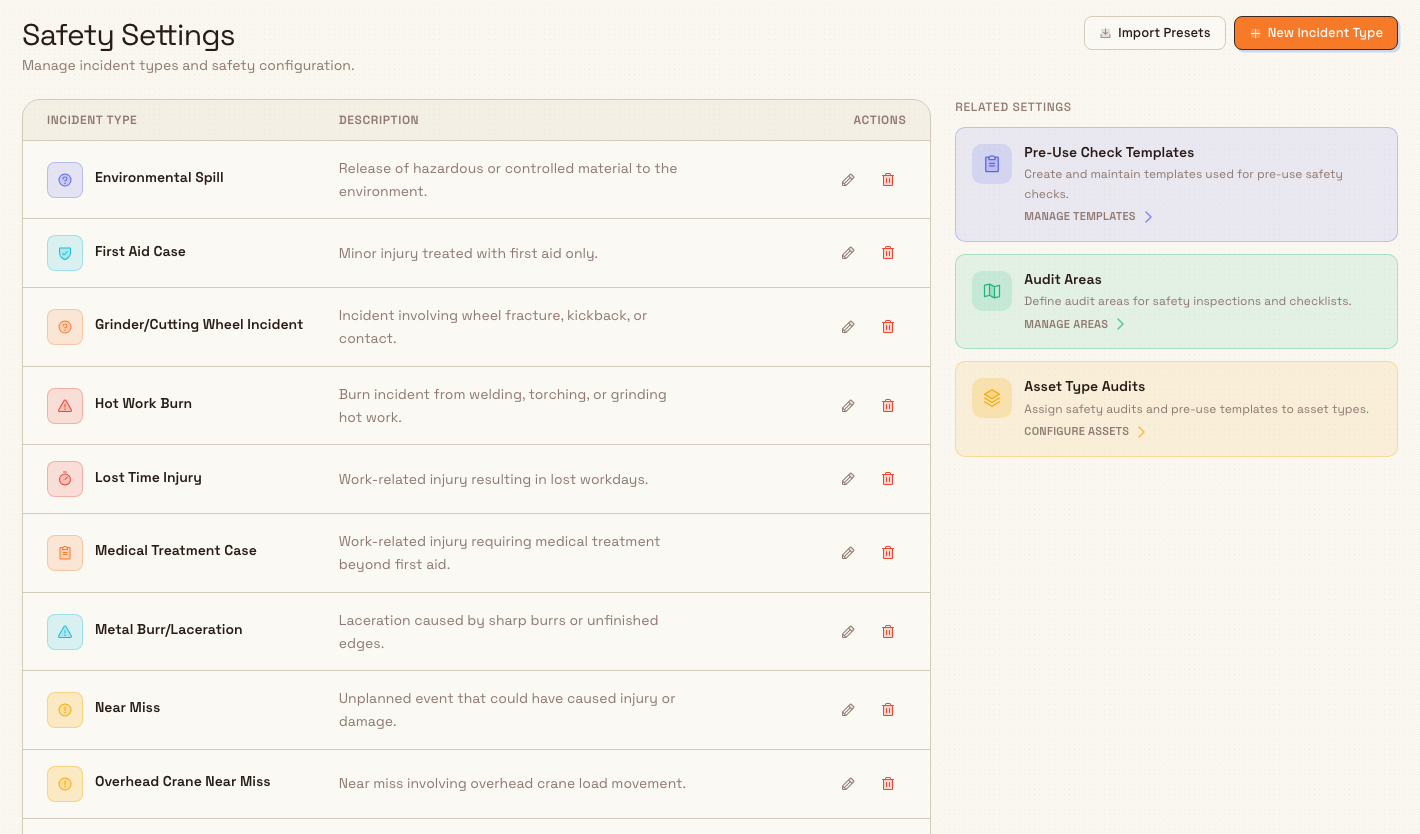
The page header is titled Safety Settings, with the description Manage incident types and safety configuration. Two actions sit in the header:
- Import Presets — add a starter set for your industry (existing names are skipped).
- New Incident Type — create a single type by hand.
The main panel lists active incident types for the current site. Columns:
| Column | What it shows |
|---|---|
| Incident Type | Icon (or name initial) and the type name |
| Description | Optional notes for the type, or No description provided |
| Actions | Edit and Delete |
On the right, a Related Settings column links to other configuration that feeds safety work:
| Card | What it opens | Action label |
|---|---|---|
| Pre-Use Check Templates | Audit templates used for pre-use safety checks (/settings/audits/templates) | Manage Templates |
| Audit Areas | Areas for safety inspections and checklists (/settings/audits/areas) | Manage Areas |
| Asset Type Audits | Safety audits and pre-use templates on asset types (/settings/master-data/assets) | Configure Assets |
If the site has no types yet, the empty state reads No incident types yet with the description Create your first incident type to populate the report form. and a New Incident Type action. On the incident report form itself, when no types exist, the type picker shows No types available and a short link back to Safety Settings.
Import industry presets
The fastest way to start is to import an industry preset pack. Import always includes the generic universal types, then adds any industry-specific types for the pack you choose.
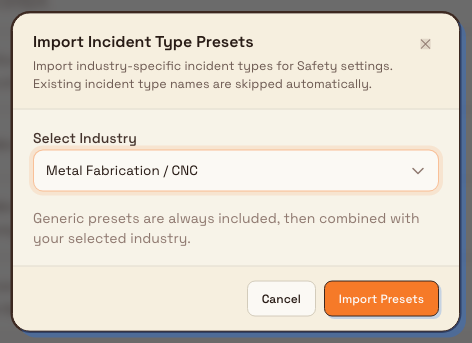
- Select Import Presets. The Import Incident Type Presets dialog opens.
- Under Select Industry, choose a pack. Labels include Generic (All Industries), Metal Fabrication / CNC, Food & Beverage, Automotive Manufacturing, and other industry packs (NDT, pharmaceutical, packaging, electronics, plastics, chemical processing).
- Read the helper line: Generic presets are always included, then combined with your selected industry. Existing names are skipped automatically.
- Select Import Presets.
Bulk creates any names that are not already present for this site (matching is case-insensitive and ignores extra spaces) and skips types whose names already exist. A success message reports how many were created and how many were skipped (for example “Created 12 incident types from Metal Fabrication / CNC, skipped 0 existing.”). If every preset name is already present, Bulk reports No new incident types instead.
Generic types that ship with every import include:
| Name | Typical description |
|---|---|
| Near Miss | Unplanned event that could have caused injury or damage |
| First Aid Case | Minor injury treated with first aid only |
| Medical Treatment Case | Work-related injury requiring medical treatment beyond first aid |
| Lost Time Injury | Work-related injury resulting in lost workdays |
| Property Damage | Damage to equipment, tools, or facility assets |
| Environmental Spill | Release of hazardous or controlled material to the environment |
| Unsafe Act | Unsafe behavior observed during operations |
| Unsafe Condition | Hazardous workplace condition requiring correction |
A Metal Fabrication / CNC import also adds shop-floor oriented types such as Hot Work Burn, Grinder/Cutting Wheel Incident, Overhead Crane Near Miss, and Metal Burr/Laceration. After import, edit any type to match your plant’s language — presets are a starting catalogue, not a compliance standard.
administration.safety.types-settings-02
Add an incident type by hand
- Select New Incident Type. The Create Incident Type dialog opens (Add a new type option for incident reporting.).
- Fill in the fields:
- Name — required, up to 100 characters (placeholder example:
Near Miss). - Description — optional notes for this type, up to 500 characters (placeholder: Optional description for this type).
- Icon (Optional) — pick an icon for the row, or leave on Auto.
- Color (Optional) — accent used with the icon on this page and related views.
- Name — required, up to 100 characters (placeholder example:
- Select Create Type.
A success message confirms Incident type created and names the type. The new row appears in the list for this site.
Edit an incident type
- Select Edit on the row.
- The Edit Incident Type dialog shows the same fields (Update the name or description for this type.).
- Select Save Changes.
A success message confirms Incident type updated. Changing a type here updates how it appears for new reporting; historical incidents keep the type label that was stored on them.
Delete an incident type
- Select Delete on the row.
- Confirm in the Delete incident type? dialog. The message explains that this removes the name from the list of incident types and that Existing incidents will keep their saved type label.
- Select Delete.
A success message confirms Incident type deleted. Deletion is soft: the type leaves the active catalogue and no longer appears in the report picker, but past incidents that used it keep their saved label.
Prefer renaming over deleting when reports already use a type
If people still need the category for new reports, edit the name or description instead of deleting. Delete when a type is wrong, duplicate, or retired for new reporting. Soft delete does not rewrite history on existing incidents.
Example: Leeds Fabrication Plant
At Granite Peak Manufacturing’s Leeds Fabrication Plant, Dana Winters needs a clear set of incident categories before the shop floor starts filing reports.
She opens Settings, selects Safety, and chooses Import Presets. Under Select Industry she picks Metal Fabrication / CNC, then Import Presets. Bulk adds the generic set (Near Miss, First Aid Case, and the rest) plus fabrication types such as Hot Work Burn and Overhead Crane Near Miss.
She then selects New Incident Type, names it Forklift Near Miss, adds a short description about pedestrian and truck interactions in the bay, picks a warning color, and selects Create Type. When someone later opens a new incident report, the type list includes both the imported catalogue and the custom forklift type.
Expected result
After you import or create types, the Safety Settings table lists every active type for the site with its name and description. Those names appear in the incident report type picker for this site. Related Settings cards open the audit-template, audit-area, and asset configuration pages that back pre-use checks and safety inspections.
Feature state and limits
Configuring safety types and settings is a generally available feature. Keep these behaviors in mind:
- Types are per site (entity); they are not shared across plants.
- Import always merges the generic set with the selected industry pack and skips names that already exist (case-insensitive).
- Manual create does not block a second type with the same display name; import is the path that de-duplicates by normalized name.
- The settings UI lists active types and does not offer a separate deactivate control; retiring a type for new reports is done with Delete.
- Soft-deleted types leave the picker; existing incidents keep the type label they already stored.
- This page configures incident types and related links only — risk assessments, incident investigation steps, and pre-use check templates are managed on their own screens.
Troubleshooting
- The type list is empty and the report form says “No types available”. — no active types exist for this site. Use Import Presets or New Incident Type, then reopen the report form.
- Import reports “No new incident types”. — every preset name for that industry already exists (matching ignores case and extra spaces). Edit existing types or add a custom name with New Incident Type.
- Create, edit, delete, or Import Presets fails. — you may have View safety only. Ask an administrator for Manage incident types (
safety.manage_types), or a Safety, Entity admin, Manager, or Super user role. - A type is missing after you thought you created it on another plant. — types are per site. Switch to the correct plant, then check the list again.
- Deleted type still appears on an old incident. — expected. Soft delete removes the type from the catalogue; existing incidents keep their saved type label.
- You need pre-use checks or safety audits, not incident categories. — use the Related Settings cards for Pre-Use Check Templates, Audit Areas, and Asset Type Audits.
Related
- Safety — the Safety module overview.
- Report a safety incident — how people pick an incident type when filing a report.
- Manage audit templates and the template library — pre-use check and safety audit templates.
- Manage audit areas — areas used by safety inspections.
- Manage assets and layouts — assign safety audits and pre-use templates to asset types.
- Roles and permissions — grant View safety and Manage incident types.
Configure quality categories and root causes
Build the site catalogues for defect type categories (with severity) and 5M+E root cause codes that quality issues, holds, and analysis pickers use.
Audit configuration
Set up audit templates, areas, and schedules for a site so operators can run pre-use checks, safety, quality, maintenance, 5S, and custom audits from a consistent catalogue.