Create an account
How to join Bulk from an email invitation, or from an account created directly by your administrator.
Before you can sign in to Bulk, you need your own account. Your account decides what you can see and records the work you complete.
There is no public sign-up page. An administrator either sends you an email invitation or creates the account directly for you. This page explains both ways.
There is no self sign-up
Bulk does not offer open registration. If you open the Bulk web address without an account, you land on the sign-in screen headed Welcome back. — there is no "Sign up" or "Create account" link beside it. The only public options are Sign in, Forgot password?, and Continue with SSO (single sign-on, where your company identity provider signs you in). Typing a sign-up style address such as /signup simply returns you to the sign-in screen.
This is deliberate. Because accounts control who can see and change production data, they are created and assigned by an administrator rather than by anyone who finds the address.
Don't have an account yet?
Ask your organization's Bulk administrator to invite you or create an account for you. Tell them your work email address and which plant you work in.
What you need
To start using Bulk, you need:
- An invitation or account from an administrator. Both are managed from Settings → Organization → Users.
- At least one role. Roles decide what you can see and do.
- Access to the plant where you work. Bulk also calls a plant a site or entity. An administrator can assign this after you accept an invitation.
- A password. You choose it when you accept an invitation. For a directly created account, your administrator gives you a starter password.
Join from an email invitation
An administrator can send an invitation from Settings → Organization → Users. They enter your work email and choose one or more roles that describe what you will do.
- Open the invitation link in your email. The link is valid for 7 days.
- Check the organization, email, and roles shown on the page.
- Enter your Name.
- Choose a password that meets the checklist.
- Select Accept invitation.
Bulk creates your account, assigns the roles shown on the invitation, and signs you in. You then see a short three-page welcome before entering your workspace.
If the browser cannot sign you in automatically, your account is still ready. Select Go to sign in and use the email and password you just chose.
An invitation does not grant plant access
After you accept, an administrator may need to assign your plant from the Users screen. If you sign in but cannot open a plant, ask them to check your entity access.
When an administrator creates your account directly
An administrator can also create your account without sending an email. They use Settings → Organization → Users, then select Add User.
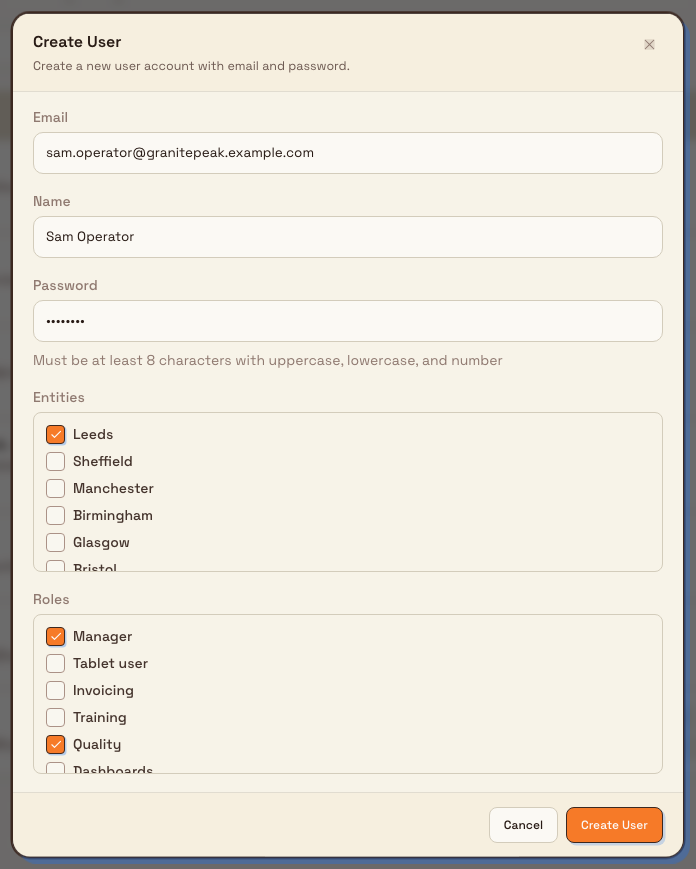
The Create User dialog asks for your email, name, starter password, roles, and plant access. The account is ready as soon as the administrator selects Create User.
getting-started.create-account-01
In the Create User dialog the administrator fills in:
- Email — your work email address, which becomes your sign-in name.
- Name — your full name (at least two characters). This is the name shown next to the work you record.
- Password — an initial password. Bulk enforces a minimum strength, shown in the dialog as "Must be at least 8 characters with uppercase, lowercase, and number."
- Entities — the plant or plants you may work in, such as the Leeds Fabrication Plant.
- Roles — what you can do. A role is a named set of permissions. A directly created account always receives Operator as its base role. This picker shows only extra unlocked roles, such as Quality, Safety, or Master data; an administrator can change the account's roles later.
When the administrator selects Create User, your account exists immediately. If several people join at once, the administrator can use Bulk Create instead to set up many accounts in one step.
Password requirements
Whether an administrator sets your first password or you choose one yourself later, Bulk requires every password to be:
- at least 8 characters long,
- with at least one uppercase letter,
- at least one lowercase letter, and
- at least one number.
After you first sign in, you can change the password your administrator gave you to one only you know. See Update personal account settings.
Example: onboarding a new operator at Granite Peak
Granite Peak Manufacturing hires Sam as an operator at its Leeds Fabrication Plant. Dana opens Settings → Organization → Users and selects Invite.
Dana enters Sam's work email and selects Operator and Quality under What will they do? She sends the invitation, and Sam opens the link from his email.
Sam checks the roles, enters his name, chooses a password, and accepts. Bulk signs him in and shows the welcome. Dana then assigns the Leeds plant to Sam from his account row so he can open the correct workspace.
What to expect once your account exists
- You sign in on the Welcome back. screen with your work email and password. See Sign in to Bulk.
- On your first sign-in, Bulk shows a short welcome explaining the main work areas and where to find help.
- If your account can reach more than one plant, Bulk asks you to choose one. See Select an entity.
- A brand-new workspace may open a short setup wizard the first time it is used. See Complete onboarding.
- What you can see and do depends on the role and plant access your administrator gave you, so two people in the same organization can see different menus.
Availability and limits
Account creation is generally available, but with clear boundaries worth knowing:
- Administrator only. Only an administrator with the right permission can create accounts; there is no self-service registration in the app.
- Invitations expire after 7 days. Ask the administrator who invited you to send a new one if the link has expired.
- An invitation assigns roles, not plant access. An administrator may need to add your plant after you accept.
- Adding an account does not send a welcome email. When an administrator creates your account directly, Bulk does not email your credentials — your administrator shares them with you.
- One account per email. If an administrator tries to add an email that already has an account in the organization, Bulk stops them with "A user with this email already exists."
If something is not working
- You have no invitation or sign-in details. Ask your administrator to invite you or create your account under Settings → Organization → Users.
- The invitation has expired. Invitations work for 7 days. Ask the administrator to send a new one.
- The invitation says you already joined. Your account exists. Go to sign in with the email shown and the password you chose.
- The invitation link is incomplete or is not recognized. Open the full link directly from the invitation email. If that still fails, ask the administrator to send a new invitation.
- Bulk could not check the invitation. Select Try again. If the check keeps failing, confirm your connection or ask for a fresh invitation.
- The invitation link opens Home instead of the setup form. You are already signed in. Sign out, then open the invitation link again in the account-free browser session.
- You can sign in but see no plant. You have an account but no plant access yet. Ask your administrator to grant you access to your site under the same Users settings.
- Your password is rejected when you set one. Check it against the rules above: at least 8 characters, with an uppercase letter, a lowercase letter, and a number.
- You cannot sign in after your account was created. Confirm you are using the exact work email the account was created with, and that the password matches (it is case-sensitive). If you have forgotten it, use Forgot password? on the sign-in screen. See Recover your password. If Bulk says your account has been deactivated, ask your administrator to reactivate it.
Related guidance
- Sign in to Bulk
- Recover your password
- Complete onboarding
- Select an entity
- Update personal account settings
- Manage users — for administrators who create and manage accounts
- Getting started