Understand access and visible navigation
How your roles, permissions, and plant access decide what you can open in Bulk, and what to do when an area shows an access screen instead of its content.
Bulk is a Manufacturing Execution System (MES) — the shared workspace where your team runs production, quality, scheduling, audits, inventory, people, and more. Because so much lives in one place, not everyone should be able to open or change everything. Access is how Bulk decides what each person can do, and it is why two people signed into the same organization can open different pages and see different plants.
This page explains the model behind that: what governs your access, how it shapes what you can open, what an access block looks like, and how to get access you are missing. It links to the focused guides for each related task rather than repeating them.
What "access" means in Bulk
Three things together decide what you can do:
- Roles. A role is a named bundle of permissions that an administrator assigns to you — for example Operator, Manager, Quality, or Entity admin. You can hold more than one role, and your access is the combined total of them all.
- Permissions. A permission is a single capability that a role grants. Each one is written as an area and an action — for example Assets – View, Audits – Execute, or Production Invoicing – View. A role is really just a list of these permissions.
- Plant access. A plant (Bulk also calls these sites or entities) is a single site you operate — a factory, workshop, or fabrication plant. Separately from your roles, an administrator adds you to the specific plants you work in. This decides which plants you can open and switch between.
Some administrator roles, such as Super user, carry every permission, so a person with that role can open everything. Most people hold a narrower set, which is expected and normal.
How access shapes what you see
It helps to know where access does and does not change the workspace.
- The menu is organized the same way for everyone. The Home launcher and the left navigation sidebar list Bulk's areas — Production, Quality, Finance, Scheduling, and so on — in the same layout for every user. Bulk does not rearrange or personalize the menu itself. (For how to move around that menu, see Navigate Bulk.)
- Access is checked when you open something. If your roles include the permission an area needs, it opens normally. If they do not, Bulk shows an access screen in place of the content.
- Plant access limits where you can go. Your plant switcher and the Choose a plant screen only let you enter plants you have been added to.
- Plant-specific reports change with the plant. When you switch plants, data-heavy views such as Value Flow clear the previous plant's figures before loading the new plant. A brief empty or loading state is normal; figures from the previous plant are not carried across.
Inside a list, your saved view can change which columns are visible, their order, width, and pinned position. These choices personalize the table only; they do not change your permissions or another person's view.
In spreadsheet-style sheets, Enter moves to the same column in the next row and Shift+Enter moves to the previous row. For dropdown cells, use F2, click the cell, or start typing to open the picker. Pressing Enter in an open picker without a search closes it without changing the current value.
Because of this, it is normal to see an area in the menu that you cannot open yet. That is an access matter, not a fault — and Bulk tells you exactly what is missing when you try to open it.
Workflow automation follows the same access rules. The Workflows page only shows create and edit controls when your role grants them. When a run reaches an Action, Bulk also checks the permission needed by the standard operation behind that Action. If the workflow's recorded user no longer has that right, the Action fails and the run log records the permission problem; the workflow does not bypass the missing right.
What an access block looks like
Access shows up in two forms, depending on how much of a page you can reach.
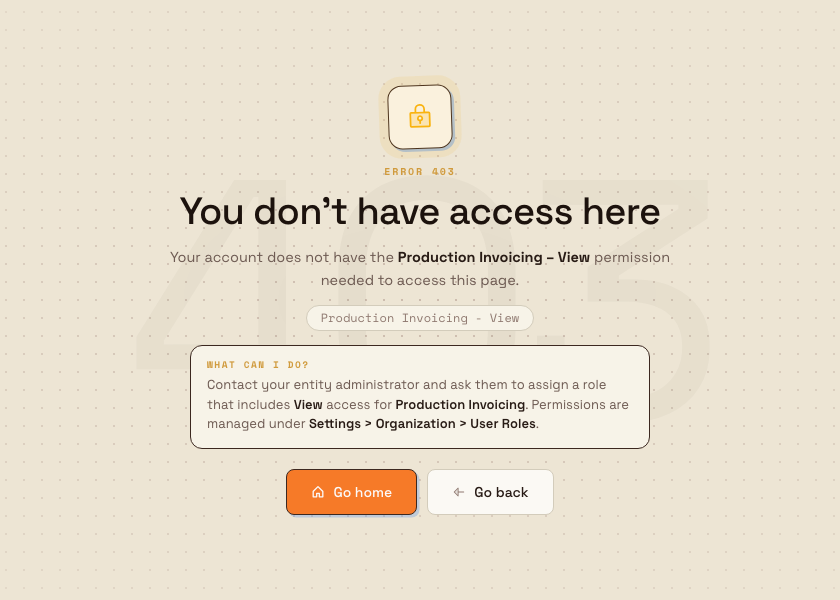
A whole page you cannot open. Bulk replaces the content with a full-screen "You don't have access here" message (an Error 403). It names the exact permission you are missing as Area – Action, includes a What can I do? note explaining the next step, and offers Go home and Go back buttons. The precise permission is the useful part — you can pass it straight to your administrator.
getting-started.access-navigation-01
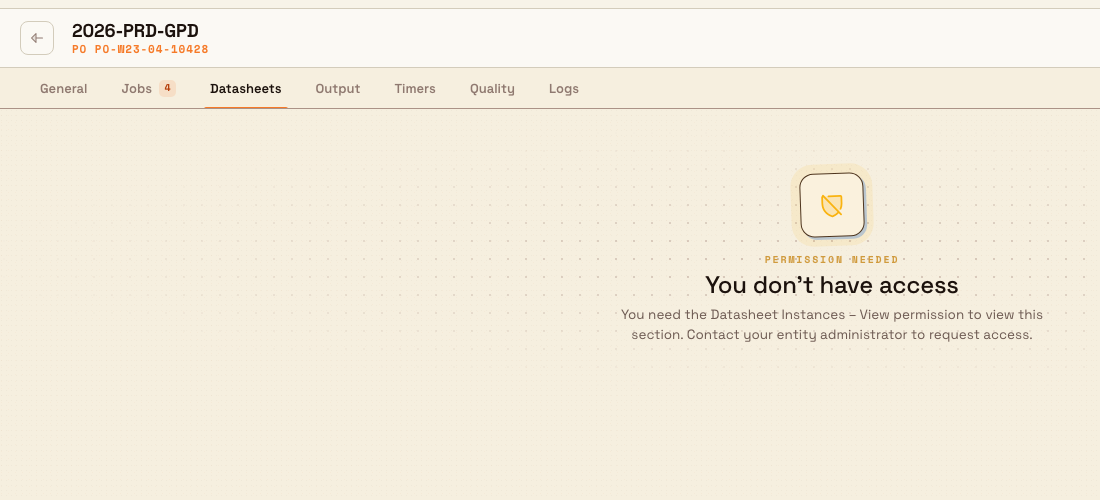
A section inside a page you can open. If you can open a page but lack the permission for one part of it, only that part shows a compact "You don't have access" state — sometimes with a Try again option — while the rest of the page works normally.
getting-started.access-navigation-02
Both forms point you the same way: ask your entity administrator to assign a role that includes the permission you need. Administrators manage this under Settings > Organization > User roles.
Which plants you can open
Plant access is the second half of visible navigation. The plant switcher at the top-left shows your current plant as Hub / [plant name] with its short code beneath. Open it to move to another plant you can access, or choose See all sites to return to the full Choose a plant screen.
On Choose a plant, every plant you can enter appears as a card you can open. Plants in your organization that you have not been added to still appear, but as locked cards you cannot enter — and you can request access to one from there. Choosing and requesting plants is covered in full in Select an entity; moving between plants you already have is covered in Switch operational context.
Example at Granite Peak Manufacturing
Sam Okafor joins Granite Peak Manufacturing, a UK precision-fabrication company, as an operator at the Leeds Fabrication Plant. An administrator gives Sam the Operator role and adds Sam to the Leeds plant.
Signed in, Sam sees the full menu, including Finance. Curious, Sam opens it — and Bulk shows "You don't have access here", naming the missing permission as Production Invoicing – View. The screen tells Sam to ask an entity administrator for a role that includes it. Sam passes that exact permission to Dana Winters, who administers the plant. Dana opens Settings > Organization > User roles, assigns Sam a role that includes finance access, and Sam can now open Finance — no sign-out needed, because access updates from Sam's roles.
A month later Sam covers a shift at Granite Peak's Sheffield site. That plant is not yet in Sam's switcher, so Dana adds Sam to it. On the next visit to Choose a plant, Sheffield appears as an open card, and Sam can switch between the two plants as the work moves.
Expected result
Once you understand access, you can:
- read what governs your access — your roles, the permissions they grant, and the plants you belong to;
- recognize the "You don't have access here" screen and the section-level "You don't have access" state for what they are;
- read the exact permission you are missing, in Area – Action form; and
- know who to ask and where they change it.
Feature state and what to expect
Access control is generally available — it is the standard way Bulk governs every workspace.
A few things are worth knowing:
- Access is enforced everywhere, not just hidden. Bulk checks your permissions both when a page loads and again on the server whenever data is read or changed. Reaching a restricted page by a direct link or through search still shows the access screen and returns no restricted data.
- Your roles are the source of truth. Because your access is calculated from your assigned roles, an administrator changing your roles changes what you can open — you do not need a special build or a reinstall.
- Some areas are in Beta. Items marked Beta work but are still maturing, so their screens and behavior may change. Beta is about maturity, not access.
If you cannot open something
- You see "You don't have access here." Note the permission it names (Area – Action) and ask your entity administrator to assign a role that includes it. Administrators manage roles under Settings > Organization > User roles. See Manage roles and permissions.
- A whole plant is missing or locked. You have not been added to it. Request access from the Choose a plant screen, or ask your administrator. See Select an entity.
- You could open something before and now cannot. Your roles may have changed. Check with your administrator, who can review your roles under Settings > Organization > User roles.
- The data looks wrong or empty. Confirm you are in the right plant — the plant switcher shows your current one. Everything you see is scoped to that plant. See Switch operational context.
Related guidance
Work with notifications
Read, filter, and clear your in-app alerts from the bell and the Notifications page, understand that notifications are scoped to the plant you are in, and choose which alerts you receive.
Update personal account settings
Manage your own Bulk account from the Account page — change your display name and avatar, update your password, and reach two-factor authentication.