Navigate Bulk
Find your way around the Bulk workspace: the Home launcher, the left navigation sidebar with its Platform and Modules groups, the header, and the search that jumps you to any page.
Once you are signed in and working in a plant, everything you do in Bulk starts from the same two places: the Home launcher and the navigation sidebar. Bulk is a Manufacturing Execution System (MES) — the shared workspace where your team runs production, quality, scheduling, audits, inventory, and more — so it holds a lot of areas. This page shows you how those areas are organized and how to move between them quickly, and links to the focused articles for each destination. Inside Settings and similar multi-section pages, underline page tabs sit under the page title so you can switch sections without leaving the page.
You do not need a special role to find your way around: the layout is the same for everyone. What each part of Bulk does is covered in its own guide — here we focus on getting you there.
Before you begin
To see the navigation described here you need to be:
- Signed in. See Sign in to Bulk.
- In a plant. A plant (Bulk also calls these sites or entities) is a single site you operate — a factory, workshop, or fabrication plant. After you sign in, Bulk opens your plant, or asks you to choose one if you have access to more than one. See Select an entity.
After you choose a plant you land on Home, your launcher for that plant.
Two ways to move around
Bulk gives you two navigation surfaces, and it helps to know which one you are looking at:
- Home — a full-screen launcher with a tile for each area of Bulk. This is where you land after choosing a plant, and it has no left sidebar.
- The workspace shell — every area you open (Production, Quality, a dashboard, Settings, and so on) appears inside a shell with the navigation sidebar down the left and a header across the top. From here you can jump straight to any other area without returning to Home.
The rest of this page walks through both.
A handful of pages sit outside both surfaces and fill the window on their own, because they run before you have a plant to navigate: the sign-in and invitation pages, the plant chooser, the first-run onboarding wizard, and company setup at /company-setup, which builds a demo plant from a few questions. They have no sidebar and nothing to jump to — you finish them, and Bulk returns you to Home. See Complete onboarding and Select an entity.
Start from Home
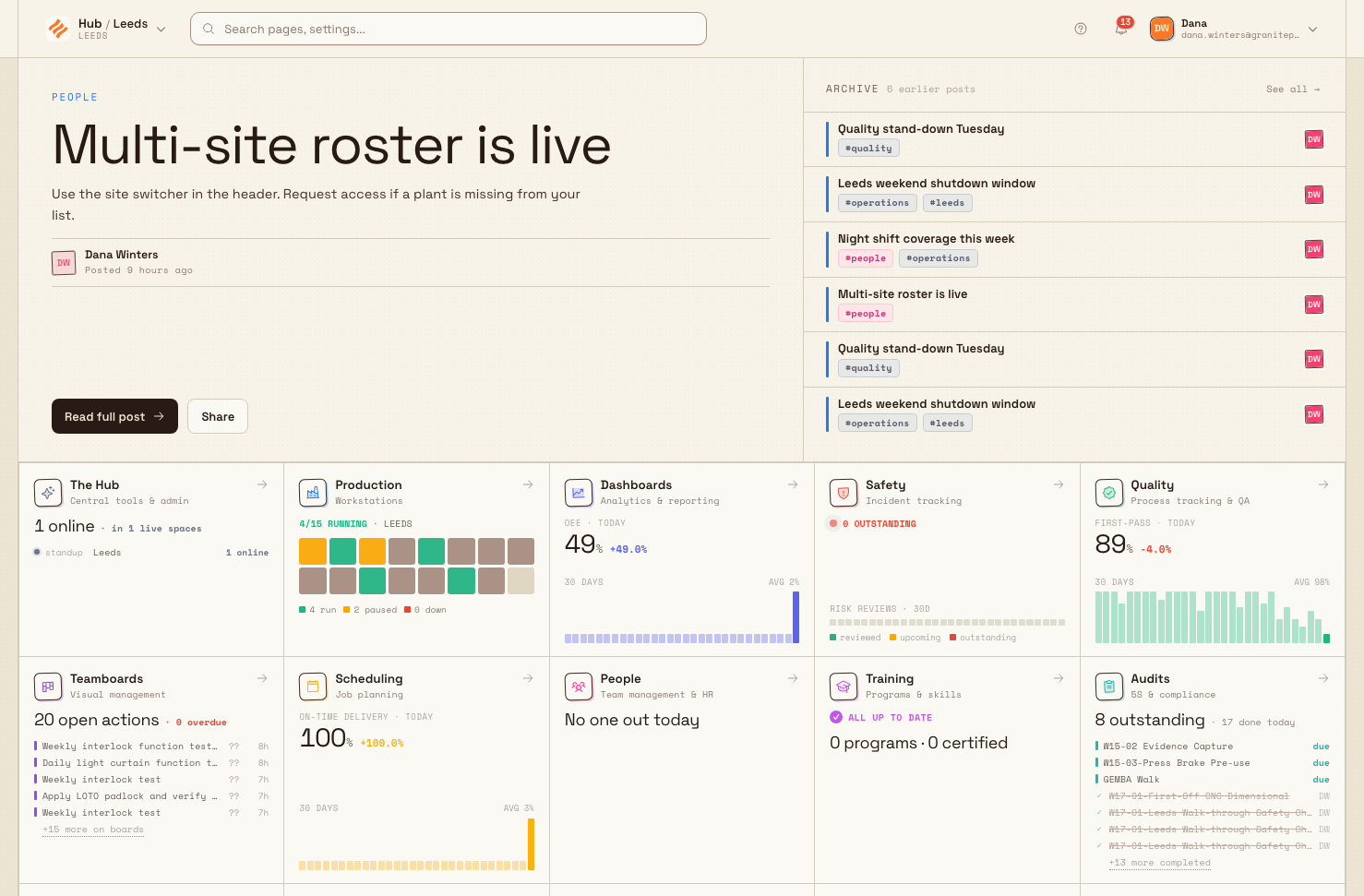
Home shows a grid of module tiles — one for each area of Bulk, such as Production, Quality, Safety, Scheduling, People, Audits, Inventory, and Files. Select a tile to open that area. Many tiles show a small live figure or status drawn from your plant's real data, so Home doubles as an at-a-glance summary.
getting-started.navigate-01
The navigation sidebar
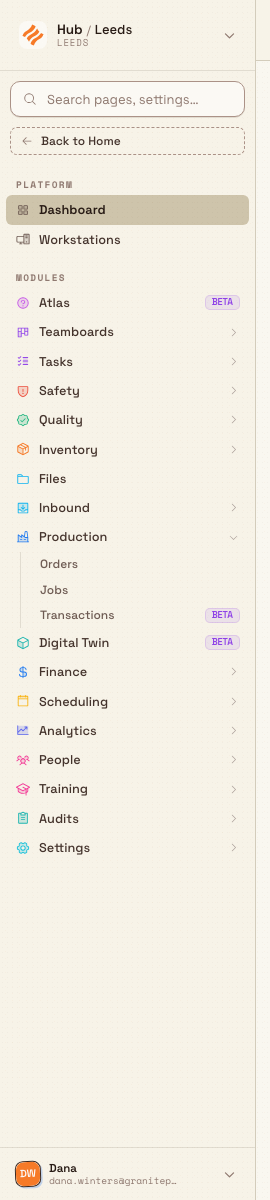
When you open any area, the navigation sidebar appears on the left. It stays with you as you move around, so you rarely need to go back to Home. Its menu is split into two groups:
- Platform — the two everyday entry points: Dashboard (your at-a-glance view of the plant) and Workstations (the focused, shop-floor view an operator uses at a specific machine or station).
- Modules — the areas of Bulk, listed one after another: Atlas, Teamboards, Tasks, Safety, Quality, Inventory, Files, Inbound, Production, Finance, Scheduling, Analytics, People, Training, Audits, and Settings. Under Tasks, open Projects when you need a project’s task list or its Gantt timeline.
A few things make the sidebar quick to use:
- Expandable sections. An item with a downward chevron holds sub-pages. Select it to expand the section — for example, Production opens to reveal Orders, Jobs, and Transactions. Select it again to collapse it. Some sections have a third level beneath them. Bulk remembers which sections you left open.
- Where you are. The page you are currently on is highlighted in the sidebar, and its parent section stays open, so you can always see your place.
- Beta labels. Newer areas carry a small Beta tag. They work, but their screens and behavior may still change, so treat them as previews.
- Back to Home. The Back to Home button just under the plant switcher returns you to the Home launcher.
getting-started.navigate-02
Jump straight to a page with search
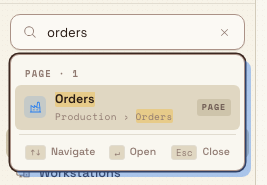
The fastest way to reach a specific page is the search box at the top of the navigation sidebar, labelled Search pages, settings…. Start typing and Bulk shows matching pages and settings as you type, grouped by kind (for example Page or Setting) and with the path to each result, such as Production › Orders. Use the up and down arrow keys to move through the results and Enter to open the highlighted one, or Esc to close the list.
When you pick a process from global search or a Process picker elsewhere in Bulk, only active Approved revisions are offered for new work. Older or inactive revisions stay in history but do not appear as choices for new assignments.
Two search boxes on wide screens
On a wide screen you may notice a second search box in the top header bar. The one that finds pages is the box at the top of the sidebar — start there if a header search box does not respond.
getting-started.navigate-03
Menus on records and lists
Many list rows and detail headers use compact menus for secondary actions. Right-click a row for a context menu, or open an Actions / overflow (⋯) control on the top bar. Primary work such as Print or Submit stays as a direct button when it is the main next step; less common actions (export, hold, delete, edit, cancel) live under the menu so the header stays clear.
Changing what a list shows
Filters, search, sorting, pagination, and page size define the current view of a list. When you change any of them, Bulk clears any selected rows before showing the new view. This prevents a bulk action from applying to records that are no longer visible.
On searchable module lists (for example Invoices, Inbound Documents, or Jobs), typing in the list search can match more than the primary number — including custom-field values — and may show small match chips on the row so you can see why it appeared. On Production › Jobs, search also matches the job's current station (the resource where the job is now), so you can find work by station name as well as job number. Those chips follow the current search query; clear the search and they disappear.
For example, on Quality › Issues, selecting one issue establishes the status group for the batch. You can select only issues with that same status, and Select all applies only to matching rows on the page you are viewing. See Quality for the available issue actions.
Some screens carry their own display preferences rather than list filters. The Scheduling planning board, for example, has a Display menu that chooses what its blocks and cards are titled, which details they show, and which kinds of machine appear. Preferences like these are yours alone and are remembered per plant, so switching plant shows that plant's own settings and switching back restores yours.
The header
Across the top of every area sits the header:
- Breadcrumbs on the left show where you are, such as Home / Dashboard. Select an earlier step to go back up.
- People on this page — when someone else is viewing the same record or page as you (for example the same project, job, or inbound document), small avatars appear in the header near Help and Notifications. Hover an avatar to see their name. When you are alone on the page, the avatars are hidden.
- Help (the question-mark menu) opens Help & support, where you can select Search docs to open the Bulk documentation in a new tab, see the current App and API version numbers, open What's new, and Submit feedback.
- Notifications (the bell) opens your recent alerts, with All and Unread tabs and a Mark all read action. Select View all activity to open the full list. See Work with notifications.
Some actions open a dialog over the workspace instead of taking you to another page. For example, routing compilation results open as a scrollable Flow map while the result summary and Close action stay in view. Use Esc, the close button, or the dialog's named action to return to the page underneath; your sidebar location does not change.
Some record actions open a context drawer on the right. In Inbound, the reuse action opens this drawer so you can save a full document as a template, apply a template, or clone the visible document without losing your place in the document grid. Close the drawer to return to the same document and grid position.
Dates shown in the workspace follow the selected plant's timezone. A calendar date such as a required day stays on that same day in forms, lists, selection dialogs, and PDFs even when your computer is in another timezone. Values that include a time, such as received or completed events, still represent the exact recorded moment. All plants in the organization share the same week-start rule, so switching plants does not change week numbers.
The plant switcher and account menu
Two controls stay within reach wherever you are:
- Plant switcher (top of the sidebar). It shows your current plant as Hub / [plant name] with the plant's short code beneath. Open it to switch to another plant you have access to, or choose See all sites to return to the full plant-selection screen. See Switch operational context.
- Account menu (bottom of the sidebar). Opens your personal options — Account, Settings, Notifications, the Appearance control (Light, Dark, or Auto), Color theme…, and Log out. See Update personal account settings. On a phone, Color theme… opens full-screen so you can pick a theme and accent without the dialog sitting under the status bar or home indicator.
Log out remains available from workstation headers even while production navigation is restricted. On a shared workstation, logging out locks every open Bulk tab in that browser immediately; any eligible timer and downtime cleanup continues in the background. See Sign in to Bulk for the choices shown when production state is active.
On smaller screens
On a phone or a narrow window, the sidebar is tucked away to save room. A menu button (three lines) appears at the left of the header — select it to slide the navigation out as a drawer over the page, then pick where you want to go. The drawer holds the same plant switcher, search, and Platform and Modules groups as the full sidebar.
Example: a shift lead moving through Bulk
Dana Winters manages the Leeds Fabrication Plant for Granite Peak Manufacturing, a UK precision-fabrication company. She signs in and lands on Home, where the Production tile already shows the day's job count.
She selects the tile and the workspace shell opens with the sidebar on the left. To review the morning's work she expands Production and opens Orders. A quality query comes in, so instead of hunting through menus she types issues into the sidebar search and opens Quality › Issues directly. Before the next shift she uses the Back to Home button to return to the launcher, glances at the live figures across the tiles, and opens Workstations to check the view her operators see at the laser-cutting station. Throughout, the breadcrumbs keep her oriented and the plant switcher stays one click away.
Expected result
Once you are comfortable with the layout you can:
- start from Home and open any area from its tile;
- read the Platform and Modules groups in the sidebar and expand a section to reach its pages;
- search to jump straight to a page instead of clicking through menus;
- recognize shared filter chips and in-list search highlighting when a module uses the same shell patterns as Home and Production;
- use the header for breadcrumbs, who else is on the page, help, and notifications; and
- switch plants and reach your account options without leaving the page you are on.
Feature state and what to expect
The workspace, sidebar, and search are generally available — they are the standard way every Bulk user moves around.
A couple of things are worth knowing:
- Some areas are in Beta. Items marked Beta are still maturing. They work, but screens and behavior may change, so treat them as previews rather than finished features.
- What you can open depends on your access. The navigation is organized the same way for everyone, but whether you can open a given area depends on your role and permissions and on what your plant has set up. If an area you expect is not useful yet, it is almost always an access or setup matter rather than a fault. See Understand access and visible navigation.
Master-data editors such as Routings (under Settings → Master Data) also use the same workspace shell: the sidebar stays available while you edit, and tabs inside the page (for example a routing's Jobs list) keep you in that editor without leaving the shell.
If you cannot find something
- A page isn't where you expect. Use the Search pages, settings… box at the top of the sidebar and type a few letters of the page or setting name — results show the full path to each match.
- A header search box does not respond. Use the search box at the top of the sidebar instead; that is the one wired to find pages.
- An area is missing from your menu. You may not have access to it, or your plant may not use it yet. See Understand access and visible navigation.
Related guidance
Switch operational context
Change which plant you are working in using the site switcher, so everything you see and record is scoped to the right site.
Open a dashboard
Open the Dashboard — your personal, at-a-glance view of a plant built from live widgets — and learn to switch pages, add and rearrange widgets, and save your own layout.