Work with notifications
Read, filter, and clear your in-app alerts from the bell and the Notifications page, understand that notifications are scoped to the plant you are in, and choose which alerts you receive.
A notification in Bulk is a short in-app alert that tells you something happened in your plant — a task was assigned to you, a production order is running late, stock dropped to a critical level, a risk assessment is due for review, or someone asked you to sign off on a document. Bulk is a Manufacturing Execution System (MES), the shared workspace where your team runs production, quality, safety, scheduling, and more, so a lot happens across a day. Notifications gather the events that involve you into one place, so you do not have to keep every screen open to stay on top of them.
This page shows you where notifications appear, how to read and clear them, and how to choose which alerts you receive.
Before you begin
You do not need a special role to use notifications — they are a personal feature, so every signed-in user has them. To follow this page you only need to be:
- Signed in. See Sign in to Bulk.
- In a plant. A plant (Bulk also calls these sites or entities) is a single site you operate — a factory, workshop, or fabrication plant. Notifications are tied to the plant you are working in. See Select an entity.
Notifications belong to the plant you are in
Your notifications and the unread count are scoped to the plant you currently have open. If you have access to more than one plant, each has its own separate list. Switching plants swaps the list and the count to that plant's alerts. See Switch operational context.
Where notifications appear
There are two places to work with your notifications:
- The bell, in the top header of every page — a quick popover of your most recent alerts.
- The Notifications page, a full list at
/notificationswith filters and per-notification actions.
Both draw from the same set of alerts and update live, so an item you read in one place shows as read in the other straight away.
Read notifications from the bell
The bell icon sits in the header, in the cluster next to the help (question-mark) menu. When you have unread alerts, a small red count badge appears on the bell showing the number of unread items (it shows 99+ once you pass 99).
Select the bell to open the notifications popover:
- The popover header reads Notifications, with a small N new count when you have unread items and a Mark all read action.
- Two tabs let you switch the view: All and Unread (the Unread tab shows the unread count beside its label).
- Below the tabs is your list of recent notifications — up to the latest eight. Each row shows the area it came from (a small coloured dot and a short label such as TASKS, SAFETY, or ORDERS), how long ago it arrived (for example 4m, 2h, 3d), and the title. Unread rows are shown in bolder text with a small coloured accent bar down the left.
- Select a notification to open the item it refers to — for example a task or a production order. Bulk marks that notification as read and takes you straight to the related screen.
- Select View all activity → at the bottom to open the full Notifications page.
If you have no alerts, the list shows No notifications yet. On the Unread tab once everything is read, it shows You're all caught up.
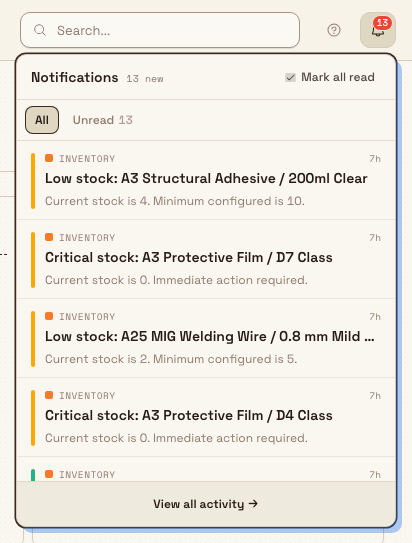
getting-started.notifications-01
Work with the full Notifications page
Select View all activity → in the bell popover, or choose Notifications from the account menu at the bottom of the sidebar, to open the Notifications page. It gives you the complete list plus filtering and per-notification actions.
At the top, the page is titled Notifications with the subtitle Stay up to date with your activity and updates, and a Mark all as read button on the right.
Filter the list
Two sets of controls narrow what you see:
- Read state — a segmented control with All, Unread, and Read.
- Area — a row of chips: All domains, Tasks, Safety, Orders, Training, Inventory, and Billing. Select one to show only that area's notifications.
Your current filters are kept in the page address, so you can bookmark or share a filtered view (for example, only unread Safety alerts).
Act on a notification
Each row shows an area icon, the title, an Unread tag while it is unread, a short body line where one exists, and a relative timestamp. From here you can:
- Open it. Select the row to go to the related screen (for a notification that links somewhere). This also marks it read.
- Mark it as read. Hover the row and open its actions menu (the three-dots button), then choose Mark as read.
- Delete it. In the same actions menu, choose Delete to remove that notification from your list.
To clear everything in the current plant at once, select Mark all as read; Bulk confirms with a short message such as Marked 6 notifications as read.
Deleting removes the alert, not the underlying record
Delete removes the notification from your list for good — there is no undo. It does not change anything it pointed to: the task, order, or stock item is untouched. If you only want it out of your unread count, use Mark as read instead.
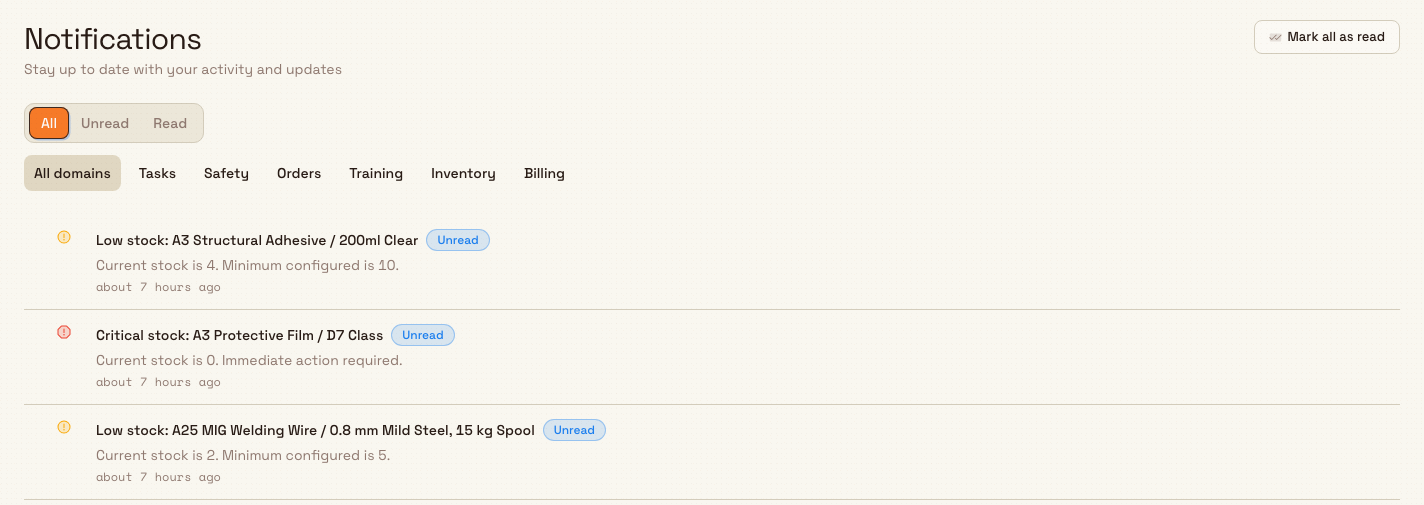
getting-started.notifications-02
Choose which notifications you receive
You control which in-app alerts Bulk creates for you from Settings → Notifications. Open the account menu at the bottom of the sidebar, choose Settings, and the Notifications tab opens by default.
The settings most relevant to the in-app bell are:
- In-App Notifications — the master switch for the alerts you see in the bell and on the Notifications page. Turn it off to stop new in-app alerts entirely.
- In-App Domains — per-area toggles for Tasks, Safety, Training, Orders, and Inventory. Turn an area off and you stop receiving new in-app alerts from it while keeping the others.
The same page also holds email options — Email Notifications, Email Frequency (Immediate, Smart digest, or Daily summary), Quiet Hours, and an Entity Filter for which plants email covers — along with fine-grained Task Event Toggles. Those settings shape email, not the in-app bell.
Preferences apply to new notifications
Turning a domain or the master switch off stops new alerts of that kind. Notifications you already received stay in your list until you read or delete them. Quiet Hours and Email Frequency delay or batch email only — they do not hold back the in-app bell.
For the wider set of personal preferences (display, timezone, and more), see Update personal account settings.
Notifications sent by workflows
Workflow authors can add a Send notification Action and choose specific Users or People Departments in the workflow's plant. When the workflow runs, Bulk expands each selected Department to its active linked users and creates the alerts through the same notification service as every other in-app alert.
Your normal notification preferences still apply. Bulk skips recipients who are inactive, outside the plant, or have disabled that notification area, and it prevents the same workflow delivery from creating duplicate alerts. This Action sends an in-app notification only; it does not add a separate approval step or send an email.
Example: staying on top of the Leeds plant
Dana Winters runs the Leeds Fabrication Plant for Granite Peak Manufacturing, a UK precision-fabrication company. She starts her shift and sees a 3 on the header bell. She opens it and finds three unread rows: an ORDERS alert that a laser-cut batch is due soon, an INVENTORY alert that mild-steel sheet has dropped to a critical level, and a TASKS alert that a colleague assigned her a rework job.
She selects the stock alert and lands directly on the inventory item to reorder, which marks that notification read. Back at the bell, two remain. She opens View all activity, filters the area chips to Orders to review everything due this week, and clears the rest with Mark all as read.
Later she is pulled onto Granite Peak's second site. Because notifications are per plant, the Leeds alerts are not mixed in — she switches plants and the bell now reflects the other site. To cut noise, she opens Settings → Notifications and turns off the Training in-app domain, since another manager owns training there.
Expected result
Once you are comfortable with notifications you can:
- read your recent alerts from the bell and see the unread count at a glance;
- open the full Notifications page, filter by read state or area, and open, mark as read, or delete individual alerts;
- clear a plant's alerts in one step with Mark all as read; and
- decide which in-app alerts you receive from Settings → Notifications.
Feature state and what to expect
Notifications are generally available — every user has them, in every plant.
A few things are worth knowing:
- They are per plant. The bell, its count, and Mark all as read apply to the plant you have open. Alerts from another plant appear only when you switch to it.
- The bell is a header control. On a phone or a narrow window the header's help and bell cluster is hidden to save room; reach your alerts from Notifications in the account menu instead.
- Some alerts arrive on a schedule. Event-driven alerts (a task assigned to you, an @mention, a sign-off request) appear as they happen. Time-based alerts — production orders due soon or late, risk-assessment reviews, training expiry, and stock levels — are produced by regular background checks, so they can arrive a little after the underlying change rather than instantly.
If you are not seeing a notification you expected
- Check you are in the right plant. Notifications are scoped to the plant you have open, and each plant keeps its own list and count. If the bell looks empty, confirm you are in the plant where the activity happened, or switch plants.
- Check your preferences. In Settings → Notifications, make sure In-App Notifications is on and the relevant In-App Domains toggle (Tasks, Safety, Training, Orders, or Inventory) is on. If a domain is off, Bulk stops creating new in-app alerts of that kind.
- Give scheduled alerts a moment. Order, safety, training, and stock alerts come from periodic background checks, so a brand-new condition may take a short while to show up.
- The count did not clear after Mark all as read. That action clears the current plant only. If a count remains, it is for a different plant — switch to it and clear it there.
Related guidance
- Notification event times use your saved personal timezone when it is available, then the organization timezone as a fallback. A linked record's calendar-only due or required date still belongs to that record's plant and does not move when viewed, reminded, or printed elsewhere.
- Getting started
- Navigate Bulk
- Switch operational context
- Select an entity
- Update personal account settings
Open a workstation
Open the Workstations launcher, read the asset grid, and pick the station you'll operate so Bulk shows its queued jobs and focuses the app on your bay.
Understand access and visible navigation
How your roles, permissions, and plant access decide what you can open in Bulk, and what to do when an area shows an access screen instead of its content.