Enable two-factor authentication
Add a second sign-in step to your Bulk account with an authenticator app, save your backup codes, and manage or turn off protection later.
Two-factor authentication (2FA) adds a second step to signing in. After your email and password, Bulk asks for a short code from an authenticator app on your phone — so even if someone learns your password, they still cannot open your account without that code. Bulk is a Manufacturing Execution System (MES), the shared workspace where your team runs production, quality, scheduling, and audits, and your account decides what you can see and change on the floor. Turning on 2FA protects that access.
Two-factor authentication is a per-account setting you manage yourself. You do not need a special role or permission to turn it on — it protects your own sign-in, and enabling it changes nothing for your teammates. Once it is on, Bulk asks for a code every time you sign in on a new browser or after your session expires.
Before you start
You need a few things ready before you begin:
- You are signed in to Bulk. You turn on 2FA from your own account settings, so sign in first. See Sign in to Bulk.
- An authenticator app on a phone or device you keep with you. These apps generate a fresh six-digit code every 30 seconds. Compatible apps include Google Authenticator, 1Password, Microsoft Authenticator, and Authy.
- A safe place to keep backup codes. During setup Bulk gives you ten one-time backup codes. You use one of these to sign in if you ever lose access to your authenticator app, so store them somewhere separate from your phone.
Open your two-factor settings
Your 2FA controls live on your personal account page, under Security.
- Open Settings, then Account.
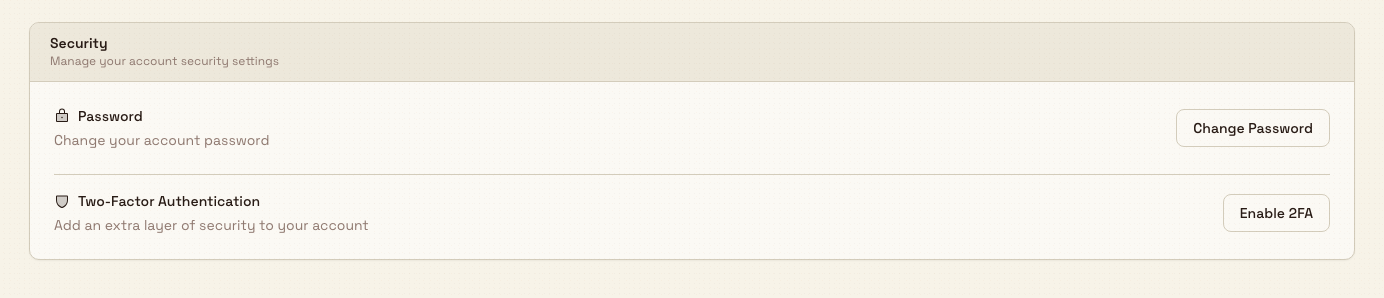
- Find the Security card. Under Two-Factor Authentication it shows either Add an extra layer of security to your account (when 2FA is off) or 2FA is enabled on your account (when it is on).
- Select Enable 2FA. Bulk opens the Two-Factor Authentication page, where a badge near the title reads Disabled until you finish setup.
getting-started.two-factor-authentication-01
If 2FA is already on for your account, this button reads Manage 2FA instead and takes you to the same page, where you can regenerate backup codes or turn 2FA off.
Set up your authenticator app
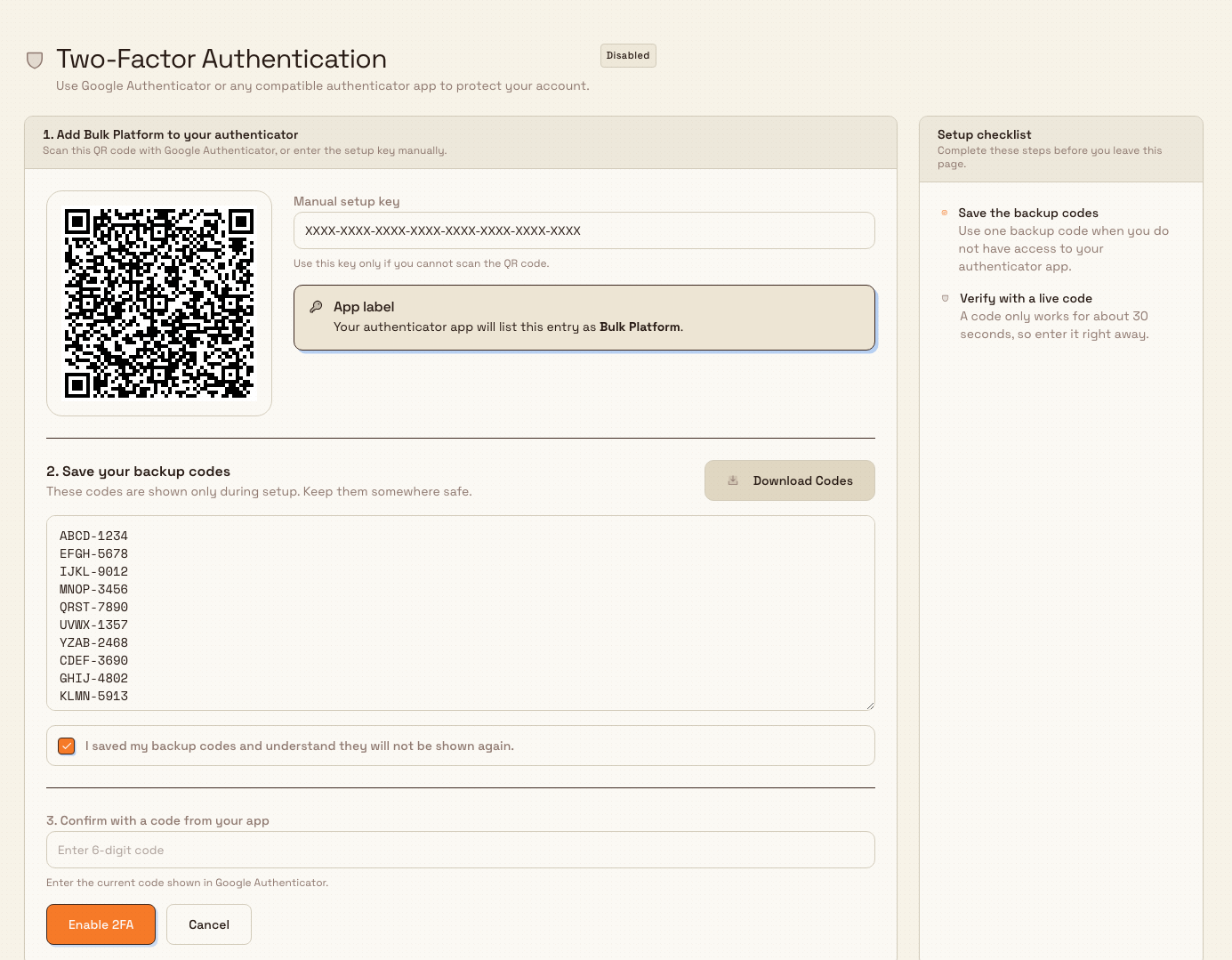
On the Two-Factor Authentication page, select Set up 2FA in the top corner. Bulk generates your secret key and backup codes and shows a three-part setup panel. Work through it in order and stay on the page until you have finished — the backup codes are shown only once.
- Add Bulk Platform to your authenticator. Open your authenticator app and scan the QR code shown under 1. Add Bulk Platform to your authenticator. If your app cannot scan a code, copy the Manual setup key and enter it by hand instead. Either way, your app lists the new entry as Bulk Platform.
- Save your backup codes. Under 2. Save your backup codes, Bulk lists ten one-time codes. Select Download Codes to save them as a text file (
bulk-platform-backup-codes.txt), or copy them somewhere safe. Each code works only once, and Bulk will not show them again after setup. - Confirm you saved them. Tick I saved my backup codes and understand they will not be shown again. The Enable 2FA button stays disabled until you do — if you try to continue without ticking it, Bulk reminds you to confirm first.
- Verify with a live code. Under 3. Confirm with a code from your app, read the current six-digit code from your authenticator app and type it into the field. A code is only valid for about 30 seconds, so enter it promptly.
- Select Enable 2FA. Bulk checks the code, confirms Two-factor authentication is now enabled, and the badge on the page changes to Enabled.
getting-started.two-factor-authentication-02
Your backup codes are your way back in
If you lose access to your authenticator app and have no backup codes, you can be locked out of your account, because Bulk will keep asking for a code you can no longer produce. Save your ten backup codes somewhere secure and separate from your phone — a password manager or a written note kept safely — before you leave the setup page. Treat them like your password: anyone who has them can pass your second step.
What happens after you enable it
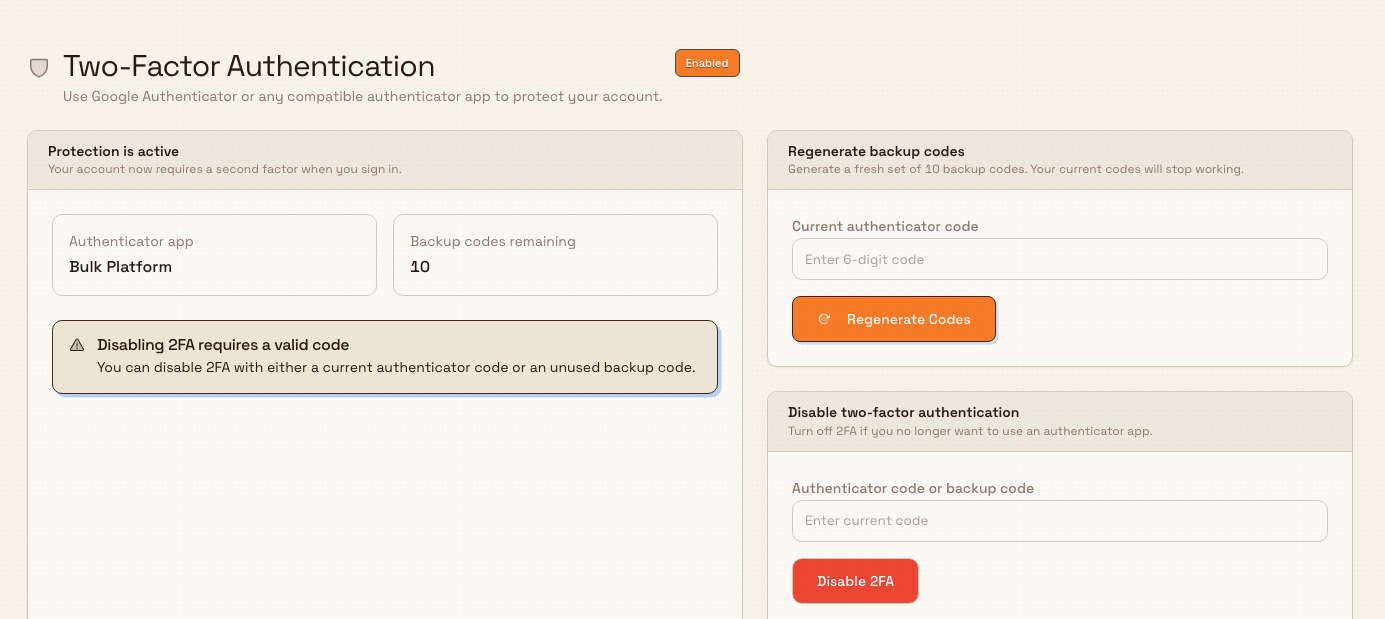
Once 2FA is on, the page shows a Protection is active panel confirming your account now requires a second factor when you sign in. It lists your Authenticator app as Bulk Platform and shows how many Backup codes remaining you have.
From now on, when you sign in Bulk asks for your authenticator code straight after your password, on a step headed Enter your code. You can type a current authenticator code or one of your unused backup codes there. For the sign-in side of this, see Sign in to Bulk.
Manage two-factor after setup
Return to the Two-Factor Authentication page (Settings, Account, Manage 2FA) whenever you need to refresh your backup codes or turn protection off.
- Regenerate backup codes. Use the Regenerate backup codes card to create a fresh set of ten codes — useful if you have used several or think your saved copy is no longer safe. Enter your Current authenticator code and select Regenerate Codes. Your previous backup codes stop working immediately, so save the new set the same way you saved the first.
- Disable two-factor authentication. Use the Disable two-factor authentication card to turn 2FA off. Enter a current Authenticator code or backup code and select Disable 2FA. Bulk removes your authenticator secret and backup codes, and your next sign-in no longer asks for a code.
getting-started.two-factor-authentication-03
Example: securing an account at Granite Peak
Dana Winters manages the Leeds Fabrication Plant for Granite Peak Manufacturing, a UK precision-fabrication company. Because her account can approve production jobs and change plant settings, she wants a second lock on it.
She opens Settings, then Account, finds the Security card, and selects Enable 2FA. On the Two-Factor Authentication page she selects Set up 2FA, opens Microsoft Authenticator on her phone, and scans the QR code — the app adds an entry called Bulk Platform. She selects Download Codes, saves the ten backup codes into her password manager, and ticks I saved my backup codes and understand they will not be shown again. She reads the current six-digit code from her app, types it in, and selects Enable 2FA. Bulk confirms protection is active. The next morning, after entering her password, Bulk shows Enter your code. — she types the fresh code from her app and continues to her home screen.
If setup does not work
Bulk shows a short message at the top of the screen when something goes wrong. Here is what the common cases mean and how to recover:
- "Invalid verification code" when enabling. The code was wrong or had already expired. Codes change every 30 seconds, so read the current one and enter it quickly. Make sure your phone's clock is set to update automatically — a phone clock that has drifted is the usual cause. Confirm you are reading the code from the Bulk Platform entry, then try again.
- "Too many attempts. Please try again in N seconds." After several wrong codes in a row, Bulk briefly pauses further tries to protect your account. Wait the number of seconds shown, then enter a current code.
- You lost your authenticator app. If 2FA is already enabled, sign in with one of your backup codes in place of the authenticator code (each works once). Once you are in, open the Two-Factor Authentication page to Disable 2FA or set it up again on a new device. This is why keeping your backup codes safe matters — they are the verified way back into an account whose authenticator is gone.
Availability and limits
Two-factor authentication is generally available to every Bulk user and is managed per account — you enable, manage, and disable it only for your own sign-in. Bulk uses standard time-based one-time-password (TOTP) authenticator apps and six-digit codes; there is no SMS or email code option. Setup issues you ten one-time backup codes, and regenerating them replaces the whole set. Disabling 2FA removes your authenticator secret and backup codes from your account.
Related guidance
Update personal account settings
Manage your own Bulk account from the Account page — change your display name and avatar, update your password, and reach two-factor authentication.
Browse by role
Find Bulk guidance grouped around what your job needs, with a starting track for administrators, managers, operators, quality and safety, people and training, and finance teams.