Sign in to Bulk
Sign in to Bulk with your work email and password, clear a two-factor prompt if enabled, and land in your workspace.
Signing in is how you open Bulk and start your shift. Bulk is a Manufacturing Execution System (MES) — the shared workspace where your team runs production, quality, scheduling, and audits — so almost everything you do begins from the sign-in screen. You sign in at the start of a shift, and again whenever you have signed out or your session has expired.
Every person works under their own account. Your email and password identify you, decide what you are allowed to see and change, and attach your name to the work you record on the floor.
Before you start
You need an active Bulk account before you can sign in:
- A work email and password. An administrator either creates your account directly or emails you an invitation. If you were invited, open that link and choose your password. If an administrator created the account directly, use the temporary password they provide; Bulk makes you replace it after sign-in. See Create an account.
- Your organization's Bulk web address. This is the link your team uses to reach Bulk (typically saved as a browser bookmark). Opening it while signed out shows the sign-in screen.
- Your authenticator app or backup codes, but only if two-factor authentication is switched on for your account. Most accounts do not need this. See Enable two-factor authentication.
Sign in with email and password
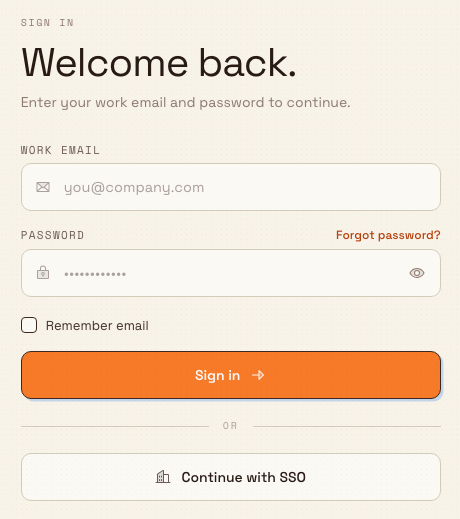
- Open your organization's Bulk web address. When you are signed out, Bulk shows the sign-in screen with the heading Welcome back.
- In the Work email field, type the email address your account was created with.
- In the Password field, type your password. Use the eye icon inside the field to show or hide what you type if you want to check it.
- Leave Remember email ticked to have Bulk pre-fill your email next time. This only stores your email address on this browser — never your password.
- Select Sign in.
getting-started.sign-in-01
Bulk plays a short loading sequence while it prepares your workspace, then takes you to your home screen. If you were following a link into Bulk when it asked you to sign in, Bulk returns you to that page instead of home once you are signed in.
Keep your credentials to yourself
Your account records who did what on the floor. Never share your password or sign in on someone else's behalf — ask your administrator to invite them with their own account instead.
Clear the two-factor prompt
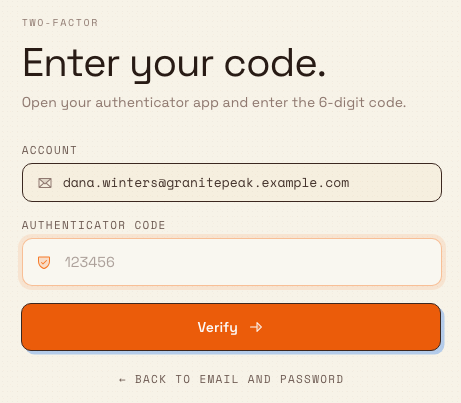
If two-factor authentication (a second sign-in step that proves it is really you) is enabled on your account, Bulk asks for a code straight after you select Sign in. The screen switches to a panel headed Enter your code.
- Open your authenticator app and read the current six-digit code for Bulk.
- Type it into the Authenticator code field.
- Select Verify.
getting-started.sign-in-02
If you cannot reach your authenticator app, you can type one of your saved backup codes in the same field instead. Each backup code works only once. To go back and re-enter your email or password, select Back to email and password. For setup and recovery, see Enable two-factor authentication.
Example: starting the morning shift at Granite Peak
Dana Winters manages the Leeds Fabrication Plant for Granite Peak Manufacturing, a UK precision-fabrication company. At the start of her shift she opens the Bulk bookmark on the shop-floor workstation. The sign-in screen greets her with Welcome back. Because she signed in on this browser before, her email is already filled in.
She types her password, checks it once with the eye icon, and selects Sign in. Two-factor is switched on for her account, so Bulk shows Enter your code. — she reads the six-digit code from the authenticator app on her phone, enters it, and selects Verify. After a brief loading sequence, Bulk opens her home screen and she is ready to review the day's production.
What to expect after signing in
- You land on your home screen, or on the page you were originally heading to.
- If your account has access to more than one site, Bulk may first ask you to choose which one to open. See Select an entity.
- Dates, today, and local event times follow the selected site's timezone, not the timezone of the computer you use to sign in. Switching sites switches that business-time context.
- You stay signed in on this browser until you sign out or your session expires, at which point Bulk returns you to the sign-in screen.
The welcome on your very first sign-in
Bulk shows a short welcome when a new person's account has not completed it and the account reaches Home. Accepting an invitation signs you in and sends you to Home, so invited users normally see the welcome immediately. A directly created account is also eligible, but its blocking Set Your Password dialog comes first. If sign-in returns you to another protected page, the welcome waits until you next open Home; it is not mounted on the entity picker or organization setup pages.
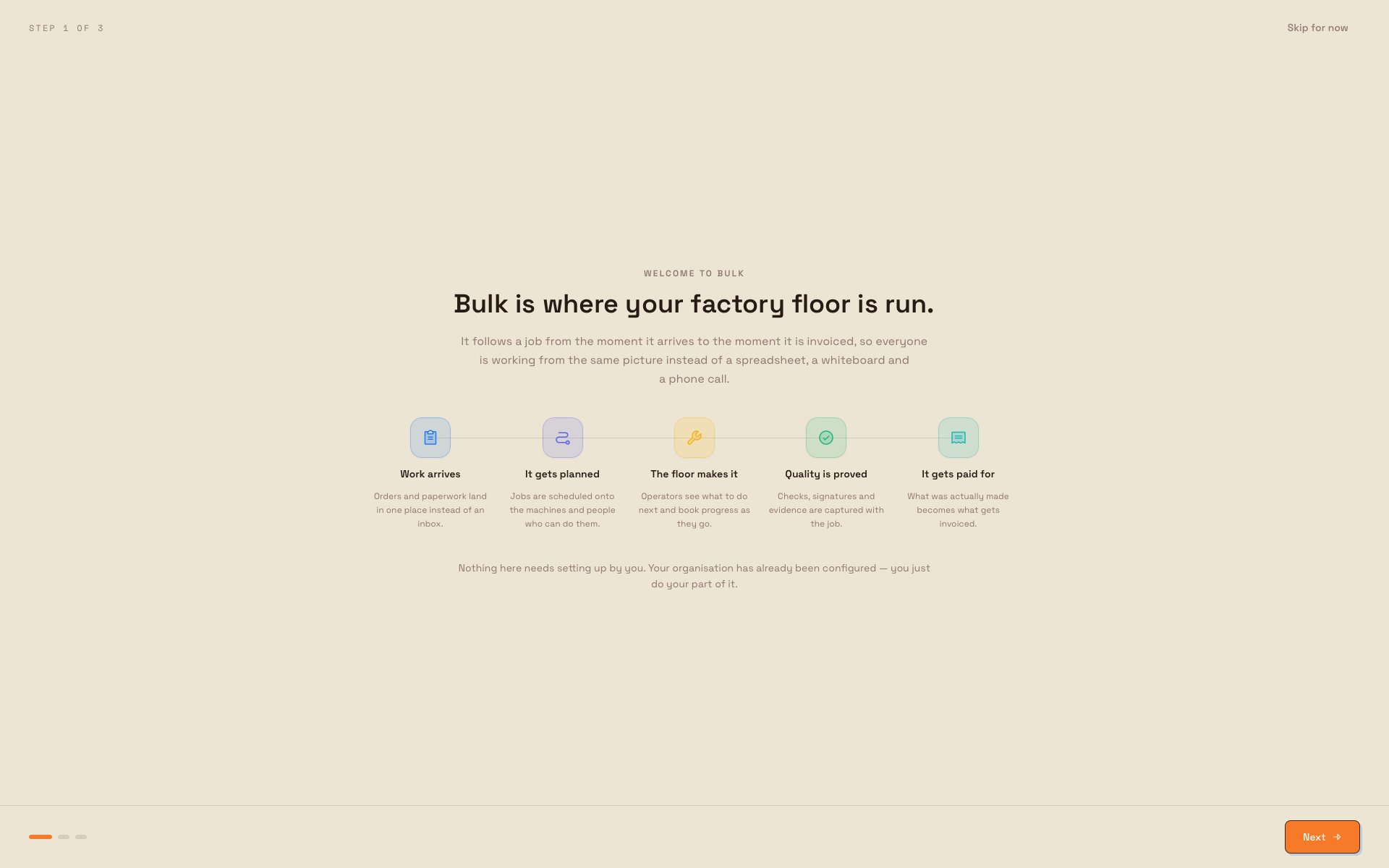
The welcome is three pages, with the same main content for everyone:
- What Bulk is. How a job travels through Bulk: work arrives, it gets planned, the floor makes it, quality is proved, and it gets paid for.
- Where your work lives. The three places you will spend your day — the dashboard, workstations, and tasks.
- Where to get help. Two links open in a new tab: one guide chosen for your roles and All documentation.
getting-started.sign-in-04
The guide choice uses a fixed order when your roles point to different guides: administrators, managers, quality and safety, people and training, finance, then operators. Super user, Entity admin, and Master data roles lead to the administrator guide; Manager and Dashboards to managers; Quality and Safety to quality and safety; People and Training to people and training; Invoicing to finance; and Operator and Tablet user to operators. If none of your roles maps to a guide, Bulk opens the general Guides by role page instead.
Use Next on pages one and two and Back on pages two and three. Select Done on the last page, or Skip for now on any page, to close the welcome and open Bulk. Both buttons perform the same completion action: Skip for now is not a reminder or snooze.
The welcome normally stays finished
Bulk closes the welcome immediately and records the first successful Done or Skip for now. It does not come back after a later role change. If the completion request fails because the connection drops, the welcome can appear again the next time you reach Home.
An administrator resetting your password does not reset this welcome. If you already completed it, Bulk asks you to replace the new temporary password but does not replay the three pages. A password-reset link also leaves the welcome state unchanged. Existing accounts that predated this welcome were marked complete during the feature rollout, so it was not shown to every established user.
Paired shared-dashboard and TV accounts never see the welcome and cannot record a welcome completion.
Sign out from a shared workstation
Open the user menu and select Log out when you finish using a shared workstation. If you have a running timer or open downtime, Bulk asks whether to keep all state running or stop eligible state. Downtime reasons protected by an administrator stay open even when you choose to stop eligible state.
Bulk returns every open Bulk tab in that browser to sign-in straight away. Timer and downtime updates continue safely in the background, so a slow production update cannot leave your account open for the next operator. When inactivity or an expired session signs you out, Bulk uses the asset type's configured cleanup policy without asking. After the next authorized operator signs in, Bulk returns to the same workstation when that asset is still available to them.
If sign-in does not work
Bulk shows a message at the top of the card when something goes wrong. Here is what each situation means and how to recover:
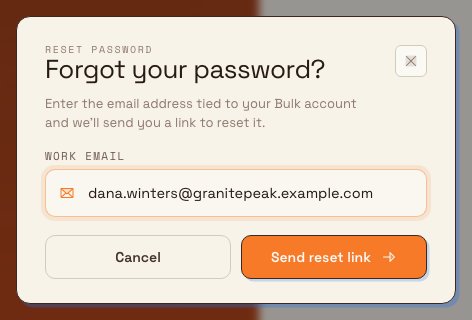
- "Sign in failed" usually means the email or password did not match. Retype them carefully — the password is case-sensitive. If you cannot remember your password, select Forgot password? on the sign-in screen to request a reset link. If your account has a temporary password, choose a different password when you use the reset link. See Recover your password.
- A two-factor code is rejected. Codes change every few seconds, so enter the current one quickly, and make sure your phone's clock is set to update automatically. After several wrong attempts Bulk pauses further tries for a short while — wait, then try again or use a backup code.
- "Login is taking too long." On some corporate or restricted networks the default connection can be blocked. Open the small connection control on the sign-in screen (the HTTP or WS button) and switch to HTTP Polling, which is the most compatible option, then sign in again. The same menu offers Network diagnostics… if problems continue.
- "...this browser could not confirm the session." Your details were accepted but this browser could not finish establishing the session. Refresh the page and sign in again.
getting-started.sign-in-03
Single sign-on (SSO)
The Continue with SSO button lets you sign in through your company identity provider instead of a password — but only when an administrator has configured SAML or OIDC for your workspace. If it has not been set up, selecting it shows a message telling you to ask your administrator or to sign in with email and password instead. When SSO is not configured, use the Work email and Password fields as described above.
Availability and limits
Signing in with email and password is generally available to every Bulk user. The two-factor step appears only when it is enabled, and Continue with SSO works only after an administrator configures it.
There is no public registration on the sign-in screen. An administrator must create your account directly or send you an invitation.