Open a dashboard
Open the Dashboard — your personal, at-a-glance view of a plant built from live widgets — and learn to switch pages, add and rearrange widgets, and save your own layout.
The Dashboard is your at-a-glance view of a single plant. It is built from widgets — small tiles that each show one live figure, chart, or table drawn from your plant's real data, such as quality, on-time delivery, output, or days since the last safety incident. Open it when you want a quick read on how the plant is doing without digging into each module one at a time.
Your Dashboard is personal to you. You can add, remove, rearrange, and resize its widgets, and spread them across several pages (tabs), and Bulk saves those changes for you automatically. Two people looking at the same plant can each keep the Dashboard that suits their job. This page shows you how to open the Dashboard and make it your own.
In Bulk, a plant (also called a site or entity) is a single place you operate — a factory, workshop, or fabrication plant. Each plant has its own separate Dashboard.
Before you begin
To open the Dashboard you need to be:
- Signed in. See Sign in to Bulk.
- Finished with onboarding. New accounts complete a short setup first. See Complete onboarding.
- Working in a plant. After you sign in, Bulk opens your plant or asks you to choose one. See Select an entity.
You do not need a special role to open the Dashboard or to personalize your own copy of it — every signed-in member of a plant has one. The one exception is saving a page as a shared layout template for the whole organization, which needs an extra permission described later on this page.
Open the Dashboard
In the navigation sidebar on the left, under the Platform group at the top, select Dashboard. (The Platform group holds the two everyday entry points: Dashboard and Workstations.) The Dashboard opens inside the workspace, with the breadcrumb at the top reading Dashboard.
Two other ways to get there:
- Search. Select the Search pages, settings… box at the top of the sidebar, type
dashboard, and open the Dashboard result. - Direct address. Go to
/dashboardin your browser.
If you are on the Home launcher — the full-screen grid of module tiles you land on after choosing a plant — it has no sidebar. Open any area first (or use the search on Home) to bring up the sidebar, then select Dashboard. For a tour of the sidebar itself, see Navigate Bulk.
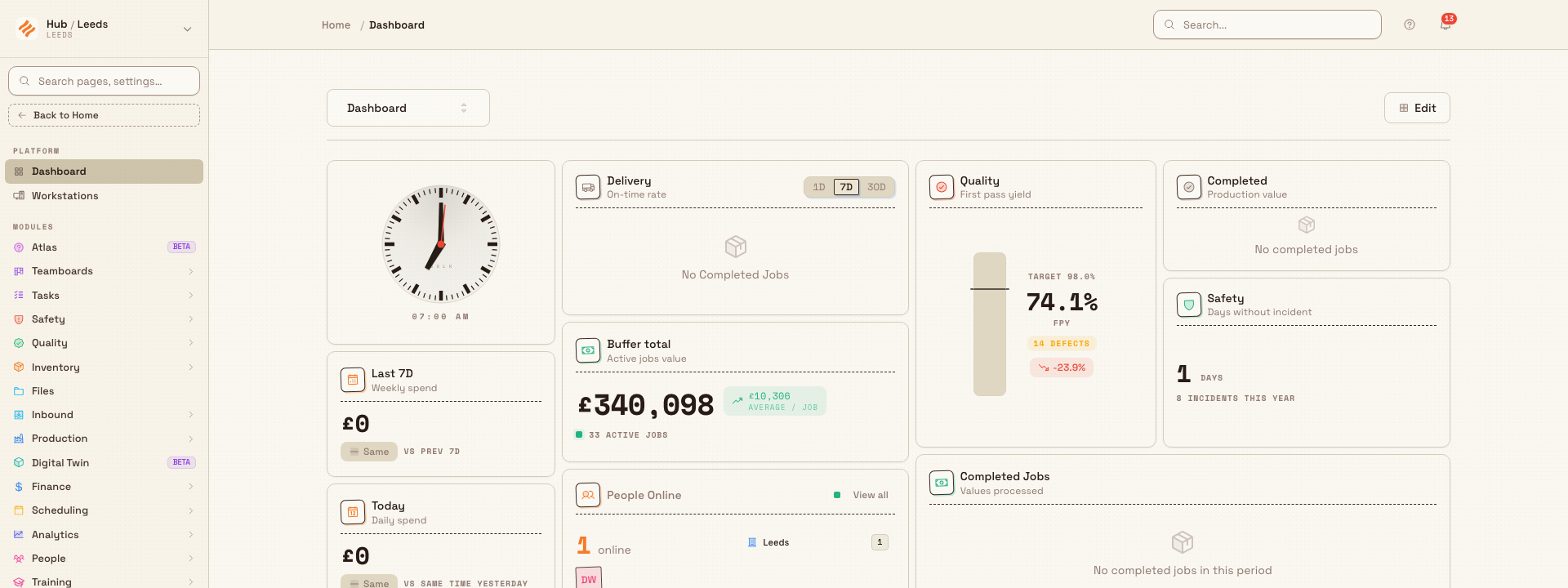
getting-started.open-dashboard-01
Switch between pages
A Dashboard can hold more than one page, so you can group widgets by purpose — for example one page for quality, another for output. The page selector is the combobox at the top left showing the current page's name (the first page is called Dashboard). Select it, then choose another page from the list, or type in the Search pages… box to filter when you have many. A check mark shows the page you are on.
Dashboard counts such as Due today, Overdue, and People out today use the selected plant's local calendar day. Switching plants recalculates those day-based counts for the new plant without changing the dates stored on the underlying records.
Personalize your dashboard
Select Edit (top right) to switch into edit mode. The button changes to Done, and a small Editing mode — Drag widgets to reorder banner appears at the bottom of the screen. In edit mode you can:
- Add a widget. Select Add Widget to open the Widget Marketplace. Browse by the category tabs — Metrics, Charts, Tables, and Utility — or type in the Search widgets… box, then pick a widget to drop it onto the current page.
- Rearrange and resize. Drag any widget to a new spot, or drag its edge to make it larger or smaller. Widgets reflow to fit.
- Add a page. Select the + button next to the page selector to create a new page and give it a name.
- Rename or delete a page. Right-click a page in the page selector for Rename and Delete, or use the trash icon shown beside a page. You cannot delete the last remaining page, and deleting a page removes every widget on it after a confirmation.
- Apply a saved layout. Select Layouts to open the Layout Marketplace, then choose one of your organization's saved layouts. Applying a layout adds a new page to your dashboard rather than overwriting what you have.
- Clear a page. Select Reset to remove every widget from the page you are currently viewing.
Select Done when you are finished. There is no separate save step — Bulk saves your Dashboard automatically as you go.
Reset clears the page you are on
Reset removes all widgets from the current page, with no confirmation prompt. Nothing in your plant's data is deleted — the widgets are only views — so you can add them back or apply a saved layout afterwards. Use Delete on the page selector (which does ask for confirmation) when you want to remove a whole page rather than empty it.
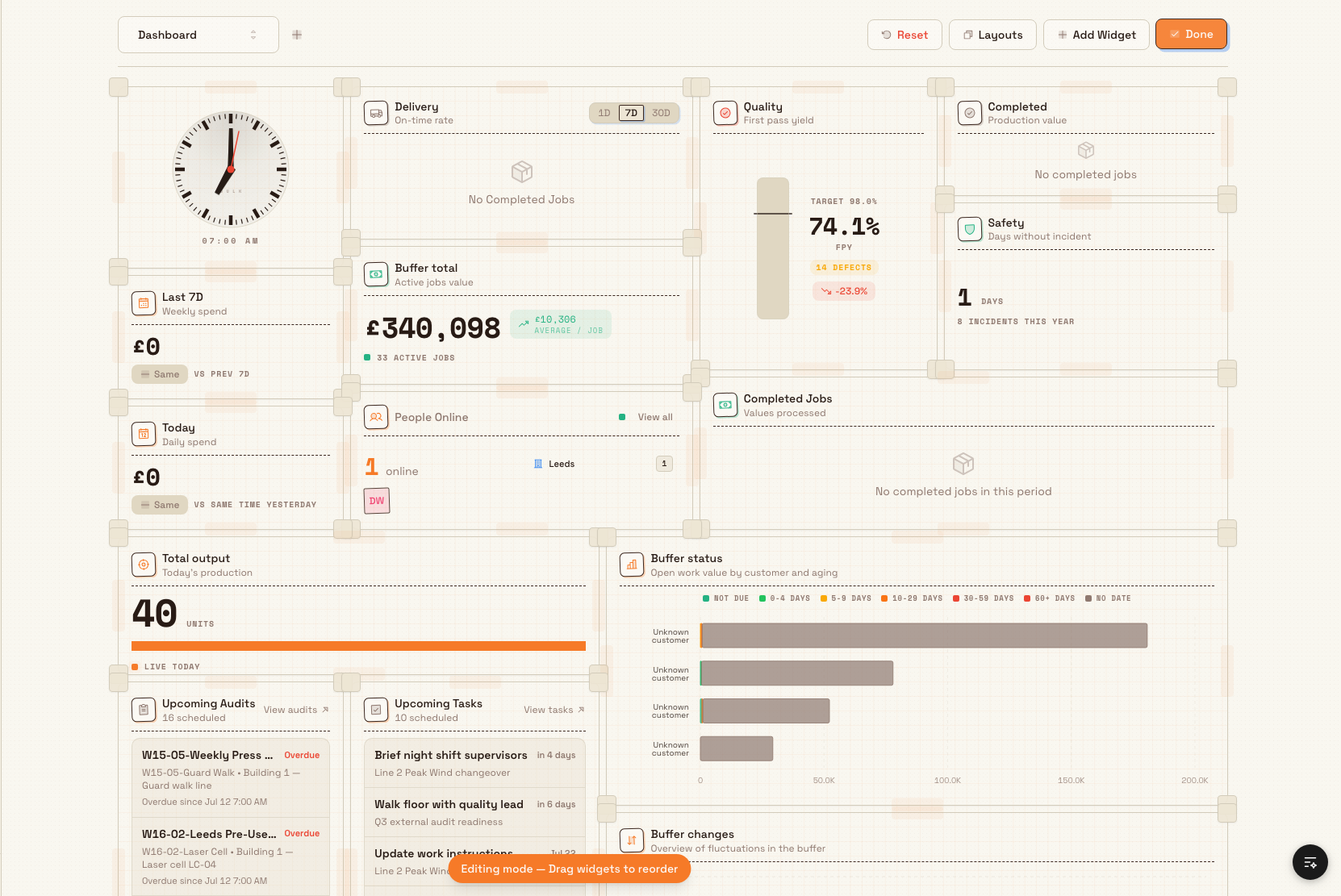
getting-started.open-dashboard-02
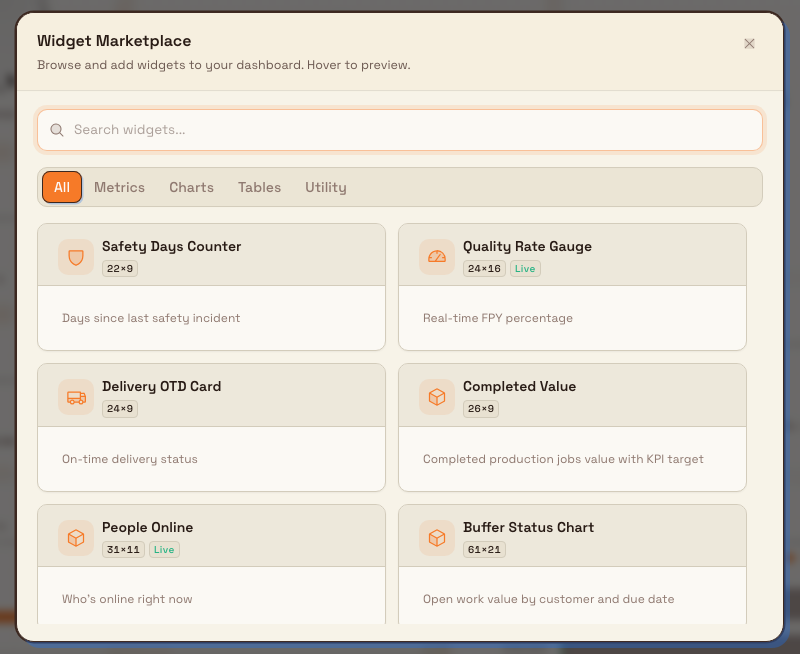
getting-started.open-dashboard-03
Your dashboard is yours
The changes you make in edit mode apply only to your own view of that plant's Dashboard. When you open the Dashboard, Bulk shows, in order of priority:
- Your saved layout for that plant, if you have made any changes.
- A default layout set for the plant, if an administrator has published one.
- Bulk's built-in starter layout otherwise.
Because each plant has its own Dashboard, switching plants shows a different set of widgets. If you ever want to start over, use Reset on a page or Delete a page you no longer need.
Saved layout templates (the choices in the Layout Marketplace) are shared across your whole organization. Anyone can apply one, but creating or editing them — the Save Current Page action — requires the Manage dashboard templates permission, which normally belongs to administrator and manager roles.
Example: a shift lead's morning dashboard
Dana Winters runs the Leeds Fabrication Plant for Granite Peak Manufacturing, a UK precision-fabrication company. Each morning she selects Dashboard from the Platform group in the sidebar and reads her plant at a glance: a quality gauge, on-time delivery, days since the last safety incident, and the value of completed jobs.
To make it fit her shift, she selects Edit, chooses Add Widget, filters the Widget Marketplace to Charts, and adds an hourly-output chart. She drags it beside the quality gauge and resizes it, then selects + to create a second page called Quality, where she groups the quality and rework widgets. Because saving is automatic, she just selects Done. The next morning her arrangement — including both pages — is exactly where she left it, while the plant manager, who prefers a cost-focused view, sees his own layout of the same plant.
Expected result
After following this page you can:
- open the Dashboard for your plant from the sidebar, search, or
/dashboard; - read your widgets and switch between pages with the page selector;
- enter Edit mode to add, rearrange, resize, and remove widgets and pages; and
- trust that your layout is saved automatically and kept separate from other people's.
Feature state and what to expect
The Dashboard is generally available — it is the standard at-a-glance view every Bulk user has for a plant. A few things are worth knowing:
- Edit controls need a wider screen. The Edit, Add Widget, Layouts, and Reset buttons appear only at desktop width. On a phone or a narrow window you can still open the Dashboard and switch pages, but you cannot change the layout there — personalize it on a larger screen.
- Widgets show live data, so they can be empty. A widget with nothing to show usually means that part of the plant has no records yet or is not set up, not that the widget is broken.
- Widgets load independently. You can start reading completed widgets while others are still loading, and one unavailable widget does not stop the rest of the page.
- What each widget means is covered where that area of Bulk is documented; this page is about opening and arranging the Dashboard itself.
If something looks off
- Your Dashboard differs from a colleague's. That is expected — each person keeps their own layout for a plant.
- You cannot see the Edit or Add Widget buttons. Your window is likely too narrow. Widen it or use a desktop screen, where the edit toolbar appears.
- A widget is blank. Confirm that the plant has data for that area; a new plant or an unused module has nothing to display yet.
- You cleared a page by mistake. Reset empties the current page without a prompt. Re-add the widgets from Add Widget, or apply one of your organization's saved layouts from Layouts.
- You are on the wrong plant's Dashboard. Use the plant switcher at the top of the sidebar to change plants. See Switch operational context.
Related guidance
Navigate Bulk
Find your way around the Bulk workspace: the Home launcher, the left navigation sidebar with its Platform and Modules groups, the header, and the search that jumps you to any page.
Open a workstation
Open the Workstations launcher, read the asset grid, and pick the station you'll operate so Bulk shows its queued jobs and focuses the app on your bay.